1. Introduction
This manual provides essential information for the proper use and maintenance of your ciciglow 4G WiFi Router. This device is a portable LTE USB mobile hotspot designed to provide wireless internet access by converting a 4G/3G cellular signal into a Wi-Fi network. Please read this manual thoroughly before using the product to ensure optimal performance and longevity.
2. Product Features
- High-speed Transmission: Offers wireless connection speeds up to 150Mbps for internet browsing and communication.
- Integrated Antenna: Built-in 4G/3G+WiFi antenna for enhanced coverage and signal reliability.
- Multi-User Support: Allows up to 10 Wi-Fi users to connect simultaneously.
- Expandable Memory: Supports small memory card expansion up to 32GB (memory card not included).
- Plug and Play: Easy to use; simply plug into a USB port with power to establish an internet connection.
- Dual Card Port Design: Features a SIM card slot and an additional card port.
3. Setup Instructions
- Insert SIM Card:
Carefully remove the back cover of the 4G WiFi Router. Locate the SIM card slot and insert your activated 4G/3G SIM card. Ensure the SIM card is correctly oriented according to the diagram inside the slot. Replace the back cover.
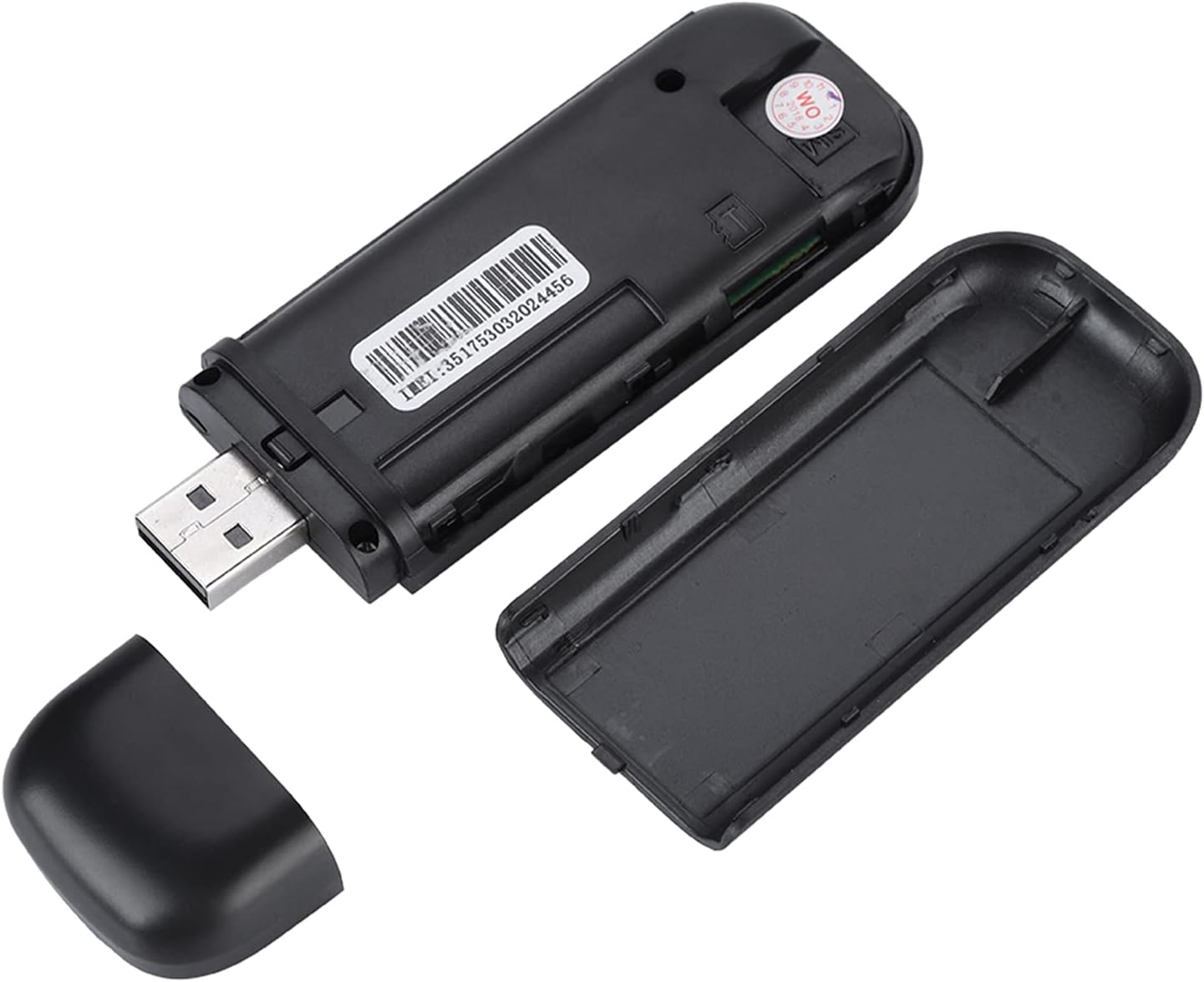
Figure 3.1: Router with back cover removed, showing SIM card slot.

Figure 3.2: Double Card Port Design with SIM card slot.
- Connect to Power Source:
Plug the USB connector of the 4G WiFi Router into an available USB port on your computer, laptop, or a USB power adapter. The device is designed for plug-and-play operation and will power on automatically.

Figure 3.3: Router connected to a laptop's USB port.
- Connect Devices via Wi-Fi:
Once powered on, the router will broadcast a Wi-Fi network. On your computer, smartphone, or other Wi-Fi enabled device, search for available Wi-Fi networks. Select the network name (SSID) corresponding to your ciciglow 4G WiFi Router. The default SSID and Wi-Fi key (password) are typically printed on a label on the device itself.
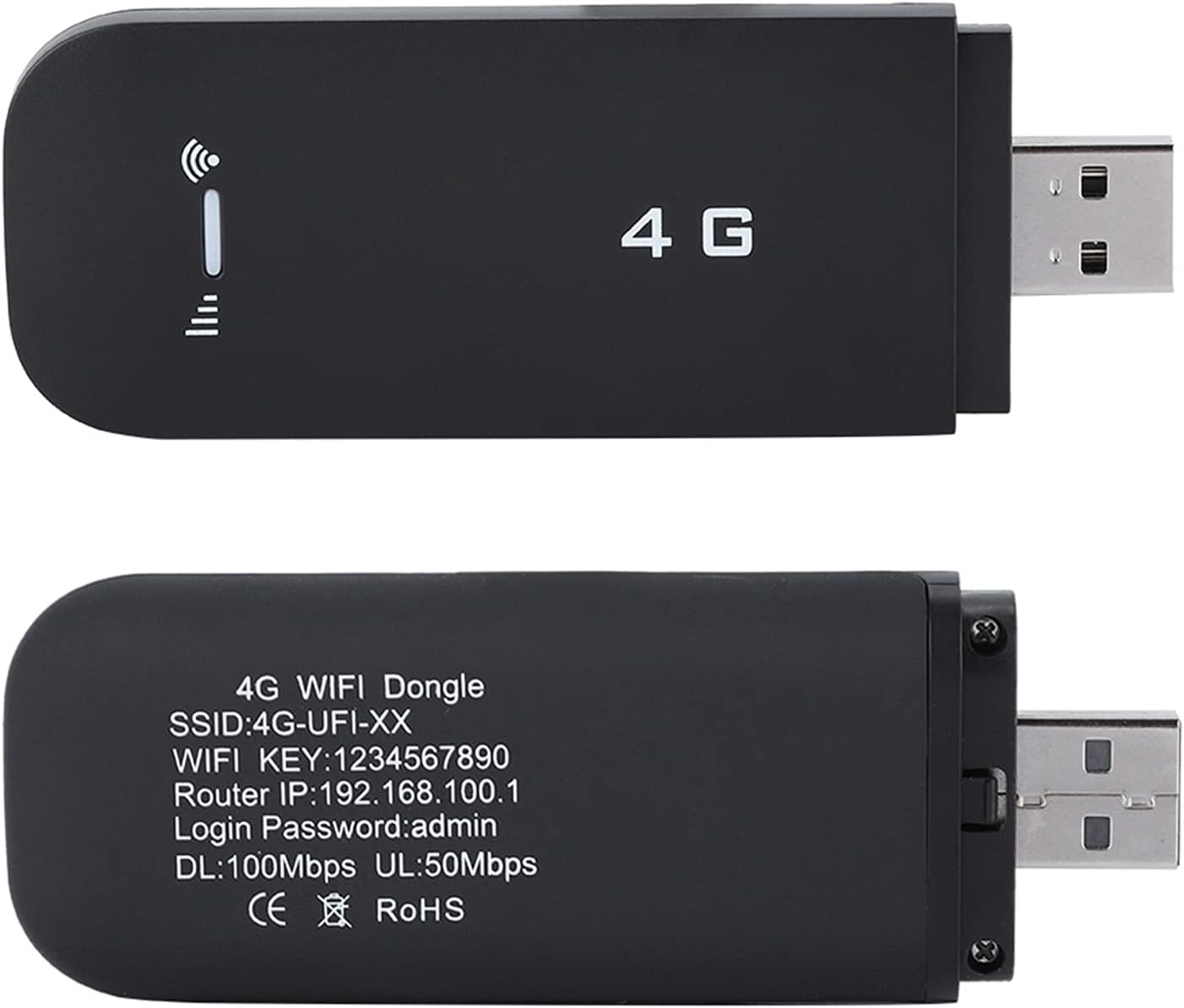
Figure 3.4: Router showing default SSID and Wi-Fi Key.
Enter the default Wi-Fi Key when prompted. You can change these settings later via the router's web interface (Router IP: 192.168.100.1, Login Password: admin).
4. Operating Instructions
- Power On/Off:
The device powers on automatically when plugged into a powered USB port. To power off, simply disconnect it from the USB port.
- Internet Connection Sharing:
Once connected to the cellular network, the router will provide internet access to all connected Wi-Fi devices. Up to 10 devices can share the connection simultaneously.

Figure 4.1: Router sharing internet with multiple devices.
- Accessing Router Settings:
To modify Wi-Fi settings (SSID, password), view data usage, or configure advanced options, open a web browser on a connected device and navigate to the Router IP address (e.g., 192.168.100.1). Log in using the default password 'admin' (or your custom password if changed).
5. Maintenance
- Cleaning: Use a soft, dry cloth to clean the device. Avoid liquid cleaners or abrasive materials.
- Storage: Store the device in a cool, dry place away from direct sunlight and extreme temperatures.
- Handling: Handle the device with care. Avoid dropping it or subjecting it to strong impacts.
- SIM Card: Ensure the SIM card is properly inserted and not damaged.
6. Troubleshooting
| Problem | Possible Cause | Solution |
|---|---|---|
| No internet connection | SIM card not activated or inserted incorrectly; No cellular signal; Device not powered. | Ensure SIM card is active and correctly inserted. Move to an area with better cellular reception. Verify the device is plugged into a powered USB port. |
| Weak or unstable Wi-Fi signal | Distance from router; Obstructions; Low cellular signal. | Reduce distance between the router and connected devices. Minimize obstructions. Ensure the router is in an area with strong cellular signal. |
| Cannot connect to Wi-Fi network | Incorrect Wi-Fi password; Device not detecting network. | Verify the Wi-Fi password (Key) is entered correctly. Restart the Wi-Fi device and try again. Check if the router is broadcasting its SSID. |
| Device not recognized by computer | USB port issue; Driver issue (less common for plug-and-play). | Try a different USB port. Ensure your computer's operating system is up to date. |
7. Specifications
- Model Name: 4G WiFi Router
- Brand: ciciglow
- Product Dimensions: 3.82 x 1.38 x 0.47 inches
- Item Weight: 1.76 ounces
- Connectivity Technology: USB, Wi-Fi
- Wireless Communication Standard: 802.11b
- Frequency Band Class: Single-Band
- Antenna Type: Internal
- Compatible Devices: Personal Computer
- Recommended Uses: Business
- ASIN: B095GXCQL2
8. Warranty and Support
For warranty information and technical support, please refer to the documentation included with your purchase or contact the manufacturer directly. Keep your purchase receipt as proof of purchase for any warranty claims.


