
1. Product Overview
The Poly Savi 8210 is a Bluetooth Wireless DECT Single-Ear UC Headset designed for seamless connectivity across desk phones, PCs/Macs via USB-A, and mobile devices. This headset is Teams Certified and compatible with various communication platforms such as Zoom, RingCentral, 8x8, and Vonage. It features a noise-canceling microphone with Poly Acoustic Fence technology for clear conversations and enhanced DECT security (Step C) with 256-bit AES encryption.
Key features include:
- Connectivity: Desk phone, PC, and Bluetooth.
- Talk Time: Up to 13 hours on a single charge.
- Wireless Range: Up to 590 ft (180 m) line-of-sight; up to 180 ft (55 m) in typical office environments.
- Sound Quality: Noise-canceling microphone with Acoustic Fence Technology for superior audio clarity.
- Security: DECT security Step C with military-grade 256-bit AES encryption.

Image 1.1: The Poly Savi 8210 monaural headset, designed for single-ear use.
2. What's in the Box
The Poly Savi 8210 package includes the following components:
- Poly Savi 8210 Bluetooth Wireless DECT Headset
- Headset Base
- Global Teck Microfiber Cloth

Image 2.1: The box contents, including the Poly Savi 8210 headset, base, and a Global Teck microfiber cloth.
3. Setup Instructions
Follow these steps to set up your Poly Savi 8210 headset system.
3.1 Connecting the Base
The headset base connects to your desk phone, PC, and can pair with mobile devices.
- Connect to Power: Plug the power adapter into the base and then into a wall outlet.
- Connect to Desk Phone: Use the provided telephone interface cable to connect the base to your desk phone. Refer to your desk phone's manual for specific port locations (usually the headset port).
- Connect to PC/Mac: Connect the USB-A cable from the base to an available USB-A port on your computer.
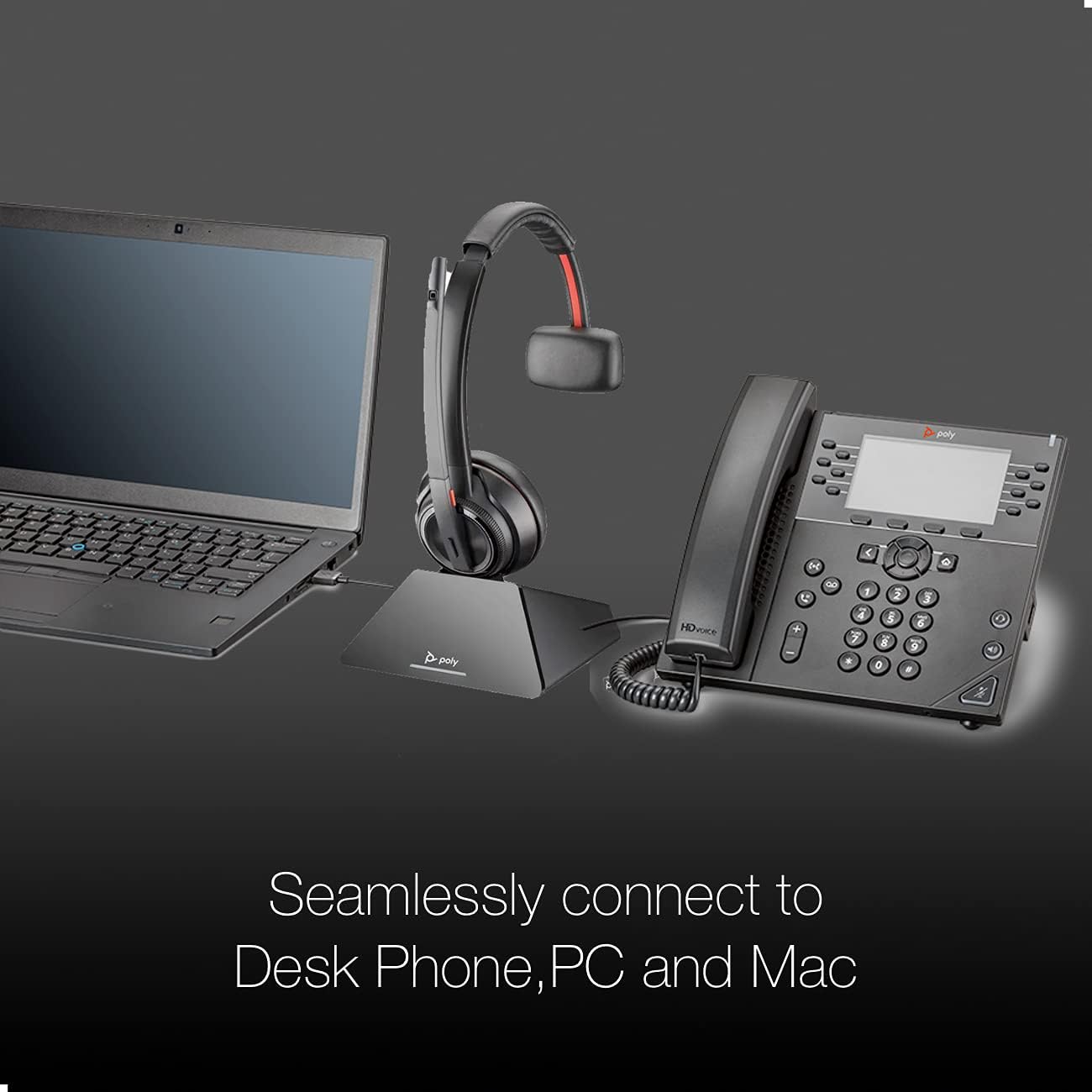
Image 3.1: The Poly Savi 8210 base seamlessly connected to both a laptop and a desk phone, illustrating its multi-device capability.
3.2 Pairing the Headset with the Base
The headset is typically pre-paired with the base. If re-pairing is needed:
- Place the headset in the charging cradle of the base.
- Press and hold the Subscription button on the base until the Subscription LED flashes.
- The headset and base will automatically pair. The Subscription LED will turn solid green when pairing is successful.
3.3 Pairing with a Mobile Device (Bluetooth)
To use the headset with a mobile phone:
- With the headset on, press and hold the Bluetooth pairing button on the base until the Bluetooth LED flashes blue and red.
- On your mobile device, go to Bluetooth settings and select "Poly Savi 8210" from the list of available devices.
- The Bluetooth LED on the base will turn solid blue when connected.
4. Operating Instructions
Understand the controls and functions of your Savi 8210 headset and base.
4.1 Base Controls

Image 4.1: Detailed view of the Poly Savi 8210 base, highlighting the Computer, Mobile Phone, Desk Phone, Bluetooth Pairing, Subscription buttons, Incoming Call Ringer, and Charging LED.
- Computer Button: Activates/deactivates the computer audio channel.
- Mobile Phone Button: Activates/deactivates the mobile phone audio channel.
- Desk Phone Button: Activates/deactivates the desk phone audio channel.
- Bluetooth Pairing Button/LED: Initiates Bluetooth pairing mode. LED indicates Bluetooth status.
- Subscription Button/LED: Initiates headset-to-base pairing. LED indicates subscription status.
- Incoming Call Ringer: Alerts for incoming calls.
- Charging LED: Indicates headset charging status.
4.2 Headset Controls
- Call Control Button: Press to answer or end a call.
- Volume Up/Down: Adjusts listening volume.
- Mute Button: Mutes or unmutes the microphone.
- Active Noise Cancellation (ANC) Switch: Activates or deactivates ANC for improved listening experience in noisy environments.

Image 4.2: The Poly Savi 8210 headset, featuring Hi-Fi Stereo Sound and Active Noise Cancellation for enhanced audio quality.
4.3 Call Management
- Answering/Ending Calls: Press the Call Control button on the headset or the active audio channel button on the base.
- Switching Audio: During a call, press a different audio channel button on the base (e.g., from desk phone to mobile) to switch the call to that device.
- Conference Calls: The Savi 8210 supports conferencing with up to three additional Savi headsets. Refer to the full user guide for detailed instructions.
4.4 Compatible Platforms
The Poly Savi 8210 is designed to work with a wide range of communication platforms:

Image 4.3: Logos of various compatible platforms including Skype, Lync, Mitel, RingCentral, Avaya, GoToMeeting, Google Meet, Amazon Chime, Unify, Cisco, Zoom, Vonage, Microsoft Teams, Fuze, 8x8, and BlueJeans.
5. Maintenance
5.1 Charging the Headset
Place the headset in the charging cradle on the base. The Charging LED on the base will indicate charging status. A full charge takes approximately 3 hours and provides up to 13 hours of talk time.
5.2 Cleaning
Use a soft, dry cloth to clean the headset and base. For the ear cushions, a slightly damp cloth can be used. Avoid using harsh chemicals or abrasive materials.
6. Troubleshooting
If you encounter issues with your Poly Savi 8210 headset, refer to the following common solutions:
| Problem | Possible Cause | Solution |
|---|---|---|
| No audio in headset | Headset not powered on or not paired; incorrect audio source selected. | Ensure headset is charged and powered on. Verify headset is paired to the base. Select the correct audio channel button on the base (desk phone, PC, or mobile). |
| Cannot hear caller / Caller cannot hear me | Microphone muted; volume too low; incorrect audio settings on PC/desk phone. | Check headset mute button. Adjust headset volume. Verify audio output/input settings on your computer or desk phone. |
| Headset not connecting to PC/Mac | USB cable loose; PC audio driver issue. | Ensure USB cable is securely connected. Try a different USB port. Restart your computer. Check for updated audio drivers. |
| Poor sound quality / Static | Out of range; interference; low battery. | Move closer to the base. Ensure no large metal objects are between headset and base. Charge the headset. |
6.1 Resetting the System
If issues persist, a system reset may resolve them. Consult the full Poly Savi 8200 Series user guide for detailed reset procedures.
7. Specifications
| Feature | Detail |
|---|---|
| Model Name | Savi 8210 |
| Connectivity Technology | Wireless (DECT, Bluetooth) |
| Wireless Communication Technology | Bluetooth 5.0 |
| Range (Line of Sight) | Up to 590 ft (180 m) |
| Range (Typical Office) | Up to 180 ft (55 m) |
| Talk Time | Up to 13 hours |
| Charging Time | 3 hours (full charge) |
| Microphone | Noise-canceling with Acoustic Fence Technology |
| Noise Control Features | Active Noise Cancellation (ANC), Passive Noise Cancellation |
| Compatible Devices | Desktops, Laptops, Tablets, Telephones, Cellphones |
| Item Weight | 0.018 ounces (headset) |
| Manufacturer | Poly |
| UPC | 812289034849 |
8. Warranty and Support
8.1 Warranty Information
The Poly Savi 8210 headset is covered by a manufacturer's warranty. Please refer to the warranty card included with your product or visit the official Poly website for detailed warranty terms and conditions.
8.2 Technical Support
For technical assistance, troubleshooting beyond this manual, or to access the full user guide, please visit the official Poly support website. For inquiries related to the product bundle, you may also contact Global Teck Worldwide support.
9. Instructional Videos
9.1 Poly Savi 8200 Series Overview
Video 9.1: An overview of the Poly Savi 8200 Series, demonstrating key features and benefits of the headset system. (Duration: 2:27)
9.2 Poly Savi 8200 Series Setup Guide
Video 9.2: A detailed guide on setting up the Poly Savi 8200 Series headset, including connections and initial pairing. (Duration: 3:36)


