
CJ TECH Wireless 2.4-GHz Multi Media Touch Keyboard with Touchpad
CJ Tech Wireless 2.4-GHz Multi Media Touch Keyboard with Touchpad - User Manual
Model: Wireless 2.4-GHz Multi Media Touch Keyboard with Touchpad
Introduction
This manual provides detailed instructions for the setup, operation, maintenance, and troubleshooting of your CJ Tech Wireless 2.4-GHz Multi Media Touch Keyboard with Touchpad. Please read this manual thoroughly before using the device to ensure proper functionality and to avoid damage.
The CJ Tech Wireless 2.4-GHz Multi Media Touch Keyboard is a versatile input device designed for seamless control of various smart devices. It features a 2.4 GHz wireless connection, a high-sensitive touchpad, and backlit keys for enhanced usability in diverse environments. Its internal rechargeable lithium-ion battery ensures extended usage time.
Box Contents
- 1x Wireless Remote (Keyboard with Touchpad)
- 1x 300 mAh Lithium Battery (pre-installed or separate)
- 1x Charging Cable (USB)
- 1x Nano Receiver (USB dongle)
- 1x User Manual (this document)
Product Overview

Figure 1: Front view of the CJ Tech Wireless Keyboard with its blue backlit keys illuminated, showcasing the full QWERTY layout, touchpad, and multimedia control buttons.
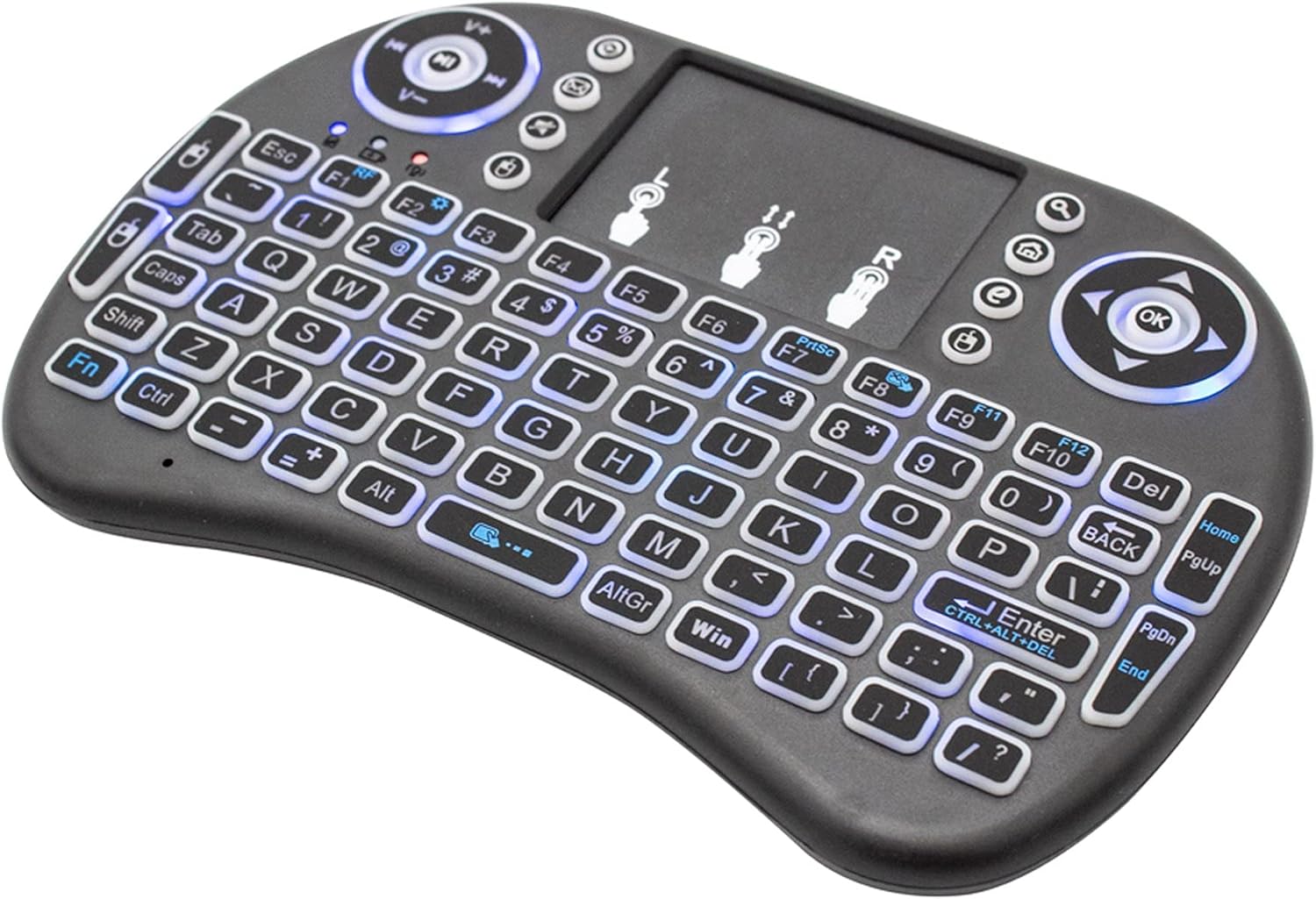
Figure 2: Angled view of the CJ Tech Wireless Keyboard, showing the compact design and key layout without the backlighting active.

Figure 3: Rear view of the CJ Tech Wireless Keyboard, highlighting the charging port and power switch location.
Setup
1. Charging the Keyboard
Before first use, fully charge the keyboard. Connect the provided USB charging cable to the keyboard's charging port (refer to Figure 3) and the other end to a USB power source (e.g., computer USB port, USB wall adapter). The charging indicator light will illuminate during charging and turn off when fully charged. A full charge provides up to 24 hours of usage.
2. Connecting the Nano Receiver
- Locate the USB Nano Receiver, typically stored in a compartment on the keyboard itself or within the packaging.
- Insert the Nano Receiver into an available USB port on your target device (Smart TV, PC, Laptop, Gaming Console, Android box, etc.).
- The device should automatically recognize the receiver and install necessary drivers. No manual driver installation is usually required.
3. Powering On the Keyboard
Slide the power switch on the keyboard (refer to Figure 3) to the "ON" position. The keyboard will automatically connect to the Nano Receiver within a few seconds. The connection indicator light may flash briefly and then remain solid or turn off, indicating a successful connection.
Operating Instructions
Keyboard Functionality
The keyboard features a full QWERTY layout for typing. Press keys as you would on a standard keyboard.
Touchpad Operation
- Single Finger Tap: Functions as a left-click.
- Two Finger Tap: Functions as a right-click.
- Two Finger Drag (Vertical/Horizontal): Scrolls content up/down or left/right.
- Single Finger Drag: Moves the cursor on the screen.
Backlight Control
The keyboard features backlit keys for use in low-light conditions. Look for a dedicated backlight key or a function key combination (e.g., Fn + F2) to toggle the backlight on/off or adjust brightness/color (if applicable). Refer to the key labels on your specific model.
Multimedia Keys
Dedicated multimedia keys are located on the keyboard for quick access to functions like volume control, play/pause, next/previous track, and home/search functions. These are typically located around the edges of the keyboard or as secondary functions on the F-keys (accessed with the Fn key).
Maintenance
- Cleaning: Use a soft, dry cloth to clean the surface of the keyboard. For stubborn dirt, a slightly damp cloth with mild soap can be used, ensuring no liquid enters the device. Do not use harsh chemicals or abrasive cleaners.
- Storage: When not in use for extended periods, turn off the keyboard to conserve battery life. Store in a cool, dry place away from direct sunlight and extreme temperatures.
- Battery Care: To prolong battery life, avoid fully discharging the battery frequently. Charge the keyboard regularly, even if not in constant use.
Troubleshooting
| Problem | Possible Cause | Solution |
|---|---|---|
| Keyboard not responding | Low battery; Nano Receiver not properly connected; Keyboard not powered on; Out of range. | Charge the keyboard; Ensure Nano Receiver is fully inserted into a working USB port; Turn on the keyboard; Move closer to the device (within 10 meters). |
| Cursor erratic or unresponsive | Dirty touchpad; Interference; Low battery. | Clean the touchpad surface; Move away from other wireless devices; Charge the keyboard. |
| Backlight not working | Backlight turned off; Low battery. | Press the backlight toggle key or Fn + F2; Charge the keyboard. |
| Connection issues | Interference; USB port issue; Receiver not paired. | Try a different USB port; Restart the host device; Re-pair the keyboard and receiver (if applicable, consult specific pairing instructions if provided with the device, though typically plug-and-play). |
Specifications
| Feature | Detail |
|---|---|
| Wireless Connection | 2.4 GHz RF |
| Battery Type | Built-in 300 mAh Lithium Battery |
| Operating System Compatibility | Windows 2000 / XP / 7 / Vista / 8 / 10, Android 4.0 or Up |
| Compatible Devices | PC, Smart TV, Laptop, Gaming Console, Android Box |
| Transmit Range | Up to 10 meters (33 feet) |
| Transmit Power | +5db Max |
| Voltage | 3.3 V |
| Special Features | Backlit keys, High-sensitive touchpad |
| Dimensions | Approximately 17.1 x 10.6 x 2.7 cm |
| Weight | Approximately 140 g |
| Color | Black |
Warranty and Support
For warranty information and technical support, please refer to the contact details provided on the product packaging or the official CJ TECH website. Keep your purchase receipt as proof of purchase for warranty claims.
Note: Product specifications and features are subject to change without prior notice.
Ask a question about this manual
Ask about setup, troubleshooting, compatibility, parts, safety, or missing instructions. Manuals+ will review the question and use this page’s manual context to help answer it.