
1. Product Overview
The MediaCom MCI SB01 is a versatile Bluetooth soundbar designed to enhance your audio experience. It features an elegant wooden casing and comes equipped with dual microphone inputs, making it suitable for various entertainment and communication needs. With multiple connectivity options, it seamlessly integrates with a wide range of devices.
Key Features:
- Elegant wooden casing for enhanced aesthetics and sound quality.
- Two dedicated microphone inputs for karaoke or public speaking.
- 30W RMS output power for clear and robust audio.
- Bluetooth connectivity for wireless streaming from smartphones, tablets, and laptops.
- Multiple input options: Bluetooth, Optical, SD card, and AUX (RCA/3.5mm).
- Universal compatibility with various television models.
2. Safety Information
Please read all safety instructions carefully before using this product. Retain this manual for future reference.
- Power Source: Use only the specified power adapter. Ensure the voltage is compatible with your region.
- Ventilation: Do not block any ventilation openings. Install in accordance with the manufacturer's instructions.
- Water and Moisture: Do not expose this appliance to rain or moisture. Do not place objects filled with liquids, such as vases, on the apparatus.
- Heat: Do not install near any heat sources such as radiators, heat registers, stoves, or other apparatus (including amplifiers) that produce heat.
- Cleaning: Clean only with a dry cloth.
- Servicing: Do not attempt to service this product yourself. Refer all servicing to qualified service personnel.
3. Package Contents
Verify that all items are present in the package:
- MediaCom MCI SB01 Soundbar
- Wired Microphones (x2)
- Power Adapter
- User Manual
- Remote Control (if included)
- Audio Cables (e.g., Optical, AUX - if included)
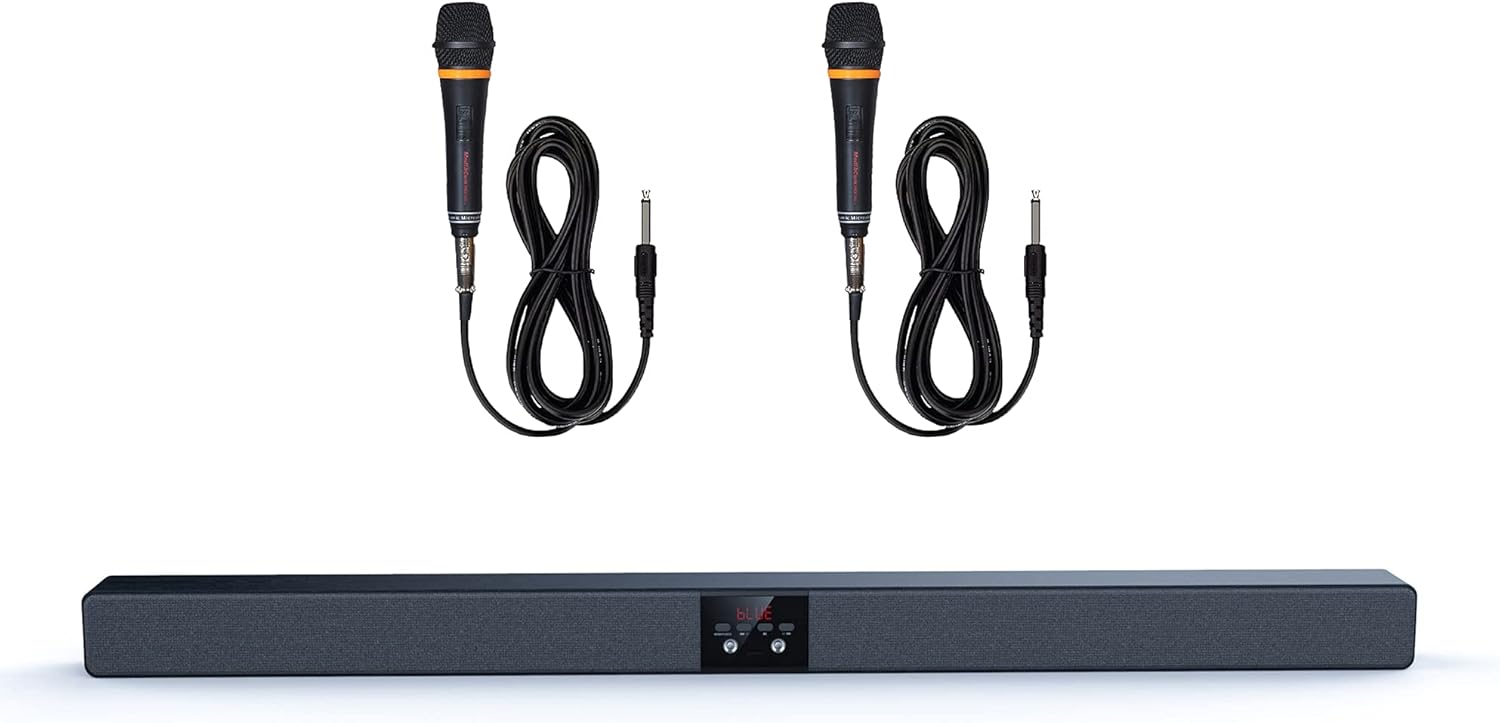
Image 1: The MediaCom MCI SB01 Soundbar shown with its two accompanying wired microphones.
4. Setup
4.1 Connecting the Soundbar
Choose one of the following methods to connect your soundbar to a TV or other audio source:
- Optical Connection: For the best audio quality, connect an optical cable (not always included) from your TV's Optical Out port to the soundbar's Optical In port. Select 'Optical' input on the soundbar.
- AUX (RCA/3.5mm) Connection: Use an AUX cable to connect your TV's Audio Out (RCA L/R or 3.5mm headphone jack) to the soundbar's AUX In port. Select 'AUX' input on the soundbar.
- Bluetooth Connection: Power on the soundbar and switch to Bluetooth mode. On your device (smartphone, tablet, laptop), enable Bluetooth and search for 'MCI SB01'. Pair with the soundbar.
- SD Card: Insert an SD card with audio files into the designated slot on the soundbar. The soundbar will automatically switch to SD card mode and begin playback.
4.2 Powering On
Connect the power adapter to the soundbar's DC input and then to a wall outlet. Press the Power button on the soundbar or remote control to turn it on.

Image 2: An angled view of the soundbar, highlighting its wooden top panel and front speaker grille.

Image 3: A different angled perspective of the soundbar, featuring the MediaCom brand logo on the right end.
5. Operating Instructions
5.1 Basic Controls
- Power Button: Turns the soundbar on or off.
- Input/Mode Button: Cycles through available input modes (Bluetooth, Optical, AUX, SD).
- Volume Up/Down: Adjusts the master volume level.
- Play/Pause: Controls playback in Bluetooth or SD card mode.
- Previous/Next Track: Skips to the previous or next track in Bluetooth or SD card mode.
5.2 Using Microphones
Connect the wired microphones to the designated microphone input jacks on the soundbar. Adjust the microphone volume using the dedicated controls on the soundbar or remote (if available). Ensure the soundbar's main volume is set to a comfortable listening level before using the microphones.
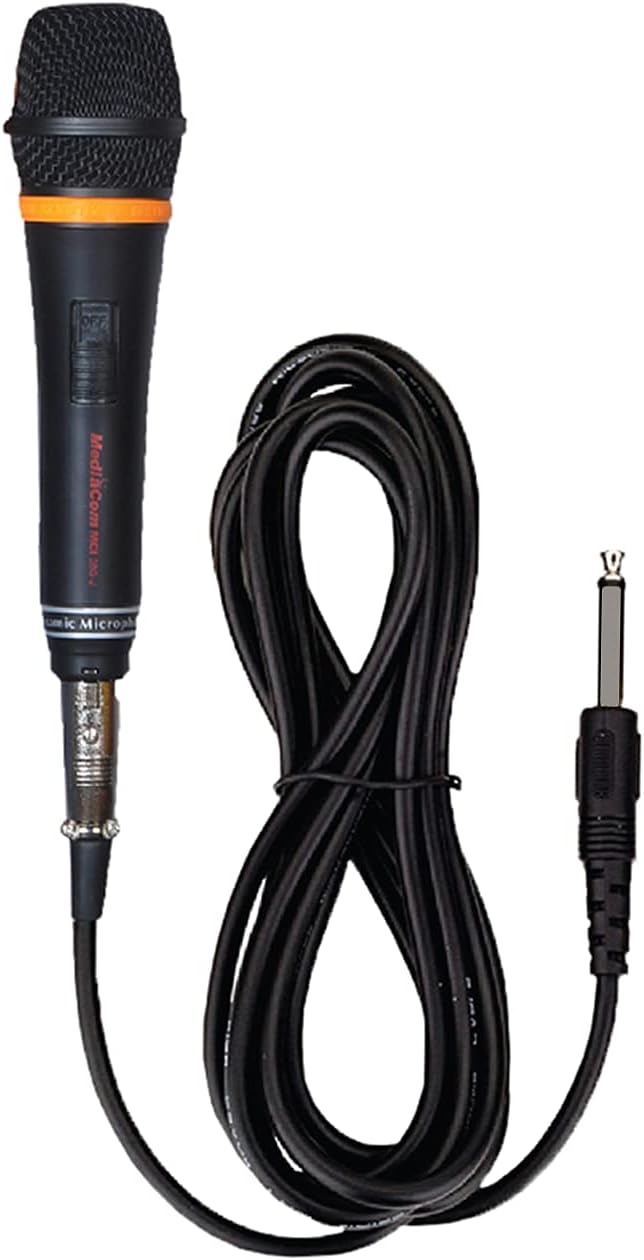
Image 4: A detailed view of one of the wired microphones included with the soundbar, showing its cable and audio jack.
6. Maintenance
Proper care ensures the longevity of your soundbar:
- Cleaning: Wipe the soundbar with a soft, dry cloth. Do not use liquid cleaners or aerosol sprays.
- Storage: If storing for an extended period, disconnect from power and store in a cool, dry place.
- Avoid Obstructions: Do not place objects on top of the soundbar that could block the speakers or ventilation.
7. Troubleshooting
If you encounter issues, refer to the following common problems and solutions:
| Problem | Possible Cause | Solution |
|---|---|---|
| No power | Power cable not connected; outlet not working | Ensure power cable is securely connected. Try a different power outlet. |
| No sound | Incorrect input mode; volume too low; cable issues | Select the correct input mode. Increase volume. Check audio cables for secure connection. |
| Bluetooth pairing failed | Soundbar not in pairing mode; device too far | Ensure soundbar is in Bluetooth mode and discoverable. Move device closer to soundbar. |
| Microphone not working | Microphone not connected; microphone volume low | Ensure microphone is fully plugged in. Increase microphone volume. |
8. Specifications
Detailed technical specifications for the MediaCom MCI SB01 Soundbar:
- Model Name: MCI SB-01
- Brand: MediaCom
- Speaker Type: Soundbar
- Connectivity Technology: Bluetooth, Optical Fiber, RCA, Auxiliary
- Maximum Speaker Output Power: 30 Watts
- Audio Output Mode: Stereo
- Material: Wood
- Mounting Type: Wall Mount (hardware not always included)
- Product Dimensions: 100 x 75 x 65 cm
- Item Weight: 5 kg
- Special Features: Bluetooth, Integrated Speakers, Dual Microphone Inputs
- Recommended Uses: Smartphones, Tablets, Laptops, Televisions

Image 5: Front view of the soundbar, visually confirming key features such as dual microphone inputs, wooden construction, and speaker configuration.
9. Warranty and Support
For warranty information and customer support, please refer to the warranty card included with your product or visit the official MediaCom website. Keep your purchase receipt as proof of purchase for warranty claims.
For technical assistance or inquiries, please contact MediaCom customer service through the contact details provided on their official website or product packaging.