Introduction
This manual provides detailed instructions for setting up, operating, and maintaining your TECKNET Wireless Bluetooth Keyboard and Mouse Combo (Model TK-KM033). This combo offers versatile connectivity options, including 2.4G USB and dual Bluetooth modes, allowing seamless switching between multiple devices. Please read this manual thoroughly to ensure optimal performance and longevity of your product.

Image: The TECKNET Wireless Bluetooth Keyboard and Mouse Combo, featuring a full-size keyboard, a compact mouse, and a 2.4G USB receiver.
Package Contents
Before proceeding with the setup, please verify that all items are present in the package:
- TECKNET Wireless Keyboard
- TECKNET Wireless Mouse
- 2.4G USB Receiver (typically stored in the mouse battery compartment)
- USB-C Charging Cable (0.5 meter)
- User Manual (this document)
Setup Instructions
1. Charging the Devices
Both the keyboard and mouse are equipped with rechargeable lithium-ion batteries. Before first use, it is recommended to fully charge both devices.
- Connect the supplied USB-C charging cable to the charging port on the keyboard and mouse.
- Plug the other end of the cable into a USB power source (e.g., computer USB port, USB wall adapter).
- The charging indicator light will illuminate during charging and turn off when fully charged. A full charge typically takes approximately 2 hours.

Image: The TECKNET keyboard and mouse connected to a power source via USB-C cables, illustrating the charging process. The image highlights a 2-hour charging time for 45 days of use.
2. Connecting via 2.4G USB Receiver
This method provides a stable wireless connection using the included USB receiver.
- Locate the 2.4G USB receiver, usually stored in the mouse's battery compartment.
- Plug the USB receiver into an available USB-A port on your computer or device.
- Turn on the keyboard and mouse using their respective power switches.
- The devices should automatically connect to your computer.
3. Connecting via Bluetooth (BT1 & BT2)
The combo supports two independent Bluetooth connections, allowing you to pair with two different Bluetooth-enabled devices.
- Keyboard Bluetooth Pairing:
- Turn on the keyboard.
- Press the Fn + Q keys simultaneously for BT1 or Fn + W for BT2. The corresponding indicator light (BT1 or BT2) will flash rapidly, indicating pairing mode.
- On your device (e.g., laptop, tablet, smartphone), go to Bluetooth settings and search for new devices.
- Select "TECKNET Keyboard" from the list of available devices.
- Follow any on-screen prompts to complete the pairing. The indicator light will stop flashing once connected.
- Mouse Bluetooth Pairing:
- Turn on the mouse.
- Press the Bluetooth mode switch button on the bottom of the mouse to select BT1 or BT2. The corresponding indicator light will flash rapidly.
- On your device, go to Bluetooth settings and search for new devices.
- Select "TECKNET Mouse" from the list.
- Complete the pairing. The indicator light will stop flashing once connected.
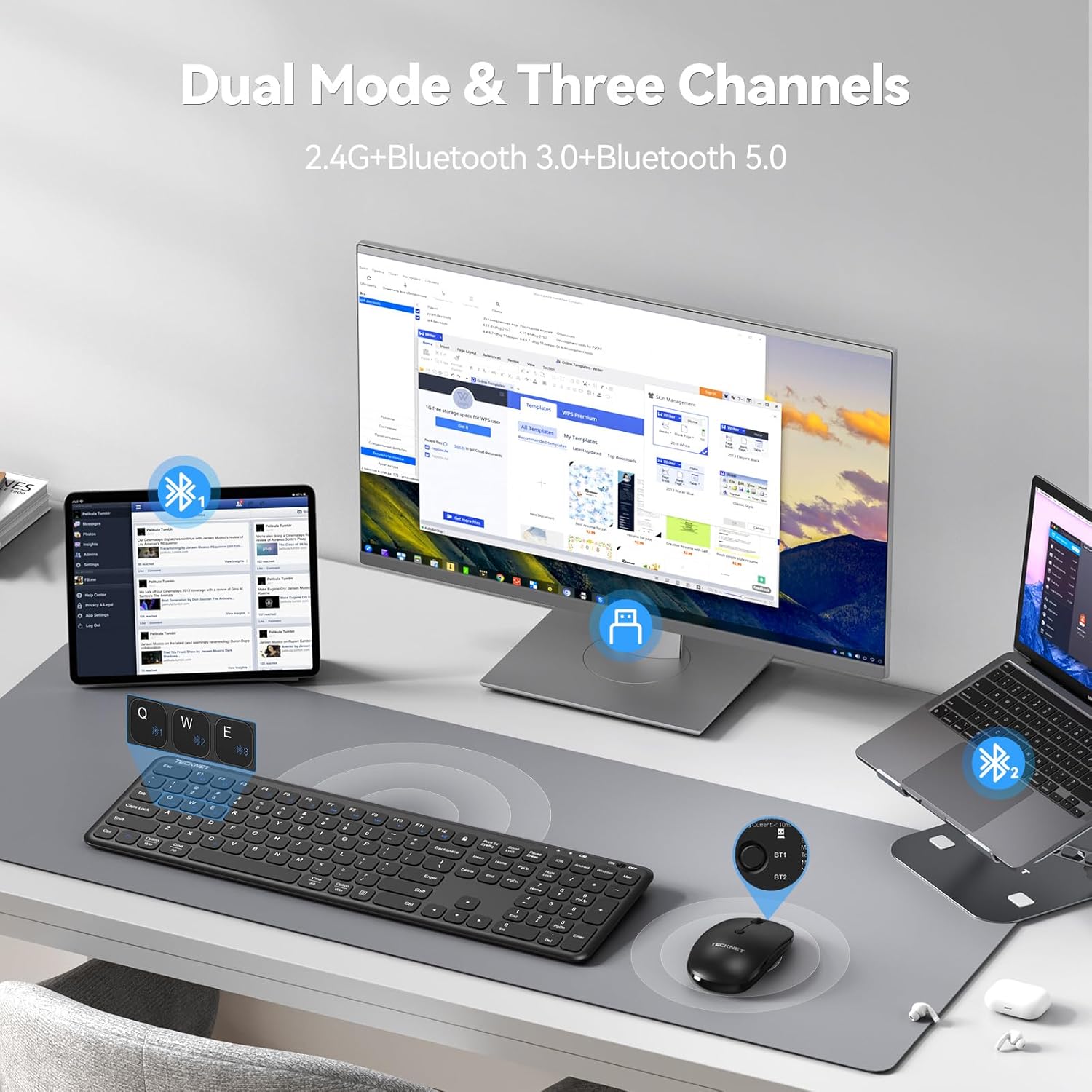
Image: The TECKNET keyboard and mouse connected to a desktop monitor via 2.4G USB, a tablet via Bluetooth 1, and a laptop via Bluetooth 2, demonstrating multi-device connectivity.
4. Switching Between Connected Devices
To switch between devices connected via 2.4G USB and Bluetooth:
- Keyboard: Press Fn + E for 2.4G USB, Fn + Q for Bluetooth 1, or Fn + W for Bluetooth 2. The corresponding indicator light will show the active connection.
- Mouse: Press the mode switch button on the bottom of the mouse to cycle between 2.4G USB, Bluetooth 1, and Bluetooth 2. The indicator light will show the active connection.
Operating Instructions
1. Keyboard Functions
The keyboard features a full-size layout with a numeric keypad and multimedia shortcut keys.
- Multimedia Keys: Use the Fn key in combination with the F1-F12 keys for various functions such as play/pause, volume control, and email access. Refer to the key legends for specific functions.
- Operating System Mode Switch: The keyboard supports Windows, Android, iOS, and macOS. Use the dedicated keys (e.g., Fn + Android, Fn + iOS, Fn + Windows, Fn + Mac) to optimize key functions for your operating system.
- Scissor-Switch Mechanism: The keys utilize a scissor-switch mechanism designed for quiet operation and tactile feedback.

Image: A close-up view of the TECKNET keyboard, highlighting the internal scissor-switch key mechanism for quiet and precise keystrokes.
2. Mouse Functions
The mouse is designed for ergonomic comfort and adjustable sensitivity.
- DPI Adjustment: The mouse offers three adjustable DPI settings (800/1200/1600). Press the DPI button located on the top of the mouse to cycle through these settings and adjust cursor speed.
- Symmetrical Design: The mouse features a symmetrical design, suitable for both right-handed and left-handed users.

Image: The TECKNET wireless mouse, illustrating its ultra-slim design and the three adjustable DPI settings (800, 1200, 1600) for customized cursor sensitivity.
3. Power Management
Both devices are equipped with energy-saving features to extend battery life.
- Automatic Sleep Mode: If inactive for more than 10 minutes (keyboard) or 30 minutes (mouse), the devices will enter sleep mode to conserve power.
- Waking Up: To wake the devices, simply click any button on the mouse or press any key on the keyboard.
- Power Switches: Use the ON/OFF switches on both the keyboard and mouse to manually power them down when not in use for extended periods.
Maintenance
1. Cleaning
To maintain the appearance and functionality of your devices:
- Ensure both devices are powered off before cleaning.
- Use a soft, lint-free cloth slightly dampened with water or a mild cleaning solution.
- Avoid using harsh chemicals, abrasive cleaners, or solvents.
- For the keyboard, use compressed air to remove debris from between the keys.
2. Battery Care
Proper battery care helps prolong the lifespan of the built-in rechargeable batteries:
- Avoid fully discharging the batteries frequently.
- Store the devices in a cool, dry place when not in use for extended periods.
- If storing for a long time, charge the devices to about 50% capacity.
Troubleshooting
If you encounter issues with your TECKNET Wireless Bluetooth Keyboard and Mouse Combo, refer to the following common solutions:
| Problem | Possible Solution |
|---|---|
| Devices not connecting (2.4G USB) |
|
| Devices not connecting (Bluetooth) |
|
| Lag or intermittent connection |
|
| Keyboard keys or mouse buttons unresponsive |
|
| Mouse cursor moves erratically |
|
Specifications
Key technical specifications for the TECKNET Wireless Bluetooth Keyboard and Mouse Combo (Model TK-KM033):
- Model: TK-KM033
- Connectivity Technology: 2.4G RF (USB Receiver), Bluetooth 3.0, Bluetooth 5.0
- Keyboard Layout: Full-size QWERTY with numeric keypad
- Keyboard Battery: 280mAh Lithium-ion (Rechargeable)
- Mouse Battery: 300mAh Lithium-ion (Rechargeable)
- Charging Port: USB-C
- Mouse DPI Settings: 800 / 1200 / 1600
- Compatible Devices: PC, Laptop, iPad, Desktop (Windows, macOS, iOS, Android)
- Material: ABS Plastic
- Color: Black
- Item Weight: Approximately 1.72 pounds (combo)
- Package Dimensions: 17.68 x 8.43 x 1.65 inches

Image: The TECKNET keyboard and mouse with measurements indicating their full-size and ultra-slim design, including the USB receiver and charging cable.
Warranty and Support
TECKNET products are designed for reliability and performance. This product is backed by a reliable 36-month warranty (registration may be required).
- For warranty claims or technical assistance, please contact TECKNET customer support.
- Contact information can typically be found on the TECKNET official website or through your purchase platform.
Our professional customer support team is available to assist you with any questions or issues you may encounter.


