
Introduction
This manual provides comprehensive instructions for setting up, operating, maintaining, and troubleshooting your HUMAX HGD310 DOCSIS 3.1 Cable Modem. Please read this guide carefully to ensure proper installation and optimal performance of your device.
The HUMAX HGD310 is a high-performance DOCSIS 3.1 cable modem designed to deliver ultrafast internet speeds, ideal for gigabit internet services. It is compatible with major internet service providers such as COX, Xfinity, and Spectrum.
Package Contents
Upon opening your HUMAX HGD310 package, you should find the following items:
- HUMAX HGD310 Cable Modem
- Ethernet Cable
- Power Adapter
- Quick Installation Guide
Additional Materials You May Need:
- Coaxial Cable (if not already installed)
- Cable Splitter (optional, if subscribing to TV service with Xfinity or Spectrum)
- WiFi Router (to enable wireless internet access)

Image: Contents of the HUMAX HGD310 package, including the modem, Ethernet cable, power adapter, and quick installation guide. Also shows optional coaxial cable, cable splitter, and router.
Setup and Installation
Follow these steps to set up your HUMAX HGD310 cable modem:
- Connect the Coaxial Cable: Screw one end of the coaxial cable tightly into the "CABLE" port on the back of your modem. Connect the other end of the coaxial cable to your wall outlet. Ensure connections are secure.
- Connect the Ethernet Cable: Connect one end of the provided Ethernet cable to one of the "ETHERNET" ports on the back of your modem. Connect the other end of the Ethernet cable to the WAN/Internet port on your WiFi router or directly to your computer.
Note: If you plan to use both Ethernet ports for devices requiring separate IP addresses (e.g., a second router or PC), you may need to contact your internet service provider to confirm your plan supports multiple IP addresses. The HGD310 supports Link Aggregation for speeds over 2Gbps, but your internet plan and connected devices must also support this feature.
- Connect the Power Adapter: Plug the DC power adapter into the "POWER" port on the back of the modem. Then, plug the other end of the power adapter into an electrical wall outlet.
- Power On: The modem will automatically power on. Allow several minutes for the modem to boot up and connect to your internet service provider's network. The LED indicators on the front of the modem will show its status.

Image: Rear view of the HUMAX HGD310 modem, highlighting the coaxial cable port and two Ethernet ports.
Video: HGD310 Installation Guide
Video: A detailed installation guide for the HUMAX HGD310 DOCSIS 3.1 Cable Modem, demonstrating how to connect the coaxial cable, Ethernet cable, and power adapter. This video is provided by Humax Networks (USA) Inc.
Modem Activation
After connecting your modem, you will need to activate it with your internet service provider (ISP). This process typically involves providing your modem's Serial Number and MAC Address to your ISP.
Locating Serial Number and MAC Address
The Serial Number (S/N) and MAC Address (CM MAC) are located on a label on the side or bottom of your HUMAX HGD310 modem.
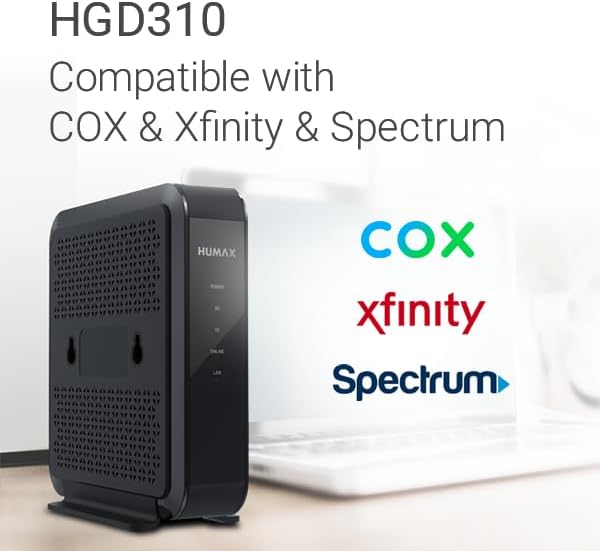
Image: Close-up of the product label on the HUMAX HGD310 modem, indicating the location of the Serial Number and MAC Address.
Contacting Your ISP for Activation
You can activate your modem by calling your ISP or by using their online activation portal/app. Have your account information, modem's Serial Number, and MAC Address ready.
- Comcast Xfinity: Call 1-800-934-6489 or visit http://xfinity.com/activate
- Charter Spectrum: Call 1-833-267-6094 or visit http://activate.spectrum.net
- COX: Please refer to your Quick Installation Guide for COX activation details or visit their official website.
Note: If you are replacing an existing modem, ensure you follow your ISP's specific instructions for device replacement.
Operating Your Modem
The HUMAX HGD310 functions as a bridge between your internet service provider and your home network. It converts the coaxial cable signal into an Ethernet signal that your router or computer can use.
LED Indicators
The front panel of your modem features LED indicators that provide information about its operational status:
- POWER: Indicates if the modem is powered on.
- DS (Downstream): Indicates the downstream connection status. A solid light typically means a stable connection.
- US (Upstream): Indicates the upstream connection status. A solid light typically means a stable connection.
- ONLINE: Indicates if the modem is connected to the internet. A solid light means you are online.
- LAN (Local Area Network): Indicates activity on the Ethernet ports. Blinking lights show data transfer.
Refer to your Quick Installation Guide for a detailed explanation of LED states and their meanings.
Link Aggregation
The HGD310 supports Link Aggregation, allowing you to combine the bandwidth of both Ethernet ports to achieve speeds up to 2Gbps. To utilize this feature, your internet plan must be over 2Gbps, and the connected router or PC must also support Link Aggregation.
Maintenance
To ensure the longevity and optimal performance of your HUMAX HGD310 modem, consider the following maintenance tips:
- Placement: Place the modem in a well-ventilated area, away from direct sunlight, heat sources, and moisture. Ensure there is adequate airflow around the device.
- Cleaning: Gently wipe the exterior of the modem with a soft, dry cloth. Do not use liquid cleaners or abrasive materials.
- Power Cycling: If you experience internet connectivity issues, a simple power cycle can often resolve them. Unplug the modem's power adapter from the electrical outlet, wait 10-15 seconds, and then plug it back in. Allow several minutes for the modem to restart and reconnect.
- Cable Connections: Periodically check all cable connections (coaxial, Ethernet, power) to ensure they are secure and not damaged.
Troubleshooting
If you encounter issues with your HUMAX HGD310 modem, try the following troubleshooting steps:
No Internet Connection (Online LED Off or Blinking)
- Check Cables: Ensure all cables (coaxial, Ethernet, power) are securely connected to the modem, wall outlet, and router/computer.
- Power Cycle: Unplug the modem's power adapter, wait 15 seconds, and plug it back in. Allow 2-3 minutes for the modem to restart.
- ISP Outage: Check with your internet service provider for any known service outages in your area.
- Activation Status: Confirm that your modem has been successfully activated with your ISP. If it's a new installation or replacement, re-verify the activation steps.
Slow Internet Speeds or Buffering
- Power Cycle: Perform a power cycle on both your modem and router.
- Check Plan Speed: Verify that your internet plan supports the speeds you expect.
- Direct Connection Test: Connect a computer directly to the modem via an Ethernet cable (bypassing the router) and test the speed. If speeds improve, the issue might be with your router.
- ISP Contact: If speeds remain slow after troubleshooting, contact your ISP.
Ethernet Port Issues
- Cable Integrity: Ensure the Ethernet cable is not damaged and is properly seated in both the modem and the connected device.
- Link Aggregation: If using Link Aggregation, confirm both your ISP plan and connected devices support it.
- Single IP Address: If you have only one IP address from your ISP, only one Ethernet port on the modem can be actively used to connect to a router or computer.
Specifications
| Feature | Detail |
|---|---|
| Model | HGD310 |
| Connectivity Technology | Ethernet |
| DOCSIS Standard | DOCSIS 3.1 (backward compatible with DOCSIS 3.0) |
| Channel Bonding (DOCSIS 3.0) | 32 Downstream x 8 Upstream |
| Channel Bonding (DOCSIS 3.1) | 2 Downstream x 2 Upstream |
| Max Internet Speed Plan | Up to 2000 Mbps (with Link Aggregation) |
| Compatible ISPs | COX, Comcast Xfinity, Charter Spectrum Only |
| Product Dimensions | 5.98"L x 1.77"W x 6.3"H |
| Item Weight | 1.81 pounds |
| Wi-Fi Capability | No (requires external WiFi router) |
| Digital Voice Service | Does not support cable digital voice service |
Warranty Information
The HUMAX HGD310 Cable Modem typically comes with a 2-year warranty. Please refer to the warranty card included in your product packaging or visit the official HUMAX support website for detailed terms and conditions.
Support
For further assistance, please visit the official HUMAX support website:
americas.humaxdigital.com/support
You can also contact your internet service provider for activation or service-related issues using the numbers provided in the Activation section.


