1. Introduction
Thank you for choosing the EVTSCAN BK7019 Portable 7-Inch E-Book Reader. This device is designed to provide a comfortable and versatile reading experience, supporting various e-book formats and multimedia functions. This manual provides essential information for setting up, operating, and maintaining your e-reader.

Image 1.1: The EVTSCAN BK7019 E-Book Reader with its protective case, shown in a reading scenario.
2. Product Overview
2.1 Package Contents
Ensure all items are present in your package:
- 1 x EVTSCAN BK7019 E-Book Reader
- 1 x Charging Cable
- 1 x Earphones
- 1 x Leather Case
- 1 x User Manual
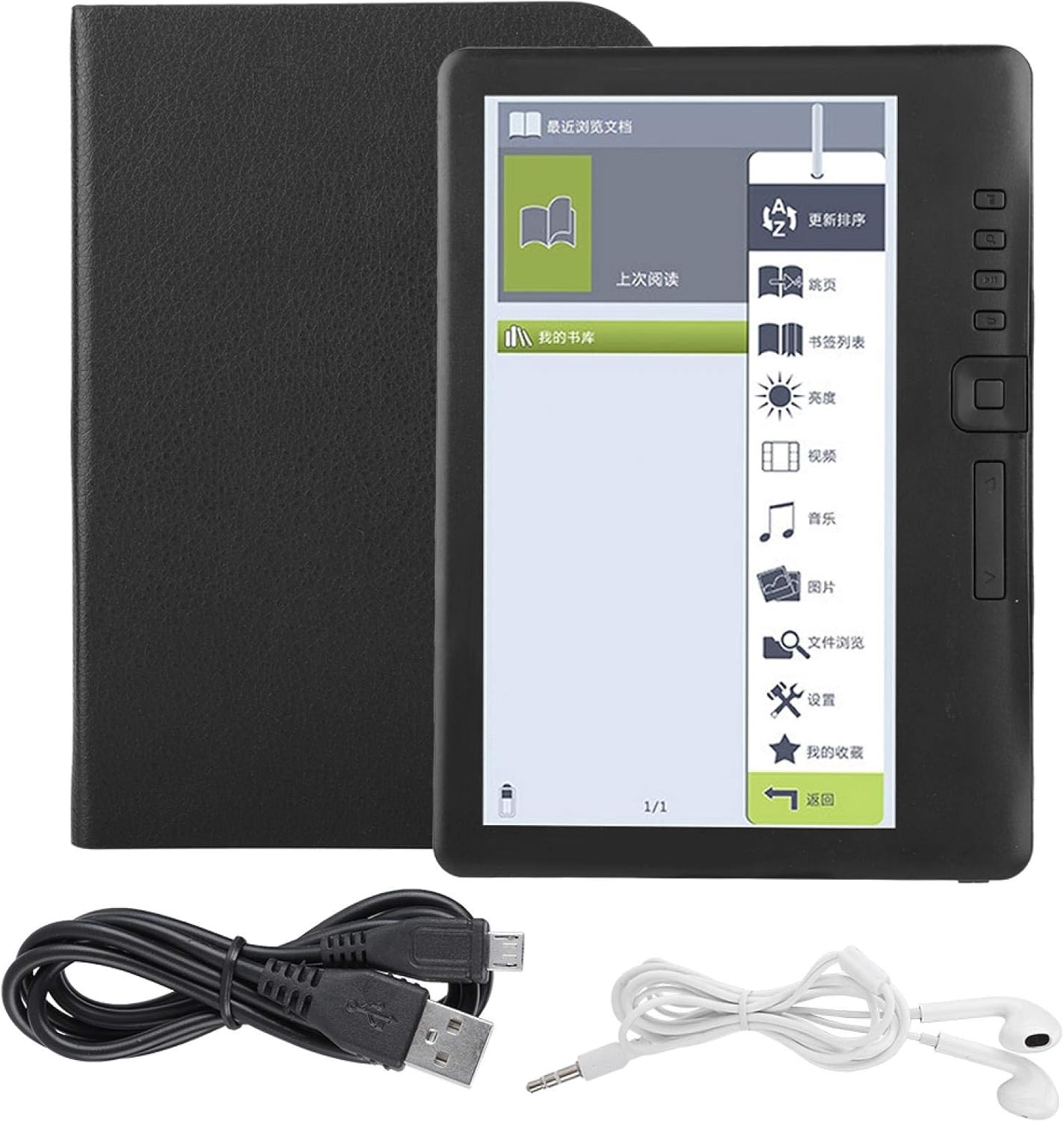
Image 2.1: All components included in the EVTSCAN BK7019 E-Book Reader package.
2.2 Key Features
- 7-Inch TFT LCD Display: Provides a clear reading experience.
- Water-Resistant Design: Offers protection against splashes. This device is not designed for immersion in water.
- High-Speed Performance: Equipped with an integrated ARM9 high-speed core for responsive operation.
- User-Friendly Interface: Features independent page-turn buttons and thumbnail previews for easy navigation.
- Convenient Reading Functions: Includes page skipping, bookmarking, and automatic memory of the last read page.
- Multimedia Support: Integrated functions for music, video, and photo playback.
- Expandable Storage: Supports external TF cards up to 16GB.
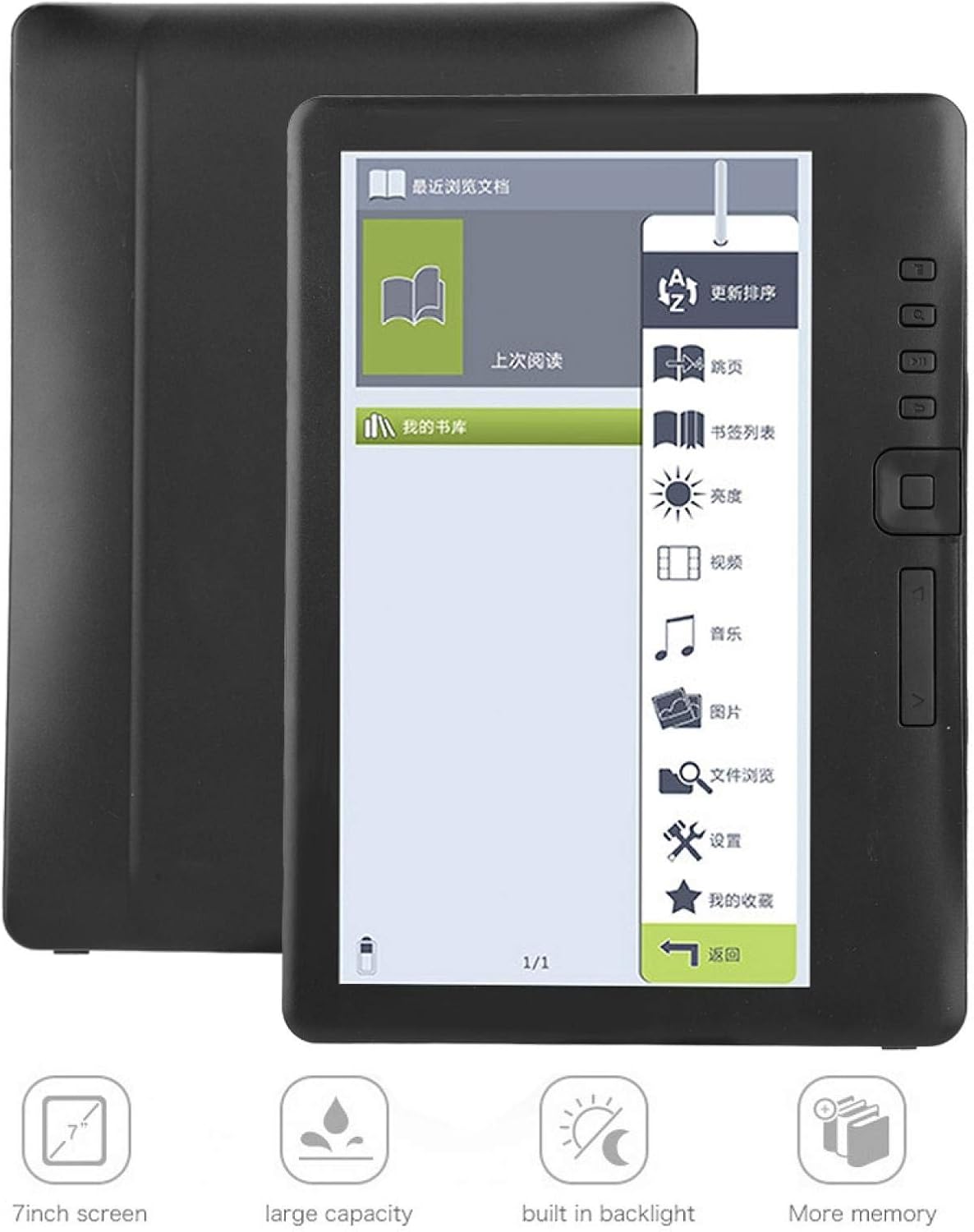
Image 2.2: Visual representation of the EVTSCAN BK7019's key features, including its 7-inch screen and expandable storage.
3. Setup
3.1 Charging the Device
- Connect the charging cable to the e-reader's charging port.
- Plug the other end of the charging cable into a compatible USB power adapter (not included) or a computer's USB port.
- The charging indicator will illuminate. A full charge takes approximately 10 hours.
- Once fully charged, disconnect the cable.
3.2 Powering On/Off
- To Power On: Press and hold the power button until the screen illuminates.
- To Power Off: Press and hold the power button until a power-off prompt appears, then confirm.
3.3 Inserting a TF Card
The device supports external TF (MicroSD) cards up to 16GB for expanded storage.
- Locate the TF card slot on the side or back of the device.
- Gently insert the TF card into the slot until it clicks into place.
- To remove, gently push the card inward until it springs out.

Image 3.1: Rear view of the EVTSCAN BK7019 E-Book Reader, showing the sleek design and potential location for ports.
4. Operating Instructions
4.1 Navigating the Interface
The e-reader features a main menu with icons for various functions. Use the physical buttons on the side of the device to navigate and select options.
4.2 Reading E-Books
- From the main menu, select the 'E-Book' or 'My Library' icon to access your stored books.
- Select a book to open it.
- Use the independent flip-book buttons on the side to turn pages forward or backward.
- Adjusting Reading Settings: While reading, access the reading assistant to adjust font size, brightness, and other display options for comfort.
- Bookmarks: To bookmark a page, use the designated bookmark function. The device will remember your last read page automatically.
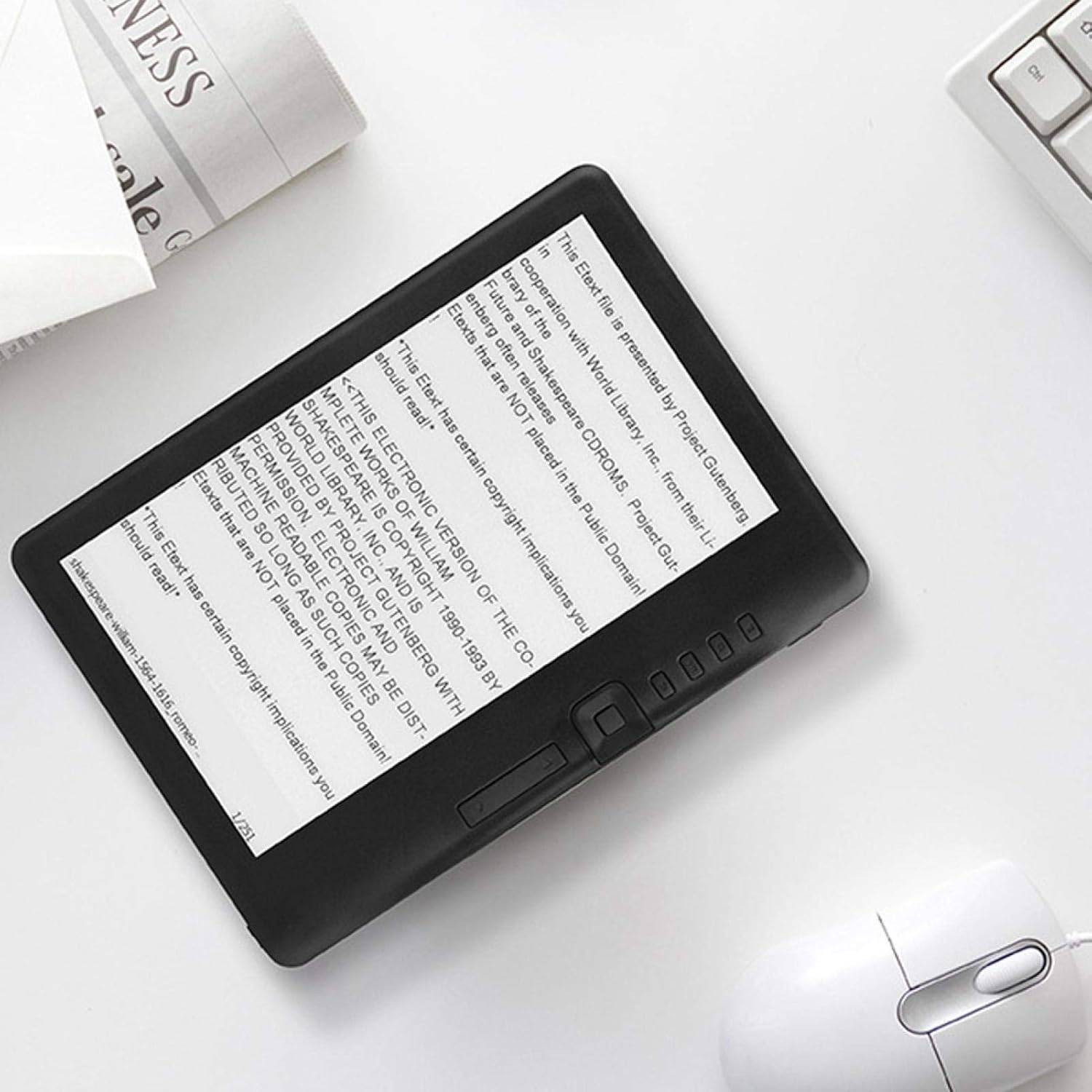
Image 4.1: The EVTSCAN BK7019 E-Book Reader displaying an e-book, with the physical navigation buttons clearly visible.
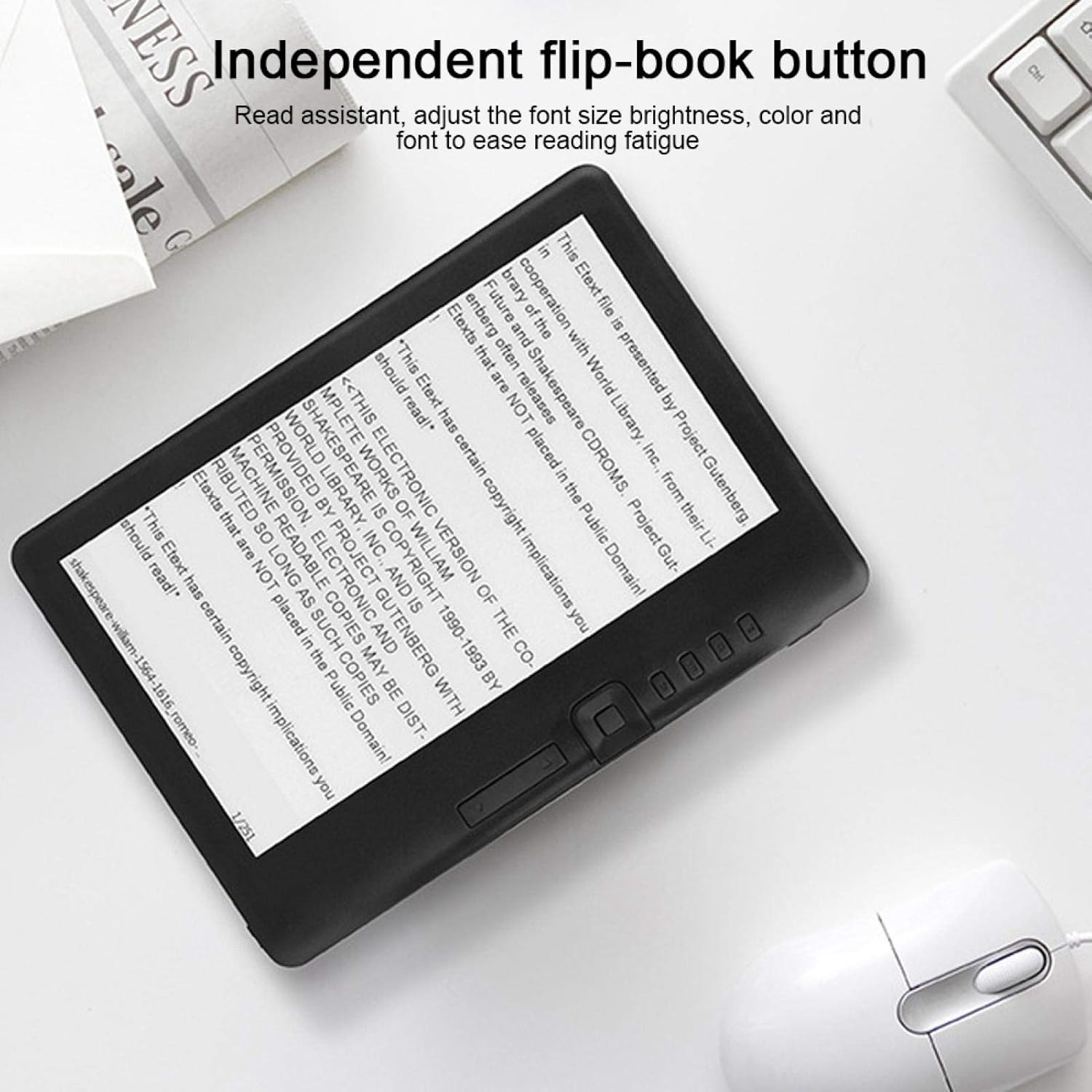
Image 4.2: Close-up of the EVTSCAN BK7019 E-Book Reader highlighting the independent flip-book buttons for page navigation.
4.3 Multimedia Playback
The e-reader supports music, video, and photo playback.
- Music: Select the 'Music' icon from the main menu. Browse and play audio files. Connect the included earphones for private listening.
- Video: Select the 'Video' icon. Browse and play supported video files.
- Photos: Select the 'Photos' icon. View supported image files.
4.4 Transferring Files
To transfer e-books, music, videos, or photos to your device:
- Connect the e-reader to your computer using the charging cable.
- The device should appear as a removable storage drive on your computer.
- Drag and drop your desired files into the appropriate folders on the e-reader or inserted TF card.
- Safely eject the device from your computer before disconnecting the cable.
5. Maintenance
- Cleaning: Use a soft, dry, lint-free cloth to clean the screen and body of the device. Do not use liquid cleaners or aerosols.
- Storage: Store the device in a cool, dry place away from direct sunlight and extreme temperatures.
- Battery Care: For optimal battery life, avoid fully discharging the battery frequently. Charge the device regularly.
- Water Exposure: While the device is water-resistant against splashes, avoid submerging it in water or exposing it to heavy rain.
6. Troubleshooting
6.1 Device Not Turning On
- Ensure the battery is charged. Connect the device to a power source and allow it to charge for at least 30 minutes before attempting to power on again.
- Try performing a soft reset by pressing and holding the power button for 10-15 seconds.
6.2 Screen Issues
- If the screen is unresponsive or frozen, try restarting the device.
- Adjust the brightness settings if the screen appears too dim or too bright.
6.3 Cannot Read Files
- Verify that the file format is supported (EPUB, PDF, TXT, FB2, PDB for e-books; JPG, BMP, GIF, PNG for photos; MPEG1, MPEG2, MPEG4XVID, DIVX, H.264, H.263, RM/RMVB, MKV, MOV, VOB, FLV for videos).
- Ensure the files are not corrupted. Try opening them on another device.
- Check if the files are stored in the correct directory on the device or TF card.
6.4 Device Not Detected by Computer
- Ensure the charging cable is securely connected to both the e-reader and the computer.
- Try a different USB port on your computer.
- Ensure your computer meets the minimum system requirements (Windows XP/Vista/Win 7/Mac 10.0+/Linux).
7. Specifications
| Feature | Specification |
|---|---|
| Model Name | BK7019 |
| Processor Speed | 380 MHz (ARM9 core) |
| RAM | 512 MB |
| Operating System | UCOS |
| Display Type | 7-inch TFT LCD |
| Resolution | 800 x 480 pixels |
| Aspect Ratio | 16:9 |
| Contrast | 400 (typical) |
| Brightness | 250 cd/m² (typical) |
| External Storage | TF Card, up to 16 GB |
| Battery Capacity | 2100 mAh |
| Battery Life (E-book) | Up to 20 hours |
| Battery Life (Music) | Up to 10 hours (backlight off) |
| Battery Life (E-book + Music) | Up to 6 hours |
| Battery Life (Video) | Up to 5 hours |
| Charging Time | Approx. 10 hours (5V, 500mA) |
| System Requirements | Windows XP/Vista/Win 7/Mac 10.0 and above/Linux |
| Operating Temperature | -10°C to 40°C (14°F to 104°F) |
| Storage Temperature | -20°C to 50°C (-4°F to 122°F) |
| Relative Humidity | 5% to 95% (non-condensing) |
| Supported E-book Formats | EPUB, PDF, TXT, FB2, PDB |
| Supported Photo Formats | JPG, BMP, GIF, PNG |
| Supported Video Formats | MPEG1, MPEG2, MPEG4XVID, DIVX, H.264, H.263, RM/RMVB, MKV, MOV, VOB, FLV |
| Wi-Fi Connectivity | Not supported |
8. Warranty and Support
Information regarding product warranty and availability of spare parts is not provided in the product details. Please refer to your point of purchase or the manufacturer's official website for specific warranty terms and support options.
