
PRITOM L8
PRITOM L8 8-inch Quad Core Android Tablet User Manual
Model: L8
1. Introduction
This manual provides essential information for the safe and efficient use of your PRITOM L8 8-inch Quad Core Android Tablet. Please read these instructions carefully before using the device and retain them for future reference.
2. Package Contents
- PRITOM L8 8-inch Android Tablet
- Durable and Protective Bumper Case
- Charging Cable
- Power Adapter
- User Manual (this document)
3. Device Overview

Front view of the PRITOM L8 tablet in its blue protective case, showing the display.

Rear view of the PRITOM L8 tablet case, highlighting the soft silicon material, anti-drop design, and the integrated adjustable stand.
Key Features:
- Operating System: Android 13
- Processor: Quad-core Processor
- RAM: 4GB (2GB + 2GB expandable)
- Internal Storage: 64GB ROM (expandable up to 512GB via SD card, not included)
- Display: 8-inch 1280x800 HD IPS Touch Screen
- Cameras: 2.0MP Front Camera, 8.0MP Rear Camera
- Connectivity: WiFi (802.11b), Bluetooth
- Battery: 5000mAh Lithium Polymer (up to 6 hours normal use)
- Case: Food-grade silicone protective bumper case with 360-degree adjustable stand
4. Setup
4.1 Initial Charging
Before first use, fully charge the tablet using the provided charging cable and power adapter. The charging port is typically located on the side of the tablet. A full charge ensures optimal battery performance.
4.2 Powering On/Off
- To Power On: Press and hold the Power button (usually on the side) until the PRITOM logo appears on the screen.
- To Power Off: Press and hold the Power button until a power-off menu appears. Select 'Power off' and confirm.
- To Restart: From the power-off menu, select 'Restart'.
4.3 Connecting to Wi-Fi
- Go to Settings > Network & internet > Wi-Fi.
- Toggle Wi-Fi On.
- Select your desired Wi-Fi network from the list.
- Enter the network password if prompted and tap Connect.
4.4 Google Account Setup
A Google account is required to download apps from Google Play and access various Google services. During initial setup, you will be prompted to sign in or create a Google account. You can also add or manage accounts later via Settings > Accounts.
4.5 Pritom Kids App and Parental Control
The PRITOM L8 comes with the pre-installed Pritom Kids app, designed for a safe and controlled environment for children.

The Parental Control System allows parents to manage content and usage.

Parents can customize settings for children's accounts, including time limits and content filters.
Setting up Parental Controls:
- Open the Pritom Kids app.
- Follow the on-screen instructions to create a child's profile.
- Customize settings such as:
- Time Limit: Set daily usage limits for the child.
- Application Filter: Select which apps the child can access.
- Content Filter: Manage access to media and web content.
- Statistics Check: Monitor the child's usage patterns.
- Ensure security between the kids app and the tablet interface to keep children supervised.
5. Operating the Tablet
5.1 Basic Navigation
- Tap: Select an item or open an app.
- Swipe: Navigate through screens or scroll content.
- Pinch-to-Zoom: Enlarge or reduce images and web pages.
5.2 Using Applications

The tablet offers quick response for various learning and entertainment applications.

The tablet is full-featured, supporting educational apps like Montessori and displaying key specifications.
- Pre-installed Apps: The Pritom Kids app provides a variety of educational and entertaining software.
- Google Play Store: As a Google Mobile Service certified device, you can download numerous additional apps from the Google Play Store.
- AR Apps: Explore pre-installed AR apps like AR Fun (light games) and AR Zoo (learn about animals by scanning cards).
5.3 Camera Usage
The tablet features a 2.0MP front camera and an 8.0MP rear camera for photos, videos, and video chatting.
- Open the Camera app.
- Tap the camera switch icon to toggle between front and rear cameras.
- Tap the shutter button to take a photo or start/stop video recording.
5.4 Display and Audio

The 8-inch IPS display offers a stunning visual experience with wide viewing angles.
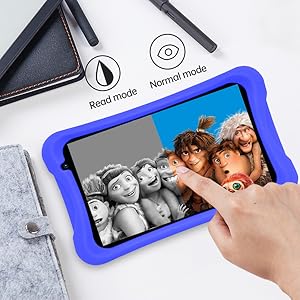
The tablet supports different display modes, including a 'Read mode' for eye comfort.
The 1280x800 HD IPS display and high-quality BOX speaker provide an outstanding visual and audio experience for videos and video chats. Adjust volume using the physical volume buttons on the side of the tablet.
5.5 Adjustable Stand
The protective bumper case includes a 360-degree adjustable circle stand. This allows for comfortable viewing from various angles, whether for watching videos or participating in video calls.
6. Maintenance
6.1 Cleaning
- Screen: Use a soft, lint-free cloth, slightly dampened with water or a screen cleaner. Avoid harsh chemicals.
- Case: The food-grade silicone case can be wiped clean with a damp cloth.
6.2 Software Updates
Periodically check for system updates to ensure optimal performance and security. Go to Settings > System > System update.
6.3 Storage Management
The tablet has 64GB of internal storage. If more space is needed, you can expand it up to 512GB using a microSD card (not included). Insert the microSD card into the designated slot.
6.4 Battery Care
- Avoid extreme temperatures.
- Do not let the battery completely drain frequently.
- Use only the provided charger or a certified compatible charger.
7. Troubleshooting
If you encounter issues with your PRITOM L8 tablet, refer to the following common solutions:
| Problem | Possible Solution |
|---|---|
| Tablet is slow or freezing | Restart the tablet. Close unused apps. Clear cache for frequently used apps. Ensure sufficient storage space. |
| Tablet not charging | Ensure the charging cable and adapter are securely connected. Try a different power outlet. Inspect the charging port for debris. If the issue persists, contact support. |
| Low volume | Increase volume using the physical volume buttons. Check app-specific volume settings. Ensure no headphones are partially plugged in. |
| Wi-Fi connection issues | Restart the tablet and your Wi-Fi router. Forget the network and reconnect. Ensure you are within range of the Wi-Fi signal. |
| Parental controls not working as expected | Review the settings within the Pritom Kids app. Ensure the child's profile is active and correctly configured. |
8. Specifications
| Feature | Detail |
|---|---|
| Model Name | L8 |
| Operating System | Android 13 |
| Screen Size | 8 Inches |
| Screen Resolution | 1280 x 800 |
| Processor | Quad-core (Qualcomm) |
| RAM | 4GB (2GB + 2GB expandable) |
| Internal Storage | 64 GB (expandable up to 512GB via SD card) |
| Front Camera | 2.0 MP |
| Rear Camera | 8.0 MP |
| Battery Life | Up to 6 hours (average use) |
| Wireless Type | 802.11b (Wi-Fi), Bluetooth |
| Item Weight | 2.03 pounds |
| Product Dimensions | 8.2 x 4.8 x 0.24 inches |
9. Warranty and Support
For warranty information, please refer to the documentation provided at the time of purchase or contact your retailer. For technical support or further assistance, please visit the official PRITOM website or contact their customer service.
You can also visit the PRITOM Store on Amazon for additional product information and support resources.
Related documentsL8

Ask a question about this manual
Ask about setup, troubleshooting, compatibility, parts, safety, or missing instructions. Manuals+ will review the question and use this page’s manual context to help answer it.