
Introduction
Welcome to the user manual for your Azumi V5+ 4G LTE Android Smartphone. This guide provides essential information on setting up, operating, maintaining, and troubleshooting your device. Please read this manual carefully to ensure optimal performance and longevity of your smartphone.
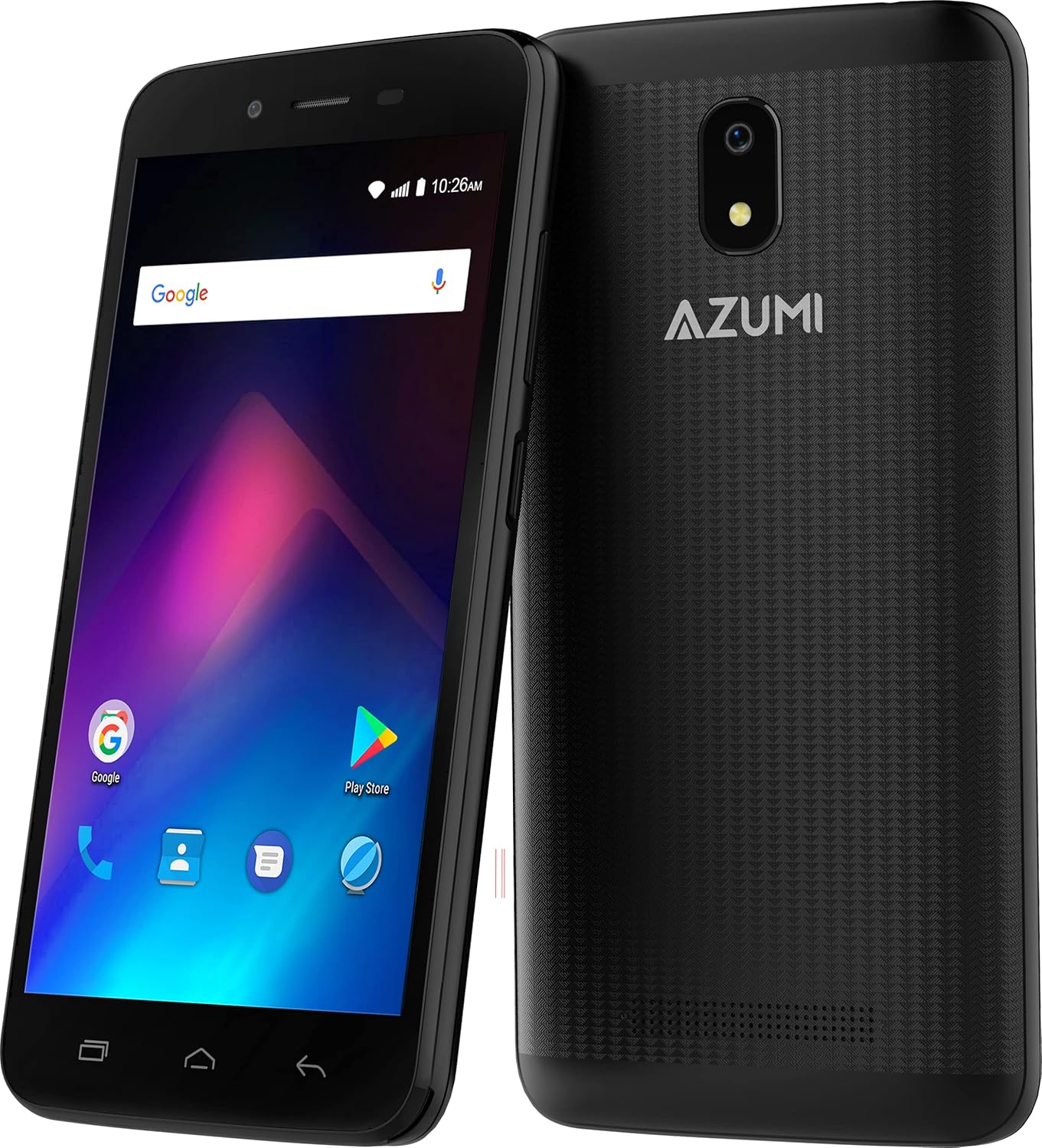
Image: Front and back view of the Azumi V5+ smartphone, showcasing its 5.0-inch screen and rear camera module.
1. Setup
1.1 Package Contents
Before proceeding, ensure all items are present in the package:
- Azumi V5+ Smartphone
- Battery (if removable)
- Charger
- USB Cable
- Quick Start Guide (if included)
1.2 Inserting the SIM Card and Battery
- Power off the device completely.
- Carefully remove the back cover of the phone.
- If the battery is removable, insert the battery into its compartment, ensuring the contacts align.
- Locate the SIM card slot(s). Insert your SIM card(s) with the gold contacts facing down, following the diagram near the slot.
- Replace the back cover securely.

Image: Multiple views of the Azumi V5+ smartphone, illustrating its sides, top, and bottom, useful for identifying button and port locations.
1.3 Charging the Battery
Before first use, fully charge the smartphone battery.
- Connect the USB cable to the charger adapter.
- Plug the charger adapter into a power outlet.
- Connect the micro USB end of the cable to the charging port on your phone.
- The charging indicator will appear on the screen.
1.4 Initial Power On and Setup
- Press and hold the Power button until the screen lights up.
- Follow the on-screen prompts to select your language, connect to Wi-Fi, and set up your Google account.
2. Operating Your Smartphone
2.1 Basic Navigation
- Touchscreen: Tap to select, swipe to scroll, pinch to zoom.
- Power Button: Press to turn the screen on/off, press and hold to power off or restart.
- Volume Buttons: Adjust media volume, call volume, or ringtone volume.
2.2 Making Calls and Sending Messages
- Calls: Open the Phone app, dial the number, and tap the call icon.
- Messages: Open the Messages app, tap the new message icon, enter the recipient and your message.
2.3 Camera Usage
Your Azumi V5+ features an 8 MP main camera and a 5 MP front camera with LED flash.
- Open the Camera app.
- Frame your shot.
- Tap the shutter button to take a photo.
- Switch between front and rear cameras using the camera switch icon.
2.4 Internet Connectivity
- Wi-Fi: Go to Settings > Network & internet > Wi-Fi, turn Wi-Fi on, and select your network.
- Mobile Data (4G LTE): Go to Settings > Network & internet > Mobile network, and ensure Mobile data is enabled.
2.5 App Management (Android Go)
The Azumi V5+ runs on Android Go, an optimized version of Android for entry-level devices.
- Downloading Apps: Use the Google Play Store to download and install applications.
- Uninstalling Apps: Press and hold an app icon on the home screen or app drawer, then drag it to "Uninstall". Alternatively, go to Settings > Apps & notifications.
3. Maintenance
3.1 Cleaning Your Device
Use a soft, lint-free cloth to clean the screen and body of your phone. Avoid using harsh chemicals or abrasive materials.
3.2 Battery Care
- Avoid extreme temperatures.
- Do not overcharge the battery for extended periods.
- For optimal battery life, try to keep the charge between 20% and 80%.
- The Azumi V5+ has a 2000 mAh Lithium Ion battery.
3.3 Software Updates
Periodically check for software updates to ensure your device has the latest features and security patches. Go to Settings > System > System update.
3.4 Storage Management
Your device comes with 32 GB of internal storage. To manage storage:
- Delete unnecessary apps and files.
- Move photos and videos to cloud storage or a computer.
- Clear cache data for apps regularly (Settings > Apps & notifications > [App Name] > Storage & cache > Clear cache).
4. Troubleshooting
4.1 Common Issues and Solutions
| Issue | Solution |
|---|---|
| Device not powering on | Ensure the battery is charged. Press and hold the Power button for at least 10-15 seconds. |
| No network signal | Check if the SIM card is correctly inserted. Restart the phone. Verify mobile data is enabled in settings. |
| Apps crashing or freezing | Clear the app's cache (Settings > Apps & notifications > [App Name] > Storage & cache). Restart the device. |
| Slow performance | Close unused apps. Clear cache. Check available storage. Restart the phone. |
4.2 Factory Reset
If issues persist, a factory reset may be necessary. Warning: This will erase all data on your phone. Back up important data before proceeding.
- Go to Settings > System > Reset options.
- Select "Erase all data (factory reset)".
- Confirm your choice.
5. Specifications
| Feature | Detail |
|---|---|
| Brand | Azumi |
| Model Name | V5+ |
| Operating System | Android Go |
| Screen Size | 5.0 Inches (13 cm) |
| Processor | Quadcore 1.3 GHz (Snapdragon) |
| RAM | 1 GB |
| Internal Storage | 32 GB |
| Rear Camera | 8 MP with LED Flash |
| Front Camera | 5 MP |
| Battery Capacity | 2000 mAh Lithium Ion |
| Cellular Technology | 4G LTE |
| Connectivity | Bluetooth, Wi-Fi |
| Form Factor | Smartphone |
| Dimensions | 15.7 x 9.7 x 5.3 cm |
| Weight | 301 g |
6. Warranty and Support
Your Azumi V5+ smartphone is covered by a limited warranty. For detailed warranty information, terms, and conditions, please refer to the warranty card included in your product packaging or visit the official Azumi website.
For technical support, frequently asked questions, or service inquiries, please visit the Azumi support page or contact their customer service.


