1. Introduction
The UCTRONICS RD6012 is a 720W DC step-down converter and stabilized power supply module. It is designed to provide a constant voltage (DC 0.0V-60V) and constant current (0.0A-12A) output from an input voltage range of DC 6.0V-70V. This manual provides essential information for the safe and effective operation of your RD6012 power supply module.

Figure 1: UCTRONICS RD6012 DC Power Supply Converter and included accessories. This image displays the main unit along with the banana plug to alligator clips, external temperature sensor probe, and Micro USB cable.
2. Package Contents
Upon opening the package, please verify that all the following items are present:
- 1 × UCTRONICS RD6012 Power Supply Module
- 1 pair × Banana Plug to Alligator Clips (Red and Black)
- 1 × External Temperature Sensor Probe
- 1 × Micro USB Cable
3. Product Overview and Controls
The RD6012 features a 2.4-inch color LCD display for clear readings and multiple buttons for intuitive operation. Understanding the layout of the controls is essential for proper use.

Figure 2: Front panel layout and control identification. This image provides a detailed view of the RD6012's front panel, labeling each button, port, and display area for easy reference.
Front Panel Components:
- A: Power Button - Controls the main power to the unit.
- B: Second Function Button - Used for accessing secondary functions or menus.
- C: Rapid Storage Button - For quick saving of settings.
- D: Current/Over Current Protection Value Setting - Adjusts output current and OCP limit.
- E: Voltage/Over Voltage Protection Value Setting - Adjusts output voltage and OVP limit.
- F: Micro USB Interface - For communication with a PC.
- G: Power Output/Battery Charging Negative Pole - Negative terminal for output.
- H: Battery Charging Positive Pole - Positive terminal for battery charging.
- I: Power Output Positive Pole - Positive terminal for output.
- J: Output Switch - Toggles the output power on/off.
- K: Encoder Potentiometer/Cancel Button - Rotary knob for value adjustment and menu navigation, also acts as a cancel button.
- L: Arrow Keys - For navigation within menus.
- M: Keypad - Numeric input for precise value setting.
- N: LCD Display - Shows voltage, current, power, and other operational parameters.
4. Specifications
The following table details the technical specifications of the UCTRONICS RD6012 power supply module:
| Parameter | Value |
|---|---|
| Input Voltage | DC 6.0V-70.0V |
| Output Voltage | DC 0V-60.0V |
| Output Current | 0-12.0A |
| Output Power | 0-720W |
| Input Voltage Accuracy | ±(1% + 5 digits) |
| Output Voltage Accuracy | ±(0.3% + 3 digits) |
| Output Current Accuracy | ±(0.5% + 5 digits) |
| Display Screen | 2.4 inch color LCD display |
| External Temperature Range | 0°F-200°F (approx. -17.8°C to 93.3°C) |
| Intelligent Temperature-Controlled Fan | Temperature trigger: 113°F (45°C); Current Trigger: 8A |
| Overall Dimension | 167mm × 81mm × 65mm |
| Net Weight | 330g |
| Safety Protection | Anti-reverse protection, Overvoltage Protection (OVP), Overcurrent Protection (OCP), Over-temperature Protection (OTP, upper limit 80°C/176°F) |
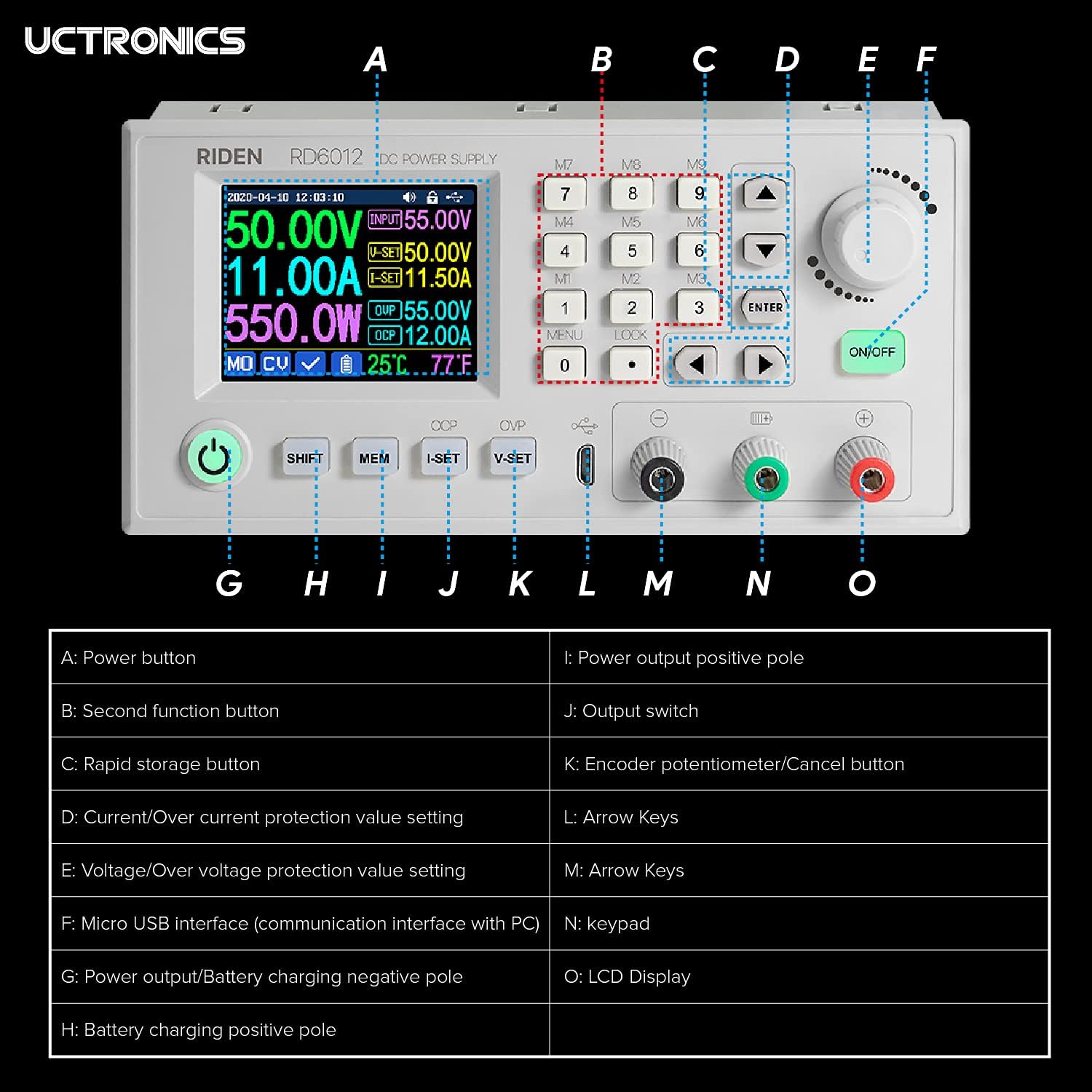
Figure 3: Physical dimensions of the RD6012 module. This image illustrates the length, width, and height of the power supply unit in millimeters and inches.
5. Safety Information
Please read and understand all safety warnings before operating the device to prevent injury or damage.
- Ensure the input power is within the specified range of DC 6V to 70V. Operating outside this range may cause damage to the device or improper function.
- If the output short circuit occurs when the Overcurrent Protection (OCP) value is set lower than the I-SET value, the device will automatically shut off for protection. If the OCP value is set higher, a short circuit will cause the device to switch to constant current output mode.
- Non-professionals should not use the battery charging function without proper knowledge and precautions. Improper use carries a risk of fire and explosion.
- This module is not suitable for charging batteries with a charging limit voltage exceeding 60V.
- Always ensure proper ventilation around the unit to prevent overheating.
- Do not expose the device to moisture or extreme temperatures.
6. Setup
The RD6012 module requires an external DC power source for operation. It is designed to be integrated into a larger system or enclosure.
6.1. Input Power Connection
- Ensure the external DC power source is turned off and disconnected from mains power.
- Connect the positive (+) terminal of your DC input power source (6V-70V) to the input positive terminal of the RD6012 module.
- Connect the negative (-) terminal of your DC input power source to the input negative terminal of the RD6012 module.
- Double-check all connections for polarity and security.
6.2. Output Load Connection
- With the RD6012 output switch (J) in the OFF position, connect your load to the output terminals (G for negative, I for positive).
- If using the battery charging function, connect the battery to terminals G (negative) and H (positive), ensuring correct polarity.
6.3. External Temperature Sensor Connection
Plug the external temperature sensor probe into the designated port on the front panel to monitor external temperatures.
6.4. PC Communication (Optional)
Connect the Micro USB cable from the RD6012's Micro USB interface (F) to your computer for PC control and monitoring. Refer to the UCTRONICS website for software and driver downloads.
Figure 4: RD6012 connected to a PC for software control. This image demonstrates the power supply module interfaced with a computer, displaying the graphical user interface of the control software.
7. Operating Instructions
After successful setup, you can begin operating the RD6012.
7.1. Powering On
Turn on your external DC input power source. The RD6012 display should illuminate. Press the Power Button (A) if the unit does not power on automatically.
7.2. Setting Output Voltage and Current
- Use the Voltage/Over Voltage Protection Value Setting button (E) to select the voltage setting mode.
- Rotate the Encoder Potentiometer (K) to adjust the desired output voltage. Press the encoder to confirm or use the keypad (M) for direct input.
- Use the Current/Over Current Protection Value Setting button (D) to select the current setting mode.
- Rotate the Encoder Potentiometer (K) to adjust the desired output current limit. Press the encoder to confirm or use the keypad (M) for direct input.
7.3. Enabling Output
Once voltage and current limits are set, press the Output Switch (J) to enable the power output to your connected load. The display will show the actual output voltage, current, and power.
7.4. Using Memory Functions
The RD6012 allows you to store and recall frequently used voltage and current settings. Refer to the on-screen menu for detailed instructions on saving and loading memory presets using the Rapid Storage Button (C) and other navigation controls.
8. Maintenance
To ensure the longevity and reliable operation of your RD6012, follow these maintenance guidelines:
- Cleaning: Disconnect the unit from all power sources before cleaning. Use a soft, dry cloth to wipe the exterior. Do not use abrasive cleaners or solvents.
- Ventilation: Ensure the fan and ventilation openings are free from dust and obstructions. The intelligent temperature-controlled fan will activate as needed to maintain optimal operating temperature.
- Storage: Store the device in a cool, dry environment away from direct sunlight and excessive humidity when not in use.
- Inspection: Periodically inspect cables and connections for any signs of wear or damage.
9. Troubleshooting
If you encounter issues with your RD6012, consider the following common troubleshooting steps:
- No Power/Display:
- Check if the input power source is connected and supplying voltage within the 6V-70V range.
- Ensure the power button (A) is pressed.
- Verify the input power cable connections are secure.
- No Output Voltage/Current:
- Ensure the output switch (J) is in the ON position.
- Check if the set output voltage and current limits are appropriate for your load.
- Verify that Overvoltage Protection (OVP) or Overcurrent Protection (OCP) has not been triggered. Adjust OVP/OCP settings if necessary.
- Inspect the output load connections for shorts or open circuits.
- Overheating:
- Ensure adequate ventilation around the unit.
- Check if the fan is operating when the unit is under load or at higher temperatures.
- Reduce the load or operating time if the unit consistently overheats.
- PC Communication Issues:
- Ensure the correct drivers are installed on your computer.
- Verify the Micro USB cable is securely connected to both the RD6012 and the PC.
- Try a different USB port or cable.
For persistent issues not resolved by these steps, please contact UCTRONICS customer support.
10. Warranty and Support
For information regarding warranty coverage, technical support, or service, please refer to the documentation provided at the time of purchase or visit the official UCTRONICS website. Keep your purchase receipt as proof of purchase for warranty claims.


