
1. Introduction
The NETVIP WiFi Repeater Model WN531 is designed to extend the coverage of your existing wireless network. It eliminates Wi-Fi dead zones by boosting your current Wi-Fi signal, providing a strong and reliable connection in areas where your router's signal is weak or non-existent. This device supports wireless speeds of up to 300Mbps on the 2.4GHz band and is compatible with IEEE 802.11 b/g/n standards, working with most standard wireless routers.

Image 1.1: The NETVIP WiFi Repeater extending wireless coverage in a home environment.
2. Package Contents
Please check the package contents upon opening to ensure all items are present:
- 1 x NETVIP WiFi Repeater (Model WN531)
- 1 x Ethernet Cable
- 1 x User Manual

Image 2.1: Contents of the NETVIP WiFi Repeater package, including the device, Ethernet cable, and user manual.
3. Product Features
- Enhanced Wi-Fi Coverage: Extends wireless signal to previously unreachable areas, providing a strong and reliable Wi-Fi connection with up to 300Mbps wireless speed.
- Universal Compatibility: Complies with IEEE 802.11 b/g/n standards, ensuring compatibility with virtually any wireless router.
- Dual Functionality (2-in-1): Supports both Repeater Mode and Access Point (AP) Mode, allowing flexible deployment based on your network needs. Works with various wireless devices including smart home devices, computers, mobile phones, and IP cameras.
- Compact Design: Plugs directly into a standard wall outlet, featuring a discreet and space-saving design.
- Easy Setup: Installation can be completed quickly and easily via your smartphone, tablet, or laptop.

Image 3.1: Illustration of the 2.4G wireless signal support and enhanced wall penetration for wider coverage.
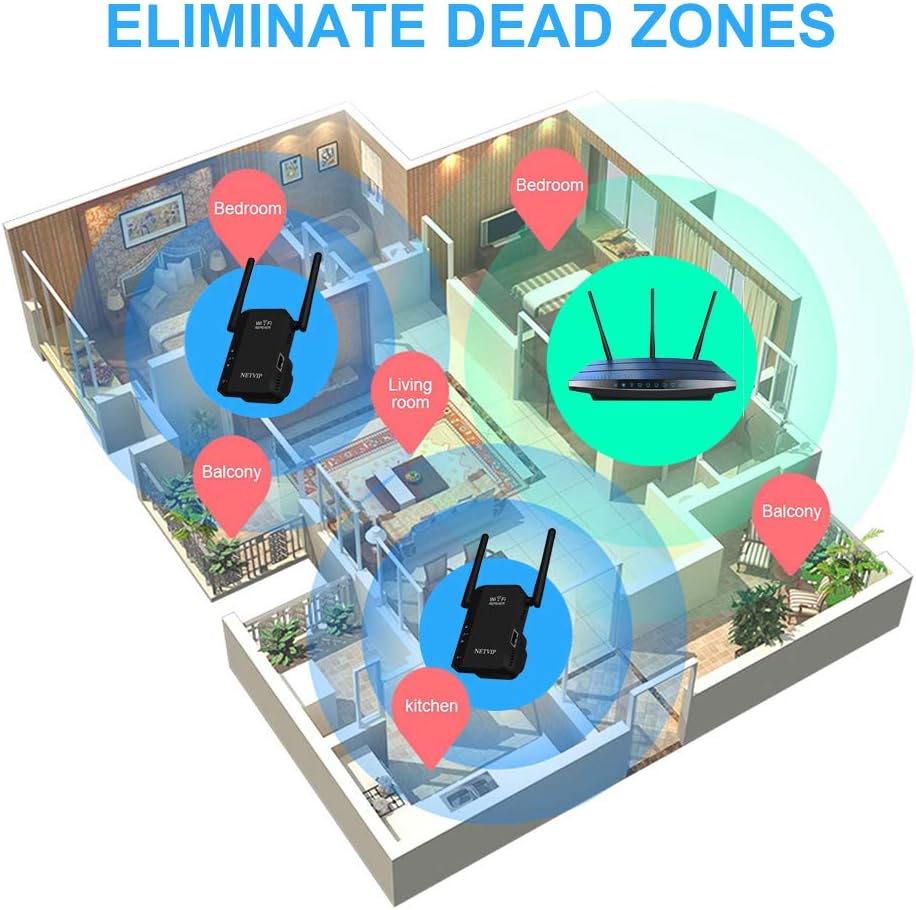
Image 3.2: Diagram showing how the WiFi Repeater helps eliminate dead zones in a multi-room environment.
4. Product Overview (Physical Components)
Familiarize yourself with the physical components of your NETVIP WiFi Repeater:
- LED Lights: Indicate power, Wi-Fi signal status, and Ethernet connection.
- Reset Button: Used to restore the device to factory default settings.
- LAN Port: An Ethernet port for wired connections in AP Mode or for connecting a wired device in Repeater Mode.

Image 4.1: Detailed view of the NETVIP WiFi Repeater highlighting the LED lights, Reset Button, and LAN Port.
5. Setup Guide
Follow these steps to set up your NETVIP WiFi Repeater:
- Power On: Plug the repeater into a standard wall outlet near your main router. Wait for the power LED to light up.
- Connect to Repeater's Wi-Fi: On your smartphone, tablet, or laptop, search for available Wi-Fi networks. Connect to the network named 'Wireless-N' or similar (check the label on the device for the exact default SSID). No password is required for the initial connection.
- Access Web Interface: Open a web browser (e.g., Chrome, Firefox) and enter the default IP address (usually 192.168.10.1 or 192.168.1.254) into the address bar. You may be prompted to enter a default username and password (often 'admin' for both).
- Select Operating Mode: Once logged in, you will see the setup wizard. Choose your desired operating mode:
- Repeater Mode: To extend an existing Wi-Fi network.
- AP Mode: To create a new Wi-Fi network from a wired Ethernet connection.
- Configure Network Settings:
- For Repeater Mode: Select your main Wi-Fi network from the list, enter its password, and choose a new SSID (network name) for your extended network or keep the original.
- For AP Mode: Set a new SSID and password for the new Wi-Fi network that the repeater will create. Connect an Ethernet cable from your main router to the repeater's LAN port.
- Apply Settings and Relocate: Apply the settings. The repeater will restart. Once restarted, you can unplug it and move it to a suitable location between your router and the Wi-Fi dead zone. Ensure the signal LED indicates a good connection to your main router.
6. Operating Modes
The NETVIP WiFi Repeater supports two primary operating modes:
6.1. Repeater Mode
In Repeater Mode, the device wirelessly connects to your existing router's Wi-Fi network and re-transmits the signal, effectively extending its range. This is ideal for eliminating Wi-Fi dead zones in your home or office.

Image 6.1: Diagram illustrating the Repeater Mode, where the device extends the signal from a wireless router to WLAN clients.
6.2. Access Point (AP) Mode
In AP Mode, the device connects to your wired router via an Ethernet cable and transforms the wired internet connection into a new wireless network. This is useful for adding Wi-Fi capability to a wired-only network or creating a separate Wi-Fi network.
Image 6.2: Diagram illustrating the AP Mode, where the device creates a wireless network from a wired router connection for WLAN clients.
7. Maintenance
To ensure optimal performance and longevity of your NETVIP WiFi Repeater, consider the following maintenance tips:
- Placement: Place the repeater in an open area, away from obstructions like large metal objects, concrete walls, and other electronic devices that may cause interference.
- Cleaning: Keep the device clean and free from dust. Use a soft, dry cloth to wipe the exterior. Do not use liquid cleaners.
- Firmware Updates: Periodically check the NETVIP official website for any available firmware updates. Updating the firmware can improve performance, add new features, and fix bugs.
- Ventilation: Ensure the device has adequate ventilation to prevent overheating. Do not cover the ventilation holes.
8. Troubleshooting
If you encounter issues with your NETVIP WiFi Repeater, refer to the following common problems and solutions:
- Cannot connect to the repeater's default Wi-Fi (Wireless-N):
- Ensure the repeater is powered on and the power LED is lit.
- Try resetting the repeater to factory defaults by pressing and holding the Reset button for 5-10 seconds.
- Ensure your device's Wi-Fi is enabled and scanning for networks.
- Cannot access the web management page (192.168.10.1):
- Verify that your device is connected to the repeater's Wi-Fi network (e.g., 'Wireless-N').
- Ensure you are typing the correct IP address into the browser's address bar.
- Try a different web browser or clear your browser's cache.
- Temporarily disable any VPN or firewall software on your device.
- Repeater is not extending the Wi-Fi signal or signal is weak:
- Relocate the repeater to a position halfway between your router and the desired coverage area. The signal LED should indicate a good connection to your main router.
- Ensure the password for your main Wi-Fi network was entered correctly during setup.
- Check for interference from other electronic devices.
- Update the repeater's firmware if available.
- Slow internet speed through the repeater:
- Ensure the repeater is placed in an optimal location with a strong signal from the main router.
- Reduce the number of devices connected to the repeater.
- Check your main internet connection speed.
9. Specifications
| Feature | Specification |
|---|---|
| Model | WN531 |
| Brand | NETVIP |
| Wireless Communication Standard | 802.11b, 802.11n |
| Data Transfer Rate | 300 Megabits per second |
| Color | Black |
| Compatible Devices | Router |
| Package Dimensions | 10.4 x 10.2 x 10 cm |
| Item Weight | 180 g |
10. Warranty and Support
The NETVIP WiFi Repeater Model WN531 comes with a 1-year product warranty from the date of purchase. This warranty covers manufacturing defects and malfunctions under normal use.
For technical support, warranty claims, or any questions regarding your device, please contact NETVIP customer service through the retailer's platform or the official NETVIP website. Please have your purchase receipt and product model number (WN531) ready when contacting support.


