
eLinkSmart YL-P5bf
eLinkSmart Gym Locker Padlock User Manual
Model: YL-P5bf
Introduction
The eLinkSmart Gym Locker Padlock is a smart security device designed for versatile use, offering keyless entry via fingerprint or remote authorization through a mobile application. Its robust, waterproof design makes it suitable for various indoor and outdoor applications, including gym lockers, school lockers, backpacks, gun cases, and more. This manual provides comprehensive instructions for setting up, operating, and maintaining your smart padlock.

Figure 1: The eLinkSmart Gym Locker Padlock, showcasing its fingerprint sensor, alongside its mobile application and Apple Watch integration for unlocking.
Setup
1. Initial Charging
Before first use, fully charge the padlock using the provided USB cable. The padlock is equipped with a rechargeable 110MAH lithium battery, offering approximately 6 months of standby time or over 2000 unlocks on a single charge. A red light indicates low battery. The charging port is located on the side of the padlock, protected by a rubber seal for waterproofing.

Figure 2: Padlock dimensions and material composition, highlighting the USB charging port location.
2. App Installation and Registration
Download the "eSmartLock" app from your device's app store (Google Play for Android or App Store for iOS). Register an account and bind the lock to your account. This is essential for managing fingerprints and remote unlock features.

Figure 3: The eSmartLock padlock shown with its companion mobile application for smart control.
3. Adding Fingerprints
The padlock supports up to 20 different fingerprints, including 2 administrator fingerprints. To add a fingerprint, open the eSmartLock app, navigate to the fingerprint management section, and follow the on-screen prompts to register your finger. Ensure your fingers are clean and dry for optimal recognition. The fingerprint is encrypted and stored securely on the lock itself.
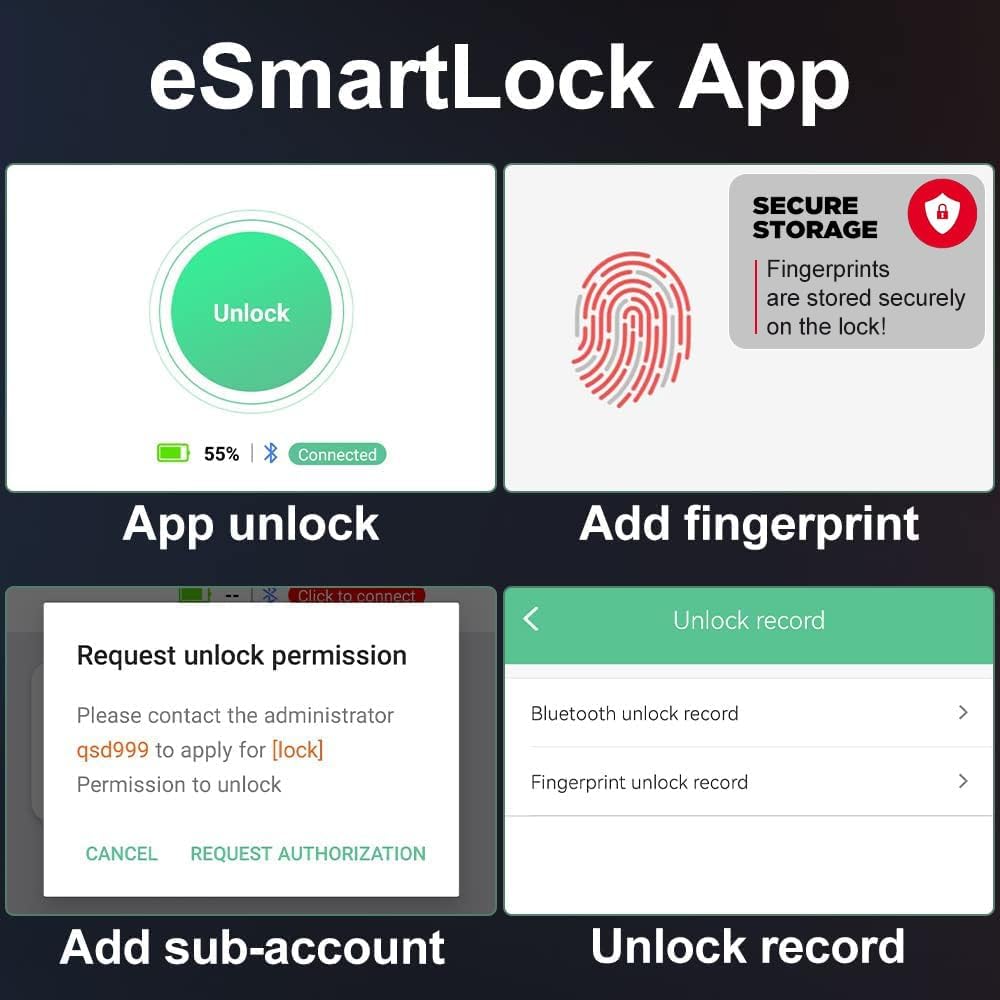
Figure 4: Key features of the eSmartLock app, including fingerprint management and unlock history.
Operating Instructions
1. Fingerprint Unlock
Place a registered finger on the fingerprint sensor. The padlock will unlock in approximately 1 second if the fingerprint is recognized. Only registered fingerprints can unlock the device.
2. App Unlock (Remote Authorization)
Through the eSmartLock app, an administrator can remotely authorize unlocking for general users. The app supports 1 admin and over 1000 general users. Authorization can be set for specific periods or schedules. The app also allows reviewing unlock records, including time, method, and user name.

Figure 5: The padlock's 3-Tier User Control system, enabling flexible access management.
3. Locking the Padlock
To lock the padlock, simply push the shackle down until it clicks into place. The padlock will automatically secure itself.
Maintenance
1. Charging
When the battery is low, the padlock will indicate a red light. Connect the provided USB cable to a power source (e.g., USB power adapter, power bank) to charge. A full charge takes approximately 40 minutes.
2. Waterproofing
The padlock is designed with IP65 weatherproofing, protecting it against dust and water. Ensure the rubber seal over the charging port is properly closed to maintain its waterproof integrity.

Figure 6: The padlock's IP65 waterproof rating, suitable for various environments.
3. Cleaning
To ensure optimal fingerprint recognition, keep the fingerprint sensor clean and dry. Use a soft, dry cloth to wipe the sensor as needed.
Troubleshooting
- Padlock not unlocking with fingerprint:
- Ensure your finger is clean and dry.
- Verify that the fingerprint is properly registered in the app.
- Try repositioning your finger on the sensor.
- Check the battery level via the app; charge if low.
- App connectivity issues:
- Ensure Bluetooth is enabled on your smartphone.
- Make sure the padlock is within Bluetooth range.
- Restart the eSmartLock app.
- If issues persist, try unbinding and re-binding the lock in the app (this will restore the lock to factory mode and delete all registered fingerprints).
- Padlock not charging:
- Verify the USB cable is securely connected to both the padlock and the power source.
- Try a different USB cable or power source.
Specifications
| Feature | Detail |
|---|---|
| Brand | eLinkSmart |
| Model Name | YL-P5bf |
| Lock Type | Biometric |
| Special Features | Waterproof, Fingerprint, Phone App, Support iOS Watch |
| Material | Stainless Steel |
| Item Dimensions (L x W x H) | 1.61 x 0.59 x 2.52 inches |
| Item Weight | 2.4 ounces (68.04 Grams) |
| Battery | Rechargeable 110MAH Lithium Battery |
| Battery Life | Approx. 6 months standby or 2000+ unlocks |
| Charging Time | Approx. 40 minutes |
| Fingerprint Capacity | Up to 20 fingerprints (2 admin, 18 general) |
| Connectivity | Bluetooth (for app control) |
| Waterproof Rating | IP65 |
Warranty and Support
eLinkSmart provides a 6-month warranty and free lifetime customer service for this product. For any questions regarding installation, usage, or troubleshooting, please contact customer service.
Email: aaron@elinksmart.com
If a return is necessary, please contact customer service first. The padlock must be unbound from your account before returning.
Related documentsYL-P5bf


Ask a question about this manual
Ask about setup, troubleshooting, compatibility, parts, safety, or missing instructions. Manuals+ will review the question and use this page’s manual context to help answer it.