
realme Note 60 (RMX3933)
Contents
realme Note 60 Smartphone User Manual
Model: Note 60 (RMX3933)
Introduction
This user manual provides comprehensive instructions for the realme Note 60 smartphone. It covers essential information regarding device setup, operation, maintenance, and troubleshooting to ensure optimal performance and user experience. Please read this manual carefully before using your device.

Image: Front and back view of the realme Note 60 smartphone, showcasing its sleek design and camera module.
Safety Information
To prevent injury or damage to your device, observe the following precautions:
- Do not expose the device to extreme temperatures or direct sunlight for prolonged periods.
- Avoid dropping or subjecting the device to severe impact.
- Keep the device dry. The realme Note 60 has IP64 dust and water resistance, but it is not fully waterproof. Avoid submersion.
- Use only realme-approved chargers and accessories.
- Do not attempt to disassemble or modify the device.
- Dispose of batteries and electronic components responsibly according to local regulations.
Package Contents
Verify that all items are present in your product package:
- realme Note 60 Smartphone
- USB Cable
- Phone Case
- Protective Film (pre-applied or included)
Note: Power adapter is not included in the package.
Device Overview
Familiarize yourself with the physical components of your realme Note 60 smartphone.
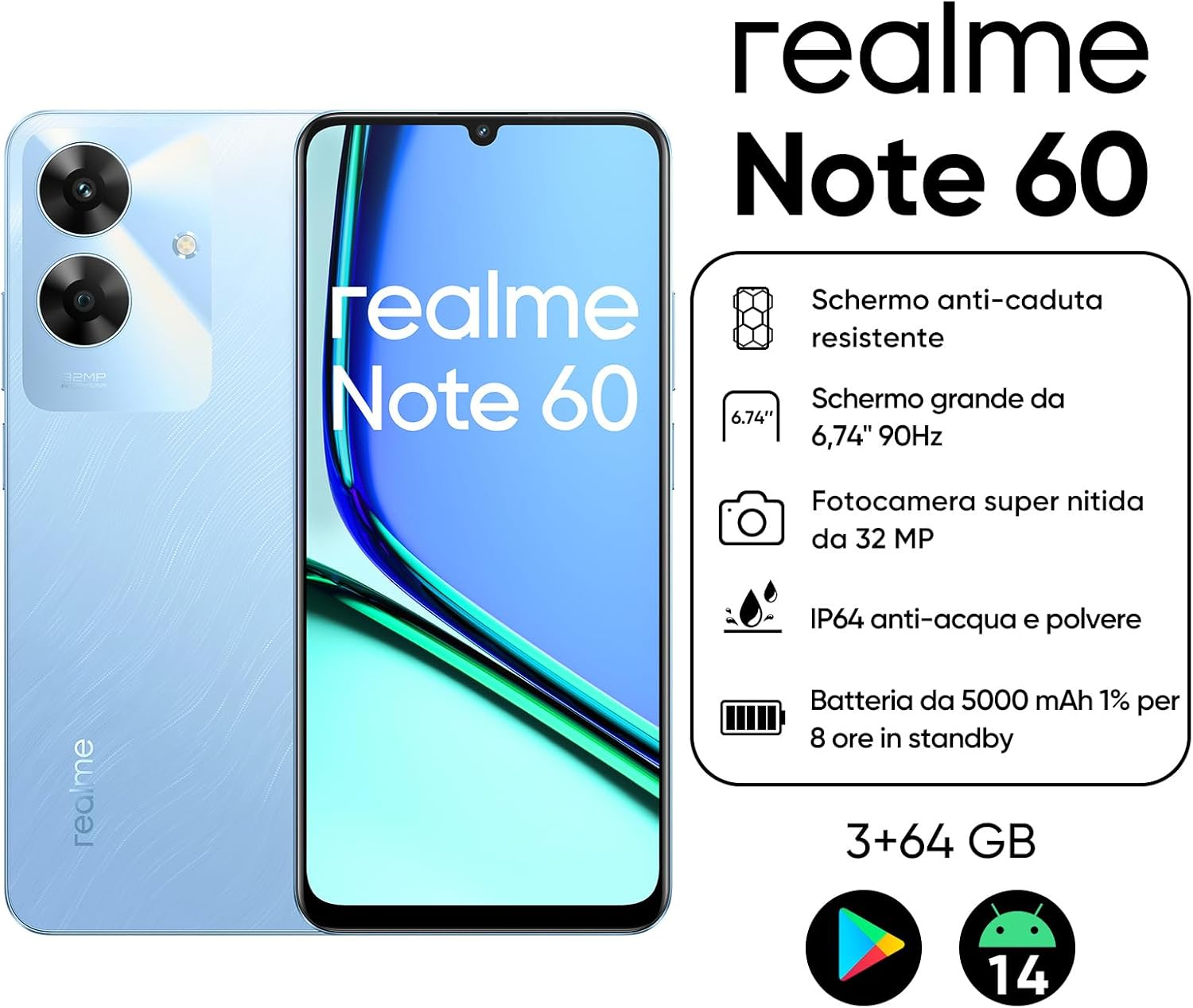
Image: The realme Note 60 smartphone with callouts indicating its durable ArmorShell body, 6.74-inch 90Hz display, 32MP camera, IP64 dust and water resistance, and 5000 mAh battery.
Front View
- Display: 6.74-inch LCD with 90Hz refresh rate.
- Front Camera: Located at the top center of the display.
- Earpiece: Located above the front camera.
Rear View
- Main Camera Module: Features a 32MP camera.
- Flash: Provides illumination for photos in low light.
- realme Logo: Brand identification.
Side Views
- Power Button: Used to turn the device on/off and lock/unlock the screen.
- Volume Buttons: Adjust media volume and ringtone volume.
- SIM Card Tray: For inserting SIM cards and a microSD card.
- USB Port: For charging and data transfer.
- Speaker: Audio output.
- Microphone: For calls and voice recording.
Setup
1. Inserting SIM Card(s) and MicroSD Card
- Locate the SIM card tray on the side of your device.
- Insert the SIM ejector tool (not included, use a paperclip if necessary) into the small hole next to the tray to eject it.
- Place your Nano-SIM card(s) and/or microSD card into the tray with the gold contacts facing down, ensuring they are correctly aligned.
- Gently push the tray back into the slot until it is flush with the device.
2. Charging the Battery
Before first use, it is recommended to fully charge the device battery.
- Connect the USB cable to the USB port on your phone.
- Connect the other end of the USB cable to a compatible USB power adapter (not included) or a computer's USB port.
- The charging indicator will appear on the screen.

Image: Illustration showing the realme Note 60 connected to a charger, highlighting its massive 5000 mAh battery capacity and extended usage times.
3. Initial Power On and Setup Wizard
- Press and hold the Power button until the realme logo appears.
- Follow the on-screen instructions to complete the initial setup, including language selection, Wi-Fi connection, Google account setup, and security settings.
Operating Your Device
Basic Navigation
- Touch: Tap an icon to open an app or select an item.
- Swipe: Drag your finger across the screen to scroll or navigate between screens.
- Pinch: Use two fingers to zoom in or out on images and web pages.
- Long Press: Press and hold an item for more options.
Making Calls and Sending Messages
- Open the Phone app to dial numbers or select contacts.
- Open the Messages app to compose and send text messages.
Connecting to Networks
- Wi-Fi: Go to Settings > Network & internet > Wi-Fi to connect to available Wi-Fi networks.
- Bluetooth: Go to Settings > Connected devices > Bluetooth to pair with Bluetooth devices.
- Mobile Data: Ensure your SIM card is active and mobile data is enabled in Settings > Network & internet > Mobile network.
Camera Features
The realme Note 60 is equipped with a 32MP main camera for clear and detailed photos, and a 5MP front camera for selfies.

Image: A woman taking a selfie with the realme Note 60, emphasizing the clarity of its 32MP main camera and 5MP front camera.
- Open the Camera app from your home screen or app drawer.
- Tap the shutter button to take a photo.
- Switch between photo, video, and other modes (e.g., Portrait, Night).
- Use the toggle to switch between front and rear cameras.
Display and Visuals
Experience smooth visuals with the 6.74-inch LCD display featuring a 90Hz refresh rate and 180Hz touch sampling rate.

Image: The realme Note 60 display showcasing vibrant visuals, highlighting its 6.74-inch size, 90Hz refresh rate, 180Hz touch sampling rate, and 560 nit peak brightness for a comfortable viewing experience.
Performance and AI Boost Engine
The powerful octa-core chipset and AI Boost Engine enhance gaming performance and overall system responsiveness, reducing lag and ensuring a stable user experience.

Image: Diagram illustrating the powerful octa-core chipset and the AI Boost Engine of the realme Note 60, demonstrating its capability to reduce lag and improve gaming performance.
Maintenance
Cleaning Your Device
- Use a soft, lint-free cloth to wipe the screen and body.
- Avoid using harsh chemicals or abrasive materials.
- For stubborn smudges, slightly dampen the cloth with water or a screen cleaner.
Battery Care
The 5000 mAh battery is designed for extended use and longevity. To maximize battery life:
- Avoid fully discharging the battery frequently.
- Do not expose the device to extreme heat or cold.
- Unplug the charger once the battery is full.
- The battery is designed to retain 80% of its original capacity even after 1,000 charging cycles.
Software Updates
Regularly check for and install software updates to ensure your device has the latest features, security patches, and performance improvements. Go to Settings > About phone > Software update.
Storage Management
Your device comes with 64GB of internal storage. You can expand this using a microSD card up to 2TB.

Image: Illustration detailing the realme Note 60's storage capabilities, including 64GB internal storage, 3GB RAM + 5GB dynamic RAM, and microSD expansion up to 2TB.
- Regularly clear cache and unnecessary files.
- Move large files (photos, videos) to a microSD card or cloud storage.
- Uninstall unused applications.
Troubleshooting
| Problem | Possible Solution |
|---|---|
| Device does not turn on. | Ensure the battery is charged. Press and hold the Power button for at least 10 seconds to force restart. |
| Apps are crashing or freezing. | Close background apps. Clear app cache (Settings > Apps > [App Name] > Storage > Clear cache). Restart the device. |
| Cannot connect to Wi-Fi. | Ensure Wi-Fi is enabled. Restart your router. Forget the network and reconnect. |
| Poor battery life. | Reduce screen brightness. Close unused apps. Disable unnecessary features like Bluetooth/GPS when not in use. Check battery usage in settings. |
| Device is slow. | Clear storage space. Restart the device. Check for software updates. |
Specifications
Key technical specifications for the realme Note 60 smartphone:
| Feature | Detail |
|---|---|
| Model Name | Note 60 |
| Model Number | RMX3933 |
| Operating System | Android |
| Display Size | 6.74 Pollici (inches) |
| Display Type | LCD |
| Display Resolution | 1600 x 720 |
| RAM | 3 GB |
| Internal Storage | 64 GB |
| Expandable Storage | microSD (up to 2 TB) |
| Processor Speed | 1800 MHz (1.8 GHz) |
| Main Camera | 32 MP |
| Battery Capacity | 5000 mAh |
| Battery Life (Voice Calls) | 30 Hours (average) |
| Connectivity | 4G, Bluetooth, Wi-Fi |
| Dimensions | 16.7 x 7.67 x 0.78 cm |
| Weight | 187 g |
| Dust & Water Resistance | IP64 |

Image: The realme Note 60 being splashed with water, illustrating its IP64 dust and water resistance provided by ArmorShell Protection.
Warranty and Support
Warranty Information
Your realme Note 60 smartphone comes with a standard manufacturer's warranty. Please refer to the warranty card included in your package or visit the official realme website for detailed terms and conditions regarding warranty coverage and duration.
Customer Support
For technical assistance, service, or further inquiries, please contact realme customer support through their official website or designated service centers. Keep your purchase receipt and device serial number handy when contacting support.
You can visit the official realme store on Amazon for more information: realme Store
Ask a question about this manual
Ask about setup, troubleshooting, compatibility, parts, safety, or missing instructions. Manuals+ will review the question and use this page’s manual context to help answer it.