
1. Introduction
This manual provides essential instructions for the safe and efficient operation, setup, and maintenance of your GBC AutoFeed+ 300M Micro-Cut Paper Shredder. Please read this manual thoroughly before using the shredder to ensure proper function and to prevent damage or injury. This shredder is designed for office use to securely dispose of confidential documents.

Image 1.1: Front view of the GBC AutoFeed+ 300M Micro-Cut Paper Shredder.
2. Safety Instructions
Observe the following safety precautions to reduce the risk of fire, electric shock, or injury:
- Keep hands, hair, and loose clothing away from the paper entry slot.
- Do not allow children or pets near the shredder.
- Unplug the shredder when not in use or before cleaning.
- Do not shred wet or adhesive materials, as this can cause jams or damage.
- Do not spray aerosols or flammable products into or near the shredder.
- Ensure the shredder is placed on a stable, level surface.
- Do not attempt to service the shredder yourself. Refer to qualified service personnel.
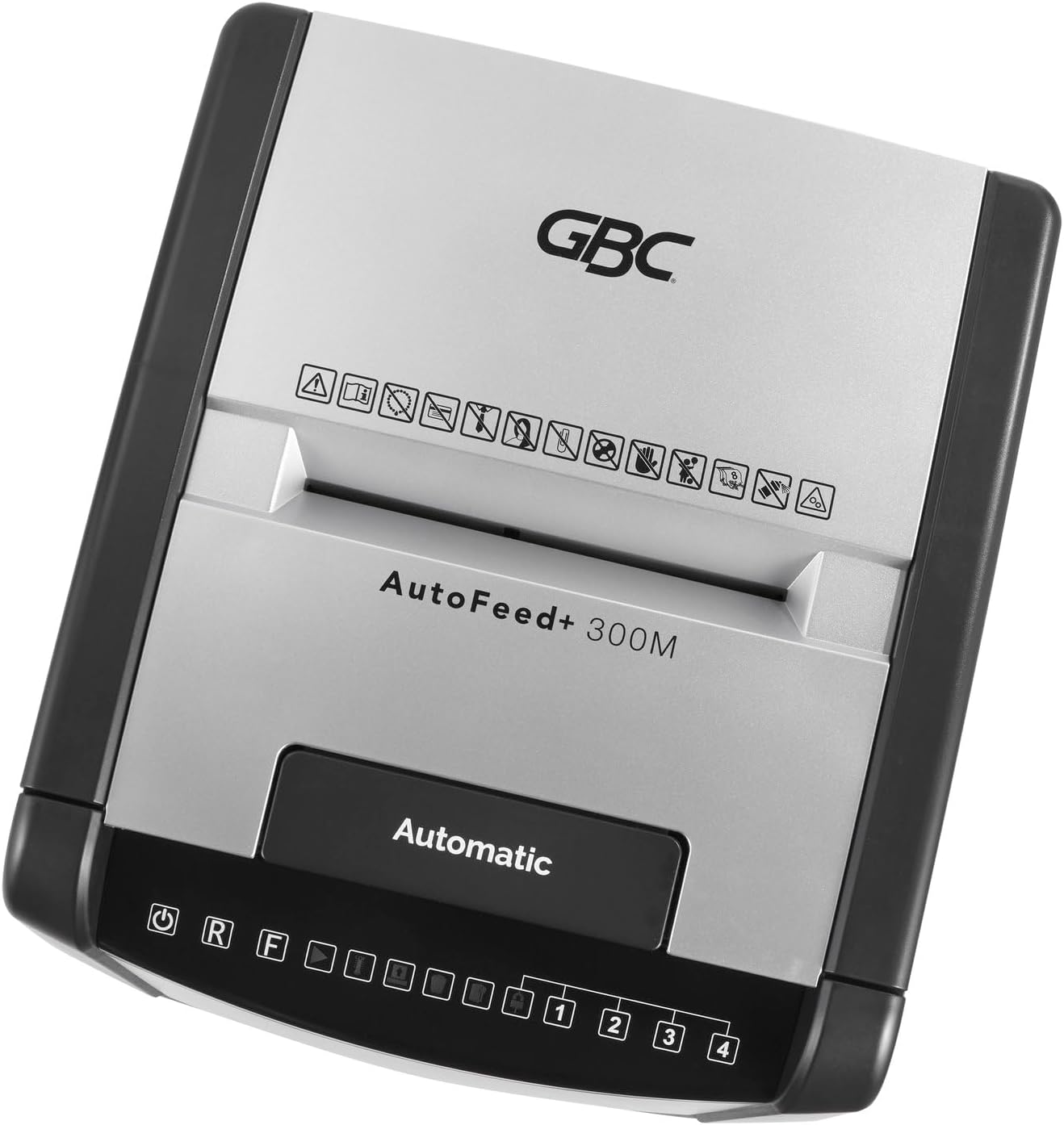
Image 2.1: Top view of the shredder control panel, showing safety warning icons.
3. Package Contents
Verify that all items are present in the package:
- GBC AutoFeed+ 300M Shredder Unit
- Waste Bin (16 Gallon Capacity)
- Instruction Manual (this document)
4. Setup
- Unpack the shredder and remove all packaging materials.
- Place the shredder on a flat, stable surface. Ensure adequate space around the unit for ventilation.
- Insert the waste bin securely into the shredder cabinet. The shredder will not operate if the bin is not correctly seated.
- Connect the power cord to a grounded electrical outlet.
- Turn on the main power switch, usually located on the back or side of the unit.
5. Operating Instructions
5.1. Auto-Feed Operation
The auto-feed feature allows for hands-free shredding of multiple sheets.
- Open the auto-feed tray cover.
- Stack up to 300 sheets of paper neatly into the auto-feed chamber. Ensure papers are free of folds or creases.
- Close the auto-feed tray cover. The shredder will automatically begin processing the documents.
- The shredder can process documents containing paper clips and staples in the auto-feed.

Image 5.1: Illustration of the auto-feed process: stacking papers, closing the lid, and the shredder operating.

Image 5.2: User placing a stack of documents into the auto-feed tray.
5.2. Manual Feed Operation
For smaller quantities of paper or credit cards, use the manual feed slot.
- Ensure the shredder is powered on.
- Insert up to 8 sheets of paper into the manual feed slot.
- For credit cards, insert one card at a time into the designated manual feed slot.
- The shredder will automatically detect the paper or card and begin shredding.

Image 5.3: Visual comparison of auto-feed (left) and manual feed (right) shredding options.
5.3. Security Level
This shredder produces micro-cut particles, offering P-5 level security. This ensures highly confidential information is securely destroyed.

Image 5.4: Illustration of micro-cut particle size (3/32" x 5/8") compared to a US quarter for P-5 security level.
6. Maintenance
6.1. Emptying the Waste Bin
The shredder features a 16-gallon waste bin. Empty the bin regularly to prevent jams and ensure optimal performance. The shredder has a bin full sensor that will indicate when emptying is required.
- Turn off and unplug the shredder.
- Pull out the waste bin from the front of the unit.
- Dispose of the shredded material.
- Reinsert the waste bin firmly until it clicks into place.

Image 6.1: The shredder with its 16-gallon waste bin pulled out, illustrating its capacity and dimensions.
6.2. Oiling the Shredder
Regular oiling of the shredder blades is crucial for maintaining performance and extending the life of the unit. Use GBC shredder oil or a compatible vegetable-based shredder oil.
- Apply a thin line of shredder oil across the paper entry slot.
- Run a few sheets of paper through the manual feed to distribute the oil.
- Perform this maintenance after every 30 minutes of continuous shredding or when emptying the waste bin.
7. Troubleshooting
| Problem | Possible Cause | Solution |
|---|---|---|
| Shredder does not start. | No power; waste bin not properly inserted; overheating. | Check power connection; ensure bin is fully inserted; allow shredder to cool down for 30-60 minutes. |
| Paper jam. | Too many sheets; paper folded or creased; non-shreddable material. | Use the reverse function (R button on control panel) to clear the jam. Reduce sheet count for future shredding. |
| Shredder stops during operation. | Overheating; waste bin full. | Allow shredder to cool down; empty the waste bin. |
8. Specifications
- Model: WSM1757609
- Shred Type: Micro-Cut
- Security Level: P-5
- Auto-Feed Capacity: Up to 300 sheets
- Manual Feed Capacity: Up to 8 sheets
- Waste Bin Capacity: 16 Gallons
- Continuous Run Time: 60 minutes
- Shreds: Paper, paper clips, staples, credit cards (manual feed only)
- Dimensions (L x W x H): 19 x 17 x 29 inches
- Item Weight: 55.9 pounds
- Manufacturer: ACCO Brands
9. Warranty and Support
For warranty information and customer support, please refer to the official GBC website or contact your retailer. Keep your purchase receipt as proof of purchase for warranty claims.
GBC Official Website: www.gbc.com


