
1. Introduction
Welcome to the user manual for your Bmax Y13Pro 13.3-inch Convertible 2-in-1 FHD Touchscreen Laptop. This document provides essential information to help you set up, operate, maintain, and troubleshoot your device. Please read this manual thoroughly to ensure optimal performance and longevity of your laptop.
2. Package Contents
Upon unpacking your Bmax Y13Pro laptop, please verify that all the following items are included:
- BMAX MaxBook Y13Pro (2-in-1 laptop) x 1
- 24W DC Power Adapter x 1 with Replaceable Plug x 3 (US Standard Plug x 1, UK Standard Plug x 1, EU Standard Plug x 1)
- Guarantee Card x 1
- User Guide x 1 (This document)
- Safety Document x 1

Image: The Bmax Y13Pro laptop in its closed state, showcasing the sleek metal body from a top perspective.
3. Setup and First Use
3.1. Charging the Laptop
Before initial use, connect the provided 24W DC Power Adapter to the laptop's charging port and a power outlet. Allow the laptop to charge for at least 30 minutes or until the battery indicator shows sufficient charge. The laptop can be used while charging.
3.2. Powering On/Off
- To Power On: Press and hold the power button located on the side of the laptop until the screen illuminates.
- To Power Off: Click the Windows Start button, then select 'Power' and choose 'Shut down'. Alternatively, press and hold the power button for several seconds to force a shutdown (use only when necessary).
3.3. Initial Windows 10 Setup
The first time you power on the laptop, you will be guided through the Windows 10 setup process. Follow the on-screen instructions to configure language, region, network connection, user account, and privacy settings. An active internet connection is recommended for this process to ensure all necessary updates are downloaded.
3.4. Connecting to Wi-Fi
During the Windows setup or at any time:
- Click the Wi-Fi icon in the taskbar (usually in the bottom-right corner).
- Select your desired Wi-Fi network from the list.
- Enter the network security key (password) if prompted.
- Click 'Connect'.
4. Operating Your Laptop
4.1. Convertible Modes
The Bmax Y13Pro features a 360-degree hinge, allowing it to transform into various modes:
- Laptop Mode: Traditional laptop configuration for typing and productivity.
- Tent Mode: Fold the screen back to form an inverted 'V' shape, ideal for watching videos or presentations in confined spaces.
- Stand Mode: Fold the screen back so the keyboard acts as a stand, bringing the display closer for touch interaction.
- Tablet Mode: Fold the screen completely back against the base, converting the device into a tablet for touch-first applications.

Image: The Bmax Y13Pro laptop configured in tent mode, with the screen angled for viewing.

Image: The Bmax Y13Pro laptop fully converted into tablet mode, with the display facing upwards.
4.2. Touchscreen Functionality
The 13.3-inch FHD IPS display supports 10-point multi-touch. You can interact with the operating system and applications using touch gestures similar to a tablet or smartphone. Common gestures include tapping, swiping, pinching to zoom, and two-finger scrolling.
4.3. Backlit Keyboard
The Bmax Y13Pro features a backlit keyboard with two adjustable brightness levels. To control the backlight:
- Press the F2 key to cycle through backlight settings: Off, Low, High.
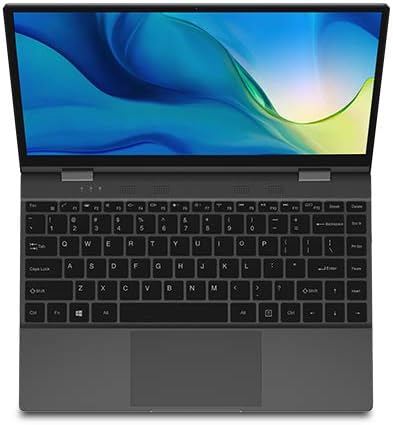
Image: A top-down view of the Bmax Y13Pro laptop, open to reveal the keyboard and display.
4.4. Ports and Connections
The laptop is equipped with various ports for connectivity:
| Port Type | Description |
|---|---|
| USB-C (Full Function) | Supports Power Delivery, HDMI output, and USB 3.0 data transfer. |
| USB-C (USB 3.0) | Supports USB 3.0 data transfer. |
| SD Card Reader | For reading and writing to SD memory cards. |
| Audio Combo Jack | Connect headphones or a headset with a microphone. |
| DC Power Port | Dedicated port for connecting the power adapter. |
The laptop also supports 802.11a/b/g/n/ac Wi-Fi and Bluetooth 4.2 for wireless connectivity.
5. Maintenance and Care
5.1. Cleaning Your Laptop
- Screen: Use a soft, lint-free cloth lightly dampened with water or a screen-cleaning solution. Avoid harsh chemicals.
- Body and Keyboard: Use a soft, dry cloth. For stubborn dirt, a slightly damp cloth can be used. Ensure no liquid enters ports or openings.
- Ports: Use compressed air to gently clear dust from ports.
5.2. Battery Management
To maximize battery life and performance:
- Avoid fully discharging the battery frequently.
- Do not expose the laptop to extreme temperatures.
- Unplug the charger once the battery is fully charged if you plan to use it on battery power soon.
- If storing the laptop for an extended period, charge it to about 50-70% before turning it off.
5.3. Software Updates
Regularly check for and install Windows updates to ensure your system has the latest security patches and performance improvements. Go to Settings > Update & Security > Windows Update.
6. Troubleshooting
This section addresses common issues you might encounter with your Bmax Y13Pro laptop.
6.1. Device Not Powering On
- Ensure the power adapter is securely connected to both the laptop and a working power outlet.
- Verify the power outlet is functional by plugging in another device.
- Allow the laptop to charge for at least 15-30 minutes before attempting to power it on again.
- Try a hard reset by holding the power button for 10-15 seconds.
6.2. Slow Performance
- Close unnecessary applications and browser tabs.
- Restart the laptop.
- Check for and install any pending Windows updates.
- Run a disk cleanup and defragmentation (for HDD, not necessary for SSD).
- Ensure your storage (SSD) is not nearly full.
6.3. Battery Draining Quickly / Overheating
- Reduce screen brightness.
- Close power-intensive applications running in the background.
- Ensure proper ventilation; do not block air vents.
- Avoid using the laptop on soft surfaces like beds or couches that can obstruct airflow.
- Disconnect external peripherals when not in use.
- Update drivers, especially graphics drivers.
6.4. Wi-Fi or Bluetooth Connectivity Issues
- Toggle Wi-Fi/Bluetooth off and on in Windows settings.
- Restart your router/modem.
- Ensure you are within range of the Wi-Fi network or Bluetooth device.
- Update network adapter drivers via Device Manager.
6.5. Keyboard Backlight Not Working
- Press the F2 key to ensure the backlight is not turned off or set to the lowest brightness.
- Restart the laptop.
7. Specifications
Below are the technical specifications for the Bmax Y13Pro laptop:
| Feature | Specification |
|---|---|
| Model Name | Y13Pro |
| Processor | Intel Core m5-6Y54 (up to 2.70GHz) |
| Operating System | Windows 10 Home 64-bit |
| Graphics | Integrated Intel HD Graphics 515 |
| RAM | 8 GB LPDDR3 2133 MHz (Onboard) |
| Storage | 256 GB M.2 2280 SATA SSD |
| Display | 13.3-inch FHD (1920 x 1080) IPS Glossy Multi-touch |
| Camera | 720p HD Camera |
| Audio | Built-in Two-channel Speaker |
| Battery Life | Up to 6 hours (FHD) |
| Dimensions (W x D x H) | 12.1 x 8.2 x 0.6 inches (307.5 x 208 x 14.7 mm) |
| Weight | 2.8 lbs (1.25 kg) |
| Connectivity | 802.11a/b/g/n/ac Wi-Fi, Bluetooth 4.2 |
| Ports | 1x USB-C (PowerDelivery, HDMI, USB 3.0 Full Function), 1x USB-C (USB 3.0), 1x SD Card Reader, Audio Combo Jack |
| Body Material | All-Metal Body |
8. Warranty and Support
8.1. Warranty Information
Your Bmax Y13Pro laptop comes with a Guarantee Card. Please refer to this card for detailed information regarding the warranty period, terms, and conditions. Keep your proof of purchase in a safe place as it may be required for warranty claims.
8.2. Customer Support
If you encounter issues that cannot be resolved using the troubleshooting steps in this manual, or if you require further assistance, please contact Bmax customer support. Refer to the contact information provided on your Guarantee Card or visit the official Bmax website for support resources.