
1. Product Overview
The WAVLINK USB 3.0/C to HDMI Dual Display Adapter is a versatile solution designed to expand your display capabilities. It allows you to connect two external monitors to your computer via a single USB 3.0 or USB-C port, supporting both extended and mirror display modes. This adapter is ideal for enhancing productivity in various work environments.

Figure 1: WAVLINK USB 3.0/C to HDMI Dual Display Adapter. This image shows the compact design of the adapter with its integrated USB-A and USB-C connector, and two HDMI output ports labeled 2K and 4K.
Key Features:
- Crystal Clear 4K Vision: Supports resolutions up to 3840x2160@30Hz on the 4K port and 1920x1080@60Hz on the 2K port for extended or mirrored displays.
- Hybrid 2-in-1 Cable: Features a versatile USB-A and USB-C connector, compatible with USB-C, USB-A, Thunderbolt 3/4, and USB 4 devices.
- Wide Compatibility: Compatible with Windows 7/8/8.1/10/11, Mac OS 10.10 or later, Chrome OS, and Android with OTG function. Note: Not compatible with Linux & iPad OS.
- Enhanced Productivity: Facilitates multitasking by allowing users to extend or mirror their screen content across multiple monitors.
- Thoughtful Design: Includes lateral ventilation holes for heat dissipation and anti-skid pads for stability.
Video 1: WAVLINK USB 3.0 to HDMI Dual Display Adapter Overview. This video provides a visual introduction to the WAVLINK USB 3.0 to HDMI Dual Display Adapter, highlighting its key features and connectivity options.
2. Setup and Installation
Before connecting the adapter, it is crucial to install the necessary drivers. This device is not plug-and-play and requires driver installation for proper functionality.
Driver Installation:
- Download Driver: Visit the official SiliconMotion website (www.siliconmotion.com). Navigate to the "Support" section, then "Download Center," and select "Others" under Product Solution. Locate and download the appropriate "SM76x Driver Download" for your operating system (Windows, macOS, or Android).
- Install Driver: Follow the on-screen instructions to install the downloaded driver. For macOS users, you may need to grant screen recording permissions in "System Preferences > Privacy & Security" for "macOS InstantView" to function correctly.
Video 2: How to Install the SMI Driver. This video demonstrates the step-by-step process of downloading and installing the necessary SiliconMotion driver for the WAVLINK adapter on a macOS system, including granting required permissions.
Connecting the Adapter:
- Connect the USB-A or USB-C end of the adapter's hybrid cable to an available USB 3.0/USB-C/Thunderbolt 3/4/USB 4 port on your computer.
- Connect your primary external monitor to the HDMI port labeled "4K" on the adapter using an HDMI cable.
- Connect your secondary external monitor to the HDMI port labeled "2K" on the adapter using an HDMI cable.
- Ensure both monitors are powered on and set to the correct HDMI input.

Figure 2: Connecting the adapter for 4K output. This image illustrates the WAVLINK adapter connected to a laptop via its USB-C port, with an HDMI cable extending to a 4K monitor, demonstrating a single display setup.
3. Operating the Adapter
Once the drivers are installed and the adapter is connected, you can configure your display settings.
Display Modes:
- Extend Mode: Allows you to have different content displayed on each connected monitor, expanding your desktop workspace. The 4K port supports up to 3840x2160@30Hz, and the 2K port supports up to 1920x1080@60Hz.
- Mirror Mode: Duplicates your primary display's content onto the connected external monitors. Both 4K and 2K ports support 1920x1080@60Hz in mirror mode. Note: Android devices only support mirror mode up to 1080P.

Figure 3: Mirror Mode and Extend Mode. This image visually explains the difference between Mirror Mode (displaying the same content on all screens) and Extend Mode (extending the desktop across multiple screens) for Windows, Mac OS, and Android.
System Compatibility:
| Operating System | Compatibility |
|---|---|
| Windows | 7 / 8 / 8.1 / 10 / 11 |
| Mac OS | 10.10 or later |
| Android | 7.1 or above (with OTG function, mirror mode only up to 1080P) |
| Chrome OS | Supported |
| Linux & iPad OS | Not Supported |

Figure 4: Wide Compatibility. This image displays the range of input devices (Desktop, Laptop, Phone, Tablet) and output devices (HDTV, Monitor, Projector) compatible with the WAVLINK adapter.
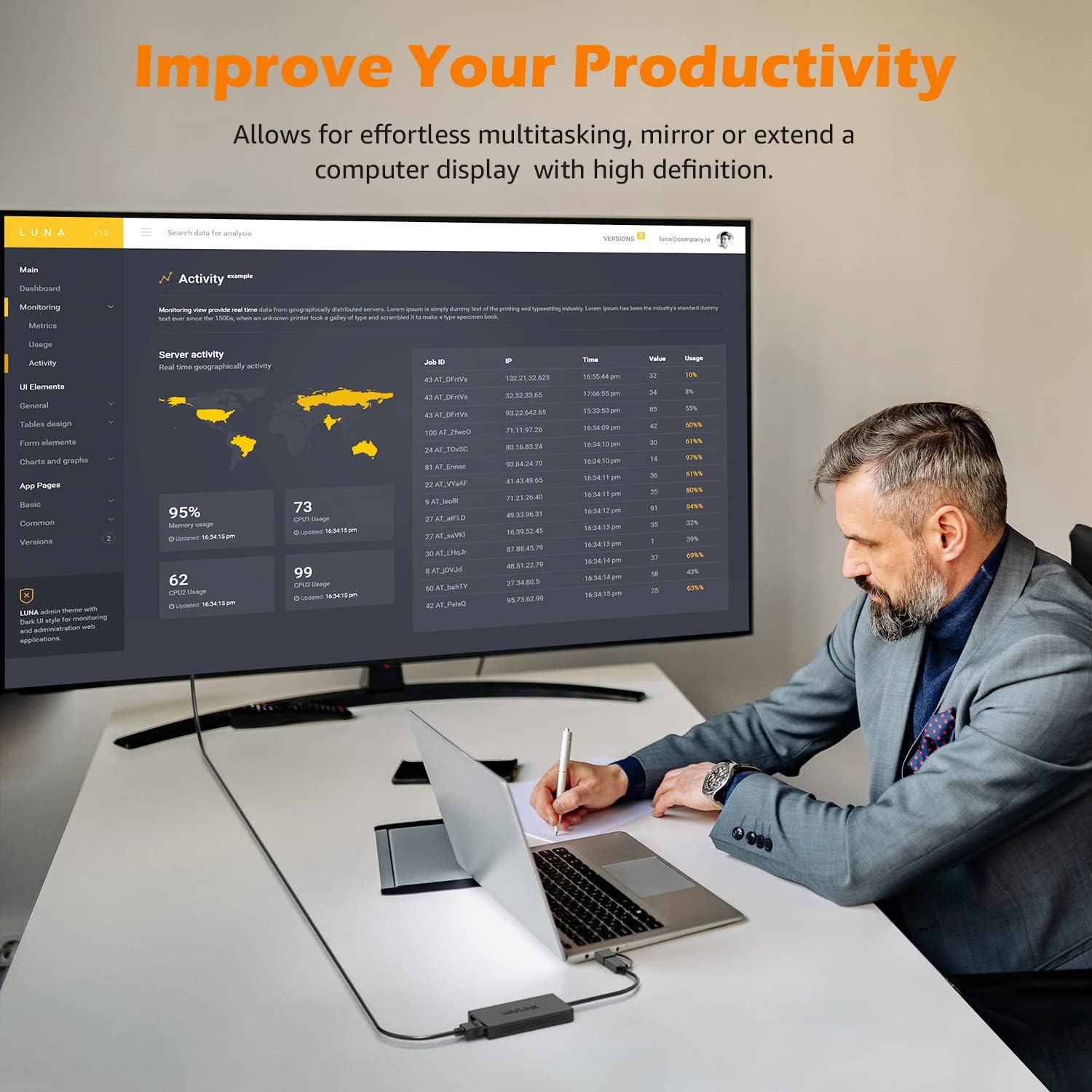
Figure 5: Improve Your Productivity. This image shows a user working efficiently with a laptop connected to an external monitor via the WAVLINK adapter, demonstrating enhanced productivity through extended display.
4. Maintenance
To ensure the longevity and optimal performance of your WAVLINK adapter, follow these maintenance guidelines:
- Heat Dissipation: The adapter is designed with lateral ventilation holes to provide excellent heat dissipation. Ensure these vents are not blocked during use to prevent overheating.
- Cleaning: Use a soft, dry cloth to clean the adapter. Avoid using liquid cleaners or aerosols.
- Storage: Store the adapter in a cool, dry place when not in use. Avoid extreme temperatures and direct sunlight.
- Handling: Handle the adapter and its cables with care. Avoid bending or pulling the cables excessively, which can damage internal wiring.

Figure 6: Thoughtful Details. This image highlights the design features of the WAVLINK adapter, including its lateral ventilation holes for heat dissipation and anti-skid pads for stable placement.
5. Troubleshooting
If you encounter issues with your WAVLINK USB 3.0/C to HDMI Dual Display Adapter, consider the following troubleshooting steps:
- No Display/Flickering Screen:
- Ensure the drivers are correctly installed. Re-download and install the latest driver from www.siliconmotion.com if necessary.
- Verify all cable connections are secure between the adapter, computer, and monitors.
- Check monitor input settings to ensure they are set to the correct HDMI source.
- Test with different HDMI cables or monitors to rule out faulty peripherals.
- Restart your computer after driver installation or configuration changes.
- Resolution Issues:
- Confirm your monitors support the desired resolutions (e.g., 4K@30Hz for the 4K port).
- Adjust display settings in your operating system to match the adapter's capabilities.
- Compatibility Issues:
- Remember that the adapter does NOT support Linux or iPad OS.
- Android devices only support mirror mode up to 1080P.
- The adapter is not recommended for gaming or graphics-intensive work.
- It does not support the playback of HDCP-protected content.
6. Specifications
| Feature | Detail |
|---|---|
| Product Dimensions | 3.94 x 1.97 x 0.59 inches |
| Item Weight | 2.82 ounces |
| Model Number | WL-UG7602H |
| Compatible Devices | Monitor |
| Connector Type | USB Type C, HDMI |
| Color | USB 3.0 to Dual HDMI Adapter |
| Max Resolution (4K Port) | 3840x2160@30Hz |
| Max Resolution (2K Port) | 1920x1080@60Hz |
| Operating Systems Supported | Windows 7/8/8.1/10/11, Mac OS 10.10+, Chrome OS, Android 7.1+ (OTG) |

Figure 7: Compact & Portable. This image provides a visual representation of the WAVLINK adapter's dimensions (100mm/3.94in length, 50mm/1.97in width, 15mm/0.60in height) and weight (80g/2.82oz), emphasizing its portability.
7. Warranty and Support
WAVLINK is committed to providing high-quality products and excellent customer service.
- Warranty: The product comes with a 1-Year worry-free warranty. An extra 6 months warranty is available for registered members.
- Customer Service: Life-long friendly customer service and technical support are provided.
- Contact Information:
- Phone: +1 8889730883 (UTC-5) Mon - Fri 9AM - 6PM
- Email: Contact@wavlink.com

Figure 8: WAVLINK Customer Support. This image displays the contact details for WAVLINK customer service, including phone number and email address, along with their operating hours.