
DRONEEYE 4DF8
DRONEEYE 4DF8 GPS Drone User Manual
Model: 4DF8
Brand: DRONEEYE
1. Introduction
Thank you for choosing the DRONEEYE 4DF8 GPS Drone. This advanced quadcopter features a 4K UHD camera, 5G HD live video transmission, a powerful brushless motor, and intelligent flight modes such as Auto Return Home and Follow Me. This manual provides essential information for safe operation, setup, maintenance, and troubleshooting to ensure you get the most out of your drone.
2. Safety Guidelines
Always prioritize safety when operating your drone. Failure to follow these guidelines may result in injury, damage to property, or legal consequences.
- Read the Manual: Thoroughly read and understand this entire manual before first flight.
- Age Restriction: This product is intended for adults.
- Environmental Conditions: Fly in open areas, away from people, buildings, and obstacles. Avoid flying in strong winds, rain, snow, or fog.
- Line of Sight: Always maintain visual line of sight with your drone during flight.
- Battery Safety: Use only original batteries and chargers. Do not overcharge or puncture batteries. Store batteries in a cool, dry place.
- Propeller Safety: Keep hands, face, and loose clothing away from rotating propellers. Ensure propellers are correctly installed before flight.
- Respect Privacy: Be mindful of privacy laws and regulations when using the camera.
- Local Regulations: Be aware of and comply with all local aviation laws and regulations regarding drone operation.
3. Package Contents
Verify that all items are present in your package:
- DRONEEYE 4DF8 GPS Drone
- Remote Control
- Lithium Ion Batteries (x2)
- USB Charging Cable
- Spare Propellers
- Screwdriver
- User Manual
- Carrying Case

Image: Complete package contents including the 4DF8 drone, remote controller, two flight batteries, and a protective carrying case.
4. Components Overview
4.1 Drone Components
- Brushless Motors: Provide efficient and quiet flight.
- Propellers: Four propellers (two A-type, two B-type) for lift and thrust.
- 4K UHD Camera: Integrated camera for high-resolution photos and videos, with electronic angle adjustment.
- GPS Module: Enables precise positioning, auto return home, and intelligent flight modes.
- Optical Flow Sensor: Assists with stable hovering, especially indoors or when GPS signal is weak.
- Battery Compartment: Located at the rear of the drone for the flight battery.

Image: Illustration of the drone's brushless motor, highlighting its powerful and energy-saving design, along with a depiction of the flight battery.

Image: Detailed view of the drone's 4K HD ESC (Electronic Stability Control) camera, capable of remote 90-degree angle adjustment.
4.2 Remote Control Components
- Left Joystick: Controls throttle (up/down) and yaw (rotate left/right).
- Right Joystick: Controls pitch (forward/backward) and roll (left/right).
- One-Key Take-off/Landing Button: Initiates automatic take-off or landing.
- Return Home Button: Activates the automatic return to home function.
- Photo/Video Button: Captures photos or starts/stops video recording.
- Phone Holder: Adjustable holder for mounting your smartphone to view FPV feed.
5. Setup
5.1 Charging Batteries
Before first use, fully charge both drone flight batteries and the remote control battery. Connect the USB charging cable to a suitable USB power adapter (not included) and then to the battery. The charging indicator will show status (e.g., red for charging, green for full). Charging typically takes 2-3 hours per battery.
5.2 Installing Batteries
- Drone Battery: Slide the charged flight battery into the battery compartment at the rear of the drone until it clicks securely into place.
- Remote Control Battery: Open the battery cover on the back of the remote control and insert the charged battery, ensuring correct polarity. Close the cover.
5.3 Propeller Installation
The drone comes with foldable arms. Ensure they are fully extended before installing propellers. Match the 'A' and 'B' markings on the propellers with the corresponding motor arms. Securely attach each propeller using the provided screws and screwdriver.
5.4 App Installation and Connection
Download the official DRONEEYE app (refer to the QR code in the quick start guide or search your app store) on your smartphone. Follow these steps to connect:
- Power on the drone.
- Go to your phone's Wi-Fi settings and connect to the drone's Wi-Fi network (e.g., "DRONEEYE-XXXX").
- Open the DRONEEYE app. The app should automatically connect to the drone and display the live FPV feed.
6. Operating Instructions
6.1 Pre-Flight Checklist
Before every flight, perform the following checks:
- Ensure drone and remote batteries are fully charged.
- Propellers are securely attached and undamaged.
- Drone arms are fully extended.
- Power on the remote control first, then the drone.
- Perform compass and gyroscope calibration as instructed in the app.
- Wait for sufficient GPS satellite lock (indicated by solid GPS icon in app) before outdoor flight.
6.2 Take-off and Landing
- One-Key Take-off: Press the One-Key Take-off button on the remote. The drone will automatically ascend to a safe hovering altitude.
- Manual Take-off: Push both joysticks down and outwards to start the motors. Slowly push the left joystick up to ascend.
- One-Key Landing: Press the One-Key Landing button. The drone will automatically descend and land.
- Manual Landing: Slowly pull the left joystick down to descend. Once landed, push both joysticks down and inwards to stop the motors.
6.3 Basic Flight Controls
- Left Joystick (Throttle/Yaw):
- Up/Down: Ascend/Descend
- Left/Right: Rotate drone left/right (Yaw) - Right Joystick (Pitch/Roll):
- Up/Down: Fly forward/backward (Pitch)
- Left/Right: Fly left/right (Roll)
6.4 Advanced Flight Modes
- Follow Me Mode: The drone will automatically follow the remote controller or your mobile device, tracking your movement. Activate via the app.
- Waypoint Mode (Tap Fly): Draw a flight path on the map in the app, and the drone will fly along the designated route.
- Around Mode (Orbit): The drone will circle a designated point of interest.
- Auto Return Home (RTH): The drone will automatically return to its take-off point under conditions such as low battery, signal loss, or by pressing the RTH button.
- Altitude Hold: The drone maintains a stable altitude, allowing you to focus on directional control.
- Gravity Control Mode: Control the drone's movement by tilting your smartphone.
- Gesture Control: Use specific hand gestures to trigger photo or video capture.

Image: The drone in 'Follow Me' mode, automatically tracking the user's movement.

Image: 'Tap Fly' feature, where the user draws a flight course on a map, and the drone autonomously follows it.

Image: The drone's GPS Return Home function, illustrating its path back to the take-off point due to signal loss, low battery, or manual activation.
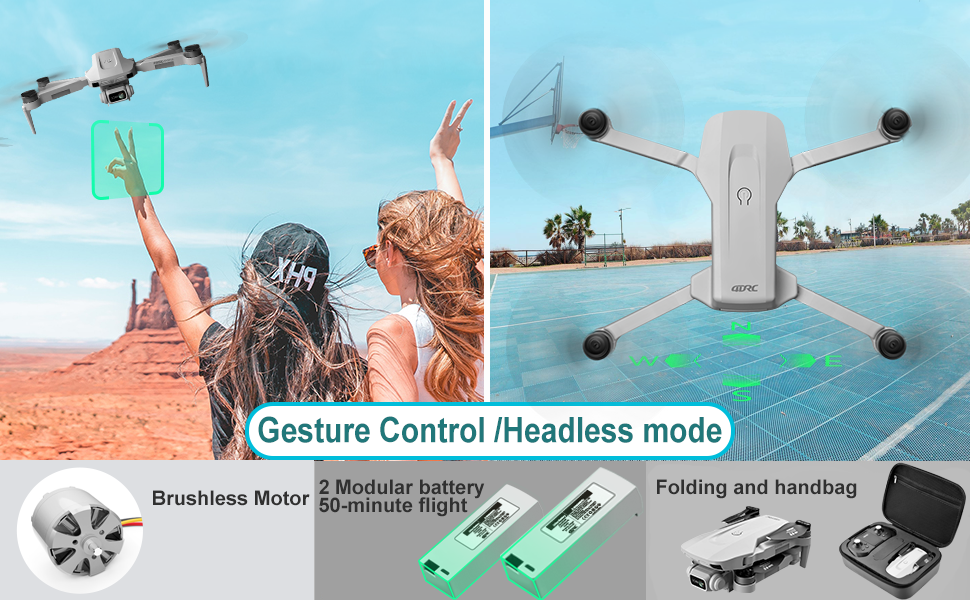
Image: Depiction of the drone's Gesture Control feature, allowing users to take photos or videos with hand gestures, and its Headless Mode for simplified orientation.
6.5 Camera Operation
- Photo/Video Capture: Use the dedicated buttons on the remote control or within the app to take 4K photos (3840 x 2160) or record videos.
- FPV (First Person View): The 5G Wi-Fi FPV transmitter streams live 2.7K video to your mobile device at 25 frames per second, providing a real-time view from the drone's perspective.
- Camera Angle Adjustment: Remotely adjust the camera's shooting angle from 0-90 degrees using the remote control or the app.
7. Maintenance
Regular maintenance ensures the longevity and optimal performance of your drone.
- Battery Care:
- Do not fully discharge batteries. Charge them before storage if they will not be used for an extended period.
- Store batteries in a cool, dry place, away from direct sunlight and extreme temperatures.
- If a battery swells or shows signs of damage, discontinue use immediately. - Cleaning: Use a soft, dry cloth to clean the drone body and camera lens. Avoid using harsh chemicals or solvents.
- Propeller Inspection: Regularly check propellers for cracks, bends, or damage. Replace any damaged propellers immediately using the provided spare parts. Ensure correct A/B type installation.
- Motor Maintenance: Keep motors free from dust and debris. Do not attempt to disassemble the motors.
8. Troubleshooting
If you encounter issues with your DRONEEYE 4DF8, refer to the following common problems and solutions:
| Problem | Possible Cause | Solution |
|---|---|---|
| Drone does not power on. | Battery not charged or not installed correctly. | Ensure battery is fully charged and securely inserted. |
| Unable to connect to app/remote. | Incorrect power-on sequence, Wi-Fi not connected, or app issue. | Power on remote first, then drone. Connect phone to drone's Wi-Fi. Restart app/phone. Try putting phone in airplane mode then enabling Wi-Fi only. |
| Drone flies unstably or drifts. | Improper calibration, strong winds, or damaged propellers. | Perform compass and gyroscope calibration. Avoid flying in windy conditions. Check and replace damaged propellers. |
| Poor camera quality or no FPV feed. | Weak Wi-Fi signal, app issue, or environmental interference. | Ensure strong Wi-Fi connection. Fly within optimal range. Close and reopen the app. |
| GPS not locking or inaccurate. | Flying indoors, near tall buildings, or in areas with signal interference. | Fly in open outdoor areas. Wait for sufficient satellite lock (may take several minutes). |
| Short flight time. | Battery not fully charged, old battery, or aggressive flying. | Ensure batteries are fully charged. Consider replacing old batteries. Fly more conservatively. |
9. Specifications
| Feature | Detail |
|---|---|
| Model | 4DF8 |
| Brand | DRONEEYE |
| Dimensions (Folded) | 5.59 x 2.91 x 2.04 inches (approx.) |
| Item Weight | Less than 250g / 0.55lbs (approx. 880g parcel weight) |
| Flight Time | Up to 50 minutes (with 2 batteries) |
| Camera Resolution | 4K UHD (3840 x 2160 for images, 2.7K for FPV video) |
| Video Frame Rate | 4K at 16 fps, 2.7K FPV at 25 fps |
| Motor Type | Brushless Motor |
| Positioning System | GPS and Optical Flow Positioning |
| Battery Type | Lithium Ion |
| Special Features | Long Distance Control, Integrated GPS, Integrated Camera, First Person View (FPV), One Button Return, Follow Me, Waypoint Mode, Altitude Hold, Gravity Control, Gesture Control |
10. Warranty and Support
For warranty information or technical support, please contact DRONEEYE customer service through the retailer's platform or the official brand website. Keep your purchase receipt as proof of purchase.
Ask a question about this manual
Ask about setup, troubleshooting, compatibility, parts, safety, or missing instructions. Manuals+ will review the question and use this page’s manual context to help answer it.