
Aigital 6B17
Contents
Aigital 1300Mbps Dual Band USB3.0 Wi-Fi Dongle User Manual
Model: 6B17 | Brand: Aigital
1. Introduction
The Aigital 1300Mbps Dual Band USB3.0 Wi-Fi Dongle is a high-performance wireless network adapter designed to provide fast and stable internet connectivity for your desktop PC or laptop. Featuring dual-band technology and high-gain antennas, it enhances signal reception and transmission, ensuring a smooth online experience for gaming, streaming, and general browsing.
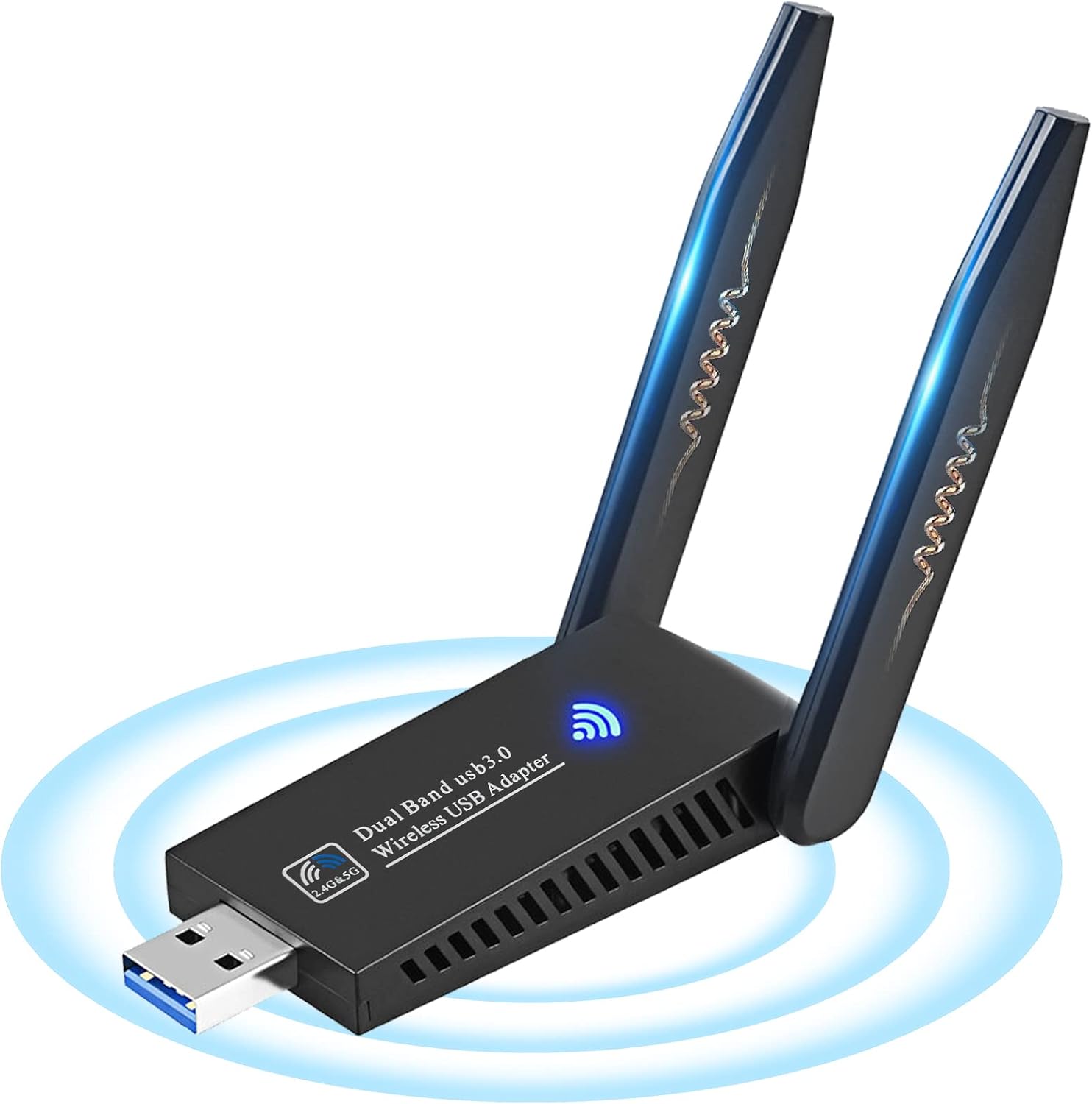
Figure 1.1: Aigital 1300Mbps Dual Band USB Wi-Fi Dongle.
2. Key Features
- 1300Mbps Dual Band: Supports 5.8G/867Mbps and 2.4G/400Mbps for versatile network requirements and smooth connectivity.
- USB 3.0 Interface: Provides up to 10 times faster transmission speed compared to USB 2.0, ensuring efficient data transfer.
- Dual High Gain 5dBi Antennas: Significantly enhances signal reception and transmission strength, allowing for better coverage and range. The 180° rotatable antennas offer flexible positioning.
- MU-MIMO Technology: Works efficiently with any Wi-Fi routers, optimizing data flow for multiple devices.
- Wi-Fi Hot Spot (Soft AP Feature): Enables your desktop PC to create a Wi-Fi hotspot, sharing internet connectivity with other wireless devices when connected via wired internet.
- Multi-System Compatibility: Compatible with Windows (11/10/XP/7/8/Vista) and Mac OS (10~11).
- Compact Design: Features heat dissipation holes for stable performance during extended use.

Figure 2.1: Enhanced signal range with dual high-gain antennas.

Figure 2.2: Compact design with heat dissipation features and 180° rotatable antennas.
3. Package Contents
Verify that all items are present in your package:
- USB Wi-Fi Adapter (1300Mbps, 802.11ac/a/b/g/n, 5G/867Mbps, 2.4G/400Mbps, USB 3.0, New Realtek chip, 5dBi x2 antennas)
- Driver CD (for systems other than Windows 10/11)
- Quick Installation Guide
4. Setup and Installation
Follow these steps to install your Aigital Wi-Fi Dongle:
- Driver Installation:
- For Windows 10/11: The adapter is typically plug-and-play and drivers will install automatically.
- For Windows XP/7/8/Vista and Mac OS (10~11): Insert the included driver CD into your computer's CD-ROM drive and follow the on-screen instructions to install the necessary drivers. If you do not have a CD-ROM drive, drivers can be downloaded from the official Aigital support website.
- Connect the Adapter: Plug the USB Wi-Fi adapter into an available USB 3.0 port on your desktop PC or laptop. For optimal performance, use a USB 3.0 port (usually blue inside).
- Scan for Networks: Once the adapter is recognized and drivers are installed, your computer will automatically scan for available wireless networks.
- Connect to Wi-Fi: Select your desired Wi-Fi network from the list and enter the password if prompted.

Figure 4.1: Easy installation steps for the Wi-Fi adapter.
Video 4.1: Demonstration of the Aigital USB Wi-Fi adapter's physical features and plug-and-play functionality. This video shows the flexible antennas and how the device lights up when plugged into a laptop.
5. Operating Modes
The Aigital Wi-Fi Dongle supports two primary operating modes:
5.1. Station Mode (Receiving Signal)
In Station Mode, the adapter functions as a client, allowing your desktop computer or laptop to connect to an existing wireless network (Wi-Fi router). This mode is used for accessing the internet and local network resources wirelessly.
5.2. AP Mode (Transmit Signal / Wi-Fi Sharing)
In AP (Access Point) Mode, the adapter transforms your computer into a wireless hotspot. If your computer has a wired internet connection, you can use the Soft AP feature to share this internet connection wirelessly with other Wi-Fi enabled devices such as smartphones, tablets, or other laptops.

Figure 5.1: Illustration of Station Mode (receiving Wi-Fi) and AP Mode (sharing Wi-Fi).
6. Specifications
| Feature | Detail |
|---|---|
| Product Dimensions | 2.5 x 1.5 x 0.3 inches |
| Item Weight | 0.705 ounces (20 Grams) |
| Model Number | 6B17 |
| Brand | Aigital |
| Hardware Interface | USB 3.0 |
| Color | Black |
| Compatible Devices | Laptop, Desktop |
| Data Link Protocol | Wireless, USB |
| Data Transfer Rate | 1300 Megabytes Per Second (Mbps) |
| Compatible Operating Systems | Windows (11/10/XP/7/8/Vista), Mac OS (10~11) |
| Antennas | Dual High Gain 5dBi antennas |
7. Troubleshooting
- No Wi-Fi Connection: Ensure the adapter is securely plugged into a USB port. Verify that the drivers are correctly installed. Restart your computer and router.
- Slow Speed: Ensure you are connected to the 5GHz band if your router supports it and you are within range. Check for interference from other electronic devices. Ensure you are using a USB 3.0 port.
- Driver Installation Issues: If the CD driver fails, download the latest driver from the official Aigital support website. For Mac OS 11, specific driver update tutorials may be required; contact support.
- Intermittent Connection: Try adjusting the position of the antennas. Ensure your router's firmware is up to date.
8. Maintenance
To ensure the longevity and optimal performance of your Aigital Wi-Fi Dongle:
- Keep the device clean and free from dust. Use a soft, dry cloth for cleaning.
- Avoid exposing the adapter to extreme temperatures, humidity, or direct sunlight.
- Do not attempt to disassemble or repair the device yourself. This may void the warranty.
- Handle the antennas carefully to prevent damage.
9. Warranty and Support
Aigital provides customer service consultation and after-sales guarantee for this product. If you encounter any questions or issues before or after use, please contact Aigital customer support through the platform where you purchased the product (e.g., Amazon's Customer Questions & Answers or Amazon mail) for guidance and service.
For the most up-to-date information and support resources, please refer to the official Aigital website or the product page on Amazon.
Documents and downloads
Ask a question about this manual
Ask about setup, troubleshooting, compatibility, parts, safety, or missing instructions. Manuals+ will review the question and use this page’s manual context to help answer it.