
1. Product Overview
The NETUM NT-2055M is a high-speed, omnidirectional, hands-free 1D and 2D barcode scanner designed for various retail and library environments. It features automatic image sensing and can efficiently capture barcodes from physical labels, paper, and digital screens, even in low backlight conditions. Its compact size and intuitive design make it suitable for space-constrained areas.

Image: The NETUM NT-2055M desktop barcode scanner, black with a yellow ring around the scanning window.
Package Contents
- NETUM NT-2055M Desktop Barcode Scanner
- USB Cable
- User Manual (this document)

Image: The scanner, its USB cable, and the printed manual, illustrating the items included in the package.
2. Setup and Installation
The NETUM NT-2055M scanner is designed for plug-and-play operation, requiring no additional drivers or software installation on most operating systems.
Connecting the Scanner
- Locate the USB port on the back of the scanner.
- Align the USB cable connector with the port and gently insert it until it clicks into place.
- Connect the other end of the USB cable to an available USB port on your computer (Windows, macOS, or Linux).
- The scanner will automatically be recognized by your system and be ready for use.
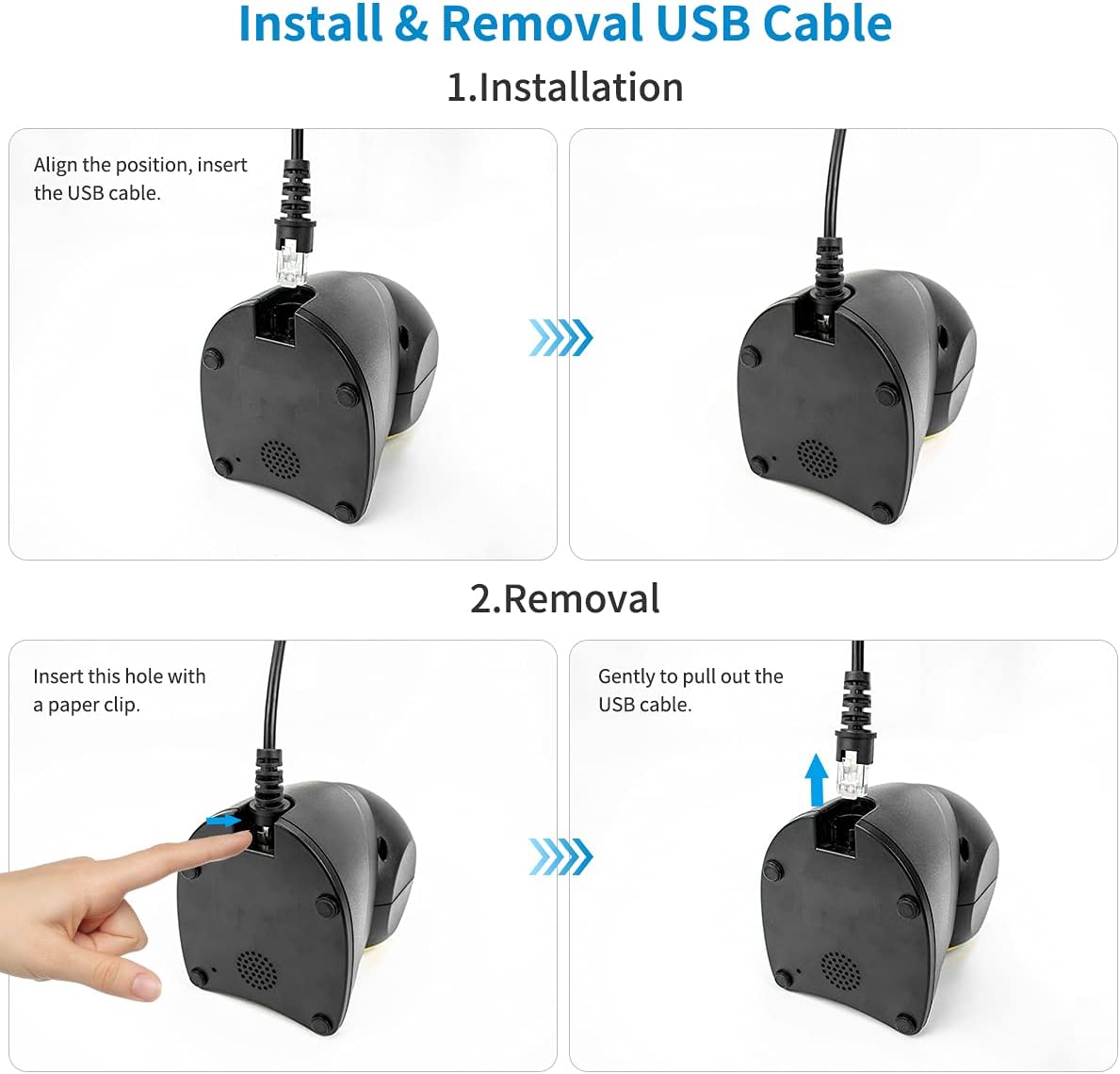
Image: A four-panel illustration showing how to install the USB cable by aligning and inserting it, and how to remove it by inserting a paper clip into a small hole and gently pulling the cable.

Image: The scanner connected via USB to a laptop, with icons indicating compatibility with Windows, macOS, and Linux operating systems, highlighting its plug-and-play functionality.
3. Operating Instructions
The NT-2055M scanner is designed for ease of use with automatic sensing and broad decoding capabilities.
Automatic Sensing and Wake-up
The scanner features an automatic image sensing function. When a barcode is brought close to the scanning window, the scanner will automatically detect it, activate its scanning light, and read the barcode. After a period of inactivity, the scanner will enter a sleep mode to conserve energy and will automatically wake up when a barcode is presented again.

Image: The scanner in sleep mode (lights off) and then in active mode (lights on) as a hand presents a package with a barcode, demonstrating its automatic wake-up feature.
Decoding Capabilities
The scanner is capable of reading a wide range of 1D and 2D barcodes, including those that are colored, damaged, distorted, or reflective. It also supports scanning directly from digital screens.

Image: The scanner alongside examples of various barcode types it can read: colorful, damaged, distorted, and reflective barcodes, highlighting its robust decoding capabilities.
Screen Scanning Support
The NT-2055M can easily scan 1D, 2D, and QR codes displayed on mobile phone screens or computer monitors, making it versatile for various applications.

Image: A smartphone displaying a barcode being scanned by the NETUM scanner, with icons of various 1D and 2D barcode types (QR Code, Data Matrix, Maxicode, Aztec code, UPC/EAN, PDF417) that it supports.
Language and Volume Settings
The scanner supports automatic recognition of various keyboard languages, including UK, US, French, German, Hungarian, Italian, Japanese, Spanish, Russian, and Turkish. It also allows for virtual COM port settings, prefix or suffix additions, and volume adjustments for the buzzer.
4. Maintenance
Proper maintenance ensures the longevity and optimal performance of your barcode scanner.
- Cleaning the Scanning Window: Use a soft, lint-free cloth slightly dampened with water or a mild, non-abrasive cleaner to wipe the scanning window. Avoid harsh chemicals or abrasive materials that could scratch the surface.
- General Cleaning: Wipe the exterior of the scanner with a dry or slightly damp cloth to remove dust and dirt.
- Cable Care: Ensure the USB cable is not kinked, pinched, or subjected to excessive strain.
- Storage: Store the scanner in a cool, dry place away from direct sunlight and extreme temperatures when not in use.
5. Troubleshooting
If you encounter issues with your NETUM barcode scanner, try the following common troubleshooting steps:
- Scanner Not Responding:
- Ensure the USB cable is securely connected to both the scanner and the computer.
- Try connecting the scanner to a different USB port on your computer.
- Restart your computer.
- Unable to Scan Barcodes:
- Ensure the barcode is clean, clear, and not excessively damaged or distorted.
- Verify that the barcode is within the scanner's reading range and properly aligned with the scanning window.
- Check if the scanner's light is activating when a barcode is presented. If not, refer to the "Scanner Not Responding" steps.
- Confirm that the barcode type is supported by the scanner (refer to Specifications section).
- Incorrect Data Output:
- Check your computer's keyboard language settings to ensure they match the scanner's auto-recognized language.
- If using prefix/suffix settings, ensure they are configured correctly.
If the problem persists after trying these steps, please contact NETUM customer support for further assistance.
6. Specifications
| Feature | Detail |
|---|---|
| Model | NT-2055M |
| Dimensions (L x W x H) | 8.27 x 5.71 x 4.49 inches (approx. 210 x 145 x 114 mm) |
| Item Weight | 15 ounces (approx. 425 grams) |
| Connectivity Technology | USB Cable |
| Power Source | Corded Electric |
| Compatible Devices | Desktop, Laptop (Windows, macOS, Linux) |
| Decoding Capability (1D) | UPC/EAN [UPCA/UPCE/ EAN-8/ EAN-13, ISBN (Bookland), ISSN], Code 39 (Standard, Full ASCII, Trioptic, Code 32 (Italian Pharmacode), Code 128, Code 93, Codabar, 2 of 5 (Interleaved 2 of 5, Discrete 2 of 5, Matrix 2 of 5, Code11), MSI Plessey, GS1 DataBar (Omnidirectional, Truncated, Stacked, Stacked Omnidirectional, Limited, Expanded, Expanded Stacked) |
| Decoding Capability (2D) | PDF417, MicroPDF417, Composite Codes (CC-A, CC-B, CC-C), Aztec (Standard, Inverse), Maxicode, Data Matrix/ ECC 200 (Standard, Inverse), QR Code (Standard, Inverse, Micro) |
| Special Features | Automatic Image Sensing, Screen Scanning, Adjustable Buzzer Volume, Prefix/Suffix Setting, Auto Keyboard Language Recognition (UK, US, French, German, Hungarian, Italian, Japanese, Spanish, Russian, Turkish), 30-degree rotating head. |

Image: Detailed view of the scanner showing its dimensions (145mm height, 90mm width, 101mm depth) and highlighting key components like the buzzer, indicator light, USB port, and non-slip base. The scanning head can rotate 30 degrees.
7. Warranty and Support
Warranty information for your NETUM NT-2055M barcode scanner is typically provided with the product packaging or can be found on the official NETUM website. Please retain your proof of purchase for warranty claims.
For technical support, troubleshooting assistance beyond this manual, or warranty inquiries, please visit the official NETUM support channels or contact their customer service department. Contact details are usually available on the manufacturer's website or in the product documentation.

