Introduction
This manual provides essential information for the safe and efficient use of your LG 27GP850-B UltraGear Gaming Monitor. Please read it thoroughly before operating the device and retain it for future reference.
Key Features:
- 27-inch QHD (2560 x 1440) Nano IPS Display
- 1ms (GtG) Response Time
- 165Hz Refresh Rate (Overclockable to 180Hz)
- NVIDIA G-SYNC Compatible
- AMD FreeSync Premium
- DCI-P3 98% Color Gamut with HDR 10
- 3-Side Virtually Borderless Display
- Height, Pivot, and Tilt Adjustable Stand
What's Included
Verify that all components are present in the packaging:
- Monitor
- Stand (Base and Neck)
- Power Cord
- Warranty Card & Owner's Manual
- HDMI Cable
- DisplayPort Cable
- USB 3.0 Cable
Setup Instructions
1. Assembling the Stand
Carefully remove the monitor and stand components from the packaging. Attach the stand base to the stand neck, then secure the assembled stand to the monitor panel.

Image showing the monitor panel, stand neck, and stand base components.

Image illustrating the attachment of the stand neck to the monitor panel.
2. Connecting Cables
Connect the power cord to the monitor and a power outlet. Use the provided DisplayPort or HDMI cable to connect the monitor to your computer's graphics card. For USB hub functionality, connect the USB 3.0 upstream cable from the monitor to your computer.

Rear view of the LG 27GP850-B monitor, highlighting the input/output ports.

Close-up of the monitor's connectivity ports: DisplayPort, HDMI, USB upstream, and USB downstream.
3. Adjusting the Monitor Position
The stand allows for height, tilt, and pivot adjustments to optimize your viewing experience.
- Height Adjustment: Gently push or pull the monitor vertically to adjust its height.
- Tilt Adjustment: Tilt the monitor panel forward or backward to find a comfortable viewing angle.
- Pivot Adjustment: Rotate the monitor 90 degrees to switch between landscape and portrait orientations.

Illustration of the monitor's height adjustment mechanism.

The LG 27GP850-B monitor rotated 90 degrees into portrait mode.
Operating Instructions
1. Power On/Off
Press the joystick button located at the bottom center of the monitor to power it on or off.
2. On-Screen Display (OSD) Menu
Use the joystick button to navigate the OSD menu. Press the joystick to open the menu, then move it up/down/left/right to select and adjust settings.
Common OSD Settings:
- Game Mode: Select various game modes (e.g., Gamer 1, FPS, RTS) for optimized visual settings.
- Picture: Adjust brightness, contrast, sharpness, gamma, and color temperature.
- Input: Select the active input source (DisplayPort, HDMI 1, HDMI 2).
- General: Access settings for language, OSD lock, power indicator, and information.
3. Refresh Rate and Adaptive Sync
The monitor supports a native 165Hz refresh rate, overclockable to 180Hz. Ensure your graphics card settings are configured to utilize the highest available refresh rate.
NVIDIA G-SYNC Compatible: This monitor is officially verified to work with NVIDIA G-SYNC technology, reducing screen tearing and stuttering for smoother gameplay. Enable G-SYNC in your NVIDIA Control Panel.

Visual comparison of screen tearing (left) versus smooth gameplay with NVIDIA G-SYNC Compatible technology (right).
AMD FreeSync Premium: For AMD graphics cards, enable FreeSync Premium in your AMD Radeon Software to eliminate screen tearing and choppiness.
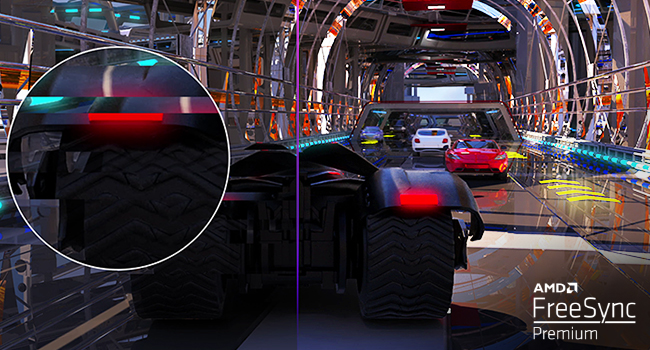
Image demonstrating how AMD FreeSync Premium eliminates screen stuttering and tearing.
4. Gaming Features
The LG UltraGear monitor includes several features designed to enhance your gaming experience:
- Dynamic Action Sync (DAS): Minimizes input lag for real-time action.
- Black Stabilizer: Enhances visibility in dark areas of games.
- Crosshair: Places a fixed crosshair in the center of the screen for improved aiming accuracy in FPS games.
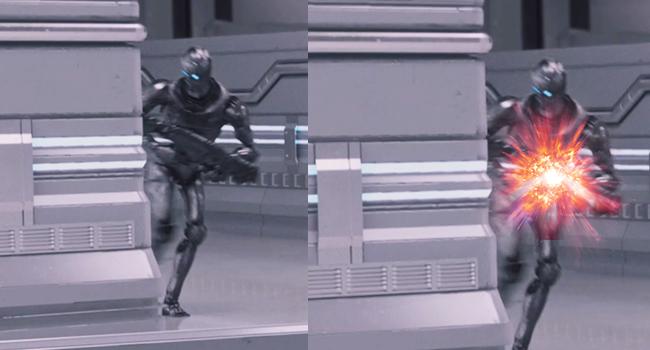
Side-by-side comparison illustrating reduced input lag with Dynamic Action Sync (DAS).
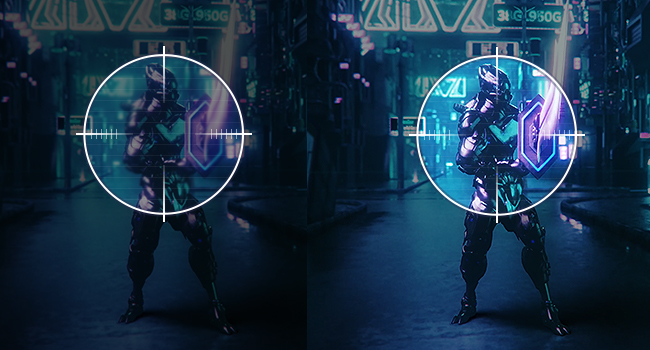
Before and after image showing enhanced visibility in dark game scenes using Black Stabilizer.
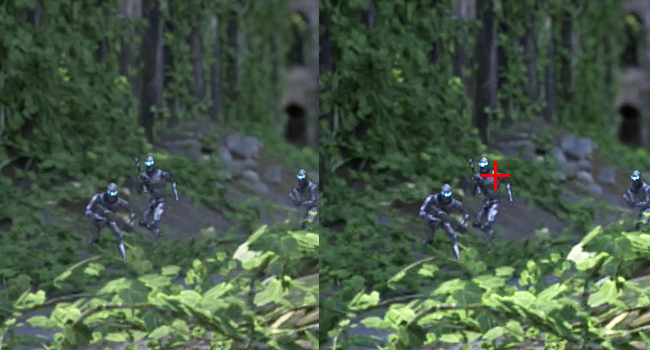
Image displaying the on-screen Crosshair feature for improved aiming accuracy.
Maintenance
To ensure the longevity and optimal performance of your monitor, follow these maintenance guidelines:
- Cleaning the Screen: Gently wipe the screen with a soft, lint-free cloth. For stubborn marks, lightly dampen the cloth with water or a specialized screen cleaner. Avoid using harsh chemicals or abrasive materials.
- Cleaning the Casing: Use a soft, dry cloth to clean the monitor casing.
- Ventilation: Ensure the monitor's ventilation openings are not blocked to prevent overheating.
- Power Off: Always power off the monitor and unplug it from the power outlet before cleaning or if it will be unused for an extended period.
Troubleshooting
No Power / No Display
- Check if the power cord is securely connected to both the monitor and the power outlet.
- Verify that the power indicator light on the monitor is on.
- Ensure the correct input source (DisplayPort, HDMI) is selected in the OSD menu.
- Confirm that your computer is powered on and not in sleep mode.
Image Issues (Blurry, Distorted, No Signal)
- Check the connection of the DisplayPort or HDMI cable to both the monitor and the computer. Try re-seating the cable.
- Ensure your graphics card drivers are up to date.
- Adjust the resolution and refresh rate settings in your computer's display settings to match the monitor's capabilities (2560 x 1440, 165Hz/180Hz).
- If using G-SYNC or FreeSync, ensure it is enabled correctly in both the monitor's OSD and your graphics card software.
Dead Pixels
While rare, a small number of non-functioning pixels (dead or stuck pixels) may appear on the screen. This is a characteristic of LCD/IPS technology and is generally not considered a defect unless the number exceeds manufacturer specifications. Refer to LG's pixel policy for more details.
Technical Specifications
| Feature | Specification |
|---|---|
| Screen Size | 27 Inches |
| Panel Type | Nano IPS |
| Resolution | QHD (2560 x 1440) |
| Aspect Ratio | 16:9 |
| Response Time | 1ms (GtG) |
| Refresh Rate | 165Hz (Overclockable to 180Hz) |
| Brightness | 400 Candela (cd/m²) |
| Color Gamut | DCI-P3 98% |
| HDR Support | HDR 10, VESA DisplayHDR 400 |
| Adaptive Sync | NVIDIA G-SYNC Compatible, AMD FreeSync Premium |
| Viewing Angle | 178°(R/L), 178°(U/D) |
| Connectivity | 2x HDMI, 1x DisplayPort, 3x USB (1 Upstream, 2 Downstream) |
| Stand Adjustments | Height, Tilt, Pivot |
| Mounting Type | VESA Compatible (100x100mm) |
| Product Dimensions (with stand) | 11.5 x 24.2 x 22.7 inches |
| Item Weight (with stand) | 13.86 pounds |
| Power Consumption (Typ.) | 48W |
| Power Consumption (Max.) | 65W |
| Manufacturer | LG Electronics |
| Model Number | 27GP850-B |
| Date First Available | April 27, 2021 |
Warranty and Support
Your LG 27GP850-B UltraGear Gaming Monitor is covered by a manufacturer's warranty. For detailed warranty terms, conditions, and registration information, please refer to the warranty card included in your product packaging or visit the official LG website.
For technical assistance, troubleshooting, or service requests, please contact LG Customer Support. Contact information can typically be found on the LG website or in your warranty documentation.