

1. Introduction
The THINKCAR Thinkobd 500 is a powerful and user-friendly OBD2 scanner designed to help vehicle owners diagnose and clear engine fault codes, monitor vehicle performance, and ensure emission readiness. This manual provides comprehensive instructions for setting up, operating, and maintaining your device.
What's in the Box
- 1x Thinkobd500 Car Scanner Diagnostic Tool
- 1x USB-C Cable
- 1x User Manual

Image showing the Thinkobd 500 scanner, USB-C cable, and user manual included in the package.
2. Key Features
The Thinkobd 500 offers a range of features to assist with vehicle diagnostics:
- Full OBD2/EOBD Diagnostics: Supports all 10 OBD2 test modes, including Read Codes, Erase Codes, Live Data, Freeze Frame, I/M Readiness, O2 Sensor Test, On-Board Monitor Test, EVAP System Test, Vehicle Info, and DTC Look-up.
- Battery Voltage Monitoring: Helps check the health status of your vehicle's battery.
- Plug and Play Operation: Easy to use, no need for mobile apps or software installation for basic functions.
- Wide Vehicle Compatibility: Works on most 1996 and newer US-based vehicles that are OBDII compliant (KWP2000, ISO9141, J1850 VPW, J1850 PWM, and CAN protocols).
- 2.8-inch TFT Display: Provides clear and easy-to-read diagnostic information.
- Lifetime Free Updates: Ensures the DTC database and software remain current.

The Thinkobd 500 is a professional OBDII scanner with multi-functionality and an easy-to-use interface.
3. Setup
Follow these steps to set up your Thinkobd 500 scanner:
- Locate the Diagnostic Link Connector (DLC): The 16-pin DLC is usually located under the dashboard on the driver's side of the vehicle.
- Turn on Vehicle Ignition: Ensure the vehicle's ignition is in the 'ON' position (engine can be off or running, depending on the test).
- Connect the Scanner: Plug the OBD2 connector of the Thinkobd 500 into the vehicle's DLC. The scanner will power on automatically.
- Wait for Vehicle Identification: The scanner will automatically scan and identify the vehicle model. This may take a few moments.

Visual guide on connecting the Thinkobd 500 to a vehicle's OBD2 port.
Initial Device Overview
Video: A brief overview of the ThinkOBD500 OBD2 Scanner, demonstrating its handheld design and basic interface.
4. Operating Instructions
Navigate the scanner using the directional buttons and the 'OK' button. The 'HELP' button provides detailed descriptions or tips for current diagnostics, and the 'Return' button navigates back.
4.1. Read and Erase Codes
To read Diagnostic Trouble Codes (DTCs) and clear them:
- From the main menu, select 'Diagnosis' or 'Read Codes'.
- The scanner will display any active or pending fault codes.
- To clear codes, select 'Erase Codes' from the menu. Confirm the action when prompted.
Note: Fault codes can ONLY be erased after the underlying issue has been repaired. Clearing codes without repair will result in the code reappearing.
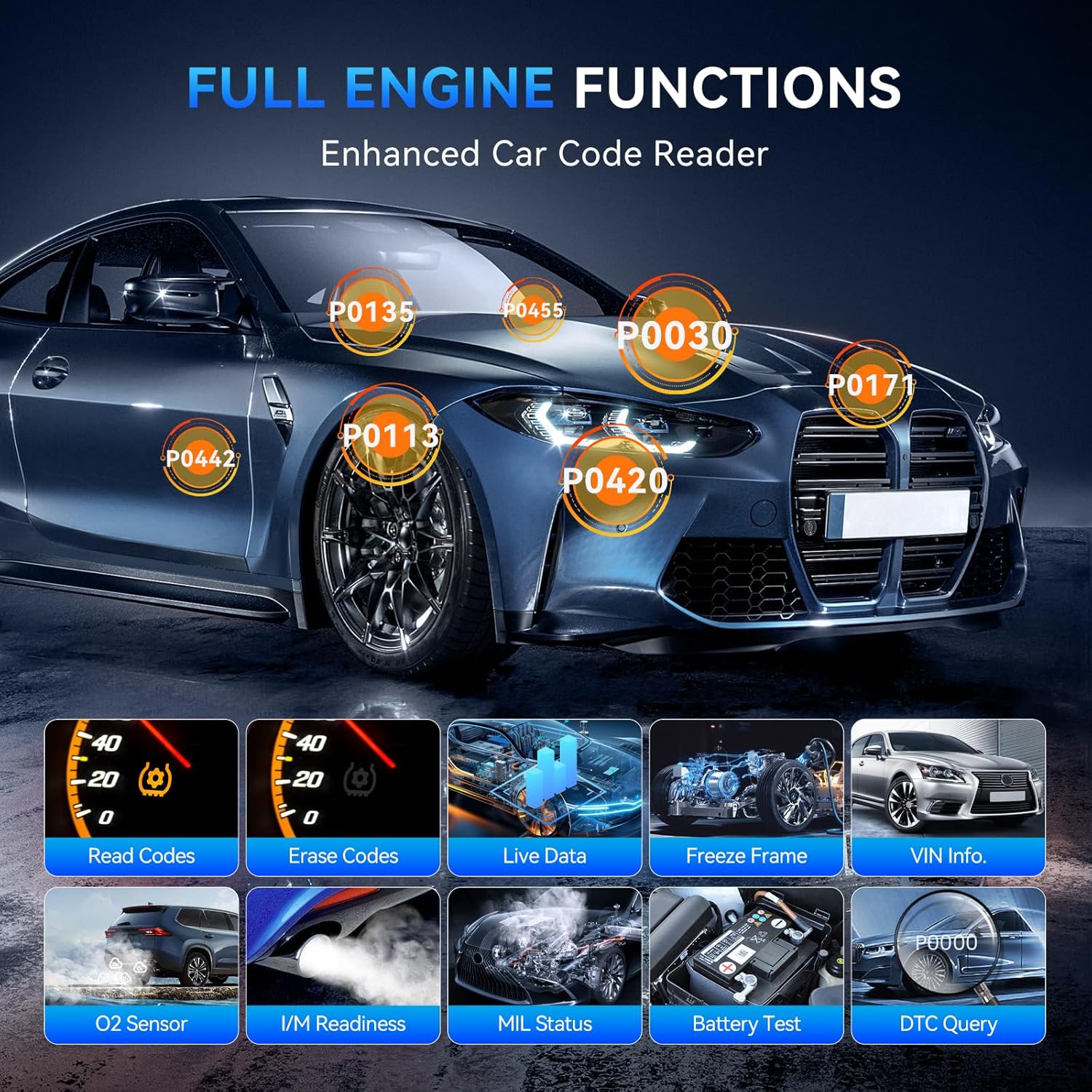
Image illustrating the full engine functions of the Thinkobd 500, including reading and erasing codes.
Video: Demonstrates how to read and erase codes using the Thinkobd 500 scanner.
4.2. Live Data Stream
View real-time data from the vehicle's sensors, actuators, and other components:
- Select 'Live Data' from the main menu.
- Choose 'View All Items' or 'Select Items' to customize the data displayed.
- You can also select 'View Graphic Items' to see data in a graphical format.

Image showing the Thinkobd 500 displaying real-time live data streams from the vehicle.
4.3. I/M Readiness Status
Check the status of emission-related monitors to ensure the vehicle is ready for an emission test:
- Press the dedicated 'I/M' button on the scanner or select 'I/M Readiness' from the menu.
- The display will show the status of various monitors (e.g., Misfire, Fuel System, O2 Sensor). 'OK' indicates completion, 'INC' indicates incomplete, and 'N/A' indicates not applicable.

Image illustrating the one-click I/M Readiness feature for quick emission test preparation.
4.4. Battery Voltage Monitoring
Monitor your vehicle's battery voltage to assess its health:
- Select 'Battery' from the main menu.
- The scanner will display the current battery voltage.
- Refer to the manual's specifications for normal voltage ranges (e.g., 12.8-13.7 Volts is normal after engine start).

Image demonstrating the battery voltage check feature of the Thinkobd 500.
4.5. DTC Look-up
Quickly find out what a Diagnostic Trouble Code (DTC) means:
- Select 'DTC Look-up' from the main menu.
- Enter the DTC code using the directional buttons.
- The scanner will provide a detailed description of the code.

Image showing the built-in DTC library and lookup function, allowing users to quickly understand fault codes.
5. Maintenance
5.1. Software Updates
The Thinkobd 500 offers lifetime free updates to ensure its DTC database and software are always current. To update your device:
- Visit the official THINKCAR website (refer to the included user manual for the exact URL).
- Download the 'Product Update Tool' software compatible with your Windows PC (XP, 7, 8, & 10).
- Decompress and install the update tool on your computer.
- Connect the Thinkobd 500 to your PC using the provided USB-C cable.
- Open the 'Product Update Tool' and follow the on-screen instructions to update your device.

Image showing the Thinkobd 500 connected to a PC for software updates and printing diagnostic reports.
5.2. Cleaning and Storage
- Clean the device with a soft, damp cloth. Do not use abrasive cleaners or solvents.
- Store the scanner in a dry, cool place away from direct sunlight and extreme temperatures.
- Keep the OBD2 connector clean and free of debris.
6. Troubleshooting
Here are some common issues and their potential solutions:
- Device does not power on: Ensure the OBD2 connector is securely plugged into the vehicle's DLC. Check the vehicle's ignition status. Verify the vehicle's battery has sufficient charge.
- Communication error with vehicle: Confirm the vehicle is OBDII compliant and manufactured after 1996. Check for loose connections. Try connecting to a different OBDII compliant vehicle to rule out device issues.
- Fault code reappears after clearing: This indicates that the underlying vehicle issue has not been resolved. The scanner can only clear the code; the repair must be performed on the vehicle itself.
- Update failure: Ensure your PC meets the system requirements (Windows XP, 7, 8, or 10). Check your internet connection. Make sure the USB cable is securely connected to both the device and the PC.
7. Specifications
| Specification | Value |
|---|---|
| Brand | thinkcar |
| Product Dimensions | 3.7"L x 1.4"W x 6.5"H |
| Operating System | Linux |
| Language | English (Supports French, Spanish, German, Russian, Italian, Portuguese, Polish) |
| Display Resolution | 320x240 |
| Item Weight | 15.2 ounces |
| Item Model Number | OBD500 |
8. Warranty and Support
THINKCAR products typically come with a manufacturer's warranty. Please refer to the warranty information provided with your purchase or contact THINKCAR customer support for details regarding warranty coverage and service.
Additional Resources
- For further assistance, you can refer to the official User Manual (PDF) available at: User Manual (PDF)
- For troubleshooting and frequently asked questions, consult the Troubleshooting Guide (PDF) at: Troubleshooting Guide (PDF)
For any issues or inquiries, contacting THINKCAR via Amazon's "Messages" is recommended for a prompt solution.


