1. Introduction
Welcome to the user manual for your GIGATV HD801 Smart TV Box. This device is designed to transform your television into a smart entertainment hub, offering access to a wide range of streaming services, applications, and multimedia content. Featuring Android 10.0, a Quad-Core processor, 4K Ultra HD resolution, and Wi-Fi connectivity, the HD801 provides a seamless and immersive viewing experience. This manual will guide you through the setup, operation, and maintenance of your new device.
2. Package Contents
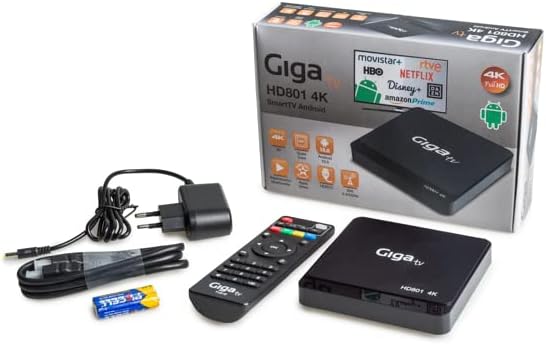
Please check the box for the following items:
- GIGATV HD801 Smart TV Box
- IR Remote Control
- 2 x AAA Batteries
- Power Adapter
- HDMI Cable
- User Manual (this document)
3. Product Overview
The GIGATV HD801 is a compact and powerful streaming device. Its sleek design integrates seamlessly into any home entertainment setup.

3.1. Key Features
- Android 10.0 OS: Access to a vast library of apps from the Google Play Store.
- Quad-Core Processor: Ensures smooth performance for streaming and gaming.
- 4K Ultra HD & HDR10 Support: Delivers stunning visual clarity and vibrant colors.
- 2GB RAM / 16GB ROM: Ample memory for multitasking and storage for apps and content. Expandable via USB or TF card.
- 2.4GHz Wi-Fi & Ethernet: Flexible network connectivity options.
- Pre-installed Streaming Apps: Ready access to platforms like Netflix, Amazon, Movistar, and Disney.

3.2. Ports and Connections
Familiarize yourself with the various ports on your GIGATV HD801 for proper connection.
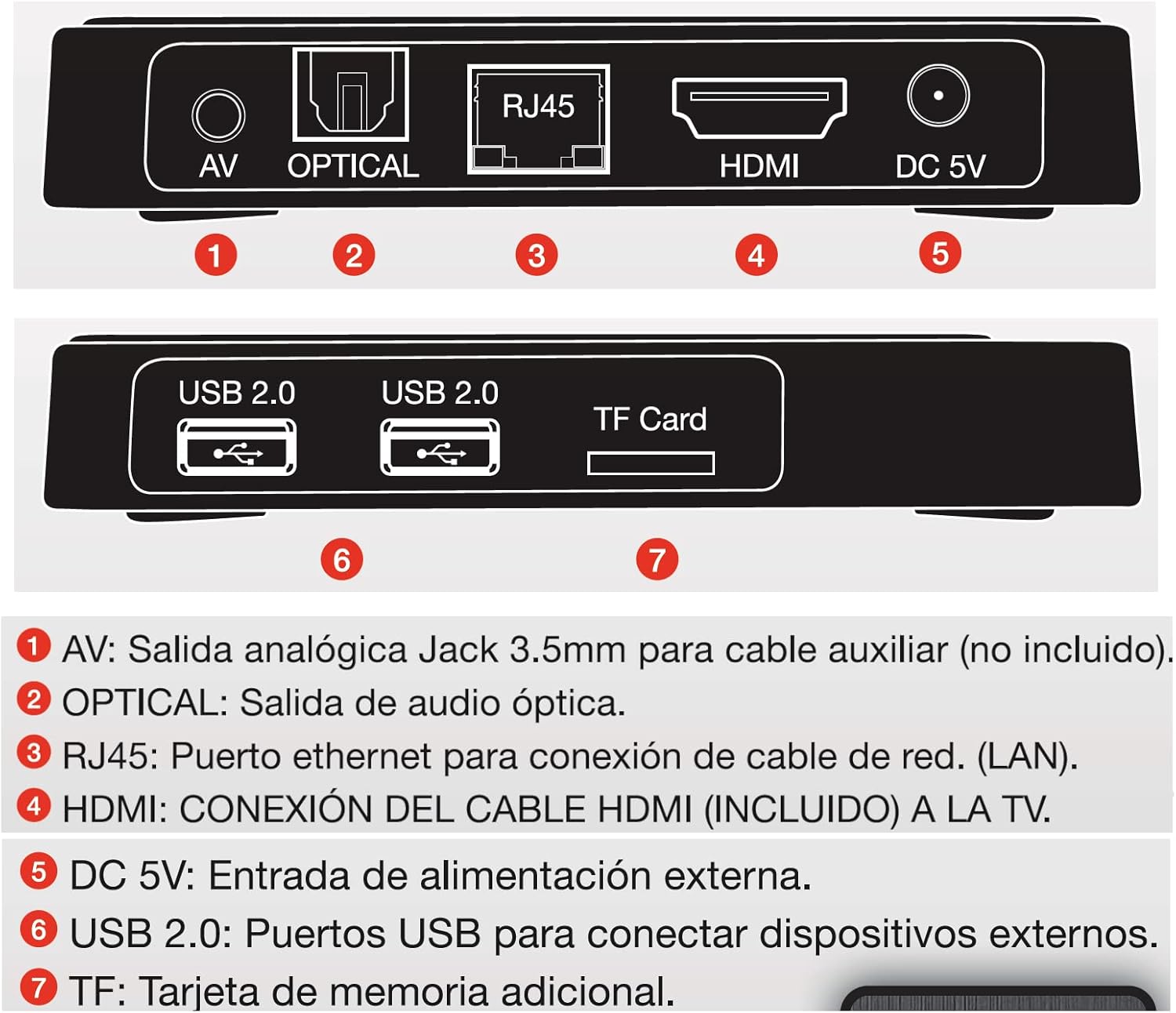
- AV: Analog 3.5mm Jack output for auxiliary cable (not included).
- OPTICAL: Optical audio output.
- RJ45: Ethernet port for wired network connection (LAN).
- HDMI: Connects to your TV via the included HDMI cable.
- DC 5V: External power input.
- USB 2.0: Two USB ports for connecting external devices like keyboards, mice, or storage.
- TF Card: Slot for additional memory card.
4. Setup Guide
Follow these steps to set up your GIGATV HD801 Smart TV Box:
- Connect to TV: Connect one end of the HDMI cable to the HDMI port on the GIGATV HD801 and the other end to an available HDMI input on your television.
- Connect Power: Plug the power adapter into the DC 5V port on the TV Box, then plug the adapter into a wall outlet.
- Insert Batteries into Remote: Open the battery compartment on the back of the IR Remote Control and insert the two AAA batteries, ensuring correct polarity.
- Power On: The device should automatically power on. If not, press the power button on the remote control.
- Select TV Input: On your TV, select the correct HDMI input source that the TV Box is connected to.
- Initial Setup Wizard: Follow the on-screen instructions to complete the initial setup, including language selection, network connection (Wi-Fi or Ethernet), and Google account login.
- Network Connection:
- Wi-Fi: Select your Wi-Fi network from the list, enter the password, and connect.
- Ethernet: If using a wired connection, connect an Ethernet cable from your router to the RJ45 port on the TV Box. The connection should be established automatically.
5. Operating Instructions
5.1. Navigating the Interface
Use the included IR remote control to navigate the Android interface. The directional pad (up, down, left, right) is used to move between icons and options, and the OK button confirms selections. The Back button returns to the previous screen, and the Home button takes you to the main home screen.
5.2. Installing and Using Applications
The GIGATV HD801 comes with several streaming applications pre-installed. You can download more applications from the Google Play Store:
- From the home screen, navigate to and select the Google Play Store icon.
- Use the search function or browse categories to find desired applications.
- Select an app and choose Install.
- Once installed, the app will appear on your home screen or in the app drawer. Select it to launch.
5.3. Connecting External Devices
You can connect various external devices to the GIGATV HD801:
- USB Storage: Plug a USB flash drive or external hard drive into one of the USB 2.0 ports to access media files.
- TF Card: Insert a TF (microSD) card into the TF Card slot for additional storage.
- Keyboard/Mouse: Connect a USB keyboard or mouse for easier navigation and text input.
6. Maintenance
6.1. Cleaning
To clean your GIGATV HD801, use a soft, dry cloth. Do not use liquid cleaners or abrasive materials, as they may damage the device. Ensure the device is unplugged before cleaning.
6.2. Software Updates (OTA)
The GIGATV HD801 supports Over-The-Air (OTA) updates to ensure your device always has the latest software and features. When an update is available, you will typically receive a notification. Follow the on-screen prompts to download and install the update. Ensure a stable internet connection during the update process and do not power off the device.
7. Troubleshooting
| Problem | Possible Cause | Solution |
|---|---|---|
| No power / Device does not turn on. | Power adapter not connected or faulty. | Ensure the power adapter is securely connected to the device and a working power outlet. Try a different outlet. |
| No signal on TV screen. | Incorrect TV input selected or HDMI cable issue. | Verify your TV is set to the correct HDMI input. Check if the HDMI cable is securely connected at both ends. Try a different HDMI port or cable. |
| Wi-Fi connection issues. | Incorrect password, weak signal, or router issue. | Double-check the Wi-Fi password. Move the device closer to the router. Restart your router and the TV Box. |
| Applications are slow or crashing. | Too many apps running, low storage, or app specific issue. | Close background applications. Clear app cache/data in Settings. Uninstall unused apps. Restart the device. |
| Remote control not responding. | Batteries are low or incorrectly inserted, or line of sight is blocked. | Replace the AAA batteries. Ensure correct polarity. Remove any obstructions between the remote and the TV Box. |
8. Specifications
| Brand | GIGATV |
| Model Name | HD801 |
| Operating System | Android 10.0 |
| Processor | AllWinner H313 64-bit Quad Core |
| Memory (RAM/ROM) | 2GB / 16GB (Expandable via USB/TF Card) |
| Resolution | 4Kx2K up to 60fps, HDR10 |
| Connectivity | Wi-Fi 2.4GHz, Ethernet (RJ45), HDMI, 2x USB 2.0, Optical, AV, Bluetooth 4.1 |
| Supported Internet Services | Netflix, Amazon, Movistar, Disney (pre-installed apps) |
| Power Input | DC 5V |
| Color | Black |
9. Warranty and Support
For warranty information and technical support, please refer to the documentation provided at the time of purchase or contact your retailer. Keep your proof of purchase for any warranty claims.
For further assistance, please visit the official GIGATV website or contact their customer service department.


