
1. Introduction
Thank you for purchasing the lovpo 4K Video Camera. This camcorder is designed to capture high-quality video and photos, featuring a 48MP image sensor, 4K video resolution, 18X digital zoom, and Wi-Fi connectivity. It comes equipped with essential accessories like an external microphone, handheld stabilizer, and lens hood to enhance your recording experience. This manual provides detailed instructions for setup, operation, and maintenance to ensure optimal performance and longevity of your device.

Image 1.1: The lovpo 4K Video Camera with its primary accessories, including the external microphone, handheld stabilizer, and remote control.
2. Safety Information
Please read all safety instructions carefully before using the camera. Keep this manual for future reference.
- Do not expose the camera to water or moisture.
- Avoid extreme temperatures (hot or cold) and direct sunlight.
- Do not disassemble or attempt to repair the camera yourself. Refer to qualified service personnel.
- Use only approved batteries and accessories.
- Keep out of reach of children.
- Handle the lens and screen with care to prevent scratches.
3. Package Contents
Verify that all items listed below are included in your package:
- 4K Video Camera Body
- External Microphone
- Handheld Stabilizer
- Remote Control
- Lens Hood
- HDMI Cable
- USB Cable
- Lithium Ion Batteries (2)
- Lens Cap
- DV Bag
- User Manual

Image 3.1: Visual representation of all items included in the product package.
4. Setup
4.1. Battery Installation and Charging
- Ensure the camera is powered off.
- Open the battery compartment cover.
- Insert a fully charged Lithium Ion battery, ensuring correct polarity.
- Close the battery compartment cover securely.
- To charge, connect the camera to a power source using the provided USB cable. The camera supports recording while charging.
4.2. Memory Card Installation and Formatting
A memory card (SD card, not included) is required for storing photos and videos.
- With the camera powered off, locate the memory card slot.
- Insert the memory card until it clicks into place.
- Power on the camera.
- To format the memory card:
- Press the "Menu" button to access the menu.
- Navigate to the "Setup" page.
- Select the "Format" option.
- Press "OK" to confirm and format the card. This will erase all data on the card.
4.3. Attaching Accessories
- External Microphone: Attach the microphone to the camera's hot shoe mount and connect the audio cable to the microphone input port.
- Handheld Stabilizer: Mount the camera onto the handheld stabilizer using the standard tripod screw mount at the bottom of the camera. The stabilizer is foldable for ergonomic use and multi-angle shooting.
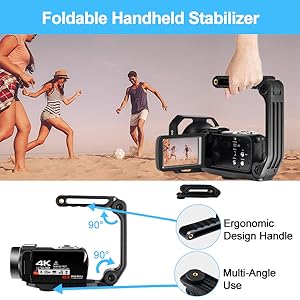
Image 4.1: The foldable handheld stabilizer provides ergonomic grip and multi-angle shooting capabilities.
- Lens Hood: Securely attach the lens hood to the front of the camera lens to reduce glare and protect the lens.
5. Operating Instructions
5.1. Power On/Off
Press the "POWER" button located on the camera to turn it on or off.
5.2. Mode Switching
Press the "Mode" button to cycle through different modes: Photo, Video, Slowly (Slow Motion), Loop Recording, and Playback.
5.3. Taking Photos
- Press the "Mode" button to switch to "Photo" mode.
- Frame your shot using the 3.0" 270° rotating IPS touch screen.
- Press the "Photo" button (or shutter button) to capture an image.
5.4. Recording Videos
- Press the "Mode" button to switch to "Video" mode.
- Press the "Record" button to start recording. Press it again to stop recording.
- The camera supports recording while charging, allowing for extended recording sessions.
5.5. Playback
- Press the "Mode" button to enter "Playback" mode.
- Use the "Up/Down" buttons or the touch screen to browse through your recorded photos and videos.
5.6. Deleting Files
- In "Playback" mode, select the file you wish to delete.
- Press the "Menu" button.
- Choose "Delete" and confirm your selection to remove the file.
5.7. Adjusting Volume
Volume can only be adjusted during video playback. Use the dial wheel on the camera to increase or decrease the volume.
5.8. Using the Fill Light
Press the "OK" button to turn the integrated LED fill light on. Press it again to turn it off.
5.9. Wi-Fi Connectivity and App Usage
The camera features Wi-Fi connectivity for remote control and file transfer via a smartphone app.
- Download the specific app (e.g., "RoadCam" as mentioned in some product images) from your smartphone's app store (Google Play or Apple App Store).
- Enable Wi-Fi on your camera and smartphone.
- Connect your smartphone to the camera's Wi-Fi network.
- Once connected, you can browse images, transfer files, share content, and remotely control the camera via the app.

Image 5.1: The camera supports Wi-Fi connectivity, allowing control and file transfer via a smartphone app.
5.10. Webcam Function
Connect the camera to your computer via the USB cable. Select "PC Camera" or "Webcam" mode on the camera (if prompted). The camera can then be used as a webcam for live streaming on platforms like Facebook, Twitch, YouTube, or for video calls.

Image 5.2: The camera can function as a webcam for live streaming and connect to a TV via HDMI.
5.11. HDMI Output
Connect the camera to an HDTV or monitor using the provided HDMI cable to view your recordings on a larger screen.
5.12. Digital Zoom
The camera features 18X digital zoom. Use the zoom controls (typically a rocker switch near the lens or on the body) to zoom in or out during recording or photo capture.

Image 5.3: The camera features an upgraded 13.0MP CMOS image sensor and 18X digital zoom capability.
5.13. Special Features
- Time-lapse: Capture a series of images over time and combine them into a video.
- Motion Detection: The camera will automatically start recording when motion is detected in the frame.
- Anti-shake Function: Helps to stabilize footage and reduce blur caused by camera movement.
- Self-shooting / Smile Capture: Automatically takes a photo when a smile is detected.
- Continuous Shooting: Capture multiple photos in quick succession.
- Beauty Face: Enhances facial features in photos.
- Low-speed Video: Records video at a slower frame rate.
- Remote Control: Use the included remote to control camera functions from a distance (within 50 feet).

Image 5.4: The camera offers a range of special features for creative shooting.
6. Maintenance
- Cleaning the Lens and Screen: Use a soft, lint-free cloth specifically designed for optics. For stubborn smudges, a small amount of lens cleaning solution can be applied to the cloth (not directly to the lens/screen).
- Cleaning the Camera Body: Wipe the camera body with a soft, dry cloth. Do not use strong detergents or solvents.
- Storage: When not in use for extended periods, store the camera in a cool, dry place, away from direct sunlight and extreme temperatures. Remove the battery if storing for a long time.
- Battery Care: Store batteries in a cool, dry place. Avoid fully discharging batteries frequently to prolong their lifespan.
7. Troubleshooting
| Problem | Possible Cause | Solution |
|---|---|---|
| Camera does not power on. | Battery is dead or incorrectly inserted. | Ensure battery is fully charged and inserted with correct polarity. |
| Cannot record video/take photos. | Memory card is full, not inserted, or not formatted. | Insert a memory card, format it, or delete unnecessary files to free up space. |
| Poor audio quality. | External microphone not connected properly or settings incorrect. | Ensure external microphone is securely connected. Check audio settings in the camera menu. |
| Wi-Fi connection issues. | Incorrect Wi-Fi password or app issues. | Verify Wi-Fi password. Restart camera and smartphone. Reinstall the app if necessary. |
| Image/Video is blurry. | Lens is dirty, insufficient light, or camera shake. | Clean the lens. Ensure adequate lighting. Use the anti-shake function or a stabilizer. |
8. Specifications
| Feature | Detail |
|---|---|
| Brand | lovpo |
| Model Number | z1101 |
| Image Sensor | 13.0 MP CMOS |
| Image Resolution | Max 48.0MP |
| Video Resolution | 4K, 2.7K |
| Digital Zoom | 18X |
| Screen Size | 3.0 Inches (270° rotating IPS touch screen) |
| Connectivity | Wi-Fi, USB, HDMI |
| Flash Memory Type | SD Card (not included) |
| Batteries | 2 Lithium Ion batteries (included) |
| Item Weight | 10.7 ounces |
| Product Dimensions | 4.9 x 2.28 x 2.4 inches |
| Special Features | Foldable, LED fill light, low-speed video, motion detection, time-lapse, self-shooting, continuous shooting, HDMI output, webcam function. |
9. Warranty and Support
For specific warranty information regarding your lovpo 4K Video Camera, please refer to the warranty card included in your product packaging or visit the official lovpo website. Keep your purchase receipt as proof of purchase for warranty claims.
For technical support, troubleshooting assistance, or inquiries about replacement parts, please contact lovpo customer service through their official channels or visit the lovpo store on Amazon:
