
1. Introduction
Thank you for choosing the Alpha Digital Wireless Wall Tap Smart Plug P2. This smart plug extender is designed to provide convenient power distribution and smart control for your electronic devices. With its integrated surge protection, multiple AC outlets, and USB charging ports, it offers a versatile solution for modern homes and offices. This manual provides essential information for setup, operation, and maintenance to ensure optimal performance and safety.
2. Product Overview
The Alpha Digital Wireless Wall Tap Smart Plug P2 is a compact and powerful device that transforms a standard wall outlet into a smart power hub. It features individually controllable AC outlets and USB ports, allowing for flexible management of connected devices.
Key Features:
- 4 AC Outlets: Provides ample power connections for various appliances.
- 4 USB Charging Ports: Conveniently charge mobile devices and other USB-powered gadgets.
- 900 Joules Surge Protection: Protects your electronics from power surges and spikes.
- Smart Wi-Fi Control: Manage each outlet and USB port independently via the eco4life smart app.
- Voice Control Compatibility: Works seamlessly with Amazon Alexa and Google Assistant for hands-free operation.
- No Hub Required: Connects directly to your existing 2.4GHz Wi-Fi network.
- ETL Certified: Ensures safety and quality standards.
Product Components:
- Power Button/Reset Button
- Power Indicator Light
- 4 AC Outlets
- 4 USB-A Charging Ports
- Wall Plug Prongs

Figure 2.1: Front view of the Smart Plug P2, showing 4 AC outlets and 4 USB ports.

Figure 2.2: Side view of the Smart Plug P2, illustrating the wall plug prongs for direct wall mounting.
3. Specifications
| Model | P2 |
| Input Voltage | 125V~, 60Hz |
| Total AC Output | 15A Max (1800W) |
| Single AC Port Output | 15A Max |
| USB Ports Output | 5V⎓4A Total (3.1A per port max) |
| Surge Protection | 900 Joules |
| Wi-Fi Network | 802.11 b/g/n (2.4GHz only) |
| Dimensions | 4.53 x 4.33 x 2.24 inches |
| Item Weight | 9.2 ounces |
| Color | White |
4. Setup Instructions
4.1 Initial Placement
- Plug the Smart Plug P2 directly into a standard 125V AC wall outlet. Ensure it is securely seated.
- The device is designed to fit various outlet types including standard, decor, USB receptacle, and GFCI outlets.
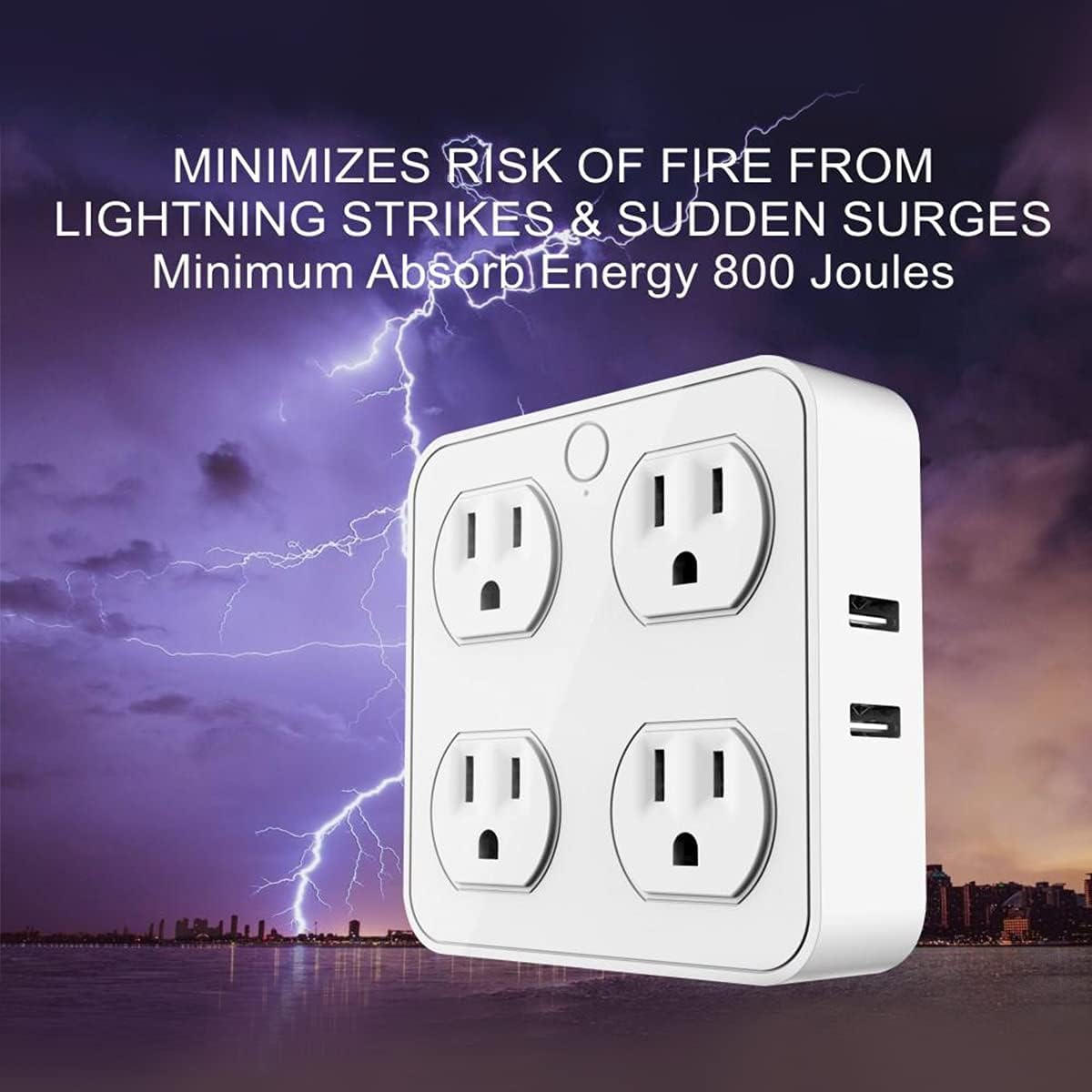
Figure 4.1: The Smart Plug P2 securely installed in a wall outlet.
4.2 App Installation and Pairing
The Smart Plug P2 requires the eco4life smart app for full functionality. Ensure your smartphone is connected to a 2.4GHz Wi-Fi network before proceeding.
- Download the App: Search for "eco4life" in your smartphone's app store (compatible with Android 4.4+ or iOS 8.0+).
- Register/Login: Open the eco4life app and follow the on-screen instructions to register a new account or log in if you already have one.
- Add Device: Tap the "+" icon or "Add Device" button within the app.
- Select Device Type: Choose "Power Strip (Wi-Fi)" or a similar option under the "Electrician" category.
- Reset Device: If the indicator light on the Smart Plug P2 is not blinking rapidly, press and hold the power/reset button for 5 seconds until it starts blinking rapidly. This puts the device into pairing mode.
- Connect to Wi-Fi: In the app, confirm the indicator is blinking rapidly, then enter your 2.4GHz Wi-Fi network name and password.
- Pairing: The app will begin searching for and connecting to the Smart Plug P2. This process may take a few minutes.
- Device Added: Once successfully added, you can rename the device and individual outlets/USB ports for easier control.

Figure 4.2: The eco4life app interface showing individual control of outlets and USB ports.
5. Operating Instructions
5.1 Manual Control
- Press the main power button on the Smart Plug P2 to turn all connected AC outlets and USB ports on or off simultaneously.
5.2 App Control
Once paired with the eco4life app, you can control the Smart Plug P2 from anywhere with an internet connection.
- Individual Control: Tap on the device in the app to access controls for each AC outlet and USB port. You can turn them on/off independently.
- Scheduling: Use the "Schedule" feature to set timers for when specific outlets or USB ports should turn on or off. This is useful for automating lights, chargers, or other devices.
- Countdown Timer: The "Countdown" feature allows you to set a timer for an outlet or USB port to turn off after a specified duration.
5.3 Voice Control
Integrate your Smart Plug P2 with Amazon Alexa or Google Assistant for convenient voice commands.
- Link Account: In your Alexa or Google Home app, search for the "eco4life" skill/service and link your eco4life account.
- Discover Devices: Ask Alexa or Google Assistant to "Discover devices" or manually initiate discovery in their respective apps.
- Voice Commands: Once discovered, you can use commands like:
- "Alexa, turn on [Outlet Name]"
- "Hey Google, turn off [USB Port Name]"
- "Alexa, turn on the fan" (if you named an outlet "fan")
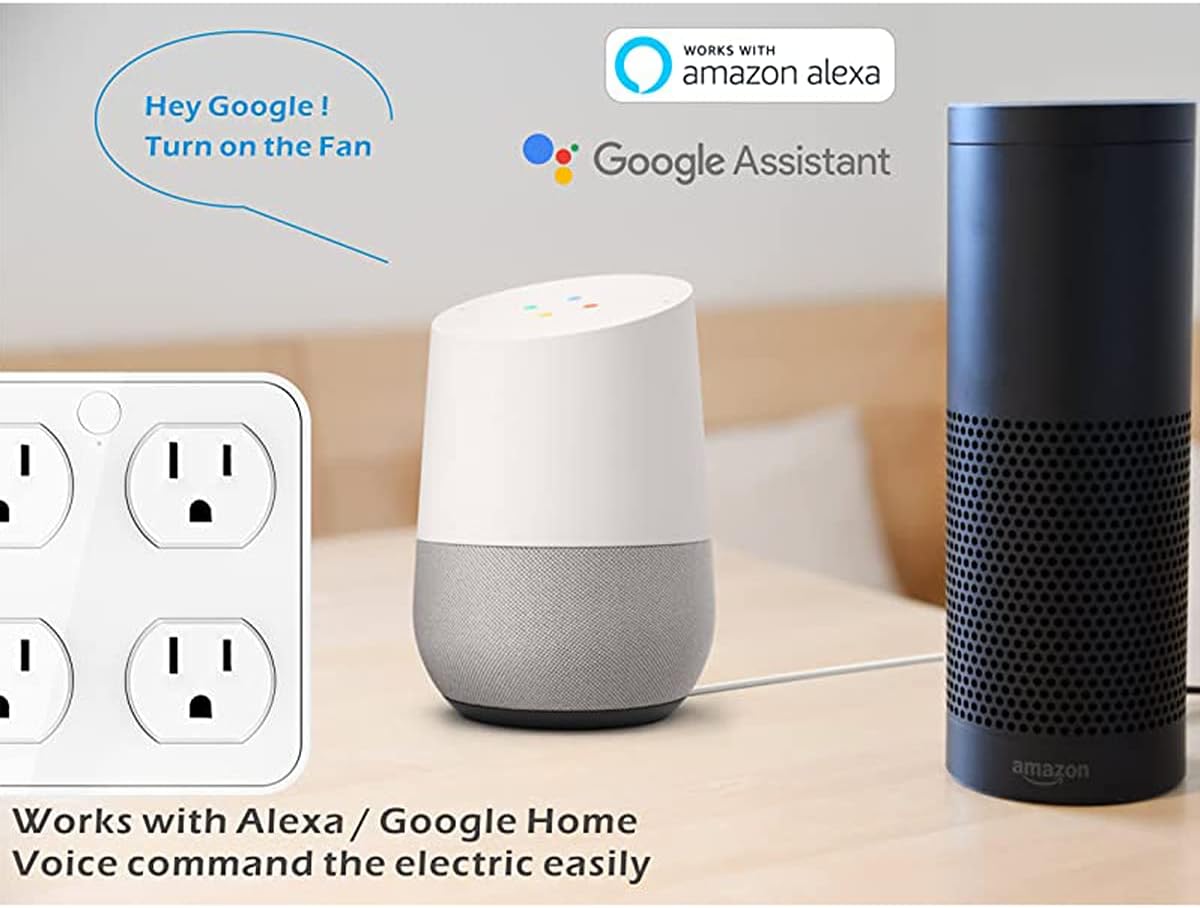
Figure 5.1: Voice control integration with Amazon Alexa and Google Assistant.
6. Maintenance
- Cleaning: Disconnect the Smart Plug P2 from the power outlet before cleaning. Use a dry, soft cloth to wipe the surface. Do not use liquid cleaners or sprays.
- Storage: If not in use for an extended period, unplug the device and store it in a cool, dry place away from direct sunlight and moisture.
- Inspection: Periodically check the device for any signs of damage, such as frayed cords or loose connections. Discontinue use if any damage is found.
7. Troubleshooting
| Problem | Possible Cause | Solution |
|---|---|---|
| Device not powering on. | No power from wall outlet; device malfunction. | Check the wall outlet with another device. Ensure the Smart Plug is firmly plugged in. |
| Cannot connect to Wi-Fi. | Incorrect Wi-Fi band; wrong password; device not in pairing mode. | Ensure your router is 2.4GHz. Verify Wi-Fi password. Reset the device by holding the power button for 5 seconds until the indicator blinks rapidly, then try pairing again. |
| Voice control not working. | eco4life account not linked; device not discovered. | Ensure your eco4life account is linked in the Alexa/Google Home app. Ask your voice assistant to discover devices. Check device names for clarity. |
| Outlets not responding in app. | Poor Wi-Fi signal; app issue. | Ensure the Smart Plug is within Wi-Fi range. Restart the eco4life app. Unplug and replug the Smart Plug. |
8. Safety Information
- Do not exceed the maximum load of 15A (1800W) for the entire unit or any single AC outlet.
- Use indoors only. Do not expose to moisture, high temperatures, or corrosive environments.
- Do not disassemble or modify the device.
- Keep out of reach of children.
- Ensure proper grounding when plugging into an outlet.
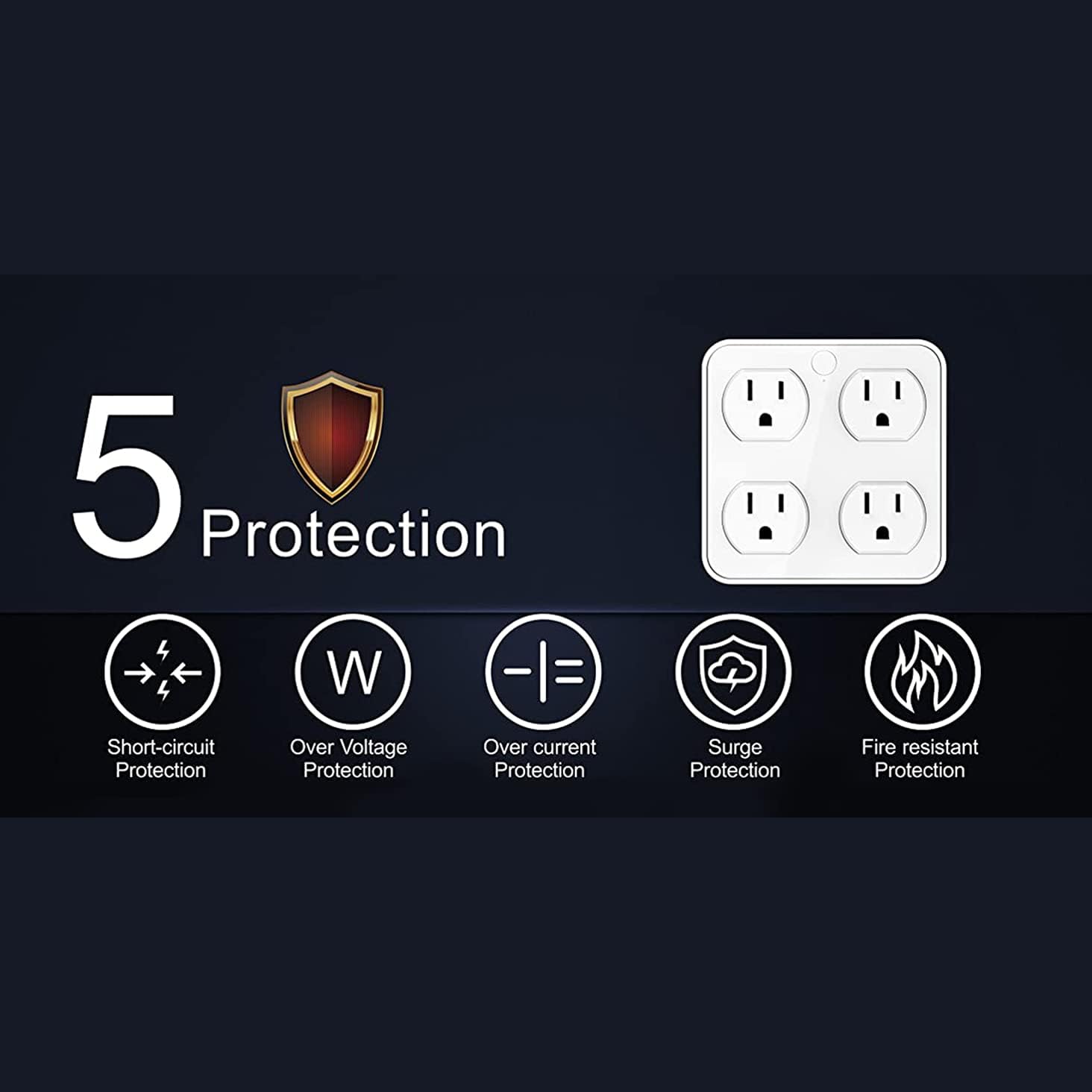
Figure 8.1: The Smart Plug P2 offers 5-point protection for enhanced safety.
9. Warranty and Support
9.1 Warranty Information
The Alpha Digital Wireless Wall Tap Smart Plug P2 comes with a 2-Year Warranty from the date of purchase. This warranty covers defects in materials and workmanship under normal use. It does not cover damage caused by misuse, accident, unauthorized modification, or external causes.
9.2 Customer Support
For technical assistance, troubleshooting, or warranty claims, please contact Alpha Digital customer support through the retailer where the product was purchased or visit the official Alpha Digital website for contact information.


