Introduction
The ULTRALOQ UL3 BT (2nd Gen) is an advanced smart lever lock offering a 5-in-1 keyless entry solution. This manual provides detailed instructions for the setup, operation, and maintenance of your smart lock, ensuring optimal performance and security. The integrated WiFi Bridge allows for remote access and management, enhancing convenience and control over your property.
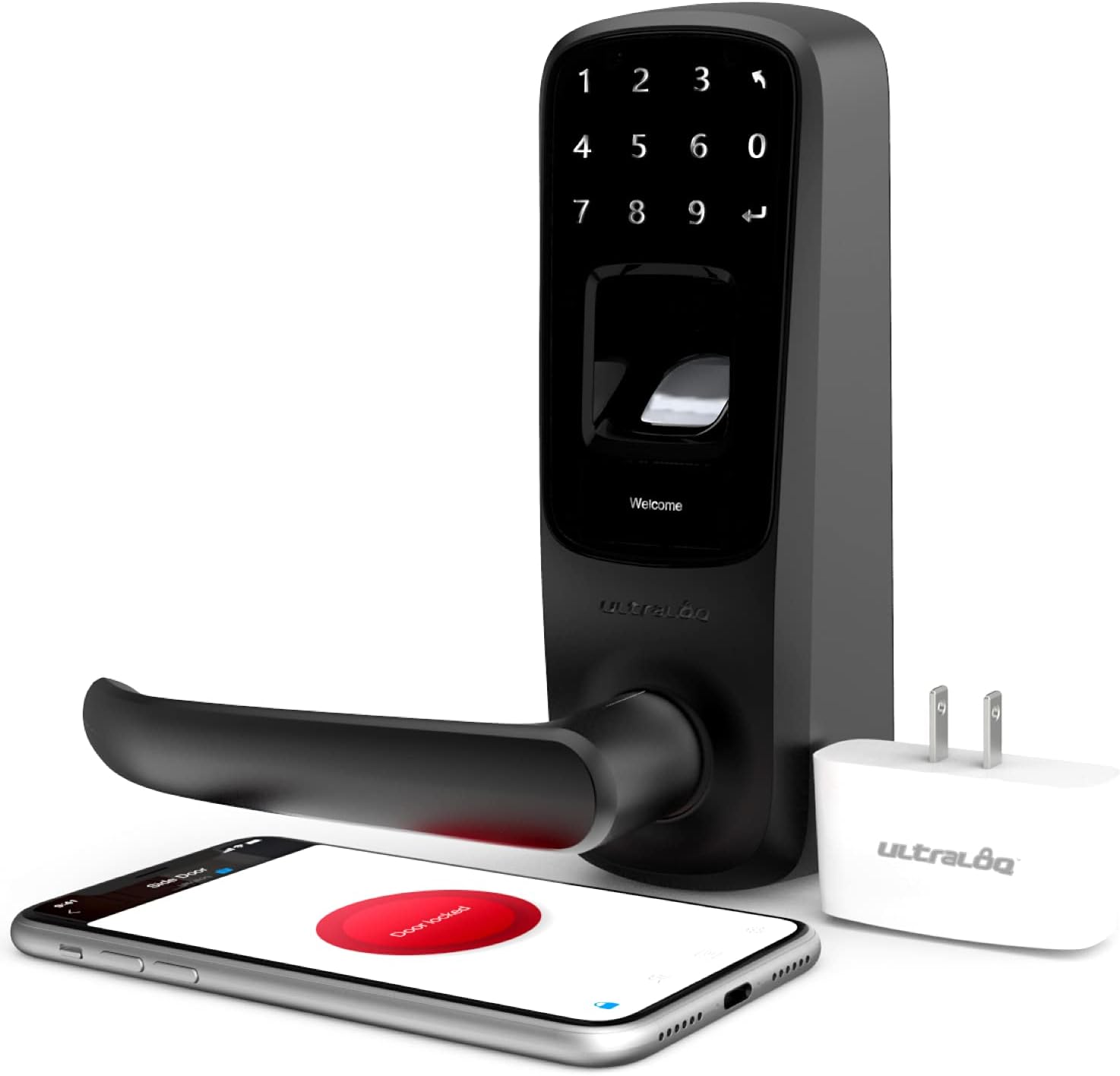
Figure 1: ULTRALOQ UL3 BT 2nd Gen Smart Lock with WiFi Bridge and accessories.
Key Features
- 5-in-1 Keyless Entry: Fingerprint ID, Code, Knock / Shake to Open, Mechanical Key, and Smartphone App control.
- Advanced Fingerprint ID: Second-generation lightning-fast fingerprint recognition with self-learning algorithm.
- Anti-peep Touchscreen: Illuminated keypad allows for entering random digits before or after your actual code to prevent code exposure.
- Remote Access with WiFi Bridge: Unlock, share temporary eKeys, set codes, and view log records from anywhere via the smartphone app.
- Auto Lock Function: Automatically locks the door after a set period for enhanced security.
- DIY Installation: Designed for easy installation with a screwdriver, fitting standard doors (1-5/16” to 2” thick and 2-1/8” face bore hole).
- Voice Control Integration: Compatible with Alexa and Google Home enabled speakers via IFTTT.

Figure 2: Recognition for ULTRALOQ Smart Locks.
Setup and Installation
The ULTRALOQ UL3 BT (2nd Gen) is designed for straightforward DIY installation. Ensure your door meets the specified dimensions before beginning.
1. Prepare Your Door
- Verify your door thickness is between 1-5/16 inches (33mm) and 2 inches (50mm).
- Confirm the face bore hole diameter is 2-1/8 inches (54mm).
- Ensure the backset (distance from door edge to center of bore hole) is 2-3/8 inches (60mm) or 2-3/4 inches (70mm).
- Remove any existing door hardware.
2. Install the Latch and Strike Plate
Insert the latch into the door edge and secure it with screws. Install the strike plate on the door frame, aligning it with the latch bolt.
3. Install the Exterior Assembly
Feed the cable and spindle through the bore hole. Position the exterior assembly flush against the door.
4. Install the Interior Mounting Plate
Attach the interior mounting plate to the exterior assembly using the provided screws, ensuring the cable passes through the plate.
5. Connect the Cable and Install the Interior Assembly
Connect the cable from the exterior assembly to the interior assembly. Secure the interior assembly to the mounting plate with screws. Ensure the handle is oriented correctly for your door's handing.
6. Install Batteries
Insert four AA alkaline batteries into the battery compartment of the interior assembly. Close the battery cover.

Figure 3: Easy DIY installation process.
Operating Instructions
1. Initial Setup and App Pairing
- Download the ULTRALOQ App from the App Store or Google Play.
- Create an account and log in.
- Follow the in-app instructions to add your UL3 BT (2nd Gen) Smart Lock. This typically involves pressing a button on the interior assembly to put it in pairing mode.
2. Unlocking Methods
- Fingerprint ID: Place your registered finger on the fingerprint sensor. The lock will unlock if the fingerprint is recognized.
- Code: Enter your 4-8 digit code on the illuminated touchscreen keypad, followed by the enter key. Utilize the anti-peep function by adding random digits before or after your actual code.
- Knock / Shake to Open: With the app running in the background, knock on your phone or shake it (depending on settings) to unlock the door when within Bluetooth range.
- Mechanical Key: In case of battery failure or emergency, use the provided backup mechanical key to unlock the door. The keyhole is located at the bottom of the exterior handle.
- Smartphone App: Open the ULTRALOQ App and tap the unlock icon.

Figure 4: Unlocking with Fingerprint ID.
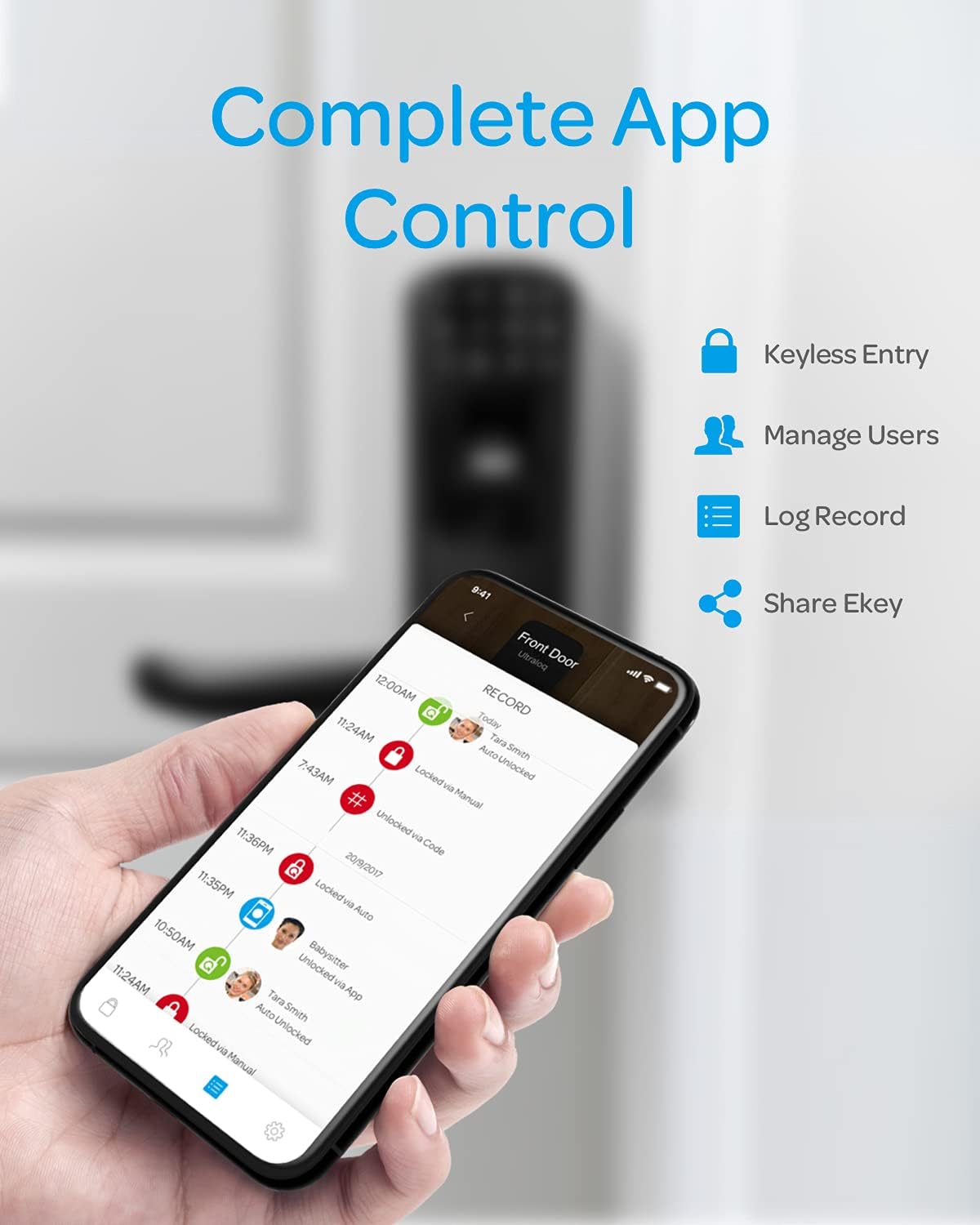
Figure 5: App control for your smart lock.
3. Locking Methods
- Auto Lock: Enable this feature in the app to automatically lock the door after a customizable delay (e.g., 10-900 seconds).
- Manual Lock: Press any key on the keypad for 2 seconds to lock the door from the outside. From the inside, simply lift the handle.
4. User Management and Remote Access (with WiFi Bridge)
The included WiFi Bridge allows for advanced remote functionalities:
- Add/Delete Users: Manage fingerprints and codes for family members, guests, or service providers directly from the app.
- Share eKeys: Grant temporary or permanent access to others via eKeys sent through the app.
- View Log Records: Monitor who entered and at what time from anywhere.
- Remote Unlock/Lock: Control your lock remotely via the app.
- Voice Control: Integrate with Amazon Alexa or Google Home for voice commands (e.g., “Alexa, unlock my side door”).

Figure 6: ULTRALOQ WiFi Bridge for remote access and smart home integration.
Maintenance
1. Battery Replacement
The ULTRALOQ UL3 BT (2nd Gen) uses four AA alkaline batteries. The lock will provide low battery warnings through the app and on the touchscreen. Replace all four batteries simultaneously with new, high-quality alkaline batteries when prompted.
2. Cleaning
Clean the lock's exterior with a soft, damp cloth. Avoid abrasive cleaners or solvents that could damage the finish or electronic components. Regularly wipe the fingerprint sensor and touchscreen to ensure optimal performance.
3. Mechanical Components
Periodically check the screws and ensure they are tightened. Lubricate the latch bolt and deadlatch with a silicone-based lubricant if they become stiff.
Troubleshooting
| Problem | Possible Cause | Solution |
|---|---|---|
| Lock not responding / No power. | Dead batteries. | Replace all four AA alkaline batteries. Use the backup mechanical key if necessary. |
| Fingerprint not recognized. | Finger dirty/wet, sensor dirty, unregistered fingerprint, improper placement. | Ensure finger and sensor are clean and dry. Re-register fingerprint if issues persist. Try different finger angles. |
| Keypad not responding. | Low battery, temporary glitch. | Replace batteries. Try pressing any key to wake the keypad. |
| Remote access not working. | WiFi Bridge disconnected, internet issue, lock out of range of bridge. | Check WiFi Bridge connection and internet. Ensure bridge is within effective range of the lock. |
| Lock does not auto-lock. | Auto-lock feature disabled or incorrect settings. | Verify auto-lock settings in the ULTRALOQ App. |
Specifications
- Model: UL3 BT (2nd Gen) Smart Lock
- Brand: ULTRALOQ
- Lock Type: Smart Lock
- Material: Zinc
- Color: Black
- Dimensions (L x W x H): 7 x 6.3 x 3.5 inches
- Item Weight: 6 Pounds
- Power Source: 4 x AA Alkaline Batteries (Included)
- Connectivity: Bluetooth, 2.4GHz Wi-Fi (via WiFi Bridge)
- Door Thickness Compatibility: 1-5/16” to 2” (33mm - 50mm)
- Face Bore Hole: 2-1/8” (54mm)
- Backset: 2-3/8” (60mm) or 2-3/4” (70mm)
- Special Features: Fingerprint, Touchscreen, Smart Lock, WiFi, Auto-Lock
- Included Components: Smart Lock, WiFi Bridge, Backup Keys, Latch and Strike, Mounting Plate, Screwdriver
- UPC: 850770008528
Warranty
ULTRALOQ provides an 18-month electronic warranty and a lifetime mechanical warranty for the UL3 BT (2nd Gen) Smart Lock. Please retain your proof of purchase for warranty claims. For detailed terms and conditions, refer to the official ULTRALOQ website or contact customer support.
Support
For further assistance, technical support, or to purchase accessories, please visit the official ULTRALOQ website or contact their customer service team.
- Official Website: www.u-tec.com
- User Guide (PDF): Download PDF
- Amazon Store: Visit ULTRALOQ Store on Amazon