1. Introduction
Thank you for choosing the Havit Mechanical Keyboard. This 89-key wired gaming keyboard features durable PBT keycaps and responsive Red Switches, designed for both gaming and typing. Its compact layout saves desk space while retaining essential numeric keys. This manual provides detailed instructions for setup, operation, maintenance, and troubleshooting to ensure optimal performance and longevity of your keyboard.

Figure 1: Havit 89-Key Mechanical Keyboard Overview
2. What's in the Box
- Havit Mechanical Keyboard (Model KB487L-US)
- Keycap Puller
- User Manual (this document)
3. Setup Guide
- Unpack the Keyboard: Carefully remove the keyboard and all accessories from the packaging.
- Connect to Computer: Plug the USB cable of the keyboard into an available USB port on your PC or laptop.
- Driver Installation: The keyboard is plug-and-play and typically does not require additional drivers for basic functionality on Windows operating systems. Your computer should automatically detect and install the necessary drivers.
- Compatibility Note: This keyboard is compatible with Windows 10, Windows 8, Windows 7, Windows XP, and Windows VISTA. For MAC systems, multimedia keys may not be fully functional.
4. Operating Instructions
4.1 Basic Keyboard Functions
The Havit Mechanical Keyboard features a standard QWERTY layout with 89 keys, including a compact numeric keypad. All standard alphanumeric and symbol keys function as expected.
4.2 Multimedia and Function Keys
The keyboard includes dedicated multimedia functions accessible via the Fn key combined with the F1-F12 keys. Refer to the keycap legends for specific functions.
- Fn + F1-F8: Multimedia controls (e.g., Play/Pause, Stop, Previous/Next Track, Volume Up/Down, Mute).
- Fn + F10-F12: Additional function keys.
4.3 Numeric Keypad Functionality
The compact numeric keypad on the right side of the keyboard serves a dual purpose. It can function as a standard numeric keypad or as navigation/function keys (e.g., Home, End, PgUp, PgDn, Ins, Del).
- Activating Numeric Keys: Press Fn + Backspace to toggle the numeric keypad. When the numpad is active, its backlight will illuminate, and the keys (1, 2, 3, 4, 5, 6, etc.) will function as numbers.
- Activating Function Keys: When the numpad backlight is off, the keys will function as navigation/function keys (e.g., Del, Home, End).

Figure 2: Toggling Numeric Keypad Functionality
5. Key Features
5.1 Compact 89-Key Layout
The 89-key design offers a space-saving solution without sacrificing the convenience of a numeric keypad, making it ideal for desks with limited space while still providing full functionality for data entry and gaming.
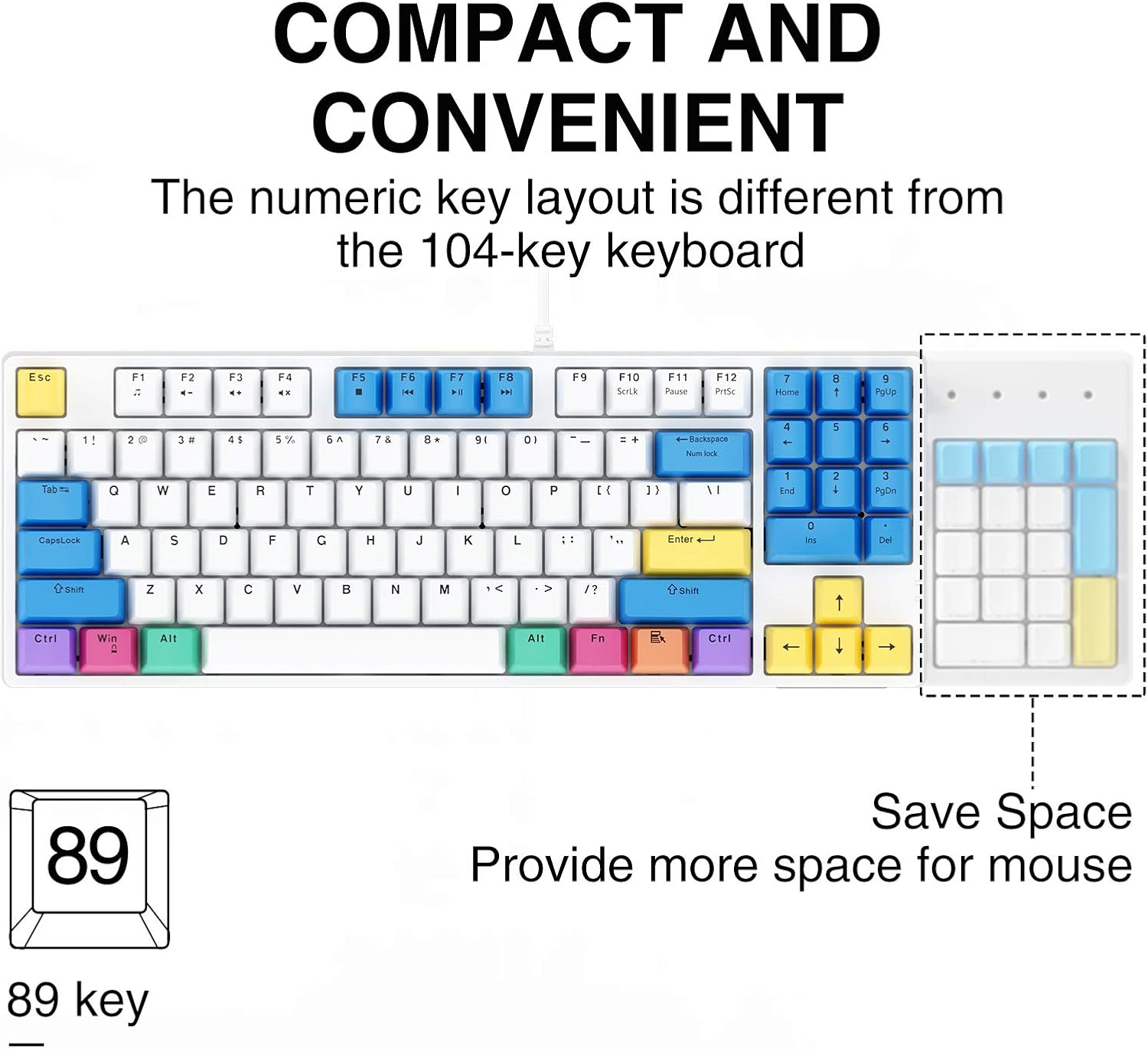
Figure 3: Compact and Convenient 89-Key Layout
5.2 PBT Keycaps
Constructed from high-quality PBT (Polybutylene Terephthalate) material, the keycaps offer superior durability, resistance to shine, and a premium tactile feel compared to standard ABS keycaps. This ensures a long-lasting and comfortable typing experience.

Figure 4: Durable PBT Material Keycaps
5.3 Red Mechanical Switches
The keyboard is equipped with Red Switches, known for their linear, smooth, and quiet operation. These switches require less force to actuate and offer a consistent keystroke, making them ideal for fast-paced gaming and comfortable typing over extended periods.
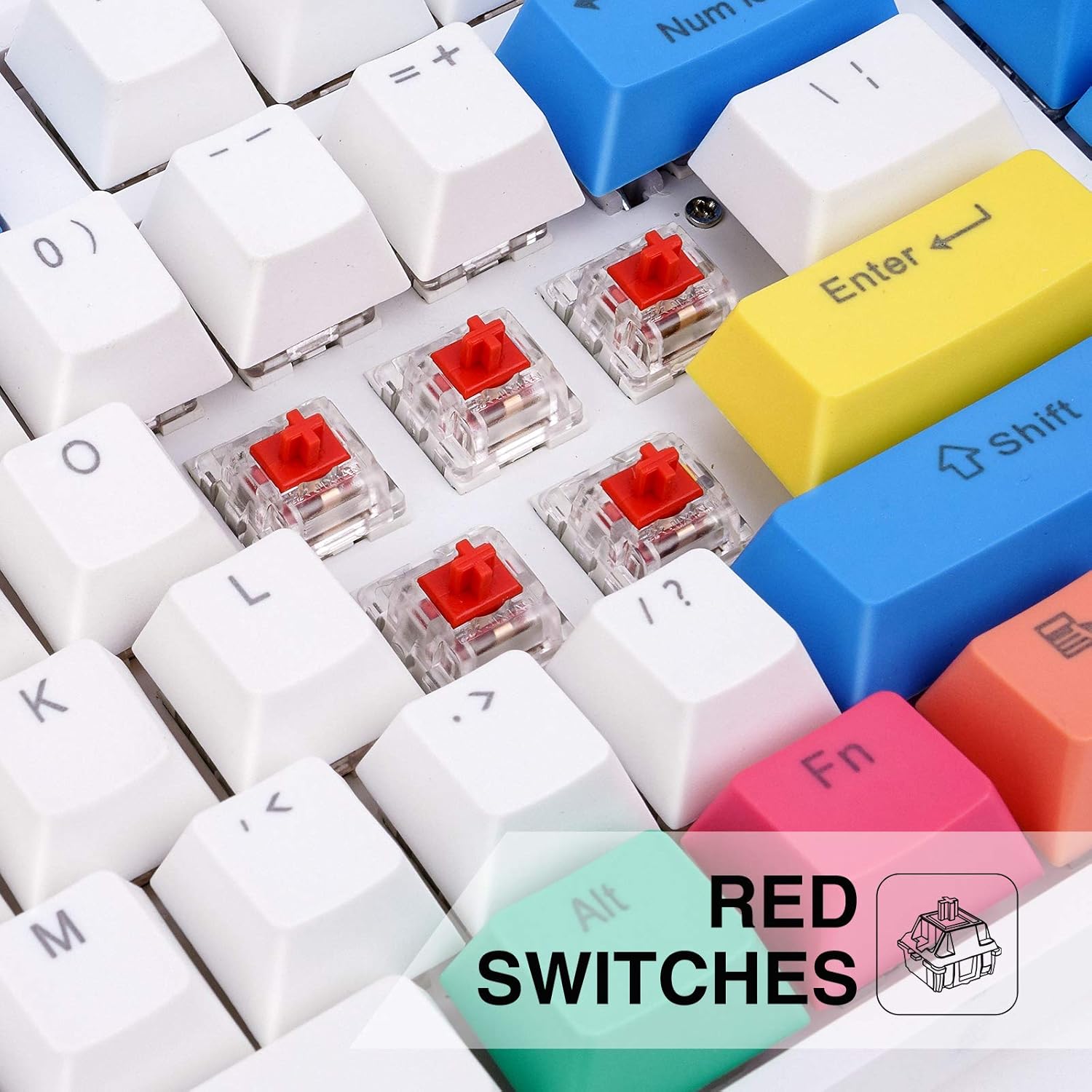
Figure 5: Close-up of Red Mechanical Switches
5.4 Ergonomic Design
The keyboard's design incorporates an ergonomic profile with high and low keys, along with two adjustable kickstands. This allows for a comfortable typing angle, reducing strain on your wrists during prolonged use.

Figure 6: Ergonomic Key Profile
6. Maintenance and Care
- Cleaning: Use a soft, dry cloth to wipe down the keyboard. For deeper cleaning, use a can of compressed air to remove dust and debris from between the keycaps. The included keycap puller can be used to carefully remove keycaps for thorough cleaning of the switches.
- Avoid Liquids: Do not spill liquids on the keyboard. If a spill occurs, immediately disconnect the keyboard from your computer and allow it to dry completely before reconnecting.
- Storage: Store the keyboard in a cool, dry place away from direct sunlight and extreme temperatures.
7. Troubleshooting
| Problem | Possible Cause | Solution |
|---|---|---|
| Keyboard not responding | Loose USB connection; Faulty USB port; Driver issue | Ensure USB cable is securely plugged in. Try a different USB port. Restart your computer. |
| Specific keys not working | Debris under keycap; Damaged switch | Remove keycap and clean. If issue persists, contact customer support. |
| Numeric keypad not functioning as numbers | Num Lock is off | Press Fn + Backspace to activate Num Lock. The numpad backlight should turn on. |
| Multimedia keys not working on Mac | Limited Mac compatibility | This is a known limitation. Basic typing functions will still work. |
8. Specifications
| Feature | Detail |
|---|---|
| Brand | havit |
| Model Number | KB487L-US |
| Connectivity | Wired (USB) |
| Key Count | 89 Keys |
| Switch Type | Red Mechanical Switches |
| Keycap Material | PBT |
| Color | White |
| Operating System Compatibility | Windows 10/8/7/XP/VISTA, Mac OS (limited multimedia key support) |
| Item Weight | 2.31 pounds |
| Package Dimensions | 15.67 x 6.97 x 1.89 inches |

Figure 7: Keyboard Dimensions
9. Warranty and Support
Havit products are designed and manufactured to the highest quality standards. For information regarding warranty coverage, technical support, or customer service inquiries, please refer to the contact information provided on the product packaging or visit the official Havit website. Please retain your proof of purchase for warranty claims.


