
Important Safety Information
Please read all instructions carefully before using your Smart-Tech 40-inch FHD Smart TV. Keep this manual for future reference. Failure to follow these safety guidelines may result in fire, electric shock, or other injuries.
- Do not block ventilation openings. Ensure adequate space around the TV for proper airflow.
- Do not place the TV near heat sources such as radiators, heat registers, stoves, or other apparatus that produce heat.
- Protect the power cord from being walked on or pinched, particularly at plugs, convenience receptacles, and the point where they exit from the apparatus.
- Only use attachments/accessories specified by the manufacturer.
- Unplug this apparatus during lightning storms or when unused for long periods of time.
- Refer all servicing to qualified service personnel. Servicing is required when the apparatus has been damaged in any way.
Package Contents
Verify that all items listed below are included in your package:
- Smart-Tech 40-inch FHD Smart TV
- Remote Control
- TV Stand (2 pieces)
- Screws for Stand Attachment
- Power Cable
- User Manual (this document)
Setup
1. Attaching the Stand
To attach the stand to your TV:
- Carefully place the TV face-down on a soft, clean surface to prevent screen damage.
- Align each stand piece with the corresponding slots on the bottom of the TV.
- Secure each stand piece using the provided screws. Ensure they are tightened firmly.

Image: Smart-Tech 40-inch FHD Smart TV with stand, illustrating its placement.
2. Wall Mounting (Optional)
If you choose to wall mount your TV, you will need a VESA-compatible wall mount kit (not included). The TV supports a VESA mount pattern of 200mm x 100mm.
- Remove the stand if it has been attached.
- Follow the instructions provided with your wall mount kit for proper installation.
- Ensure the wall mount is securely fastened to a sturdy wall capable of supporting the TV's weight.

Image: Rear panel of the TV showing VESA mounting holes (200mm x 100mm) and port locations.
3. Connecting Peripherals
The TV features a variety of ports for connecting external devices. Refer to the image above for port locations.
- USB 1 / USB 2: Connect USB storage devices for media playback or software updates.
- EARPHONE OUT: Connect headphones for private listening.
- CI+: Insert a Common Interface Plus module and smart card for encrypted digital channels.
- DVB_T/T2: Connect an aerial for terrestrial digital TV signals.
- DVB_S/S2: Connect a satellite dish for satellite digital TV signals.
- AV IN: Connect older devices using composite video and stereo audio cables.
- HDMI 1 / HDMI 2 / HDMI 3: Connect high-definition devices such as Blu-ray players, game consoles, or set-top boxes. HDMI 3 supports Audio Return Channel (ARC).
- RJ45: Connect an Ethernet cable for a wired internet connection.
- OPTICAL: Connect to a digital audio receiver or soundbar for high-quality audio output.
Operating Instructions
1. Initial Power On and Setup Wizard
After connecting the TV to power and an antenna/satellite dish, press the power button on the remote control. The TV will guide you through an initial setup wizard to select language, country, network settings, and channel scanning.
2. Remote Control Functions
The remote control allows you to navigate the TV's features. Familiarize yourself with the main buttons:

Image: Remote control for the Smart-Tech TV.
- Power Button: Turns the TV on or off.
- Number Buttons: Select channels directly.
- Volume Up/Down: Adjust the sound level.
- Channel Up/Down: Change channels sequentially.
- Navigation Buttons (Up/Down/Left/Right) and OK: Navigate menus and confirm selections.
- Back/Exit: Return to the previous menu or exit current function.
- Source: Select input source (HDMI, AV, TV, etc.).
- Smart App Buttons: Dedicated buttons for quick access to Netflix, YouTube, and Prime Video.
3. Smart TV Features
Your Smart-Tech TV comes with integrated smart features, including access to popular streaming services and HbbTV.
- Internet Connection: Connect your TV to the internet via Wi-Fi or Ethernet (RJ45 port) to access smart features.
- Streaming Apps: Use the dedicated buttons or navigate to the Smart TV menu to launch applications like Netflix, YouTube, and Prime Video. An active subscription may be required for some services.
- HbbTV 1.5: Hybrid Broadcast Broadband TV allows access to interactive services from broadcasters, such as catch-up TV, video-on-demand, and electronic program guides (EPG).
4. Channel Tuning
The TV supports DVB-T/T2 (terrestrial), DVB-S/S2 (satellite), and DVB-C (cable) digital tuners.
- Go to the TV's main menu.
- Select 'Channel' or 'Installation'.
- Choose your desired tuning method (e.g., 'Auto Scan' for DVB-T/T2 or 'Satellite Setup' for DVB-S/S2).
- Follow the on-screen prompts to complete the channel scan.
5. Media Playback (USB)
You can play various media files from a USB storage device.
- Insert your USB device into one of the USB ports on the TV.
- The TV may automatically detect the device and prompt you to open the media browser. If not, select the USB source from the input menu.
- Navigate through your files and select the desired media to play.
- Supported file systems: FAT16, FAT32, NTFS.
- Supported media formats include: Music (MP3, WAV, AAC), Photo (JPG, JPEG, BMP, PNG), Video (AVI, MP4, MOV, MPG, MKV, DAT, VOB, TS, TRP, TP).
Maintenance
Cleaning the TV
To ensure the longevity and optimal performance of your TV, follow these cleaning guidelines:
- Always unplug the TV from the power outlet before cleaning.
- Use a soft, dry, lint-free cloth to gently wipe the screen and cabinet.
- For stubborn marks, lightly dampen the cloth with water or a mild, non-abrasive screen cleaner. Never spray liquid directly onto the TV.
- Avoid using abrasive cleaners, waxes, or solvents as they can damage the TV's finish.
Storage
If you need to store the TV for an extended period, ensure it is kept in a cool, dry place, away from direct sunlight and extreme temperatures. Use the original packaging if available to protect it from dust and physical damage.
Troubleshooting
If you encounter issues with your TV, consult the table below for common problems and solutions. If the problem persists, contact customer support.
| Problem | Possible Cause | Solution |
|---|---|---|
| No power | Power cord not connected; No power from outlet | Ensure power cord is securely plugged in; Check power outlet with another device. |
| No picture, but sound is present | Incorrect input source selected; Loose cable connection | Press the 'Source' button on the remote to select the correct input; Check all cable connections. |
| No sound, but picture is present | Volume is muted or too low; External audio system issue | Increase volume or unmute; Check connections to external audio devices. |
| Remote control not working | Batteries are dead or inserted incorrectly; Obstruction between remote and TV | Replace batteries; Ensure correct polarity; Remove any obstructions. |
| Cannot connect to Wi-Fi | Incorrect password; Router issue; TV too far from router | Verify Wi-Fi password; Restart router; Move TV closer to router or use wired connection. |
Specifications
Detailed technical specifications for the Smart-Tech 40-inch FHD Smart TV (SMT40N30FV1U1B1).
| Feature | Specification |
|---|---|
| Model Number | SMT40N30FV1U1B1 |
| Screen Size | 40 inches (100 cm) |
| Resolution | 1920 x 1080 (Full HD) |
| Display Technology | LED (D-LED Backlight) |
| Refresh Rate | 60 Hz |
| Audio Output | 2 x 8 W |
| Audio Technology | Dolby Digital, AC-3 Decoder |
| Tuners | DVB-T, DVB-T2, DVB-S, DVB-S2, DVB-C |
| Smart Features | HbbTV 1.5, Netflix, YouTube, Prime Video |
| HDMI Ports | 3 (HDMI-ARC, HDMI-CEC supported) |
| USB Ports | 2 |
| Other Connectivity | RF Antenna In, SAT In, Headphone Jack, CI+, CVBS + Audio In, Digital Optical Out, RJ45 (Ethernet), Wi-Fi |
| USB File Systems | FAT16 / FAT32 / NTFS |
| USB Video System | HEVC / H.265, MPEG4 / H.264, VP9 |
| Power Consumption (Operating) | 70 W |
| Power Consumption (Standby) | <0.50 W |
| Energy Class (New Label) | F |
| Dimensions with Stand (L x H x P) | 903.5 x 561.4 x 222 mm |
| Dimensions without Stand (L x H x P) | 903.5 x 517.5 x 78.1 mm |
| Net Weight | 5.66 kg |
| VESA Mount Pattern | 200mm x 100mm |
Energy Label Information
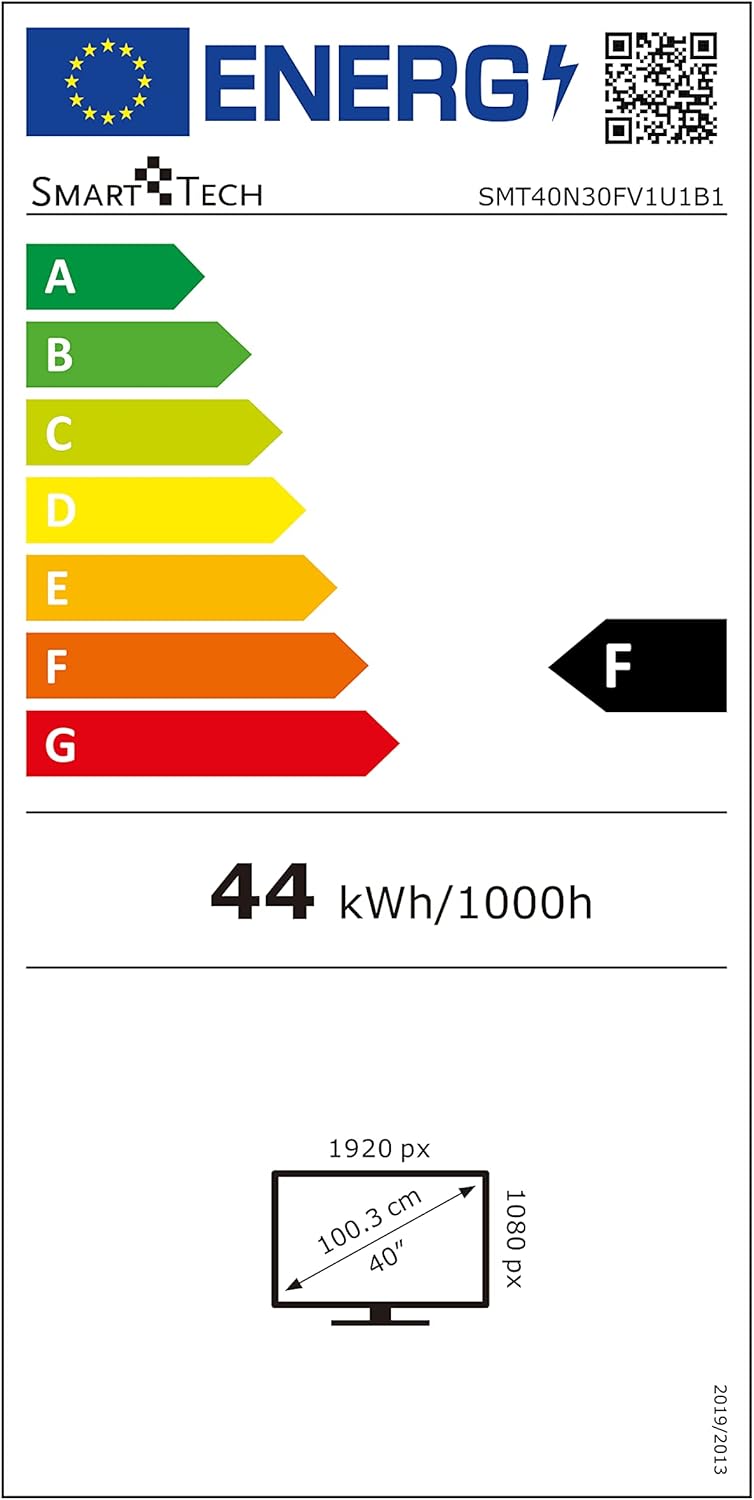
Image: EU Energy Label for Model SMT40N30FV1U1B1.
This television is rated Energy Class F under the new EU energy labeling system, with an energy consumption of 44 kWh per 1000 hours. For more detailed information, you can visit the official EPREL database: https://eprel.ec.europa.eu/qr/366834
Warranty and Support
Your Smart-Tech TV is covered by a manufacturer's warranty. Please refer to the warranty card included with your product for specific terms and conditions, including the warranty period and coverage details. For technical support, service inquiries, or to report any issues not covered in this manual, please contact Smart-Tech customer service through the contact information provided on your warranty card or the official Smart-Tech website.
Please note that availability of spare parts and software updates may vary. Information regarding spare parts availability and guaranteed software updates is not available at this time.


