
1. Product Overview
This manual provides detailed instructions for the installation, operation, and maintenance of your ZWNAV Tesla Style Android Radio. This multimedia head unit is designed to replace the factory radio in Dodge Ram 1500 models from 2019 to 2021, offering advanced features such as GPS navigation, wireless CarPlay, Android Auto, and a large touch screen display.

Image 1.1: Before and After Installation of the ZWNAV Tesla Style Android Radio in a Dodge Ram 1500.
2. Setup and Installation
Professional installation is highly recommended for this product. Incorrect installation may lead to damage to the unit or vehicle. Ensure the vehicle's power is disconnected before beginning installation.
2.1 Package Contents
Verify that all components are present in the package:
- Main Head Unit
- Power Cable
- Vehicle Mount
- GPS Antenna
- USB Adapter
- RCA Cable
- Video Input Cable
- Microphone
- WiFi Antenna

Image 2.1: Included Installation Kits and Cables.

Image 2.2: RCA and Video Output/Input Cables.
2.2 Wiring Diagram
Refer to the provided wiring diagram for correct connections. Ensure all cables are securely connected to their respective ports.
Image 2.3: Wiring Diagram for the Head Unit.
2.3 Initial Power-On
After installation, reconnect the vehicle's power. The unit should power on automatically. Follow any on-screen prompts for initial setup, including language selection and time zone.
3. Operating Instructions
This section details the primary functions and features of your ZWNAV Android Radio.
3.1 User Interface Navigation
The large touch screen allows for intuitive navigation. Swipe left/right to access different home screens, tap icons to open applications, and use the bottom bar for quick access to common functions like climate control (if integrated) and volume.
3.2 GPS Navigation
The unit comes with built-in GPS functionality. Access the Navigation app from the main menu. Ensure the GPS antenna is properly installed for optimal signal reception. You can download and use various navigation applications from the app store.
3.3 Audio and Multimedia Playback
The unit supports various audio and video sources:
- Radio (RDS): Tune into FM/AM stations. The Radio Data System (RDS) provides additional information like station name and song title.
- USB Playback: Connect USB drives to the provided USB interfaces for music and video playback.
- Bluetooth Audio: Pair your smartphone via Bluetooth to stream audio wirelessly.
- App-based Media: Use pre-installed or downloaded apps for streaming music and videos.


Image 3.1: Multimedia and Connectivity Icons.
3.4 Wireless CarPlay and Android Auto
Connect your smartphone wirelessly to access CarPlay or Android Auto. This allows for seamless integration of phone features like navigation, music, calls, and messages directly on the head unit's screen.

Image 3.2: Wireless CarPlay Functionality.
3.5 Digital Sound Processor (DSP)
The built-in DSP system features a 16-band equalizer and sound effects settings. Adjust speaker delay and sound field to optimize your audio experience. This unit utilizes a TDA7850 power amplifier chip for high-fidelity sound.
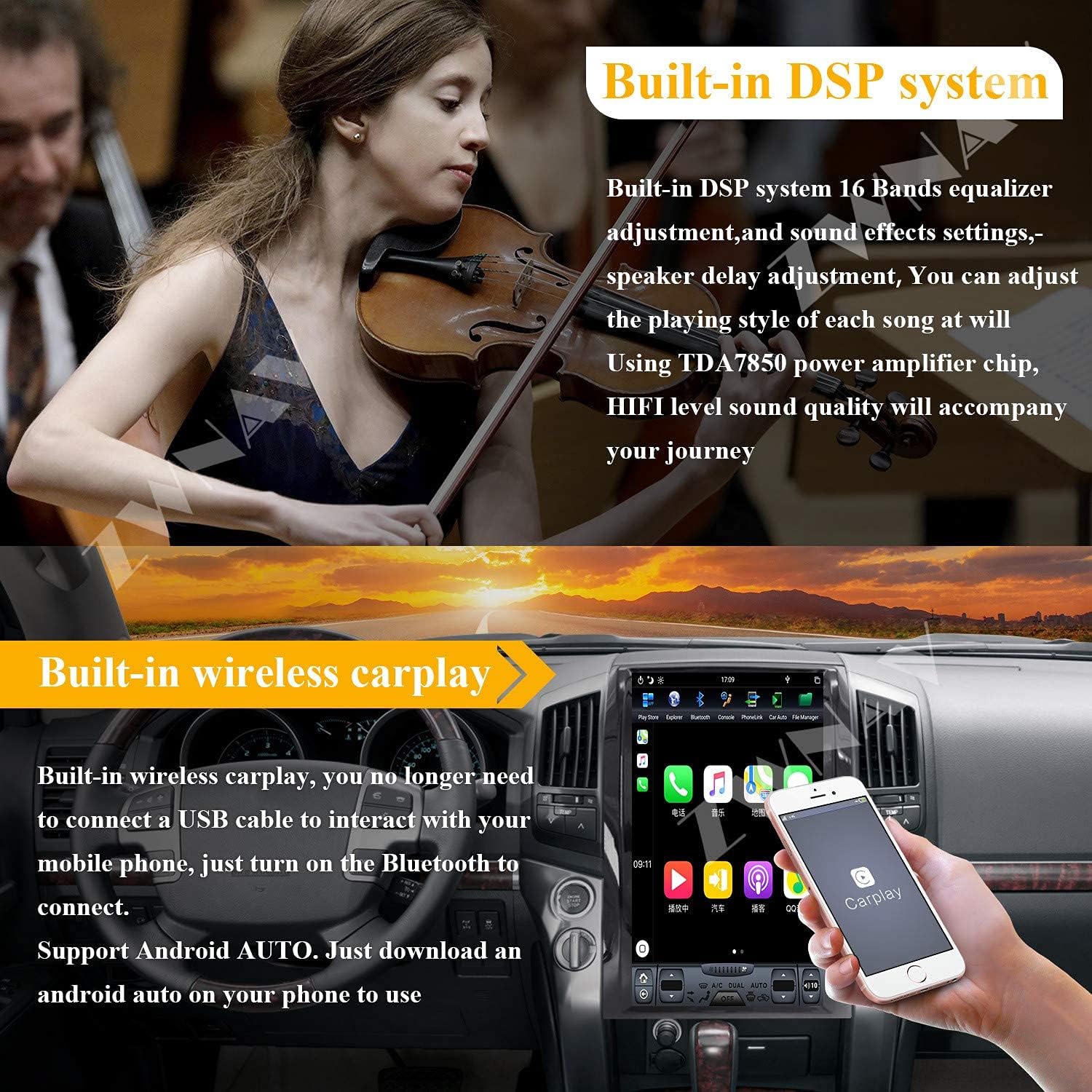
Image 3.3: Built-in DSP System Interface.
3.6 Split Screen Function
Utilize the split screen feature to run two applications simultaneously, such as navigation and video playback. Note that not all applications support split screen mode.

Image 3.4: Split Screen Functionality.
3.7 Steering Wheel Controls
The unit supports the original vehicle's steering wheel control functions, allowing you to adjust volume, change tracks, and manage calls without taking your hands off the wheel.
Image 3.5: Steering Wheel Control Integration.
3.8 Rear View Camera Support
Connect a compatible rear view camera to the unit for enhanced parking assistance and safety. The display automatically switches to the camera feed when reversing.

Image 3.6: Rear View Camera Support.
3.9 HDMI Output
The unit features a DP interface that can be converted to an HDMI interface, allowing connection to rear seat screens or car roof screens for high-definition video output.
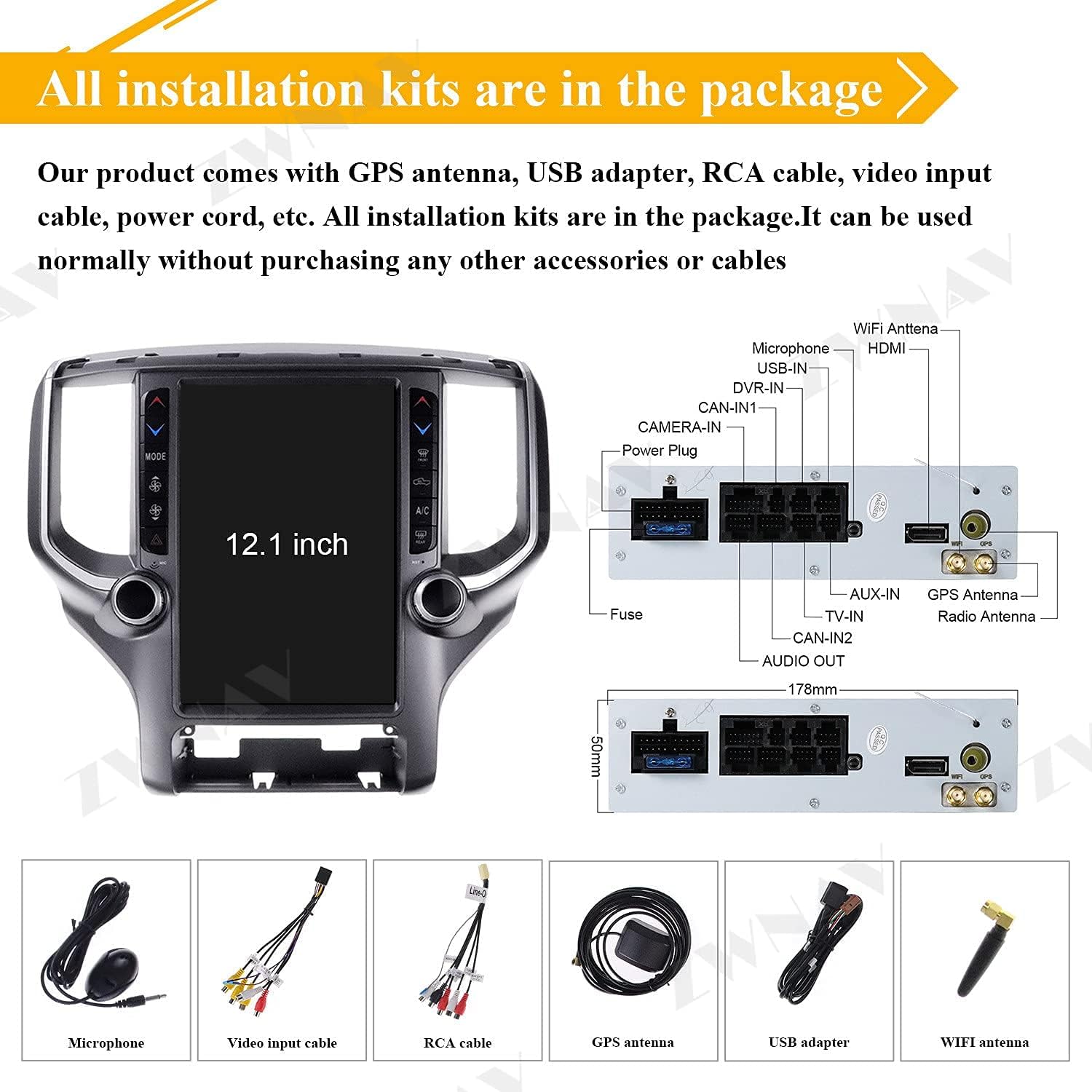
Image 3.7: HDMI Output for External Displays.
3.10 App Download and Wi-Fi Connectivity
Connect to Wi-Fi to download additional applications from the Google Play Store, expanding the functionality of your head unit.


Image 3.8: App Download and Wi-Fi Icons.
3.11 Product Demonstration Video
Watch this video for a demonstration of the ZWNAV Tesla Style Android Radio's features and user interface.
Video 3.1: Demonstration of ZWNAV Tesla Style Android Radio features for Dodge RAM 1500 (2018-2021).
4. Maintenance
Proper maintenance ensures the longevity and optimal performance of your Android Radio.
4.1 Screen Cleaning
Use a soft, lint-free cloth slightly dampened with water or a screen-specific cleaning solution to clean the touch screen. Avoid harsh chemicals or abrasive materials that could damage the screen surface.
4.2 Software Updates
Periodically check for software updates to ensure you have the latest features and performance improvements. Updates can typically be found in the system settings menu or on the manufacturer's website.
5. Troubleshooting
If you encounter issues, refer to the following common problems and solutions:
- No Power: Check all power connections and vehicle fuses. Ensure the unit is correctly installed.
- No Sound: Verify speaker connections. Check volume levels and DSP settings. Ensure Bluetooth audio is not connected to another device.
- GPS Not Working: Ensure the GPS antenna is properly connected and has a clear view of the sky. Check GPS settings in the system menu.
- Touch Screen Unresponsive: Try restarting the unit. If the issue persists, a factory reset might be necessary (refer to system settings).
- Bluetooth/Wi-Fi Connectivity Issues: Ensure Bluetooth/Wi-Fi is enabled on both the unit and your device. Try re-pairing or reconnecting.
- Steering Wheel Controls Not Functioning: Verify wiring connections for steering wheel control. Check settings within the unit to ensure proper configuration.
For persistent issues, contact ZWNAV customer support or a qualified technician.
6. Specifications
Key technical specifications for the ZWNAV Tesla Style Android Radio:
| Feature | Specification |
|---|---|
| Model Number | B093DF4WZ4 |
| Operating System | Android |
| Display Size | 12 Inches |
| Item Weight | 11.82 pounds |
| Package Dimensions | 21.2 x 19.8 x 9.4 inches |
| Voice Command | Microphone, Touchscreen |
| Connectivity Technology | Bluetooth, Wi-Fi |
| Special Features | Wireless CarPlay, Parking Assist |
| Map Type | Road |
| Included Components | Power cable, Vehicle mount |
| Audio Output Mode | Speaker, Stereo |
| Mounting Type | Dashboard Mount |
| Processor | Rockchip PX6 6-core (RX3399) |
| RAM | 4GB |
| Internal Storage | 64GB |

Image 6.1: ZWNAV Android Radio in a Dodge Ram 1500.
7. Warranty and Support
ZWNAV products typically come with a manufacturer's warranty. Please refer to the warranty card included with your product or visit the official ZWNAV website for detailed warranty terms and conditions.
7.1 Customer Support
For technical assistance, troubleshooting, or warranty claims, please contact ZWNAV customer support through their official website or the contact information provided in your product packaging.