
Introduction
This manual provides comprehensive instructions for setting up, operating, and maintaining your Echo Dot (3rd Gen) smart speaker and the accompanying TP-Link Kasa Smart Color Bulb. The Echo Dot is a voice-controlled smart speaker with Alexa, designed to play music, answer questions, make calls, send messages, and control compatible smart home devices. The TP-Link Kasa Smart Color Bulb allows you to control lighting remotely, adjust brightness, and change colors through the Kasa app or via Alexa voice commands.

Image: The Echo Dot (3rd Gen) smart speaker, a compact fabric-covered puck-shaped device with a blue light ring, shown alongside a TP-Link Kasa Smart Color Bulb, which is a standard-sized LED light bulb emitting a pink glow.
What's in the Box
- Echo Dot (3rd Gen) Smart Speaker
- TP-Link Kasa Smart Color Bulb
- Power Adapter for Echo Dot
- Quick Start Guide (refer to this manual for detailed instructions)
Setup
1. Echo Dot (3rd Gen) Setup
- Plug In Your Echo Dot: Connect the included power adapter to your Echo Dot and then to a power outlet. The light ring on the Echo Dot will turn blue, then orange, indicating it's ready for setup.
- Download the Alexa App: On your smartphone or tablet, download the Amazon Alexa app from your device's app store (App Store for iOS or Google Play Store for Android).
- Connect to Wi-Fi: Open the Alexa app and follow the on-screen instructions to connect your Echo Dot to your Wi-Fi network. You will be prompted to select your Wi-Fi network and enter the password.
- Complete Setup: Once connected, the light ring will turn off, and Alexa will greet you. Your Echo Dot is now ready for use.

Image: A close-up view of the Echo Dot (3rd Gen), showing its charcoal fabric exterior and the illuminated blue light ring around its top edge, indicating active status or readiness for setup.
2. TP-Link Kasa Smart Color Bulb Setup
- Install the Bulb: Screw the TP-Link Kasa Smart Color Bulb into a standard light socket.
- Download the Kasa Smart App: Download the Kasa Smart app from your device's app store.
- Add Device: Open the Kasa Smart app, create an account or log in, and follow the instructions to add your new smart bulb. This typically involves turning the light switch on and off a few times to put the bulb into pairing mode.
- Link with Alexa: To control the bulb with your Echo Dot, open the Alexa app, go to "Devices," tap the "+" icon, select "Add Device," and choose "Light." Alexa will then discover your Kasa Smart Bulb. Alternatively, you can enable the "Kasa Smart" skill in the Alexa app and link your Kasa account.
Operating the Echo Dot
Voice Commands
The Echo Dot responds to the wake word "Alexa." Once you say the wake word, the light ring will illuminate, indicating it is listening. You can then issue commands.
- "Alexa, what's the weather?"
- "Alexa, play music."
- "Alexa, set a timer for 10 minutes."
- "Alexa, turn on the light." (Requires a connected smart light)
- "Alexa, announce dinner's ready."
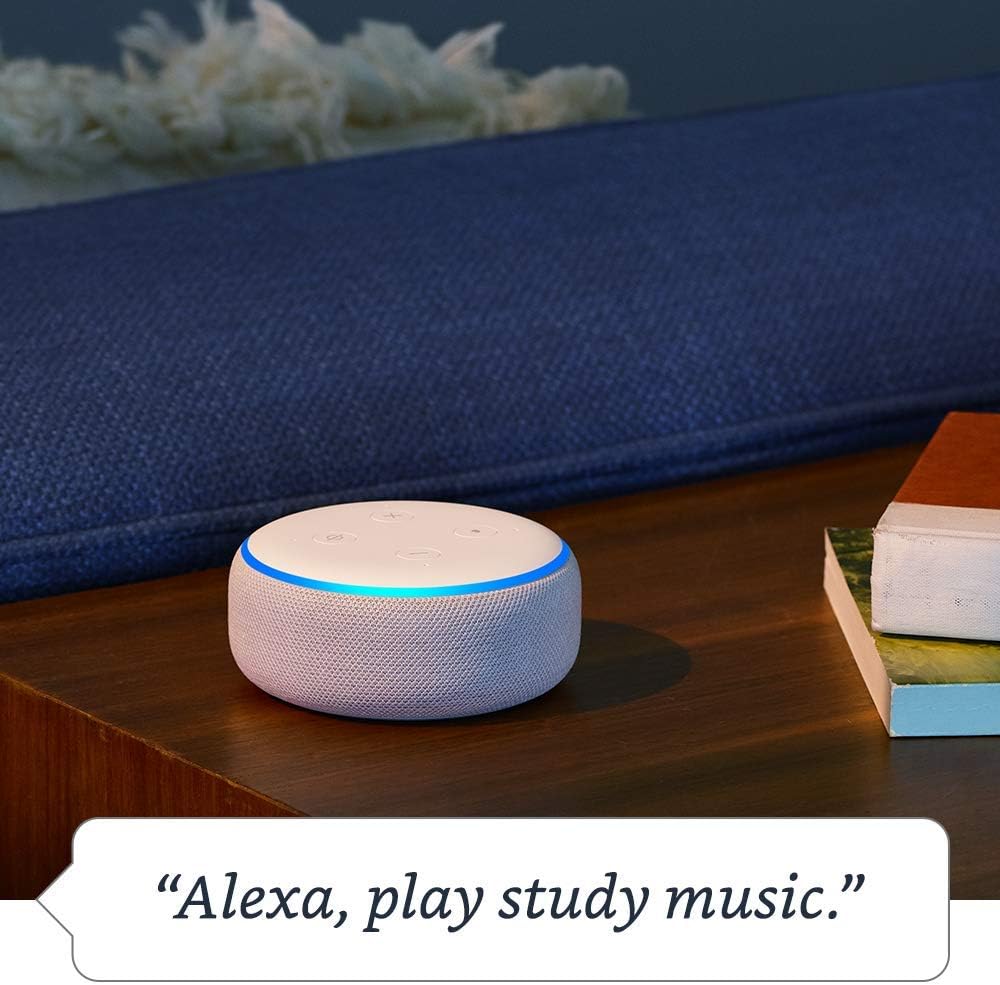
Image: An Echo Dot (3rd Gen) with a blue light ring, sitting on a wooden table next to a book and a pillow, illustrating its use for playing music with the voice command "Alexa, play study music."

Image: An Echo Dot (3rd Gen) on a side table next to a lamp and a small plant, demonstrating smart home control with the voice command "Alexa, turn on the light."

Image: A woman preparing food in a kitchen, with an Echo Dot (3rd Gen) visible in the background, illustrating the use of the announcement feature with the voice command "Alexa, announce dinner's ready."
Buttons and Controls
The Echo Dot has four buttons on its top surface:
- Volume Up (+): Increases the volume.
- Volume Down (-): Decreases the volume.
- Microphone Off (Circle with a slash): Disables the microphone. The light ring will turn red when the microphone is off. Press again to enable.
- Action Button (Dot): Wakes up Alexa without using the wake word, or can be used to snooze alarms.

Image: An Echo Dot (3rd Gen) with its light ring illuminated in red, indicating the microphone is off. Above it, a graphic symbol of a microphone with a diagonal line through it reinforces the "mic off" status.
Operating the TP-Link Kasa Smart Color Bulb
Once set up, you can control your smart bulb using the Kasa Smart app or through Alexa voice commands via your Echo Dot.
- Via Kasa Smart App: Open the Kasa Smart app to turn the bulb on/off, adjust brightness, change colors, set schedules, or create scenes.
- Via Alexa Voice Commands:
- "Alexa, turn on [Light Name]."
- "Alexa, turn off [Light Name]."
- "Alexa, set [Light Name] to 50 percent."
- "Alexa, change [Light Name] to blue."
Note: Replace "[Light Name]" with the name you assigned to your bulb in the Kasa or Alexa app (e.g., "Living Room Light").
Maintenance
- Cleaning: Use a soft, dry, lint-free cloth to clean the exterior of your Echo Dot. Do not use liquid cleaners or abrasive sprays. For the smart bulb, ensure power is off before wiping with a dry cloth.
- Software Updates: Your Echo Dot and TP-Link Kasa Smart Bulb will automatically receive software updates over Wi-Fi. Ensure your devices are connected to the internet for these updates.
- Placement: Place your Echo Dot in a central location, away from walls or other objects that might obstruct the microphones. Ensure the smart bulb is in a well-ventilated fixture.
Troubleshooting
| Problem | Possible Solution |
|---|---|
| Echo Dot not responding to "Alexa" |
|
| Echo Dot not connecting to Wi-Fi |
|
| Smart Bulb not responding |
|
Specifications
- Echo Dot (3rd Gen):
- Connectivity: Dual-band Wi-Fi (2.4 GHz and 5 GHz), Bluetooth
- Audio: Built-in speaker, 3.5 mm audio output
- Microphones: Far-field voice recognition
- Power: AC power adapter
- TP-Link Kasa Smart Color Bulb:
- Connectivity: Wi-Fi (2.4 GHz)
- Light Type: LED, Dimmable, Color Changing
- Socket: E26 (Standard US)
- Power: Standard household voltage
Warranty and Support
Your Echo Dot (3rd Gen) and TP-Link Kasa Smart Color Bulb are covered by their respective manufacturer's warranties. Please refer to the warranty information provided with your original product packaging or visit the official Amazon and TP-Link support websites for details.
For technical support, troubleshooting, or warranty claims, please contact:
- Amazon Support: Visit amazon.com/devicesupport
- TP-Link Support: Visit tp-link.com/us/support/


