
1. Overview
The Garmin Dash Cam 57 is a compact, pocket-sized dash camera designed to automatically record 1440p HD video with a wide 140-degree lens. It features voice control for hands-free operation and provides discreet eyewitness incident detection. Recorded videos can be uploaded to a secure online Vault via Wi-Fi for viewing and sharing.

Image: Front view of the Garmin Dash Cam 57, showcasing its compact design and lens.
Key Features:
- Pocket-sized design: Virtually unnoticeable on your windshield.
- High-definition recording: Records 1440p HD video with Garmin Clarity HDR optics for clear detail day and night.
- Wide 140-degree lens: Captures a broad field of view.
- Voice control: Use spoken commands to save video, start/stop audio recording, take still pictures, and more (available in English, German, French, Spanish, Italian, and Swedish).
- Automatic incident detection: Automatically records and saves video of incidents with GPS location, date, and time.
- Secure online Vault: Saved videos automatically upload via Wi-Fi connection to the secure online Vault for later viewing and sharing.
- Parking Guard: Monitors activity around your parked vehicle and alerts if an incident is detected (requires Wi-Fi connection and Garmin Drive app).
- Live View monitoring: Access the camera remotely for live monitoring when away from your parked car (requires constant power and active Wi-Fi connection).
- Driver alerts: Includes forward collision, lane departure, and speed camera warnings to encourage safer driving (certain conditions may impair function; red light and speed camera warnings not available in all regions).
- Multi-camera support: View video from up to 4 Garmin dash cams using the Garmin Drive app (dash cams sold separately).
- Durable design: Withstands harsh vehicle environments, including direct sunlight and hot interior temperatures.
2. Package Contents
Ensure all items are present in your package:
- Garmin Dash Cam 57
- 16GB microSD card
- Low-profile magnetic mount
- Vehicle power cables
- Dual USB power adapter
- Documentation
3. Setup
- Install the MicroSD Card: Insert the included 16GB microSD card into the card slot on the dash cam. Ensure it clicks into place.
- Mount the Dash Cam: Attach the low-profile magnetic mount to your windshield in a location that does not obstruct your view. Ensure the camera lens has a clear view of the road.
- Connect Power: Connect the vehicle power cable to the dash cam and plug the dual USB power adapter into your vehicle's power outlet. The camera will automatically begin recording when powered on.
- Download Garmin Drive App: Download the Garmin Drive app on your compatible smartphone from your device's app store. This app is essential for accessing advanced features, viewing recorded footage, and managing settings.
- Pair with Smartphone: Follow the on-screen instructions on the dash cam and in the Garmin Drive app to pair your device via Wi-Fi and Bluetooth.

Image: Garmin Dash Cam 57 mounted with power cable connected, ready for use.
4. Operating Instructions
4.1. Recording Video
Once powered on, the Garmin Dash Cam 57 automatically begins continuous recording. Video is recorded in a loop, overwriting the oldest footage when the memory card is full, unless an incident is detected or footage is manually saved.
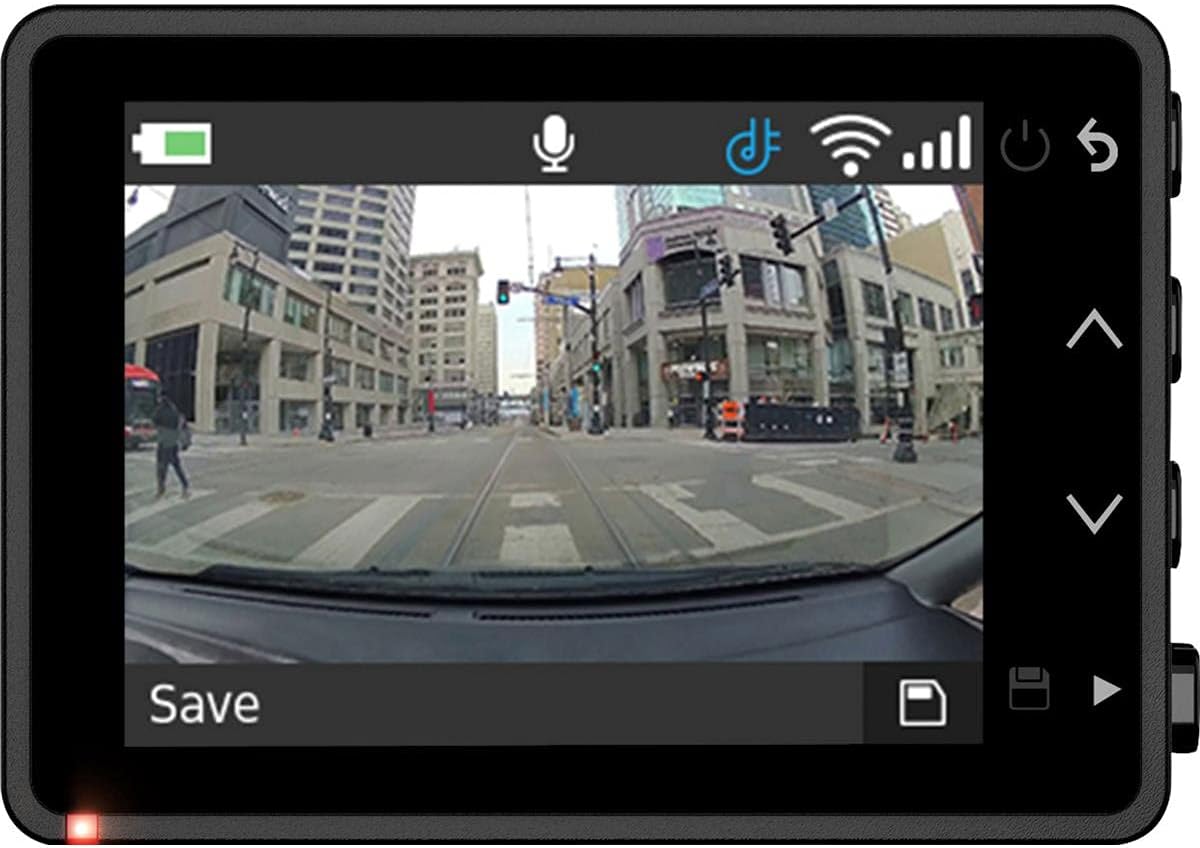
Image: The dash cam's screen displaying a live road view, indicating active recording and options.
4.2. Voice Control
The dash cam responds to spoken commands, allowing you to control functions without taking your hands off the wheel. To activate voice control, say "OK, Garmin" followed by a command. Examples include:
- "OK, Garmin, Save Video": Saves the current video segment.
- "OK, Garmin, Take a Picture": Captures a still image.
- "OK, Garmin, Start Audio Recording": Begins recording audio.
- "OK, Garmin, Stop Audio Recording": Stops recording audio.
4.3. Incident Detection and Vault Storage
The dash cam automatically detects incidents (e.g., sudden braking, collisions) and saves the corresponding video footage, including GPS location, date, and time. These saved videos are automatically uploaded to the secure online Garmin Vault via Wi-Fi. Videos are stored in the Vault for 24 hours by default. Extended storage plans are available via paid subscriptions through the Garmin Drive app.
4.4. Parking Guard and Live View
When your vehicle is parked, the Parking Guard feature monitors for incidents. If an incident is detected, you will receive an alert via the Garmin Drive app on your smartphone. For real-time monitoring, the Live View feature allows you to remotely access the camera feed from your parked car through the Garmin Drive app. Both features require an active Wi-Fi connection and, for Live View, constant power to the dash cam.
4.5. Driver Alerts
The dash cam provides various driver alerts to enhance situational awareness:
- Forward Collision Warning: Alerts if you are driving too closely to the vehicle ahead.
- Lane Departure Warning: Alerts if you drift off the road or across the center line.
- "Go" Alerts: Notifies you when stopped traffic in front of you has started to move.
- Red Light and Speed Camera Warnings: Alerts for nearby red light and speed cameras (not available in all regions; subscription may be required for updates).
5. Maintenance
- Cleaning: Regularly clean the camera lens with a soft, lint-free cloth to ensure clear video quality. Avoid abrasive cleaners.
- Firmware Updates: Keep your dash cam's software up to date by checking for firmware updates through the Garmin Drive app. Updates often include performance improvements and new features.
- MicroSD Card Management: Periodically format the microSD card (via the Garmin Drive app or camera settings) to maintain optimal recording performance and prevent data corruption. Back up any important saved videos before formatting.
6. Troubleshooting
Camera is not powering on:
- Ensure the vehicle power cable is securely connected to the dash cam and the vehicle's power outlet.
- Verify the vehicle's power outlet is functioning.
Video footage is blurry or unclear:
- Clean the camera lens.
- Ensure the windshield is clean where the camera is mounted.
- Check that the camera is securely mounted and not vibrating.
Dash cam is not connecting to the Garmin Drive app:
- Ensure Bluetooth and Wi-Fi are enabled on your smartphone.
- Restart both the dash cam and your smartphone.
- Ensure the Garmin Drive app is up to date.
MicroSD card error:
- Ensure the microSD card is properly inserted.
- Format the microSD card (this will erase all data).
- If the issue persists, try a different compatible microSD card.
7. Specifications
| Specification | Value |
|---|---|
| Product Dimensions | 2.21 x 1.59 x 0.84 inches |
| Item Weight | 2.01 ounces |
| Item Model Number | 010-02505-10 |
| Connectivity Technology | Wi-Fi |
| Video Capture Resolution | 1440p |
| Field Of View | 140 Degrees |
| Included MicroSD Card | 16GB |
8. Warranty and Support
For warranty information, technical support, and additional resources, please visit the official Garmin website or refer to the documentation included with your product. A digital version of the user manual is also available online: Garmin Dash Cam 57 User Manual (PDF).
9. Important Notices
Notice: Some jurisdictions regulate or prohibit use of this device. It is your responsibility to know and comply with applicable laws and rights to privacy in jurisdictions where you plan to use this device.