
Garmin 010-02504-00
Contents
Garmin Dash Cam Mini 2 User Manual
Model: 010-02504-00
Introduction
The Garmin Dash Cam Mini 2 is a compact, car key-sized dash camera designed to discreetly record your driving. It captures 1080p video with a 140-degree field of view, ensuring clear footage day and night. This manual provides essential information for setting up, operating, and maintaining your device.
Important Notice: Some jurisdictions regulate or prohibit the use of this device. It is your responsibility to know and comply with applicable laws and rights to privacy in jurisdictions where you plan to use this device.
What's in the Box
- Garmin Dash Cam Mini 2
- Low-profile adhesive mount
- Dual USB power adapter
- Power cable
- USB cable
- Documentation

Image: The Garmin Dash Cam Mini 2 shown with its packaging, two USB cables of different lengths, a dual USB power adapter, and an extra adhesive mount. This illustrates the complete contents of the product package.
Setup
1. Install the microSD Card
The dash cam requires at least an 8 GB microSD card (Class-10 or faster, not included) to record video. Insert the microSD card into the slot on the side of the camera until it clicks into place.

Image: A side view of the Garmin Dash Cam Mini 2, highlighting the microSD card slot and the voice control button. This shows where to insert the memory card.
2. Mount the Dash Cam
Choose a location on your windshield that does not obstruct your view of the road. Clean the windshield thoroughly before applying the adhesive mount. Attach the low-profile adhesive mount to the dash cam and then firmly press it onto the chosen spot on your windshield. Ensure the camera lens has a clear view of the road.

Image: A hand is shown installing the compact Garmin Dash Cam Mini 2 discreetly behind a car's rearview mirror, demonstrating its unobtrusive placement.
3. Connect to Power
Connect the power cable to the USB port on the dash cam. Use the included dual USB power adapter to plug the cable into your vehicle's power outlet. The dual USB charger provides an extra USB charging port for other devices.

Image: A side view of the Garmin Dash Cam Mini 2, clearly showing the micro USB port for power connection. This indicates where to plug in the power cable.

Image: A dual USB power adapter is shown plugged into a car's power outlet, with a USB cable connected to one of its ports. This highlights the convenience of having an extra USB port for charging other devices.
4. Connect to Garmin Drive App
Download the Garmin Drive app on your compatible smartphone. Follow the in-app instructions to pair your dash cam via Wi-Fi. This app allows you to view, edit, and share recorded videos, as well as access connected features.
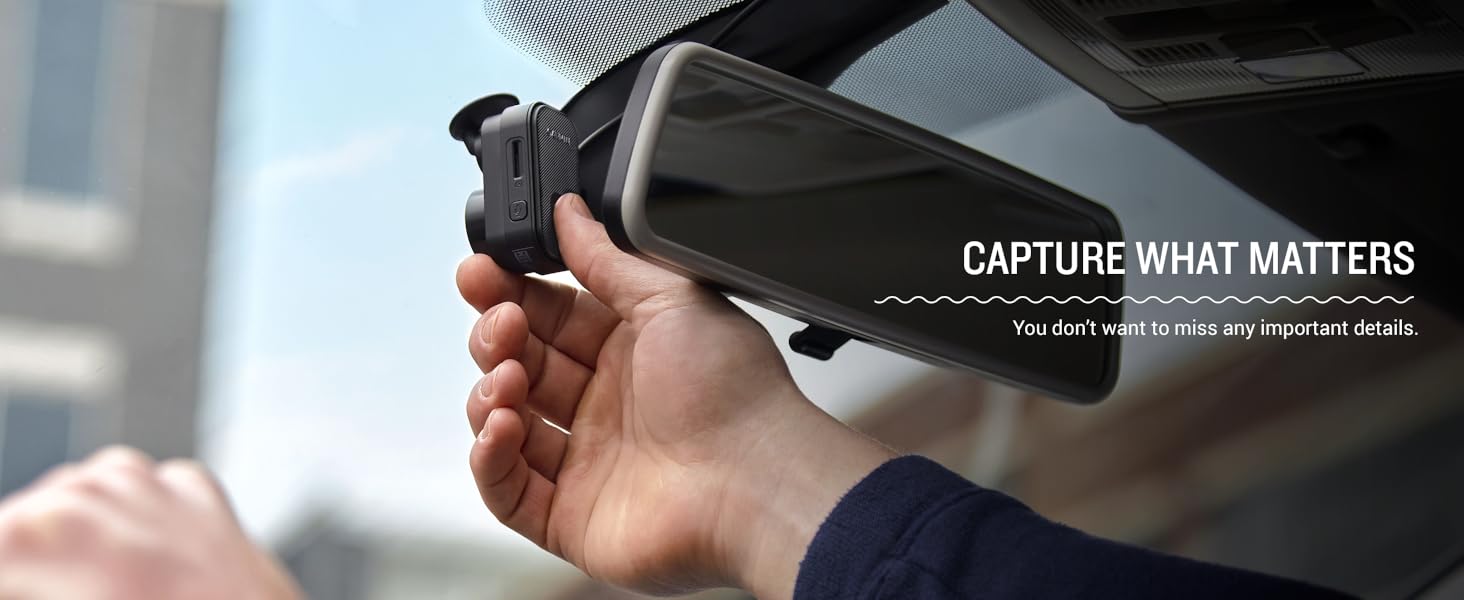
Image: A person is shown holding a smartphone, viewing dash cam footage on the Garmin Drive app. This demonstrates the ability to review recorded video directly from your phone.
Operating Instructions
Automatic Recording
Once plugged into your vehicle's power source, the Garmin Dash Cam Mini 2 automatically begins recording. It continuously records video, so you can simply set it up and forget it. The camera records in a continuous loop, overwriting the oldest footage unless an incident is detected.

Image: The Garmin Dash Cam Mini 2 is mounted on a car windshield, illustrating its automatic recording function once connected to power. The image emphasizes the continuous and hands-free operation.
Incident Detection and Vault Storage
The camera automatically saves video when it detects an incident, such as a collision. These saved videos automatically upload via Wi-Fi connection to the secure online Vault. You can view and share these videos later using the Garmin Drive app. Each video clip is saved in the online Vault for 24 hours from the time of upload. Garmin also offers extended storage plans via paid subscriptions.

Image: The Garmin Dash Cam Mini 2 is mounted on a car windshield, illustrating its incident detection capability. This feature ensures that important events are automatically saved.

Image: A person is shown holding a smartphone, navigating the Garmin Drive app to access the online Vault storage for saved videos. This demonstrates how users can manage their footage.
Voice Control
The Dash Cam Mini 2 features voice control (available in English, German, French, Spanish, Italian, and Swedish). This allows you to use spoken commands to save video, start/stop audio recording, take still pictures, and more, keeping your hands on the wheel.

Image: The Garmin Dash Cam Mini 2 is mounted on a car windshield, illustrating its voice control capability. This feature allows for hands-free operation while driving.
Live View Monitoring
Access the camera remotely for Live View monitoring when you’re away from your parked car. This feature requires constant power and an active Wi-Fi connection, accessible via the Garmin Drive app on your compatible smartphone. Some vehicles may require the use of a Constant Power Cable (sold separately).

Image: A person is shown holding a smartphone, viewing a live feed from the dash cam. This demonstrates the Live View monitoring feature, allowing remote access to the camera.
Parking Guard
The Parking Guard feature monitors activity around your parked vehicle and alerts you with video clip notifications if an incident is detected. This also requires constant power and an active Wi-Fi connection, accessible via the Garmin Drive app on your compatible smartphone.

Image: The Garmin Dash Cam Mini 2 is mounted on a car windshield, illustrating its Parking Guard feature. This shows the camera's ability to monitor the vehicle while parked and alert the user to incidents.
Maintenance
MicroSD Card Management
Regularly check the health of your microSD card. For optimal performance, it is recommended to format the microSD card periodically using the Garmin Drive app. This helps maintain recording quality and prevents data corruption.

Image: The Garmin Dash Cam Mini 2 is shown resting on a carpet, with text emphasizing the requirement for a microSD card. This serves as a reminder for users to acquire a compatible memory card.
Cleaning the Device
Wipe the camera lens and body with a soft, lint-free cloth. Avoid using abrasive cleaners or solvents that could damage the device.
Troubleshooting
Camera Not Recording
- Ensure the device is properly connected to power.
- Check if a compatible microSD card is inserted and formatted correctly.
- The microSD card might be full; format it or replace it.
Connectivity Issues with Garmin Drive App
- Ensure Wi-Fi is enabled on your smartphone and the dash cam.
- Restart both the dash cam and your smartphone.
- Ensure the Garmin Drive app is updated to the latest version.
Poor Video Quality
- Clean the camera lens.
- Ensure the windshield area in front of the camera is clean.
- Verify that the camera is recording in 1080p resolution via the app settings.
Specifications
| Feature | Detail |
|---|---|
| Product Dimensions | 1.23 x 1.14 x 2.09 inches |
| Item Weight | 1 ounces |
| Item Model Number | 010-02504-00 |
| Connectivity Technologies | USB, Wireless (Wi-Fi) |
| Special Features | Compact Design, Voice Control, Parking Guard, Live View |
| Color | Black |
| Video Capture Resolution | 1080p |
| Field of View | 140 degrees (diagonal) |
| Memory Card Support | Requires at least 8 GB microSD card (supports up to 512 GB), Class-10 or faster (not included) |
Warranty and Support
For detailed warranty information and technical support, please refer to the official Garmin website or the full user manual available as a PDF document. You can often find the latest support resources, FAQs, and contact information on the manufacturer's product support pages.
Official User Manual (PDF): Download Here
Safety Information (PDF): Download Here
Documents and downloads
Ask a question about this manual
Ask about setup, troubleshooting, compatibility, parts, safety, or missing instructions. Manuals+ will review the question and use this page’s manual context to help answer it.