1. Introduction
The Voxelab Aquila X2 is an open-source FDM (Fused Deposition Modeling) 3D printer designed for both beginners and experienced users. It features a robust metal frame, a removable build plate, and intelligent functions like filament detection and resume printing. This manual provides essential information for safe and effective use of your printer.

Image: The Voxelab Aquila X2 3D Printer with a sample print.
2. Safety Instructions
Please read and understand all safety instructions before operating the printer to prevent injury or damage.
- Always operate the printer in a well-ventilated area.
- Keep the printer away from flammable materials, heat sources, and water.
- Do not touch the nozzle or heated bed during operation, as they reach high temperatures.
- Keep children and pets away from the printer during operation.
- Ensure the power supply voltage matches your local requirements.
- Do not attempt to modify the printer's electrical components.
- Unplug the printer from the power outlet before performing any maintenance or cleaning.
3. Package Contents
Upon receiving your Voxelab Aquila X2, verify that all components are present and undamaged. The package typically includes:
- Voxelab Aquila X2 3D Printer (partially assembled)
- Filament spool holder
- Power cable
- USB cable
- SD card and card reader
- Tools for assembly and maintenance
- Sample filament
- User manual (this document)
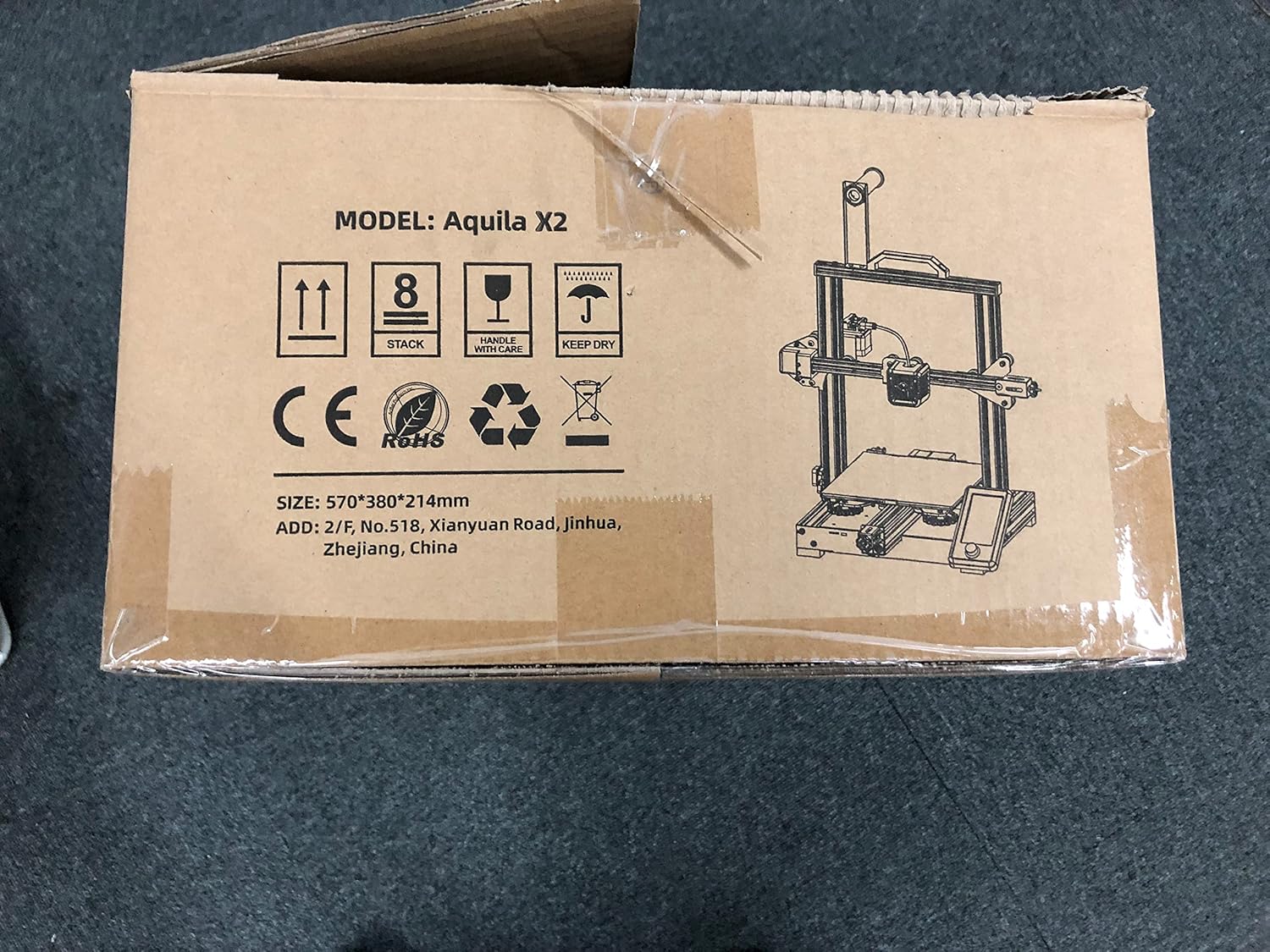
Image: The Voxelab Aquila X2 product packaging.
4. Setup Guide
The Aquila X2 comes semi-assembled. Follow these steps to complete the setup:
4.1 Assembly
- Unpack Components: Carefully remove all parts from the packaging.
- Attach Gantry: Secure the gantry to the base using the provided screws. Ensure it is aligned correctly.
- Install Spool Holder: Mount the filament spool holder onto the designated position on the frame.
- Connect Cables: Connect all motor, endstop, and hotend cables according to the labels. Double-check connections for security.
- Power Supply Check: Verify the power supply switch is set to the correct voltage for your region (115V or 230V).
4.2 Initial Leveling
Accurate bed leveling is crucial for successful prints.
- Power On: Turn on the printer.
- Auto Home: Navigate to the 'Prepare' menu on the screen and select 'Auto Home'. The nozzle will move to the home position.
- Disable Steppers: Select 'Disable Steppers' from the 'Prepare' menu to move the print head freely.
- Adjust Corners: Move the nozzle to each corner of the print bed. Use a piece of paper between the nozzle and the bed. Adjust the bed leveling knobs until there is slight friction when moving the paper.
- Center Check: Repeat the process for the center of the bed.

Image: Voxelab Aquila X2 3D Printer dimensions.
5. Operating Instructions
This section covers basic operation, from loading filament to starting your first print.
5.1 Loading Filament
- Preheat: On the printer's screen, select 'Prepare' > 'Preheat PLA' (or appropriate filament type).
- Insert Filament: Once the hotend reaches temperature, insert the filament into the filament detection sensor and then into the extruder's input hole.
- Feed Filament: Gently push the filament until it exits the nozzle. You may need to press the extruder lever to release tension.

Image: The Voxelab Aquila X2 3D Printer in operation, highlighting its features.
5.2 Starting a Print
- Prepare G-code: Use a slicing software (e.g., Cura, VoxelMaker) to convert your 3D model (.STL, .OBJ) into a G-code file. Save this file to the provided SD card.
- Insert SD Card: Insert the SD card into the printer's card slot.
- Select File: On the printer's screen, navigate to 'Print' and select your desired G-code file.
- Monitor Print: The printer will begin heating and then start printing. Monitor the first few layers to ensure proper adhesion.

Image: The printer's colorful screen with rotary knob for navigation.
6. Key Features
The Voxelab Aquila X2 incorporates several features to enhance your 3D printing experience:
- Filament Detection Sensor: Automatically pauses printing and notifies you when filament runs out or breaks, preventing failed prints and material waste.
- Resume Printing Function: In case of a power outage, the printer can resume printing from where it left off once power is restored.
- Removable Carbon Silicon Crystal Glass Plate: Provides strong adhesion during printing and allows for easy removal of finished prints once cooled. Heats up quickly.
- Large Build Volume: Offers a generous print area of 220 x 220 x 250 mm for various project sizes.
- Open-Source Technology: Allows for flexible upgrades and modifications, catering to advanced users.
- Quiet Operation: Designed to operate with noise levels below 50 decibels for a more pleasant printing environment.

Image: Visual representation of the resume printing and filament detection features.

Image: Overview of key features including all-metal body, high precision, and color screen.
7. Maintenance
Regular maintenance ensures optimal performance and extends the lifespan of your printer.
- Clean Print Bed: After each print, allow the bed to cool and then clean it with isopropyl alcohol to remove any residue.
- Nozzle Inspection: Periodically check the nozzle for clogs or wear. Replace if necessary.
- Lubricate Moving Parts: Apply a small amount of lithium grease to the Z-axis lead screw and smooth rods every few months.
- Tighten Belts: Ensure the X and Y axis belts are properly tensioned. They should be taut but not overly tight.
- Firmware Updates: Check the Voxelab website for any available firmware updates to improve performance and add new features.
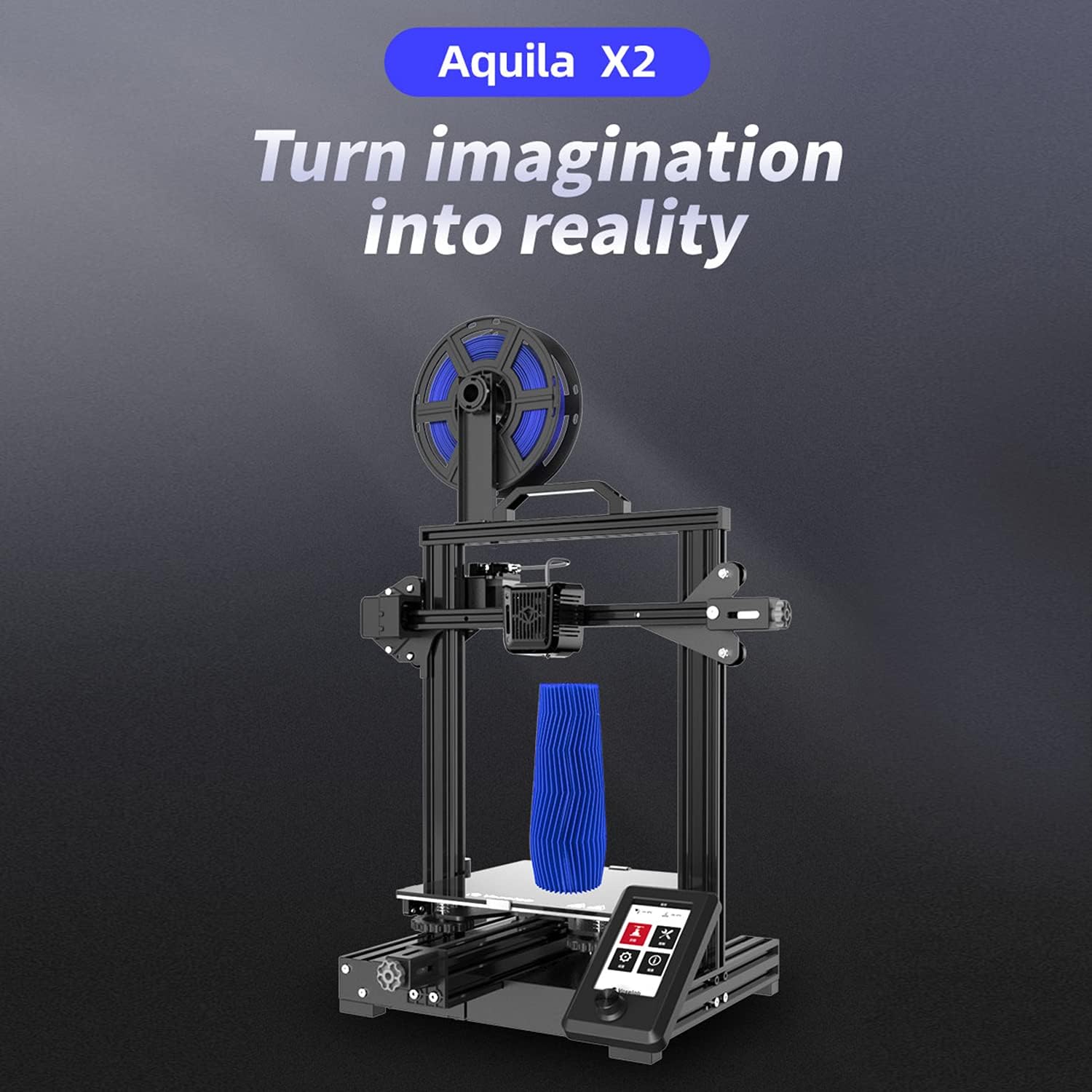
Image: The ultra-flat glass print bed, important for print adhesion and maintenance.
8. Troubleshooting
Refer to this section for common issues and their potential solutions.
- Print Not Sticking to Bed:
Possible Causes: Bed not level, nozzle too far from bed, bed not heated, dirty print surface, incorrect initial layer settings.
Solutions: Re-level the bed, adjust Z-offset, ensure bed temperature is appropriate for filament, clean bed with isopropyl alcohol, check slicer settings for initial layer height and speed. - Filament Not Extruding:
Possible Causes: Clogged nozzle, tangled filament, incorrect temperature, extruder gear slip.
Solutions: Clean or replace nozzle, untangle filament, ensure hotend temperature is correct for filament, check extruder tension. - Poor Print Quality (Layer Shifts, Gaps):
Possible Causes: Loose belts, unstable printer, incorrect print speed, worn nozzle.
Solutions: Tighten X and Y axis belts, ensure printer is on a stable surface, reduce print speed, replace nozzle. - Printer Not Powering On:
Possible Causes: Loose power cable, incorrect voltage switch setting, faulty power supply.
Solutions: Check power cable connections, verify power supply voltage switch, contact support if issue persists.
9. Specifications
Detailed technical specifications for the Voxelab Aquila X2 3D Printer:
| Feature | Specification |
|---|---|
| Extruder Number | 1 |
| Extruder Diameter | 0.4 mm |
| Max Extruder Temp. | 250 °C |
| Max Platform Temp. | 110 °C |
| Print Speed | ≤180mm/s (50-80mm/s normally) |
| Support Filament | PLA, ABS, PETG |
| Print Volume | 220 x 220 x 250 mm |
| Layer Resolution | 0.1-0.4 mm |
| Print Resolution | ±0.2 mm |
| Device Size | 473 x 480 x 473 mm |
| Net Weight | 8.2 kg |
| Input Voltage | AC 115/230V 50/60Hz |
| Output Voltage | DC 24V |
| Power | 350 W |
| Working Environment | 15-30 °C |

Image: Technical specifications of the Voxelab Aquila X2.
10. Warranty and Support
Voxelab provides a 12-month warranty for all 3D printers, along with lifetime technical support and 12-hour professional customer service.
For technical assistance, troubleshooting, or warranty claims, please contact Voxelab customer service through their official website or the retailer where you purchased the product.
Voxelab Official Website: www.voxelab3dp.com


