
1. Introduction
The UGEE S640W is a versatile 6.5x4 inch wireless drawing tablet designed for digital art, animation, photo-editing, and online education. It features a battery-free stylus with 8,192 pressure sensitivity levels and 60° tilt function, providing a natural drawing experience. The tablet offers 10 customizable shortcut keys and supports wireless connectivity via a 2.4G USB receiver, as well as wired connection via USB-C. It is compatible with Mac, Windows, Linux, and Android devices.
What's in the Box
- 1x UGEE S640 Pen Tablet
- 1x P01 Battery-free Stylus
- 1x Pen-Clipper
- 1x Pack-Nibs (10 replacement nibs)
- 1x USB-A to USB-C Cable (L-shaped)
- 1x USB to USB-C Adapter
- 1x USB to Micro USB Adapter
- 1x Quick Guide

The UGEE S640W wireless drawing tablet, featuring a sleek black design and a battery-free stylus, ready for creative work.
2. Setup
2.1 Connection
The UGEE S640W offers both wireless and wired connection options to your computer or Android device.
Wireless Connection (2.4G)
- Plug the included USB receiver into an available USB port on your computer.
- Press and hold the power button on the pen tablet for 3 seconds to turn it on. The tablet will automatically connect to your computer.
Wired Connection
- Connect the pen tablet to your computer using the provided USB-A to USB-C cable.
- For Android devices, use the appropriate USB to USB-C or USB to Micro USB adapter with the USB-A to USB-C cable. Ensure your Android device supports OTG functionality.

The UGEE S640W graphic tablet connected wirelessly to a laptop, demonstrating its use for online education and handwritten notation during a video call.

The UGEE S640W graphic tablet connected to an Android smartphone using an included OTG adapter, showcasing its compatibility with mobile devices for on-the-go drawing.
2.2 Driver Installation
For full functionality and customization, it is recommended to install the latest driver from the official UGEE website.
- Visit the official UGEE website: www.ugee.com/download
- Navigate to the 'Download' section and select your product model (S640W).
- Download the latest Windows or Mac driver compatible with your operating system.
- Follow the on-screen prompts to complete the driver installation.
This video provides a step-by-step guide on how to install the necessary drivers for your UGEE S640W drawing tablet and configure the pen's functions for optimal performance.
Learn how to connect your UGEE wireless drawing tablet to your Android phone using the provided OTG adapter, enabling mobile creativity.
2.3 Configuration
After driver installation, you can customize the tablet settings through the UGEE driver interface.
Work Area Settings
- Adjust the mapping of the tablet's active area to your computer screen. You can choose to map to a full screen, a specific monitor, or a custom area.
Pen Settings
- Adjust the pressure sensitivity of the P01 stylus to match your drawing style.
- Customize the functions of the two buttons on the stylus (e.g., right-click, eraser).
Express Keys (Shortcut Keys)
- The UGEE S640W features 10 customizable press keys. Assign frequently used functions or keyboard shortcuts to these keys for increased efficiency.

A close-up view of the UGEE S640W tablet highlighting its 10 customizable press keys and the convenient USB-C port for connection and charging.
3. Operating
Once set up, the UGEE S640W is ready for use with your preferred creative software.
3.1 Basic Usage
- Use the P01 stylus directly on the tablet's active area to control your cursor and draw.
- The tablet's surface provides a paper-like texture for a natural drawing feel.
3.2 Pen Features
- Pressure Sensitivity: The 8,192 levels of pressure sensitivity allow for precise control over line thickness and opacity, mimicking traditional art tools.
- Tilt Function: The 60° tilt function enables natural shading and brush effects, providing a more dynamic drawing experience.
- Battery-Free: The stylus does not require charging, ensuring uninterrupted creative flow.

An illustration detailing the features of the UGEE battery-free stylus, including 8,192 pressure sensitivity levels, 60° tilt function, and environmental friendliness, along with included pen-clipper and replacement nibs.

The UGEE S640W tablet connected to a laptop, surrounded by logos of compatible software like Photoshop, Illustrator, and Paint Tool Sai, and operating systems including Windows, macOS, and Android.
3.3 Software Compatibility
The UGEE S640W is compatible with most mainstream design and drawing software, including but not limited to Adobe Photoshop, Paint Tool Sai, Illustrator, Corel Draw, Corel Painter, Sketchbook, Manga Studio, and Clip Studio Paint.
This video demonstrates the UGEE S640W graphic tablet's capabilities in 3D art creation, showcasing its precision and responsiveness for sculpting and modeling in software like Blender.
A brief overview highlighting the portability and compact design of the UGE0 S640W drawing tablet, perfect for on-the-go artists and students.
4. Maintenance
4.1 Cleaning
To maintain the tablet's performance and appearance, regularly wipe the active area and body with a soft, damp cloth. Avoid using harsh chemicals or abrasive materials.
4.2 Nib Replacement
The stylus nibs may wear down over time. Replace them using the included pen-clipper and replacement nibs when necessary to ensure optimal performance.
4.3 Battery Charging
The UGEE S640W tablet has a built-in battery that provides up to 10 hours of drawing time on a 2-hour charge. Connect the tablet to a USB power source using the provided USB-C cable when the battery is low.
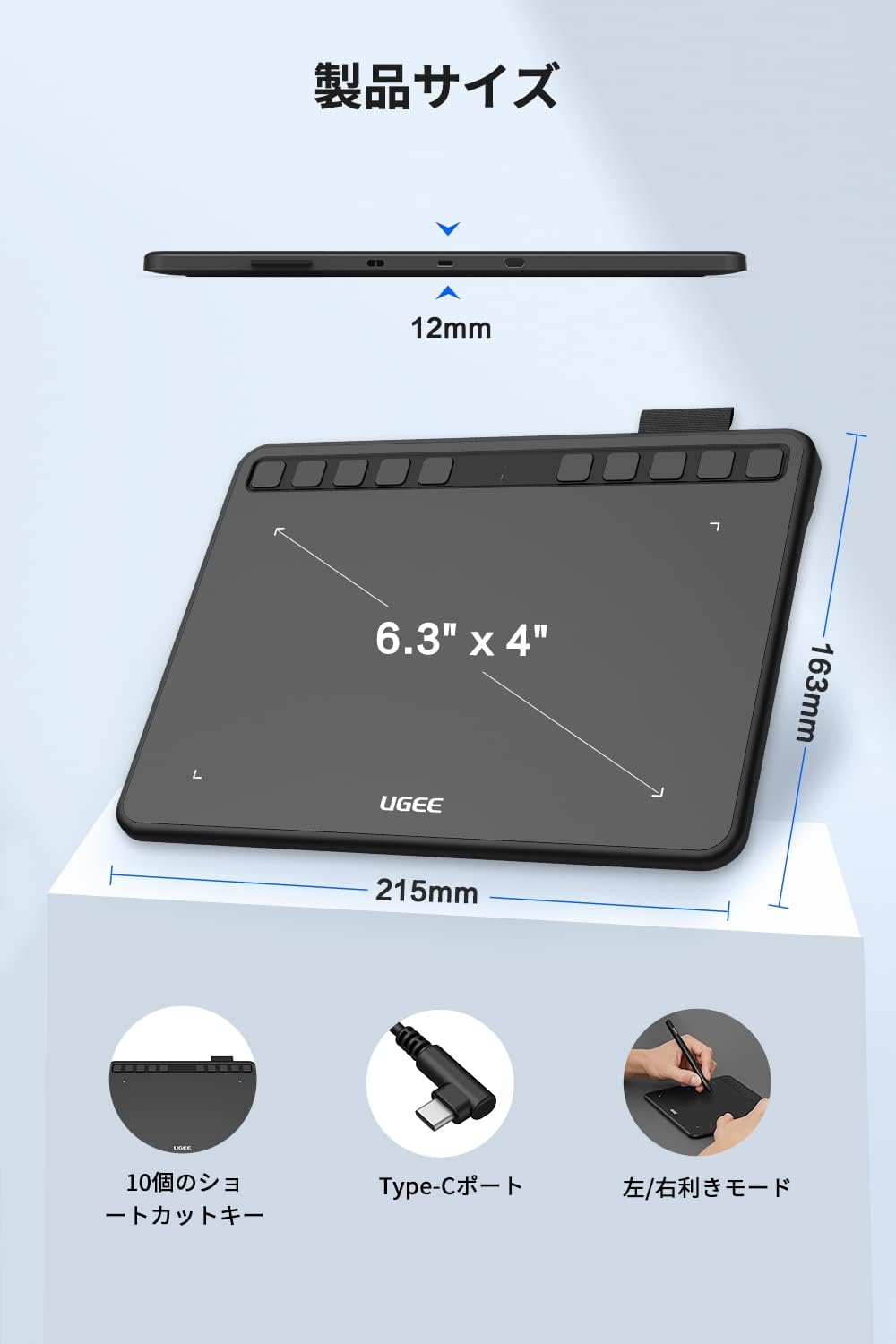
Diagram illustrating the compact dimensions of the UGEE S640W tablet, measuring 215mm in length, 163mm in width, and 12mm in thickness, highlighting its portability.
5. Troubleshooting
If you encounter issues with your UGEE S640W tablet, try the following steps:
- No Pen Response: Ensure the tablet is powered on and properly connected (wired or wireless receiver). Reinstall the latest driver from the UGEE website.
- Inaccurate Cursor: Recalibrate the work area in the driver settings. Ensure no other drawing tablet drivers are installed on your system.
- Wireless Connection Issues: Check if the USB receiver is securely plugged in. Ensure the tablet battery is charged. Try connecting via the USB cable to rule out wireless interference.
- Driver Installation Failure: Temporarily disable your antivirus software during installation. Ensure you have administrator rights on your computer.
For more detailed troubleshooting and support, please refer to the official UGEE User Manual PDF or contact UGEE customer support.
6. Specifications
| Feature | Value |
|---|---|
| Product Dimensions | 8.66 x 6.69 x 0.04 inches |
| Item Weight | 1.1 pounds |
| Item Model Number | S640W |
| Batteries | 1 Lithium Ion batteries required (included) |
| Connectivity Technology | USB (Wired & 2.4G Wireless) |
| Pressure Sensitivity | 8192 Levels |
| Operating System Compatibility | Linux, Windows, Android, macOS |
| Special Feature | Battery-Free Pen, Customizable Shortcut Keys |
7. Warranty
For detailed information regarding the warranty coverage for your UGEE S640W drawing tablet, please refer to the manufacturer's official warranty policy provided with your product or on the UGEE website.
8. Support
For further assistance, product registration, or to access additional resources, please visit the official UGEE support channels:
- Official User Manual (PDF): Download PDF
- UGEE Brand Store: Visit Store
- UGEE Official Website: www.ugee.com
