
ToolkitRC M8S
ToolkitRC M8S Smart Charger Instruction Manual
Model: M8S
1. Introduction and Overview
The ToolkitRC M8S is a highly versatile and powerful smart charger and discharger designed for a wide range of battery types commonly used in remote-controlled (RC) applications, including drones, cars, and boats. Beyond its primary charging and discharging capabilities, the M8S integrates several essential tools such as a servo tester, cell tester, wattmeter, PWM/PPM/Sbus input/output generators, and a variable DC output control. Its intuitive interface, displayed on a vibrant 2.4-inch TFT color LCD screen, ensures ease of use for both hobbyists and professionals.

Image 1.1: Front view of the ToolkitRC M8S Smart Charger, showing its 2.4-inch TFT color LCD screen with main menu options for Charger, Measurer, Output, and Settings. A rotary knob and OK/Exit buttons are visible on the right.

Image 1.2: Angled view of the ToolkitRC M8S Smart Charger, highlighting the screen interface and the output ports on the right side, including the main XT60 output and balance port.
2. Safety Information
WARNING: Failure to follow these safety instructions can result in fire, property damage, or injury.
- Always operate the charger in a well-ventilated area, away from flammable materials.
- Do not charge batteries that are damaged, swollen, or leaking. Dispose of such batteries properly.
- Ensure correct polarity when connecting batteries to the charger. Incorrect connections can cause damage to the charger or battery.
- Never leave the charger unattended while it is in operation.
- Keep the charger away from water, moisture, and extreme temperatures.
- This device is not a toy. Keep out of reach of children. Adult supervision is required during operation.
- Use only the recommended power supply for the charger.
- Avoid short-circuiting the output terminals.
3. Package Contents
Upon opening the package, please verify that all components are present and in good condition. If any items are missing or damaged, contact your retailer immediately.
- ToolkitRC M8S Smart Charger Unit
- Instruction Manual (this document)
- (Note: Power supply and charging cables are typically sold separately unless specified by your retailer.)

Image 3.1: The ToolkitRC M8S Smart Charger unit displayed alongside its retail packaging box, indicating the product's compact size.
4. Product Features
The ToolkitRC M8S is engineered with advanced features to provide comprehensive battery management and diagnostic capabilities:
- Wide Battery Compatibility: Supports LiPo, LiHV, LiFe, Lion (1-8S), NiMh (1-20S), and Pb (1-12S) battery types.
- High Power Output: Capable of charging and discharging at 0.1-18A with a maximum charge power of 400W.
- Multi-functional Tools:
- Balance Charge: Ensures even cell voltage for optimal battery health.
- Measurer: Functions as a cell voltage checker.
- Watt Meter: Measures power consumption and output.
- Servo Tester: Tests servo functionality.
- PWM/PPM/Sbus Input/Output Generators: For testing and generating control signals.
- DC Output Control: Provides a variable voltage and current DC power supply.
- Vivid Display: Features a 2.4-inch TFT color LCD screen for clear and detailed information display.
- Intuitive User Interface: All-new UI designed for simple interaction and easy navigation.
- Multi-language Support: System supports multiple languages for global users.
- Optimized Cooling System: Efficient heat dissipation for reliable high-power operation.
- Compact Design: Portable dimensions of 98 x 68 x 35 mm.

Image 4.1: A visual representation of the ToolkitRC M8S's multifunctional capabilities, including Balance Charge, Measurer, Watt Meter, Annunciator, Drone Adapter, and Signal Tester.

Image 4.2: The ToolkitRC M8S display showing various language options, indicating its multi-language support for users worldwide.

Image 4.3: An internal diagram of the ToolkitRC M8S, illustrating its optimized cooling system designed for efficient heat dissipation during high-power operation.
5. Setup
Follow these steps to set up your ToolkitRC M8S Smart Charger:
- Connect Power Supply: Connect a DC power supply (7-30V) to the input ports on the back of the charger. Ensure the polarity is correct (+ to + and - to -).
- Power On: Once the power supply is connected, the charger will automatically power on and display the main menu.
- Connect Battery: For charging or discharging, connect your battery to the appropriate output ports on the side of the charger. For LiPo/LiHV/LiFe/Lion batteries, connect both the main discharge lead (XT60) and the balance lead to the corresponding ports.
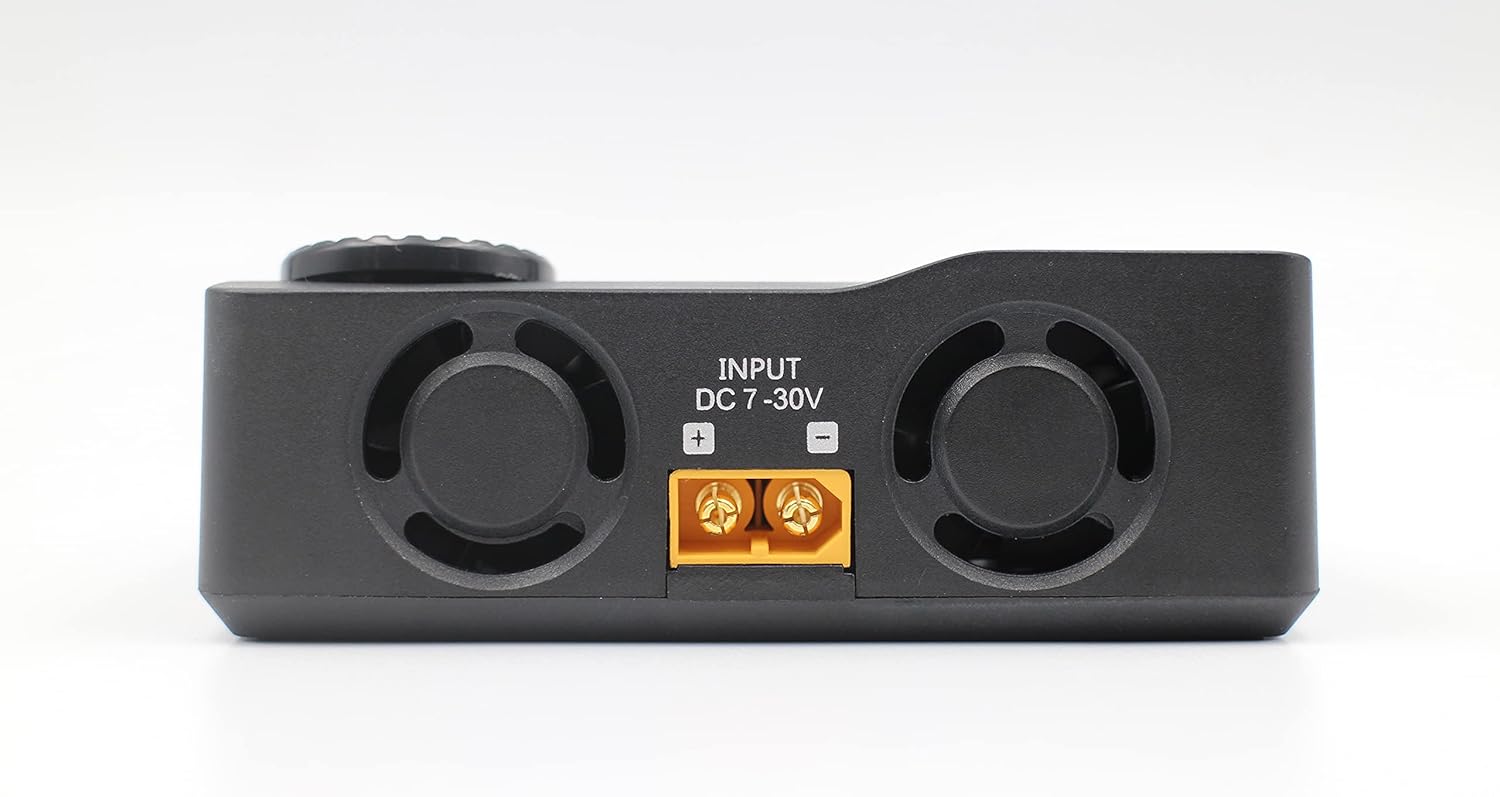
Image 5.1: Rear view of the ToolkitRC M8S Smart Charger, clearly showing the DC 7-30V input ports with positive and negative terminals for power connection.

Image 5.2: Side view of the ToolkitRC M8S Smart Charger, displaying the main XT60 output port and the 2-8S balance port for connecting batteries.
6. Operating Instructions
The M8S features a user-friendly interface controlled by a rotary knob and two buttons (OK and EXIT).

Image 6.1: A close-up of the ToolkitRC M8S screen, showing the main menu with the 'Charge' option highlighted, indicating readiness for battery charging operations.
6.1. Navigation
- Rotary Knob: Rotate to scroll through menu options or adjust values.
- OK Button: Press to confirm a selection or enter a submenu.
- EXIT Button: Press to go back to the previous menu or cancel an operation.
6.2. Charging a Battery
- From the main menu, select "Charger" and press OK.
- Select the battery type (e.g., LiPo, LiHV, NiMh) and the number of cells (S).
- Adjust the desired charge current (Amps) and voltage (if applicable).
- Confirm settings and start the charging process. The screen will display real-time charging data.
6.3. Using Other Functions
- Measurer: Select "Measurer" to check individual cell voltages, total voltage, and internal resistance of your battery.
- Output: Select "Output" to use the M8S as a variable DC power supply or to test PWM/PPM/Sbus signals.
- Settings: Select "Settings" to configure system parameters such as language, backlight, and sound.

Image 6.2: A composite image showcasing the ToolkitRC M8S's new user interface, displaying various screens including the main menu, a charging progress screen, and a PWM/PPM/Sbus signal testing screen.
7. Maintenance
Proper maintenance ensures the longevity and optimal performance of your ToolkitRC M8S charger.
- Cleaning: Use a soft, dry cloth to clean the charger's exterior. Do not use liquid cleaners or solvents.
- Storage: Store the charger in a cool, dry place away from direct sunlight and extreme temperatures when not in use.
- Ventilation: Ensure the ventilation openings are clear of dust and debris to maintain efficient cooling.
- Firmware Updates: Periodically check the ToolkitRC official website for any available firmware updates to ensure your charger has the latest features and bug fixes.
8. Troubleshooting
If you encounter issues with your M8S charger, refer to the following common problems and solutions:
| Problem | Possible Cause | Solution |
|---|---|---|
| Charger does not power on. | No power supply, incorrect power supply voltage, loose connection. | Check power supply connection and voltage (7-30V DC). Ensure connections are secure. |
| Battery not detected. | Incorrect battery connection, damaged battery, wrong battery type selected. | Verify main and balance lead connections. Check battery health. Ensure correct battery type and cell count are selected in settings. |
| Charging error message. | Battery voltage too low/high, internal resistance too high, short circuit. | Check battery voltage. Inspect battery and cables for damage. Reduce charge current if battery is old or has high internal resistance. |
| Screen is unresponsive or frozen. | Temporary software glitch. | Disconnect power, wait a few seconds, then reconnect to restart the charger. |
If the problem persists after attempting these solutions, please contact ToolkitRC customer support or your retailer for further assistance.
9. Specifications
| Feature | Detail |
|---|---|
| Model | M8S |
| Input Voltage | DC 7-30V |
| Charge Current | 0.1-18A |
| Discharge Current | 0.1-5A (Max 20W) |
| Max Charge Power | 400W |
| Supported Battery Types | LiPo/LiHV/LiFe/Lion (1-8S), NiMh (1-20S), Pb (1-12S) |
| Balance Current | Max 1A |
| Display | 2.4-inch TFT Color LCD |
| Dimensions | 98 x 68 x 35 mm |
| Weight | 255g |
| UPC | 729974629191 |

Image 9.1: A detailed specifications table for the ToolkitRC M8S, outlining input, charge/discharge parameters, supported battery types, and other technical data.
10. Warranty and Support
ToolkitRC products are manufactured to high quality standards. For warranty information, please refer to the warranty card included with your product or visit the official ToolkitRC website. Keep your purchase receipt as proof of purchase for warranty claims.
For technical support, troubleshooting assistance beyond this manual, or inquiries about spare parts, please contact your authorized ToolkitRC dealer or the manufacturer directly through their official support channels.
Official Website: www.toolkitrc.com (Please note: This is a placeholder URL. Refer to your product packaging or official documentation for the correct website.)
Related documentsM8S


Ask a question about this manual
Ask about setup, troubleshooting, compatibility, parts, safety, or missing instructions. Manuals+ will review the question and use this page’s manual context to help answer it.