
AULA S2018
AULA S2018 RGB Mechanical Gaming Keyboard User Manual
Model: S2018
1. Introduction
This manual provides instructions for the AULA S2018 RGB Mechanical Gaming Keyboard. It covers setup, operation, maintenance, and troubleshooting to ensure optimal performance and longevity of your device. The AULA S2018 features blue mechanical switches, 104 anti-ghosting keys, customizable RGB backlighting, and a removable wrist rest.
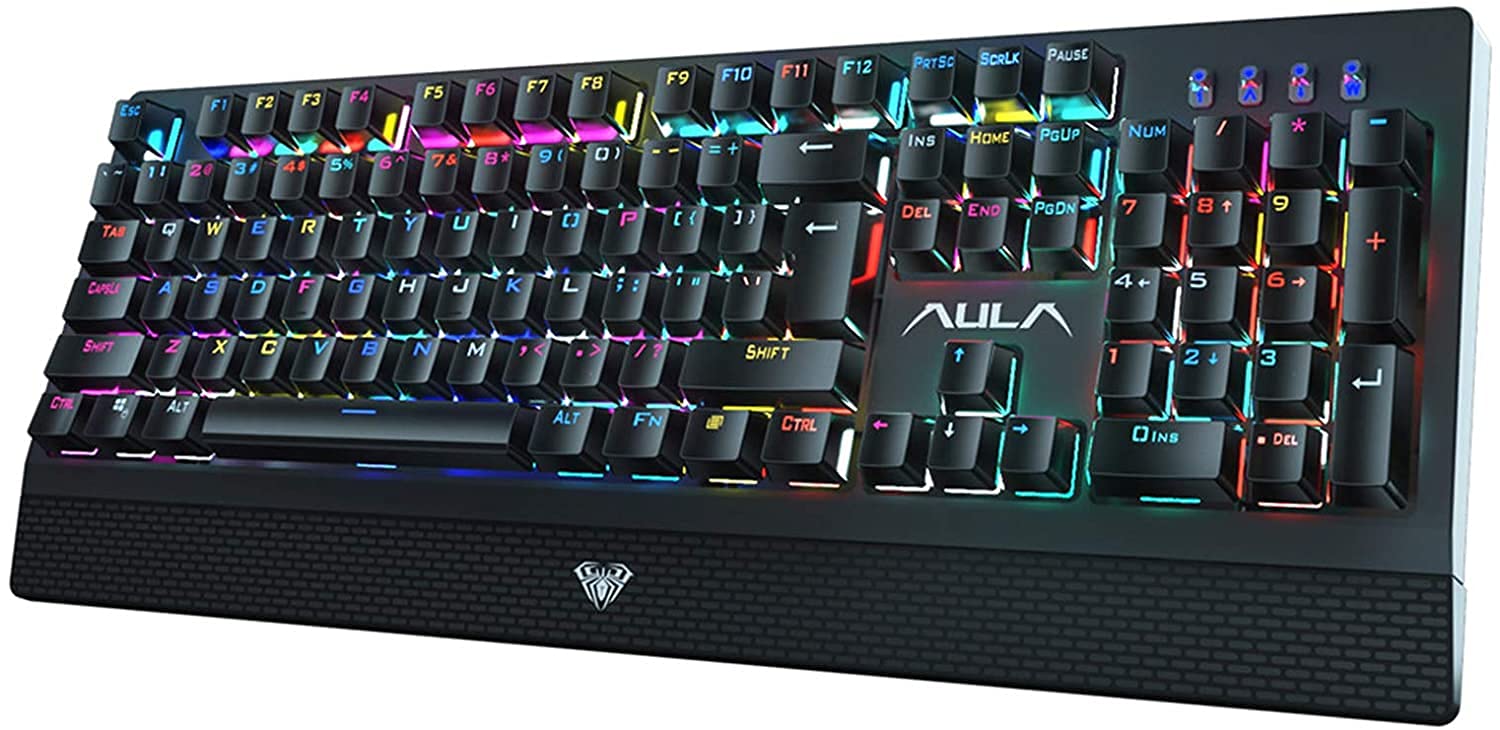
Image 1: AULA S2018 RGB Mechanical Gaming Keyboard.
2. Package Contents
Verify that all items are present in the package:
- AULA S2018 RGB Mechanical Gaming Keyboard
- Removable Wrist Rest
- USB Cable (integrated)
- User Manual (this document)
3. Setup Instructions
- Connect the Keyboard: Plug the USB cable from the keyboard into an available USB port on your computer (PC, Laptop, Desktop) or gaming console (PS4). The keyboard is plug-and-play and does not require additional drivers for basic functionality.
- Attach the Wrist Rest: Align the removable wrist rest with the bottom edge of the keyboard. Gently push to secure it in place.
- Compatibility: The keyboard is compatible with Windows 2000, XP, Vista, 7, 8, and 10 operating systems.

Image 2: Keyboard with the removable wrist rest attached.
4. Operating Instructions
4.1. RGB Backlight Customization
The AULA S2018 keyboard features customizable RGB backlighting with multiple effects and color options.
- Lighting Modes: The keyboard offers up to 30 different lighting modes. Use the Fn key in combination with specific function keys (e.g., Fn + F9, Fn + F10, etc.) to cycle through these modes. Refer to the keyboard's keycap legends for specific combinations.
- Brightness Adjustment: Adjust the backlight brightness using Fn + Up Arrow (increase) and Fn + Down Arrow (decrease).
- Speed Adjustment: Adjust the speed of dynamic lighting effects using Fn + Left Arrow (decrease speed) and Fn + Right Arrow (increase speed).
- Color Customization: The keyboard supports 16 million RGB colors. Advanced customization, including per-key color settings and macro programming, can be performed using the AULA Synapse software. Please visit the official AULA website for software download and detailed instructions.

Image 3: Examples of RGB lighting effects and colors.
4.2. Blue Mechanical Switches
The AULA S2018 utilizes blue mechanical switches, known for their tactile feedback and audible "click" sound. These switches provide a distinct response, which can be beneficial for both typing and gaming, offering a clear indication of key actuation. The switches are designed for a lifespan of approximately 60 million keystrokes.

Image 4: View of the durable mechanical switches.
4.3. Anti-Ghosting and N-Key Rollover
The keyboard features 100% anti-ghosting with full N-key rollover. This ensures that every key press is registered accurately, even when multiple keys are pressed simultaneously. This functionality is crucial for fast-paced gaming and rapid typing, preventing missed inputs or incorrect commands.
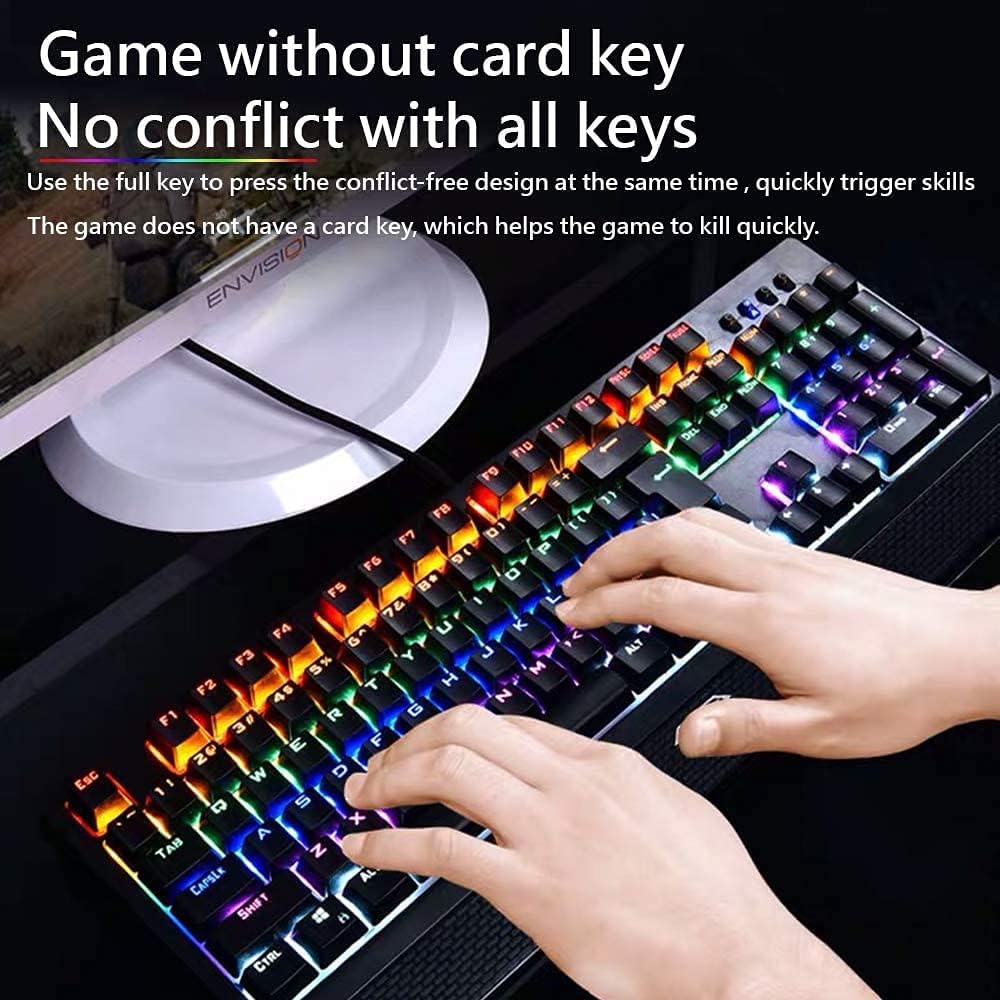
Image 5: Illustration of anti-ghosting functionality during use.
4.4. Programmable Keys
Every key on the AULA S2018 is customizable. Through the AULA Synapse software, you can rebind keys, assign macros, and personalize device lighting. This allows for tailored control and optimized workflow or gaming performance. Download the AULA Synapse software from the official AULA support website.
5. Maintenance and Care
- Cleaning: Disconnect the keyboard from your computer before cleaning. Use a soft, dry cloth to wipe the surface. For deeper cleaning, use compressed air to remove dust and debris from between the keycaps. A slightly damp cloth can be used for stubborn marks, but avoid excessive moisture.
- Keycap Removal: Keycaps can be carefully removed for cleaning or replacement using a keycap puller (not included). Exercise caution to avoid damaging the switches.
- Storage: Store the keyboard in a clean, dry environment away from direct sunlight and extreme temperatures.
6. Troubleshooting
- Keyboard is not responding:
- - Ensure the USB cable is securely plugged into both the keyboard and the computer's USB port.
- - Try plugging the keyboard into a different USB port on your computer.
- - Restart your computer.
- - Test the keyboard on another computer to rule out a system-specific issue.
- Backlight is not working or is dim:
- - Check if the backlight brightness is set to the lowest level. Use Fn + Up Arrow to increase brightness.
- - Cycle through different lighting modes using Fn + Fx keys to see if other modes function.
- - Ensure the AULA Synapse software (if installed) is not overriding settings or causing conflicts.
- Keys are not registering correctly (ghosting):
- - The AULA S2018 features full anti-ghosting. If you experience ghosting, ensure no software conflicts are present. Try updating your operating system or keyboard drivers if available.
- - Clean the keyboard to ensure no debris is interfering with key switches.
7. Specifications

Image 6: Keyboard specifications overview.
| Feature | Detail |
|---|---|
| Brand | AULA |
| Model | S2018 |
| Connectivity Technology | USB Wired |
| Keyboard Description | Gaming Mechanical Keyboard |
| Special Features | Backlit (RGB), Ergonomic, Removable Wrist Rest |
| Number of Keys | 104 |
| Switch Type | Blue Mechanical Switches |
| Keystroke Lifespan | Approx. 60 million |
| Anti-Ghosting | 100% Anti-Ghosting with Full N-Key Rollover |
| Compatibility | Windows 2000/XP/Vista/7/8/10, PS4, Mac OS |
| Dimensions (L x W x H) | 445 x 172 x 40 mm (±0.5MM) |
| Weight | 1300 ± 5G |
| Key Stroke | 4.0MM |
| Key Strength | 60 ± 5G |
| Voltage/Current | DC 5V / <200MA |
8. Warranty and Support
AULA products are covered by a limited warranty. For detailed warranty terms and conditions, please refer to the warranty card included with your product or visit the official AULA website. For technical support, driver downloads (such as AULA Synapse software), or service inquiries, please visit the AULA official support page or contact their customer service department.
Official AULA Website: www.aulagaming.com (Please verify the actual official website for AULA products)
Related documentsS2018


Ask a question about this manual
Ask about setup, troubleshooting, compatibility, parts, safety, or missing instructions. Manuals+ will review the question and use this page’s manual context to help answer it.