
1. Product Overview
The LaView LV-PYN11B-G32-2PK is a 1080P HD wireless security camera designed for outdoor use. It features a 9600mAh rechargeable battery, providing up to 180 days of battery life under typical usage conditions. The camera includes AI motion detection, night vision capabilities, two-way audio, and supports cloud storage as well as local storage via an included 32GB SD card. Its IP65 weatherproof rating ensures durability in various environmental conditions.

Image: Two LaView outdoor security cameras with their respective wall mounts, showcasing the product design.
Key Features:
- 1080P Full HD Video: Provides clear and detailed video footage.
- 180-Day Battery Life: Powered by a 9600mAh rechargeable battery for extended operation.
- 100% Wire-Free Installation: Easy setup without the need for power cables.
- IP65 Weatherproof: Designed to withstand rain, dust, and extreme temperatures.
- AI Motion Detection & Real-time Alerts: Intelligent detection with instant notifications to your mobile device.
- Two-Way Audio: Built-in microphone and speaker for communication.
- Night Vision: Infrared night vision up to 33 ft for clear monitoring in low-light conditions.
- 140° Wide-Angle View: Captures a broad area for comprehensive surveillance.
- Cloud & SD Card Storage: Supports secure US-based cloud storage and includes a 32GB microSD card for local storage.
- Multi-User Sharing: Allows up to 20 users to view the camera feed simultaneously.
2. What's in the Box
Upon unboxing your LaView Security Camera system, you should find the following components:
- 2 x LaView Security Cameras
- 2 x 32GB SD Cards (pre-installed or included separately)
- 2 x Wall Mounts (with mounting screws)
- 1 x User Manual (this document)
- 1 x USB Charging Cable
3. Setup Guide
3.1 Charging the Camera
Before initial use, fully charge the camera's built-in 9600mAh battery. Connect the camera to a standard USB power adapter (not included) using the provided USB charging cable. The charging indicator light will typically show red while charging and turn blue or off when fully charged. A full charge can take several hours.
3.2 Installing the SD Card (if not pre-installed)
Locate the microSD card slot on the camera. Gently insert the provided 32GB microSD card into the slot until it clicks into place. Ensure the card is inserted in the correct orientation as indicated by the camera's design.
3.3 App Download and Account Registration
- Download the LaView app from your smartphone's app store (iOS App Store or Google Play Store).
- Open the app and register for a new account using your email address or phone number.
- Follow the on-screen instructions to complete the registration process and set up your password.
3.4 Connecting the Camera to Wi-Fi
The LaView camera connects to a 2.4GHz Wi-Fi network. It is not compatible with 5.0GHz Wi-Fi networks.
- In the LaView app, tap the '+' icon to add a new device.
- Select your camera model from the list of devices.
- Power on the camera. The camera will enter pairing mode, usually indicated by a flashing LED light.
- Follow the app's instructions to connect the camera to your 2.4GHz Wi-Fi network. This typically involves scanning a QR code displayed on your phone with the camera lens.
- Once connected, the camera's LED indicator will change to a solid color (e.g., blue) to confirm successful pairing.
3.5 Mounting the Camera
The camera can be mounted using the included wall mounts. Consider the desired field of view (140 degrees) and Wi-Fi signal strength when choosing a location.

Image: A diagram illustrating the magnetic attachment of the camera to its wall mount, simplifying installation.
- Choose a suitable mounting location that provides a clear view and good Wi-Fi reception.
- Use the provided screws to securely attach the wall mount to the desired surface.
- Attach the camera to the mount. The camera often uses a magnetic base or a screw-in mechanism for easy adjustment.
- Adjust the camera angle to cover the desired surveillance area.
4. Operating Instructions
4.1 Live View and Recording
Once the camera is connected, you can access the live feed through the LaView app anytime, anywhere.
- Open the LaView app and select your camera from the device list.
- The live video stream will appear. You can manually record video or take screenshots from this interface.
4.2 AI Motion Detection and Alerts
The camera features advanced AI human detection to minimize false alarms and send relevant real-time alerts.

Image: An illustration of AI human detection, highlighting a person in a monitored area and a smartphone displaying a motion detection alert from the LaView app.
- Enable motion detection and push notifications in the app settings for your camera.
- When motion is detected, you will receive a real-time alert on your smartphone.
- Recorded events triggered by motion detection are stored in the cloud or on the SD card.
4.3 Two-Way Audio
Communicate with visitors or deter intruders using the camera's built-in microphone and speaker.

Image: A scenario demonstrating two-way audio, where a delivery person speaks to the camera and a user responds via their smartphone app.
- From the live view screen in the app, tap the microphone icon to speak through the camera.
- Tap the speaker icon to listen to audio from the camera's vicinity.
4.4 Night Vision
The camera automatically switches to infrared night vision in low-light conditions, providing clear black-and-white footage up to 33 feet.

Image: A split image comparing a clear daytime view with a detailed night vision view, both captured by the camera.
4.5 Cloud Storage and Multi-User Sharing
Your video data is securely stored on US-based cloud servers, ensuring privacy and accessibility. You can also share camera access with family members.

Image: An illustration emphasizing privacy protection through a USA cloud server and the benefit of an included 32GB SD card for local storage.
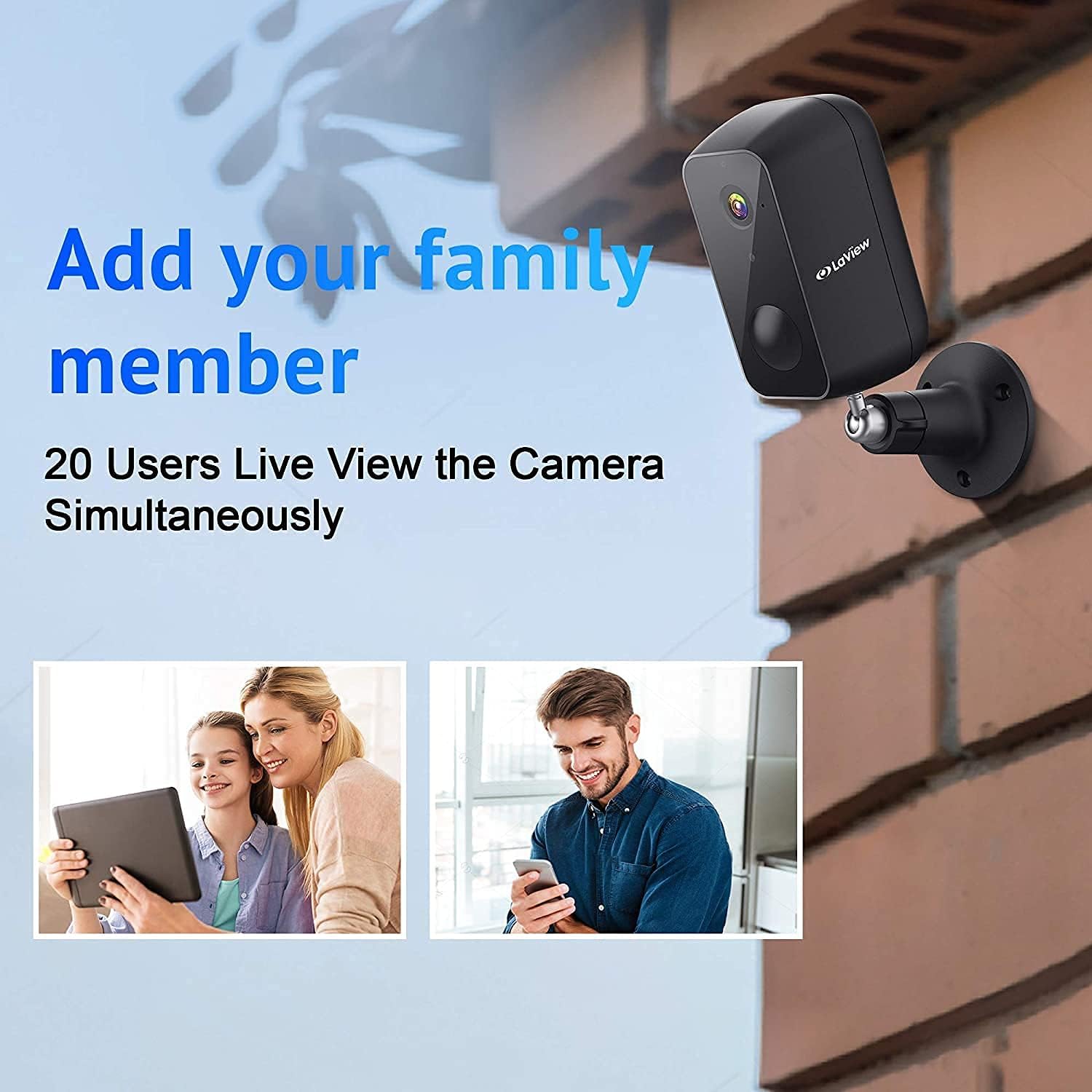
Image: A diagram illustrating how the camera feed can be shared and viewed by up to 20 different users simultaneously on various devices.
- Access recorded footage from the cloud via the LaView app.
- To share access, navigate to the camera settings in the app and follow the instructions for adding family members or other users. Up to 20 users can view the feed concurrently.
4.6 Amazon Alexa Compatibility
The camera is compatible with Amazon Alexa, allowing for voice control and integration into your smart home ecosystem. Refer to the Alexa app for specific setup instructions.
5. Maintenance
5.1 Battery Management
The camera's 9600mAh battery provides up to 180 days of operation (based on 10 triggers per day). Battery life can vary based on usage frequency, recording duration, and environmental factors.

Image: An exploded view of the camera revealing its internal 9600mAh battery, illustrating its large capacity and the claim of 180-day battery life.
- Monitor the battery level through the LaView app.
- Recharge the camera promptly when the battery level is low to ensure continuous operation.
- Use the provided USB cable for charging.
5.2 Weather Resistance
The camera has an IP65 weatherproof rating, meaning it is protected against dust ingress and low-pressure water jets from any direction. This makes it suitable for outdoor installation in most weather conditions.

Image: The camera mounted outdoors, with rain falling on it, visually confirming its IP65 waterproof and weatherproof design.
- Periodically clean the camera lens with a soft, dry cloth to ensure clear image quality.
- Avoid using harsh chemicals or abrasive materials that could damage the lens or casing.
6. Troubleshooting
This section addresses common issues you might encounter with your LaView security camera. For more detailed troubleshooting, please refer to the full user manual PDF or contact customer support.
6.1 Camera Not Connecting to Wi-Fi
- Check Wi-Fi Band: Ensure your router is broadcasting a 2.4GHz Wi-Fi signal. The camera does not support 5.0GHz networks.
- Signal Strength: Verify the camera is within range of your Wi-Fi router. Move the camera closer to the router or consider a Wi-Fi extender if necessary.
- Password: Double-check that you are entering the correct Wi-Fi password.
- Reset Camera: If issues persist, try resetting the camera to factory settings (refer to the full manual for reset button location and procedure) and attempt the setup process again.
6.2 Poor Image Quality
- Clean Lens: Ensure the camera lens is clean and free from dust, dirt, or smudges.
- Network Speed: A slow Wi-Fi connection can affect streaming quality. Check your internet speed.
- Lighting: Ensure adequate lighting during the day. For night vision, confirm the infrared LEDs are not obstructed.
6.3 Short Battery Life
- Frequent Triggers: High traffic areas or frequent motion detections will consume battery faster. Adjust motion detection sensitivity or detection zones in the app.
- Live View Usage: Frequent access to live view streams will drain the battery more quickly.
- Temperature: Extreme cold can reduce battery performance.
6.4 False Motion Alerts
- Adjust Sensitivity: Lower the motion detection sensitivity in the app settings.
- Detection Zones: Set specific detection zones to ignore areas with irrelevant motion (e.g., busy roads, swaying trees).
- AI Human Detection: Ensure AI human detection is enabled to filter out non-human movements.
7. Specifications
| Feature | Specification |
|---|---|
| Model Name | LV-PYN11B-G32-2PK |
| Video Capture Resolution | 1080p Full HD |
| Field of View | 140 Degrees |
| Night Vision Range | Up to 33 Feet |
| Battery Capacity | 9600mAh Lithium Ion |
| Battery Life | Up to 180 Days (10 triggers/day) |
| Connectivity Technology | Wireless (Wi-Fi) |
| Wi-Fi Frequency | 2.4GHz (not compatible with 5.0GHz) |
| Storage | Cloud Storage, MicroSD Card (up to 32GB included) |
| Indoor/Outdoor Usage | Outdoor |
| International Protection Rating | IP65 |
| Controller Type | Amazon Alexa |
| Mounting Type | Wall Mount |
| Product Dimensions | 8 x 7 x 6 inches |
| Item Weight | 2.7 pounds |
| UPC | 192728012103 |
8. Warranty and Support
8.1 Warranty Information
Specific warranty details for your LaView product may vary. Please refer to the warranty card included with your purchase or visit the official LaView website for the most up-to-date warranty policy.
8.2 Customer Support
For technical assistance, troubleshooting, or any product-related inquiries, please contact LaView customer support. Customer support is known to be responsive and helpful.
- Online Support: Visit the official LaView website for FAQs, support articles, and contact forms.
- Email Support: Check the LaView website or your product packaging for a support email address.
You can also find the official User Manual in PDF format here.


