Introduction
The ZHIYUN Smooth Q3 Combo is a 3-axis smartphone gimbal stabilizer designed to capture smooth, stable video footage. It features an integrated fill light, gesture control, and intelligent tracking capabilities, making it suitable for various video recording scenarios with both iPhone and Android smartphones. This manual provides instructions for setting up, operating, and maintaining your Smooth Q3 Combo.
What's in the Box
Please verify that all items are present in your package:
- ZHIYUN Smooth Q3 Gimbal
- Mini Tripod
- USB Type-C Charging Cable
- Protective Bag
- VIP Card
- Wrist Strap

Image: The ZHIYUN Smooth Q3 Combo package contents, including the gimbal, mini tripod, USB-C cable, protective bag, VIP card, and wrist strap.
Setup
- Unfolding the Gimbal: Gently unfold the gimbal from its compact, folded position. Ensure all axes are free to move.

Image: The ZHIYUN Smooth Q3 gimbal held in a hand, illustrating its compact and foldable design.
- Mounting Your Smartphone: Extend the phone clamp and securely place your smartphone in it. Ensure the phone is centered and balanced. For optimal performance, remove bulky phone cases.

Image: The ZHIYUN Smooth Q3 gimbal with a smartphone mounted, demonstrating its classic structure and design for stable footage.
- Balancing the Gimbal: After mounting your phone, manually adjust its position in the clamp until it remains level when the gimbal is powered off. This reduces motor strain and improves stabilization.
- Powering On/Off: Press and hold the power button for a few seconds to turn the gimbal on or off.
- Connecting to ZY Cami App:
- Download the "ZY Cami" app from your smartphone's app store (iOS or Android).
- Enable Bluetooth on your smartphone.
- Open the ZY Cami app and follow the on-screen prompts to connect to your Smooth Q3.

Image: A smartphone screen displaying the ZY Cami application interface, used for controlling the gimbal and accessing advanced features.
Operating Instructions
Basic Controls
The Smooth Q3 features intuitive controls for easy operation. Refer to the ZY Cami app for a detailed button layout and customization options.
Gimbal Modes
The 3-axis stabilization system offers several modes to suit different shooting styles:
- Pan-Following Mode: The camera pans left and right with your movement, while tilt and roll axes are locked.
- Locking Mode: All three axes (pan, tilt, roll) are locked, keeping the camera pointed in a fixed direction.
- Full-Follow Mode: The camera follows your pan and tilt movements smoothly.
- PhoneGo Mode: Provides rapid response for quick transitions and dynamic shots.

Image: A visual comparison demonstrating the enhanced stability of video footage captured with the ZHIYUN Smooth Q3 gimbal versus a handheld phone.
Integrated Fill Light
The Smooth Q3 features a touch-sensitive fill light that can be flipped 180° to illuminate your subject from various angles. It has three adjustable brightness levels.
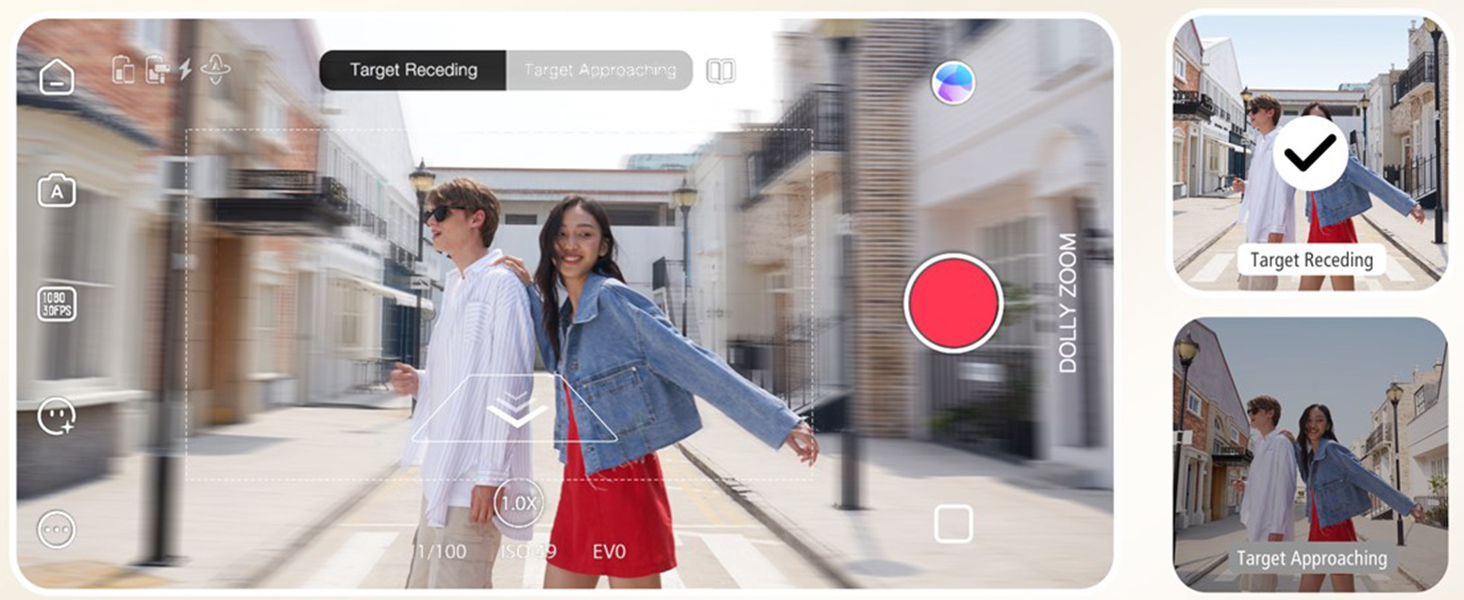
Image: The ZHIYUN Smooth Q3's integrated fill light, demonstrating its 180-degree rotatable design and three adjustable brightness levels for optimal lighting.
SmartFollow 3.0 & Gesture Control
Utilize SmartFollow 3.0 within the ZY Cami app to automatically track subjects with a single tap. Gesture control allows you to initiate or stop recording with simple hand gestures.

Image: An illustration of gesture control with the ZHIYUN Smooth Q3, showing hand signals to start and end video recording.

Image: The ZHIYUN Smooth Q3's intelligent tracking feature, automatically identifying and locking onto a moving subject to maintain focus.
Cinematic Features (via ZY Cami App)
The ZY Cami app unlocks a variety of creative shooting modes:
- Slow-Motion: Capture dramatic slow-motion footage.
- Dolly Zoom: Create a classic cinematic effect where the background appears to zoom while the foreground remains constant.
- Inception Mode: Achieve a spinning camera effect.
- 360° Panorama: Capture expansive panoramic shots.
- Time-Lapse: Condense long events into short, engaging videos.
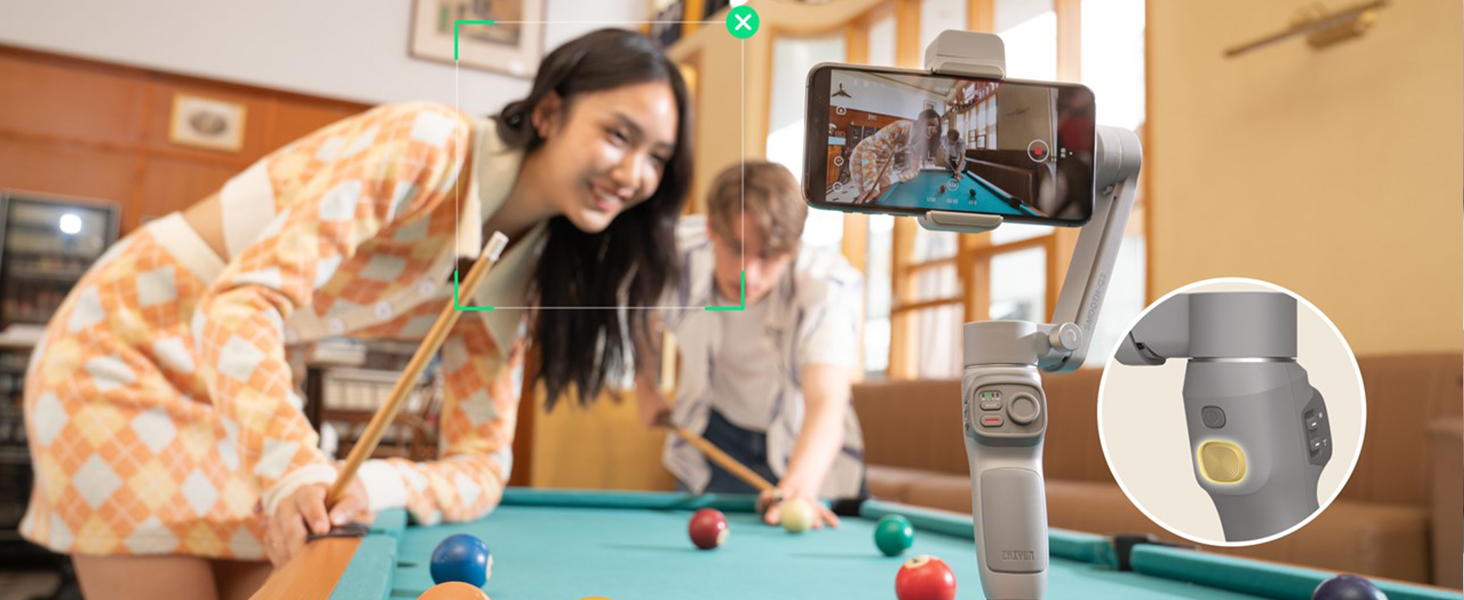
Image: A demonstration of the ZHIYUN Smooth Q3's Dolly Zoom feature, showing how to create a dynamic background effect while keeping the subject in focus.

Image: An example of the ZHIYUN Smooth Q3's 360-degree panorama feature, capturing a wide, immersive scene.
Maintenance
- Cleaning: Use a soft, dry cloth to clean the gimbal body. Avoid using liquid cleaners or solvents.
- Storage: When not in use, fold the gimbal and store it in the protective bag in a cool, dry place.
- Battery Care: Charge the battery regularly, even if not in use, to maintain its lifespan. Avoid fully discharging the battery for extended periods.
Troubleshooting
| Problem | Possible Cause | Solution |
|---|---|---|
| Gimbal not powering on | Low battery; Power button not held long enough | Charge the gimbal fully; Press and hold the power button for 3 seconds. |
| Unstable footage / Gimbal shaking | Phone not properly balanced; Overloaded gimbal; Obstruction | Re-balance the phone; Ensure phone weight is within limits (max 280g); Check for obstructions. |
| Cannot connect to ZY Cami App | Bluetooth off; App not updated; Gimbal not in pairing mode | Ensure Bluetooth is on; Update ZY Cami app; Restart gimbal and app. |
| Fill light not working | Low battery; Light not activated | Charge the gimbal; Tap the touch-sensitive area to activate and adjust brightness. |
Specifications
- Model: Smooth Q3 Combo
- Product Dimensions: 9.5 x 2.7 x 7.2 inches (unfolded); 1.8 x 6.1 x 7.1 inches (folded)
- Item Weight: 12 ounces (340 Grams)
- Supported Device Weight: Up to 0.62lb (280g)
- Battery: 1 Lithium Polymer battery (included), 1500 mAh
- Battery Life: Up to 10 hours
- Fill Light: 180° rotatable, 3-level adjustable brightness
- Stabilization: 3-Axis
- Connectivity: Bluetooth
- Compatible Devices: Google Pixel 3XL; Realme X50 Pro X; OnePlus 8 7 Pro 6T, Samsung Galaxy S20 Ultra S10+ S9+ S9 S8+ Note10+ Note9 Note8, iPhone 12 11 Pro Max 12 mini XS Max XR X 8 7 6s Plus SE2 and similar sized smartphones.
Warranty and Support
For detailed warranty information and technical support, please refer to the official ZHIYUN website or contact their customer service.
- Official User Guide (PDF): Download PDF
- ZHIYUN Store: Visit ZHIYUN Store on Amazon