
Introduction
This manual provides detailed instructions for the KUIYN V700 60% Wired RGB Gaming Keyboard. Please read this guide thoroughly to ensure proper setup, operation, and maintenance of your device. The V700 is a compact, 61-key keyboard designed for gaming and general use, featuring RGB backlighting and anti-ghosting capabilities.
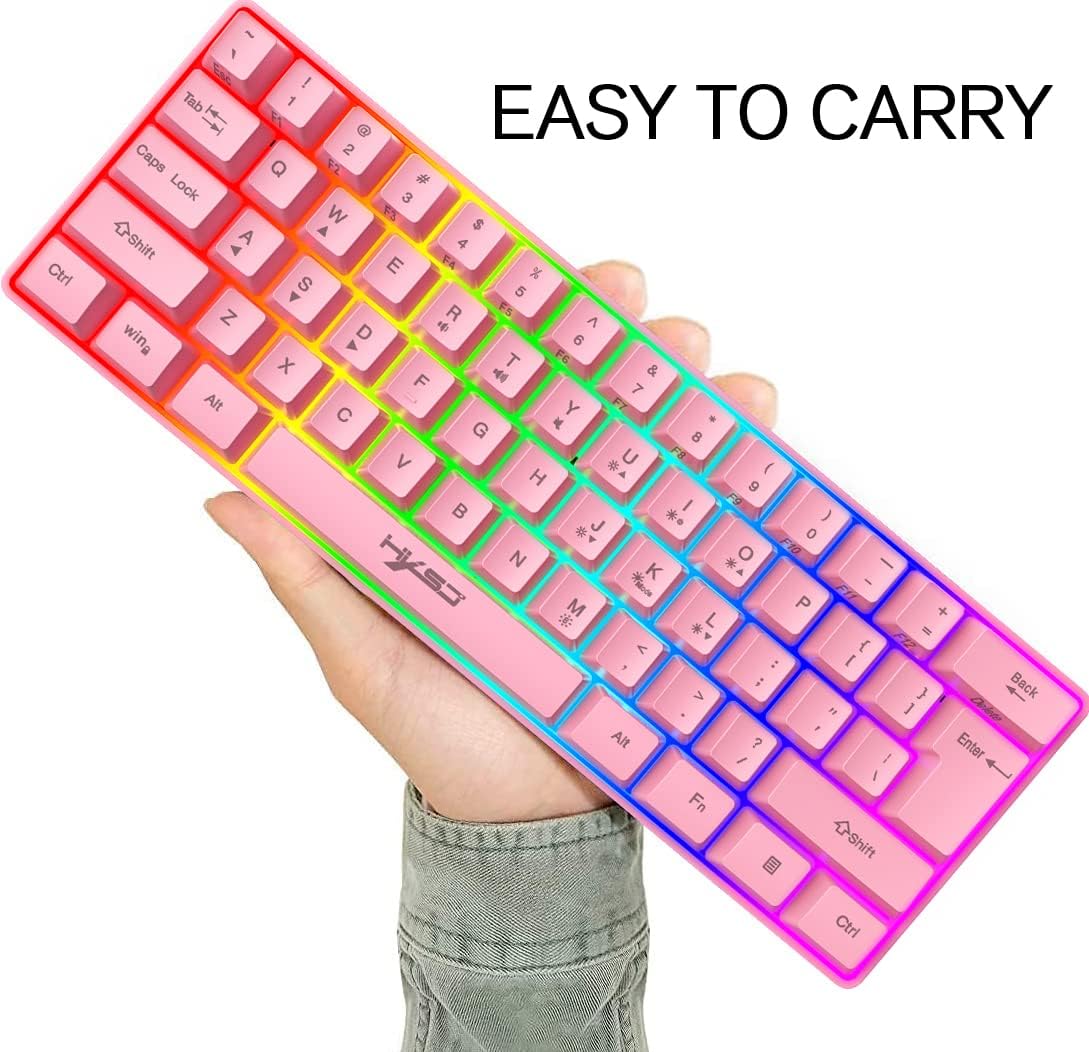
Image: The KUIYN V700 keyboard is designed for portability, easily fitting in one hand due to its compact 60% layout.

Image: Layout diagram illustrating the 61-key, 60% ultra-compact design of the V700 keyboard.
Product Specifications
| Product Number | V700 |
| Interface Type | USB |
| Number of Keys | 61 KEY |
| Multimedia Functions | Yes (via FN key combinations) |
| Button Life | 10 million times or more |
| Operating Voltage | 5.0V + 5% DC |
| Working Current | 150mA (MAX) |
| Keycap Material | ABS two-color injection |
| Product Line Length | 1.7M |
| Keyboard Weight | 400g |
| Product Size | 29.2 x 10.2 x 4.0 CM |
| Compatibility | IBM PC Win98SE/Me/2000/XP/Vista/Win 7/Win 10, Android, Mac, Laptop, Tablet, Gaming Consoles (PS4/Xbox) |

Image: Physical dimensions of the KUIYN V700 keyboard and its packaging.
Setup
The KUIYN V700 keyboard is a plug-and-play device. No special drivers are required for most operating systems.
- Connect the USB Cable: Plug the USB connector of the keyboard into an available USB port on your computer or compatible device.
- System Recognition: Your operating system should automatically detect and install the necessary drivers. This process may take a few moments.
- Verify Functionality: Once connected, test the keyboard by typing to ensure all keys are responsive.
System Compatibility
The V700 keyboard is compatible with a wide range of operating systems and devices:
- IBM PC: Win98SE/Me/2000/XP/Vista/Win 7/Win 10
- Android devices
- Mac (functionality may vary for specific macOS features)
- Laptops, Tablets
- Gaming Consoles (PS4, Xbox - specific game compatibility may vary)
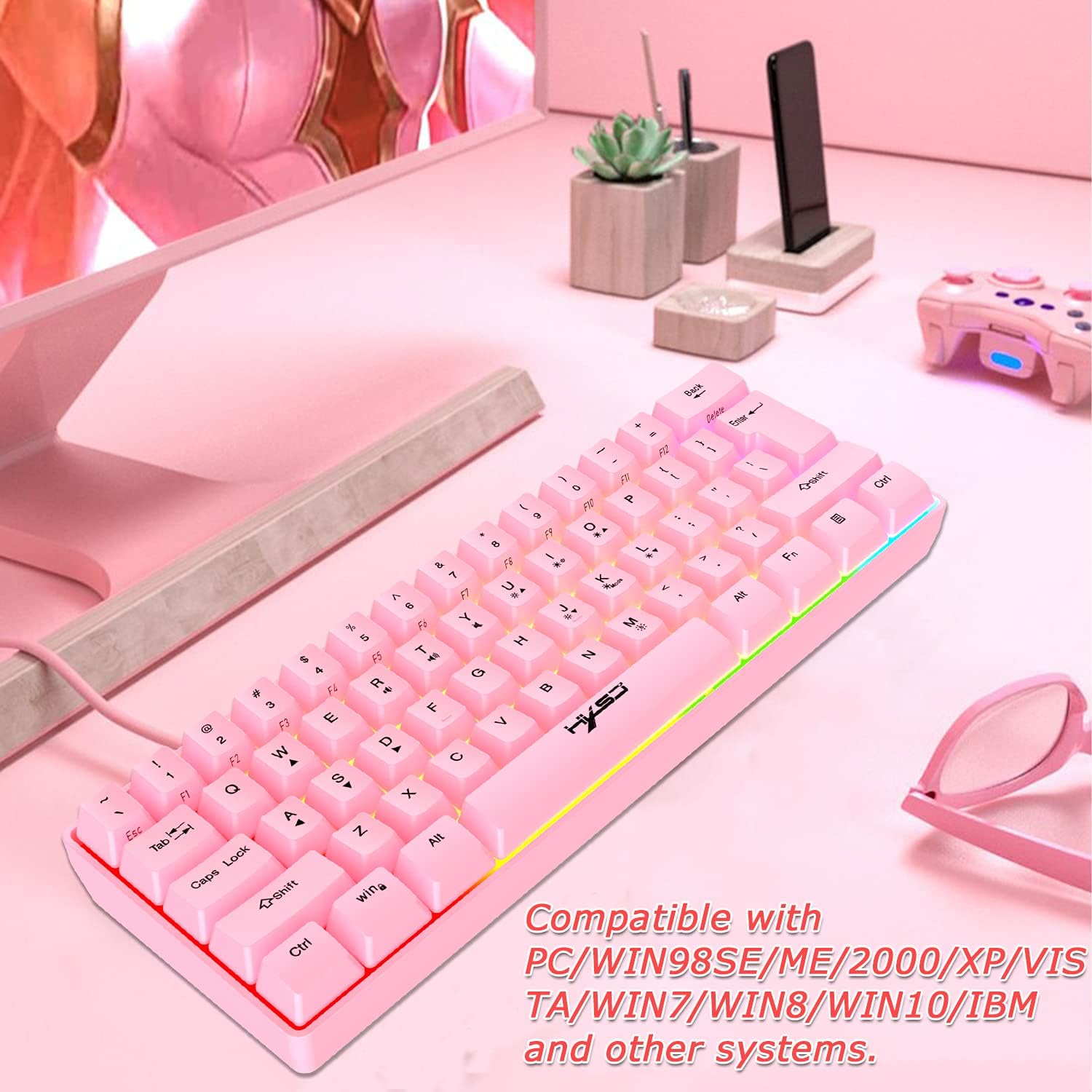
Image: The V700 keyboard is compatible with PC, Windows, and other systems, offering broad connectivity.
Operating Instructions
The KUIYN V700 keyboard features various functions accessible through the FN key in combination with other keys.
Volume Adjustment
- FN + R: Decrease volume
- FN + T: Increase volume
- FN + Y: Mute/Unmute audio
Backlight Adjustment
The keyboard offers 11 backlight effects, including 8 single light effects and 3 RGB backlight effects.
- FN + U: Accelerate streamer speed (5 adjustable speeds)
- FN + J: Slow down streamer speed (5 adjustable speeds)
- FN + O / FN + L: Adjust backlight brightness (5 levels adjustable)
- FN + I: Toggle backlight On/Off (cyclic switching)
- FN + K: Switch streamer light mode (3 modes)
- FN + M: Switch monochrome light mode (8 modes)

Image: Key combinations for controlling the 11 RGB backlight effects, including streamer and monochrome modes, and backlight on/off.
Compound Function Keys (F1-F12 and others)
Access standard F-keys and other functions using the FN key:
- FN + 1! key: F1
- FN + 2@ key: F2
- FN + 3# key: F3
- FN + 4$ key: F4
- FN + 5% key: F5
- FN + 6^ key: F6
- FN + 7& key: F7
- FN + 8* key: F8
- FN + 9( key: F9
- FN + 0) key: F10
- FN + -_ key: F11
- FN + =+ key: F12
- FN + Backspace key: Delete
- FN + `~ key: Esc
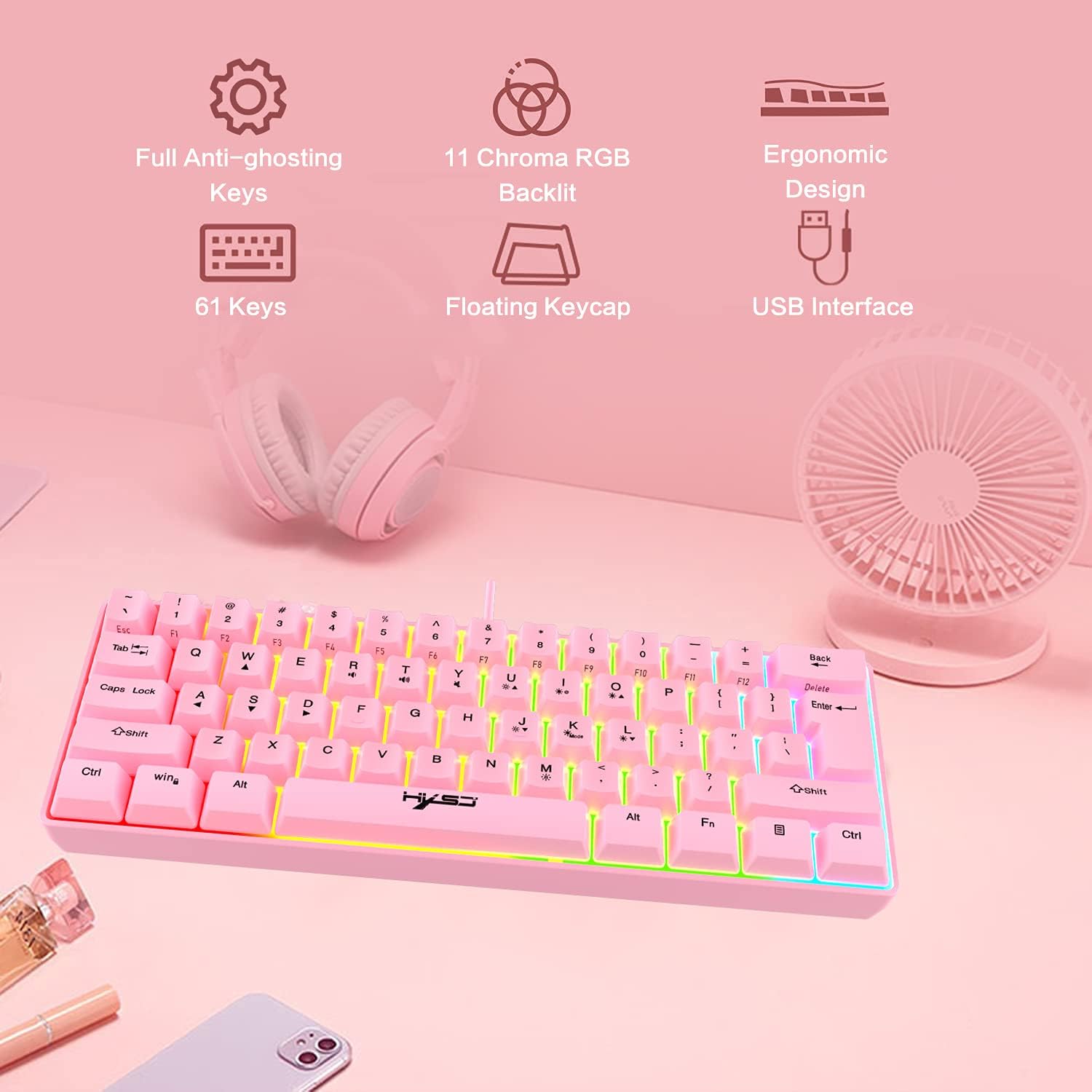
Image: Overview of key features including anti-ghosting, RGB backlighting, and ergonomic design.

Image: The 61-key layout supports full anti-ghosting for accurate and simultaneous key presses.
Maintenance
Proper maintenance ensures the longevity and optimal performance of your KUIYN V700 keyboard.
- Cleaning: Use a soft, dry cloth to wipe the surface of the keyboard. For dust between keycaps, use compressed air. Avoid using harsh chemicals or abrasive materials.
- Spill Prevention: While the keyboard features a floating keycap design, it is not fully waterproof. Avoid spilling liquids directly onto the keyboard. In case of a spill, immediately disconnect the keyboard and allow it to dry completely before reconnecting.
- Storage: Store the keyboard in a cool, dry place away from direct sunlight and extreme temperatures when not in use for extended periods.
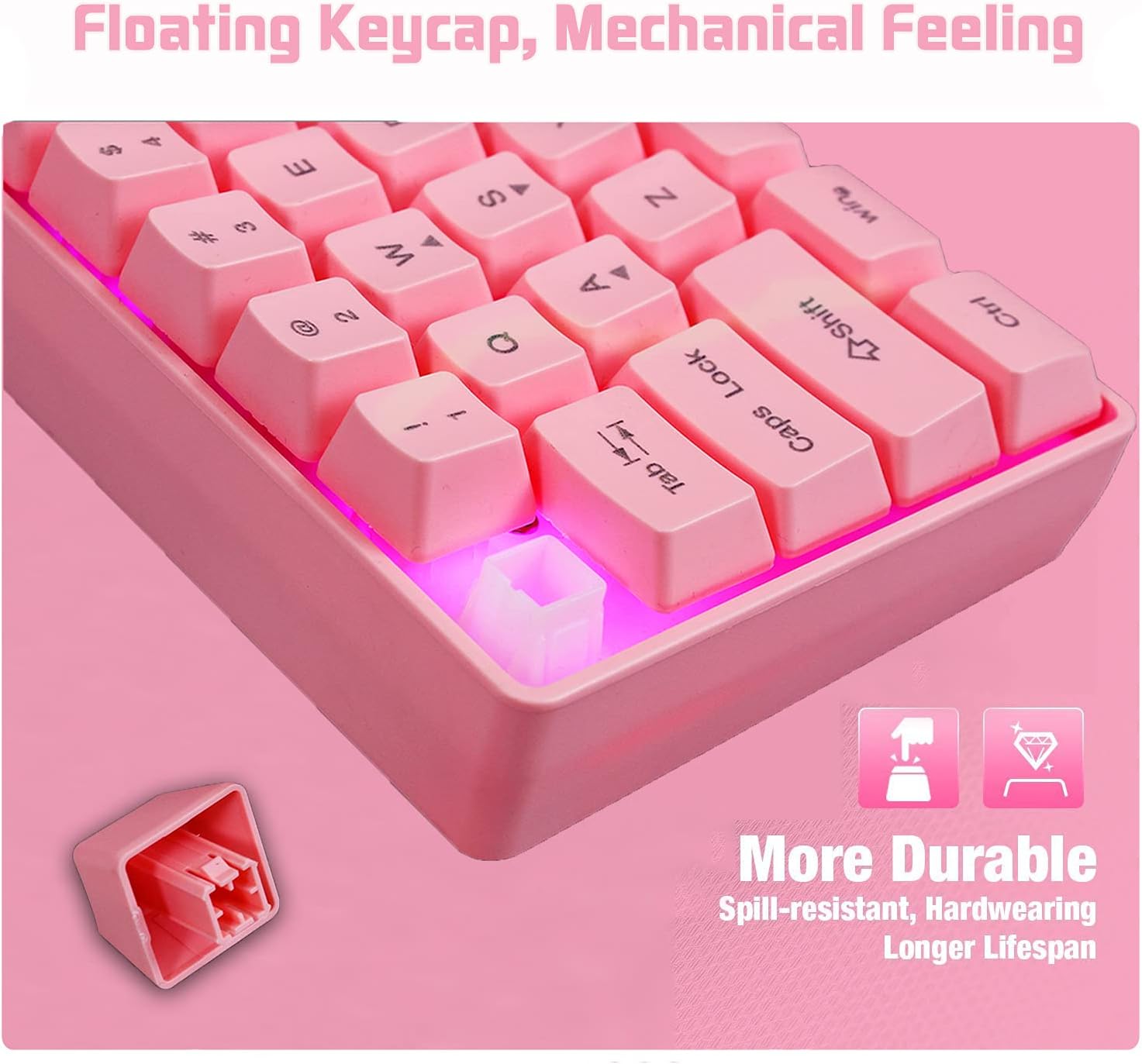
Image: The floating keycap design contributes to the keyboard's mechanical feel and durability.
Troubleshooting
If you encounter issues with your KUIYN V700 keyboard, refer to the following common troubleshooting steps:
- Keyboard Not Responding:
- Ensure the USB cable is securely plugged into both the keyboard and the computer.
- Try plugging the keyboard into a different USB port.
- Restart your computer.
- Test the keyboard on another computer to determine if the issue is with the keyboard or the original system.
- Backlight Not Working or Incorrect:
- Press FN + I to ensure the backlight is not turned off.
- Adjust brightness using FN + O or FN + L.
- Cycle through backlight modes using FN + K (streamer) or FN + M (monochrome).
- Keys Not Registering or Ghosting:
- The V700 features full anti-ghosting. If specific keys are not registering, ensure no debris is lodged under the keycap.
- If the issue persists, try cleaning the keyboard as described in the Maintenance section.
Warranty and Support
Specific warranty information for the KUIYN V700 keyboard is not provided in this manual. Please refer to your purchase documentation or contact the retailer for details regarding warranty coverage.
For further technical support or inquiries, please contact KUIYN customer service through their official website or the retailer where the product was purchased.