
STEAMEMO 10 Gigabit Ports|120W 8xPoE+
STEAMEMO 10-Port Gigabit Managed PoE Switch
Model: 10 Gigabit Ports|120W 8xPoE+
User Manual
1. Introduction
Thank you for choosing the STEAMEMO 10-Port Gigabit Managed PoE Switch. This device is designed to provide reliable and efficient network connectivity with Power over Ethernet (PoE) capabilities, ideal for various applications including IP cameras, Wi-Fi access points, and IP phones. This manual provides detailed instructions for setup, operation, maintenance, and troubleshooting to ensure optimal performance and longevity of your switch.
2. Safety Information
Please read and understand all safety instructions before installing or operating this device. Keep this manual for future reference.
- Ensure the power supply voltage matches the device's requirements.
- Do not expose the device to water, moisture, or extreme temperatures.
- Avoid blocking ventilation openings to prevent overheating.
- Do not attempt to open or repair the device yourself. Refer all servicing to qualified personnel.
- Use only approved accessories and cables.
3. Product Overview
Key Features
- Full Gigabit Managed PoE Switch: 10*10/100/1000 Mbps Base-TX RJ45 ports, including 8 PoE ports (automatic identification and power for PoE devices).
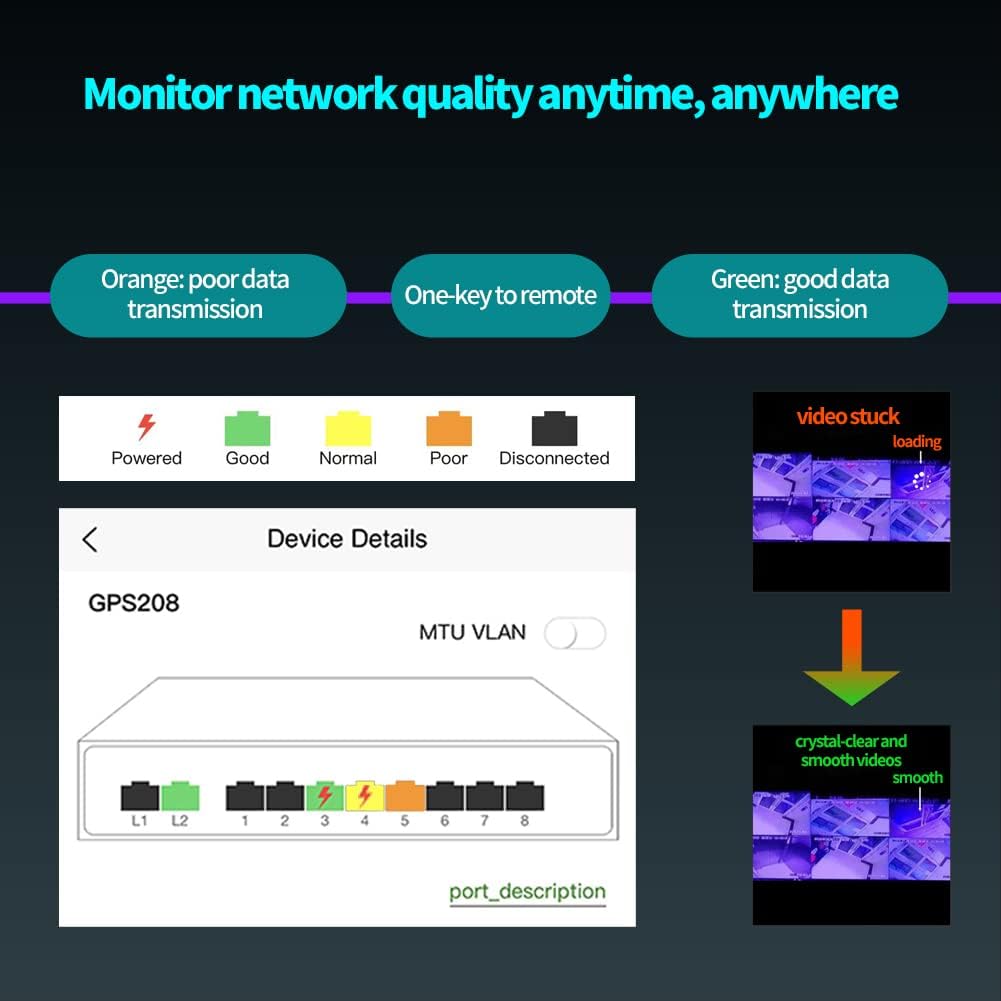
- APP Smart Managed: Cloud management from a single interface, anywhere, anytime. Alerts for connectivity problems and remote troubleshooting.
- PoE Scheduler Function: Plan days and times for PoE availability to reduce electricity consumption.
- PoE Configuration Options: Activate or deactivate PoE for each port separately.
- VLAN & Ultra-Far Transmission: Improve network security via traffic segmentation. Ultra-Far mode extends power up to 250 meters.
- 4KV Lightning Protection: Professional lightning protection design (up to 4KV port and power supply).
- Network Cable Short-Circuit Protection: Stable and strong anti-interference ability, protecting against short circuits.
- Stable Power Supply, Efficient Data Transmission: Single-port max 30W, total 120W. Supports IEEE802.3af/at.
- Sturdy Metal Casing And Less Noise: Durable metal casing with industrial-grade fans for heat dissipation and quiet operation.
Physical Overview



Product Videos
4. Setup Instructions
Initial Setup
- Unpack the Device: Carefully remove the PoE switch and all accessories from the packaging.
- Connect Power: Connect the provided AC power cable to the switch's power input and then to a suitable power outlet.
- Connect to Network: Connect your main network router or modem to one of the uplink ports (LAN1 or LAN2) on the switch using a standard Ethernet cable.
- Connect PoE Devices: Connect your PoE-compatible devices (e.g., IP cameras, Wi-Fi access points, IP phones) to the PoE ports (1-8) on the switch. The switch will automatically detect and power these devices.
- Power On: Ensure all connections are secure. The PWR indicator light on the switch should illuminate, indicating it is powered on.
APP Smart Management Setup
The STEAMEMO PoE Switch supports smart management via a dedicated mobile application. To set up the app:
- Download the App: Download the SSC PoE App from your device's app store. You can find it on Google Play Store (Android) or Apple App Store (iOS).
- Internet Connection: Ensure the switch is connected to the internet and powered on for initial device activation within the app.
- Add Device: Follow the in-app instructions to add your STEAMEMO PoE Switch. This typically involves scanning a QR code or manually entering device details.
- Remote Access: Once added, you can remotely monitor and manage your switch and connected devices from anywhere.
5. Operating Instructions
PoE Functionality
The switch's PoE ports (1-8) automatically detect and provide power to IEEE802.3af/at compliant devices. You can manage PoE settings via the mobile app:
- Enable/Disable PoE: Within the app's 'POE Settings' section, you can individually enable or disable PoE power for each port. This allows for precise control over connected devices.
- Power Monitoring: The app displays the power consumption for each PoE port, helping you monitor the total power usage.
VLAN Configuration
The VLAN feature allows you to segment your network, improving security and managing traffic more efficiently. Access VLAN settings through the app:
- Network Segmentation: Create virtual local area networks (VLANs) to isolate traffic between different groups of users or devices.
- Traffic Management: Prevent broadcast storms and enhance network performance by containing traffic within specific VLANs.
PoE Scheduler
Utilize the PoE Scheduler to automate power delivery to your PoE devices, optimizing energy consumption:
- Schedule On/Off Times: Set specific times and days for each PoE port to provide or cut off power. This is useful for devices that are not needed 24/7, such as office cameras after hours.
- Energy Saving: Reduce electricity costs by powering down devices when not in use.
Remote Management
The cloud-managed feature allows for comprehensive remote control of your switch:
- Anywhere Access: Manage your network from any location with an internet connection via the SSC PoE App.
- Troubleshooting: Remotely diagnose and resolve issues, including restarting individual PoE ports or the entire switch.
- User Sharing: Share control of the device with family or friends through the app.
6. Maintenance
General Care
- Cleaning: Use a soft, dry cloth to clean the exterior of the switch. Do not use liquid or aerosol cleaners.
- Ventilation: Ensure the switch is placed in a well-ventilated area to prevent overheating. Do not cover the ventilation slots.
- Cable Management: Keep network and power cables neatly organized to prevent strain on ports and accidental disconnections.
Protection Features
The STEAMEMO switch is built with robust protection mechanisms:
- 4KV Lightning Protection: Designed to withstand lightning surges, protecting connected devices and the switch itself.
- Network Cable Short-Circuit Protection: Automatically protects against faults caused by short circuits in network cables, ensuring stable operation.
- Over Current and Over Voltage Protection: Safeguards the device and connected PoE equipment from electrical anomalies.
7. Troubleshooting
Common Issues and Solutions
- No Power: Check if the power cable is securely connected to the switch and the power outlet. Verify the power outlet is functional.
- No Link Light on Port: Ensure the Ethernet cable is properly connected at both ends. Try a different cable or port. Verify the connected device is powered on and functioning.
- PoE Device Not Receiving Power: Check if the device is PoE-compatible (IEEE802.3af/at). Verify PoE is enabled for the specific port in the SSC PoE App. Ensure total power consumption does not exceed 120W.
- Slow Network Speed: Check cable quality and length (especially for Ultra-Far mode). Ensure no network loops are present. Consider enabling VLANs for traffic segmentation if applicable.
- App Connectivity Issues: Ensure the switch has an active internet connection. Verify your mobile device has internet access. Try restarting the app or the switch.
Troubleshooting Video
8. Specifications
| Attribute | Value |
|---|---|
| Brand | STEAMEMO |
| Model Number | 10 Gigabit Ports|120W 8xPoE+ |
| Switch Type | Flow Switch, Temperature Switch |
| Product Dimensions | 7.48"L x 5.16"W x 1.34"H |
| Item Weight | 2.07 pounds (0.94 Kilograms) |
| Platform | Not Machine Specific |
| Voltage | 240 Volts |
| Case Material | Metal |
| Maximum Power | 120 Watts |
| Upper Temperature Rating | 55 Degrees Celsius |
| Interface Type | PoE |
| Data Transfer Rate | 1000 Megabits Per Second |
| Number of Ports | 8 PoE ports + 2 Uplink ports (10 total) |
| Color | Black |
| Compatible Devices | Desktop |
| Date First Available | April 14, 2021 |
| UPC | 779139143758 |
9. What's in the Box
- 1 x (8 + 2) Active Gigabit PoE Switch (Built-in power supply)
- 1 x AC Power Cable
- 1 x User Manual
10. Warranty and Support
Warranty Information
The STEAMEMO 10-Port Gigabit Managed PoE Switch typically comes with a 1-year limited warranty from the date of purchase. This warranty covers defects in materials and workmanship under normal use. Please retain your proof of purchase for warranty claims.
Customer Support
For technical assistance, troubleshooting, or warranty inquiries, please contact STEAMEMO customer support. Refer to the contact information provided on the product packaging or the official STEAMEMO website. Our team is committed to providing the best solution and ensuring your satisfaction.
Related documents10 Gigabit Ports|120W 8xPoE+


Ask a question about this manual
Ask about setup, troubleshooting, compatibility, parts, safety, or missing instructions. Manuals+ will review the question and use this page’s manual context to help answer it.