
1. Introduction
This manual provides comprehensive instructions for the installation, operation, and maintenance of your WAVLINK AC1300M USB 3.0 WiFi Adapter. This device is designed to provide high-speed wireless connectivity for your desktop or laptop PC, supporting both 2.4GHz and 5GHz WLAN networks for optimal performance.

Figure 1: WAVLINK AC1300M USB 3.0 WiFi Adapter with two antennas and USB cable.
2. Product Features
- Ultra-Fast Wireless Speed: Supports AC1300 (867+400)Mbps wireless speed, offering up to 867Mbps on the 5GHz band and 400Mbps on the 2.4GHz band. This enables seamless HD video streaming and online gaming.
- Superspeed USB 3.0 Port: Provides data transfer rates of up to 5Gbps, which is 10 times faster than USB 2.0, ensuring a stable internet connection. Backward compatible with USB 2.0.
- WPS Technology: Facilitates a secure, password-free connection by pressing the WPS button on both the adapter and your router.
- Soft AP Mode & Station Mode: Operates in Soft AP mode to turn a wired connection into a WiFi hotspot (Windows 7/8/10/11 only) or in Station mode to connect your computer to a wireless router.
- Magnetic Design & Wide Compatibility: Features a magnetic base for flexible placement and includes anti-skid rubber pads. Compatible with Windows XP/Vista/7/8/8.1/10/11 and MacOS 10.7-10.15.
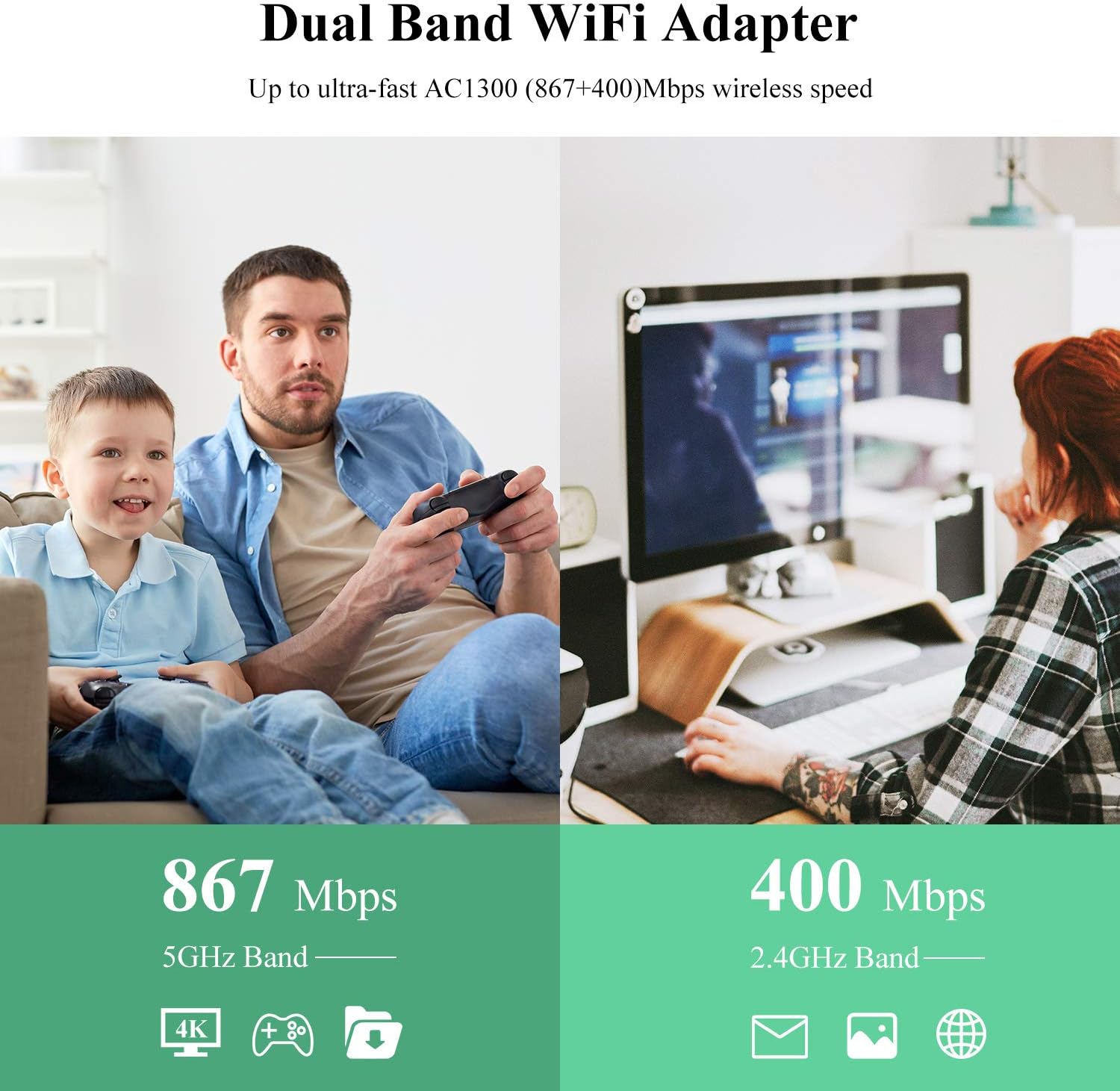
Figure 2: Diagram illustrating dual-band WiFi speeds: 867Mbps on 5GHz and 400Mbps on 2.4GHz.
3. Package Contents
Please verify that all items are present in your package:
- WAVLINK AC1300M USB 3.0 WiFi Adapter (WL-WN692A3)
- USB 3.0 Cable
- Quick Start Guide
- WAVLINK Service Card

Figure 3: Image displaying the WAVLINK AC1300M USB 3.0 WiFi Adapter, USB cable, quick start guide, and service card.
4. Setup Instructions
Follow these steps to set up your WAVLINK AC1300M USB 3.0 WiFi Adapter:
- Driver Installation:
For Windows 8/8.1/10/11, the adapter is typically plug-and-play and may not require a separate driver installation. For other operating systems (Windows XP/Vista/7 and MacOS 10.7-10.15), you may need to download and install the driver. Visit the official WAVLINK website to download the latest driver: http://www.wavlink.com/driver. - Connect the Adapter:
Insert the USB 3.0 cable into the adapter and then connect the other end of the cable to an available USB 3.0 port on your desktop or laptop computer. Ensure the connection is secure. - Connect to a Network:
Once the adapter is recognized by your system, scan for available wireless networks. Select your desired network from the list and enter the password if required to establish a connection.

Figure 4: Simplified three-step diagram for setting up the WiFi adapter: download driver, insert adapter, scan for networks.

Figure 5: Image showing the adapter connected to a desktop computer setup, highlighting plug-and-play functionality for certain Windows versions.
5. Operating Modes
The WAVLINK AC1300M USB 3.0 WiFi Adapter supports two primary operating modes:
5.1. Station Mode
In Station Mode, the adapter acts as a signal receiver, allowing your desktop, laptop, or PC to connect to an existing wireless router and access the internet.
5.2. Soft AP Mode
Soft AP Mode allows the adapter to function as a wireless access point. When connected to a wired internet source, it can convert your PC's wired connection into a WiFi hotspot, enabling other wireless devices (such as smartphones, tablets, or other laptops) to connect to the internet through your PC. Note: Soft AP function is supported on Windows 7/8/10/11 only and is not available in Mac OS.

Figure 6: Diagram showing the adapter functioning in AP Mode (creating a hotspot) and Station Mode (receiving WiFi).
6. WPS Functionality
The adapter supports Wi-Fi Protected Setup (WPS) technology, which allows for a secure and password-free connection to your wireless network. To use WPS:
- Locate the WPS button on your wireless router.
- Press the WPS button on your router.
- Within two minutes, press the WPS button located on your WAVLINK WiFi adapter.
- The devices will automatically establish a secure connection without the need to manually enter a password.

Figure 7: Image demonstrating the WPS button on the adapter and a router for secure connection.
7. Compatibility
The WAVLINK AC1300M USB 3.0 WiFi Adapter offers broad compatibility with various operating systems:
- Windows: XP, Vista, 7, 8, 8.1, 10, 11
- MacOS: 10.7 to 10.15

Figure 8: Image of the adapter next to a laptop, phone, and tablet, indicating compatibility with Windows and Mac OS.
8. Maintenance
To ensure the longevity and optimal performance of your WAVLINK WiFi adapter, consider the following maintenance guidelines:
- Keep Clean: Regularly wipe the adapter with a soft, dry cloth to remove dust. Avoid using liquid cleaners or solvents.
- Proper Placement: Utilize the magnetic base to place the adapter in an optimal location for signal reception, preferably on a metal surface for stability. Ensure it is in a well-ventilated area to prevent overheating.
- Avoid Physical Damage: Handle the adapter with care. Avoid dropping it or exposing it to excessive force.
- Environmental Conditions: Do not expose the adapter to extreme temperatures, humidity, or direct sunlight.
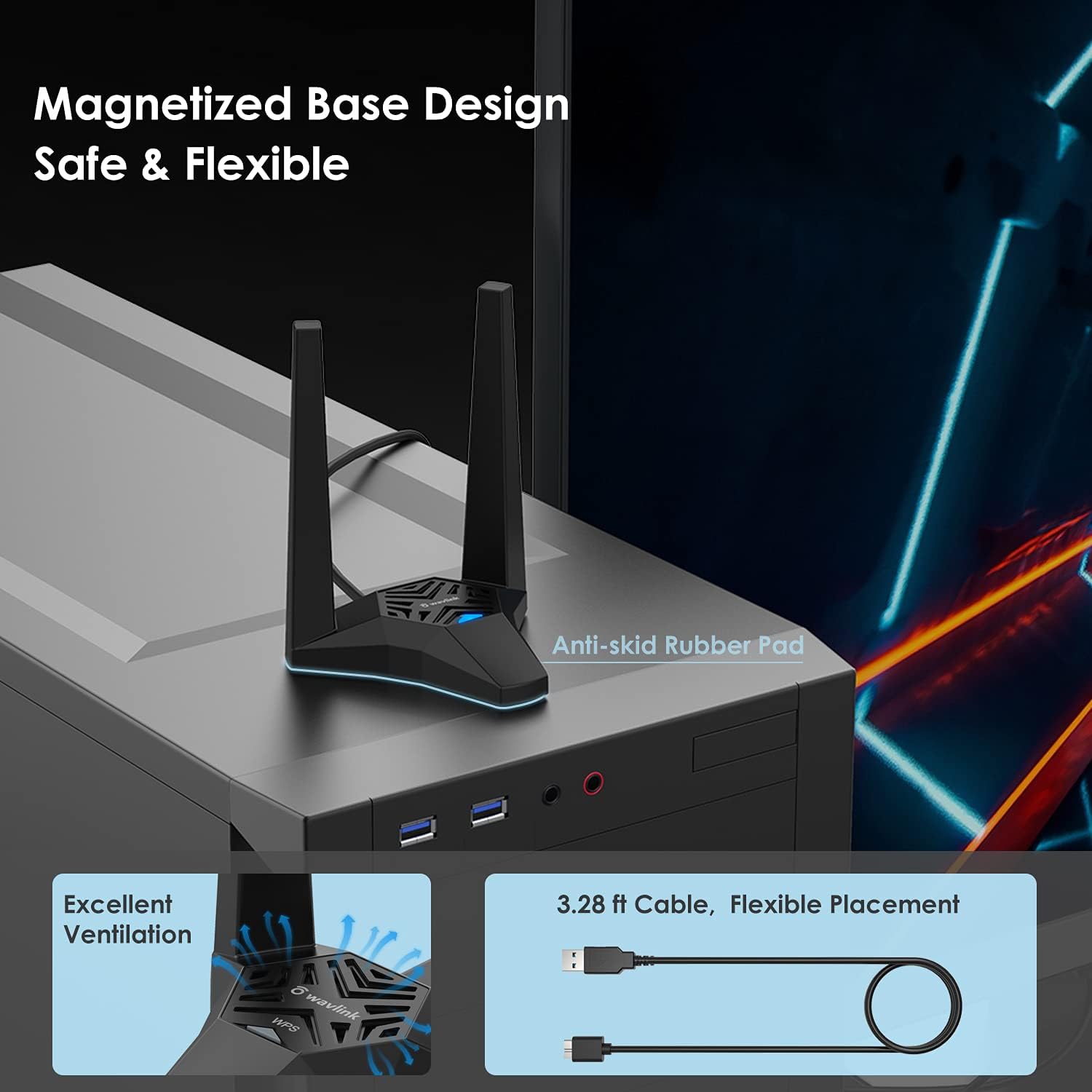
Figure 9: Close-up of the adapter's magnetic base and anti-skid rubber pad, with an inset showing ventilation and the USB cable.
9. Troubleshooting
If you encounter issues with your WAVLINK WiFi adapter, refer to the following common troubleshooting steps:
- No Internet Connection:
- Ensure the adapter is securely plugged into a USB 3.0 port.
- Verify that the correct driver is installed for your operating system.
- Check if your wireless router is functioning correctly and broadcasting a signal.
- Try connecting to a different USB port on your computer.
- Slow Connection Speed:
- Ensure you are connected to the 5GHz band if available and your router supports it, as it generally offers faster speeds.
- Move the adapter closer to your wireless router to improve signal strength.
- Check for interference from other electronic devices.
- Update your router's firmware.
- Driver Installation Issues:
- Disable any antivirus software temporarily during driver installation.
- Ensure you have downloaded the correct driver version for your operating system from the WAVLINK website.
- Try running the driver installer as an administrator.
- WPS Connection Failure:
- Ensure both the router's and adapter's WPS buttons are pressed within the specified time frame.
- Restart both the router and the adapter, then try WPS again.
If problems persist, please contact WAVLINK technical support for further assistance.
10. Specifications
| Feature | Specification |
|---|---|
| Model Number | WL-WN692A3 |
| Hardware Interface | USB 3.0 (Backward compatible with USB 2.0) |
| Wireless Standards | IEEE 802.11ac/a/b/g/n |
| Wireless Speed | AC1300Mbps (867Mbps on 5GHz, 400Mbps on 2.4GHz) |
| Antennas | 2x 3dBi High Gain Antennas |
| Data Transfer Rate | Up to 5 Gigabits Per Second (USB 3.0) |
| Compatible Operating Systems | Windows XP/Vista/7/8/8.1/10/11, MacOS 10.7-10.15 |
| Product Dimensions | 3.94 x 3.15 x 1.97 inches (approx.) |
| Item Weight | 7.8 ounces (approx.) |
11. Warranty and Support
WAVLINK provides life-long technical support for this product. For any inquiries or assistance, please refer to the contact information below or on your WAVLINK Service Card:
- Phone Support: +1 8889730883 (UTC-5) Mon - Fri 9AM - 6PM
- Email Support: Contact@wavlink.com


