
JOUNIVO JV610
JOUNIVO JV610 USB Microphone User Manual
Your guide to setting up and using your JOUNIVO JV610 USB Microphone.
Introduction
Thank you for choosing the JOUNIVO JV610 USB Microphone. This manual provides detailed instructions for the proper setup, operation, and maintenance of your new microphone. The JV610 is designed for clear audio capture in various applications, including online meetings, streaming, gaming, recording, and dictation, offering a convenient plug-and-play experience.

Image: The JOUNIVO JV610 USB Microphone, featuring a flexible gooseneck, a stable base, and a USB connector. A foam windscreen is also shown.
What's in the Box
Please check the package contents to ensure all items are present:
- JOUNIVO JV610 USB Microphone
- USB Cable (integrated)
- Foam Windscreen (optional, may be pre-installed)
Setup Instructions
- Connect the Microphone: Insert the USB-A connector of the microphone cable into an available USB port on your computer (PC or Mac).
- Automatic Driver Installation: The microphone is plug-and-play. Your operating system (Windows 7/8/10/11 or macOS) will automatically detect and install the necessary drivers. This process may take a few moments.
- Verify Connection: Once connected, the LED indicator on the microphone base will illuminate green, indicating a successful connection and active status.
- Select as Default Device:
- Windows: Go to Sound Settings > Input and select "JOUNIVO JV610" as your input device.
- macOS: Go to System Preferences > Sound > Input and select "JOUNIVO JV610".
- Position the Microphone: Adjust the flexible gooseneck to position the microphone head approximately 6-12 inches (15-30 cm) from your mouth for optimal sound capture.

Image: A user engaged in a video conference call, with the JOUNIVO JV610 microphone positioned on the desk next to their laptop. Icons indicate high definition, clear voice, and cardioid pattern.
Operating Instructions
Mute Button and LED Indicator
The JOUNIVO JV610 features a touch-sensitive mute button with an integrated LED indicator on its base for convenient control.
- To Mute/Unmute: Gently tap the touch-sensor button on the microphone base.
- LED Indicator Status:
- Green Light: The microphone is active and picking up sound.
- Red Light: The microphone is muted. No sound will be transmitted.
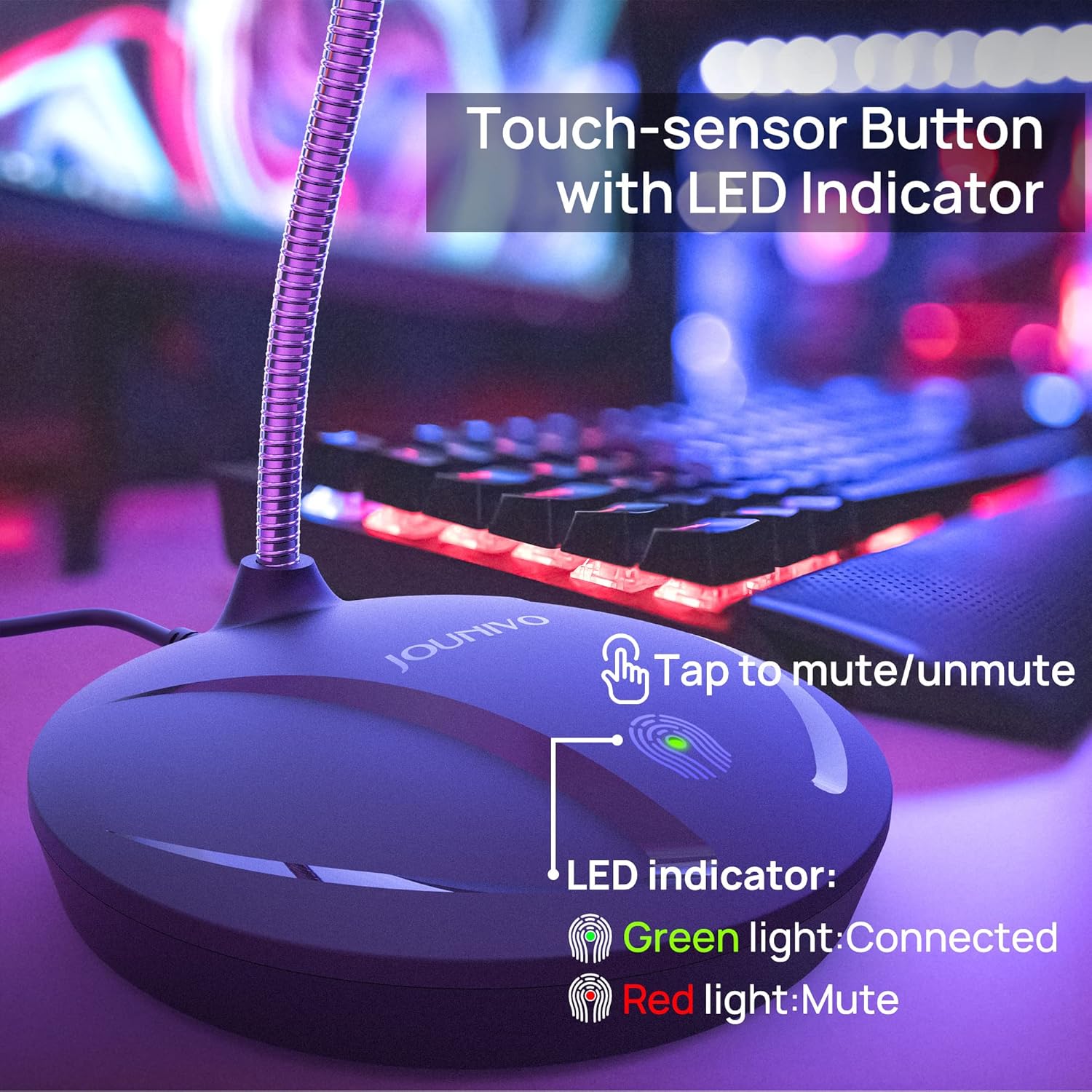
Image: A detailed view of the microphone's base, highlighting the touch-sensitive mute button. The LED indicator is shown in both green (connected) and red (muted) states.
Gooseneck Adjustment
The flexible 360-degree gooseneck allows for precise positioning of the microphone head. Adjust it to optimize sound input and comfort during use.

Image: A diagram demonstrating the 360-degree adjustability of the microphone's gooseneck, showing various possible positions and dimensions.
Key Features
- Cardioid Polar Pattern: The microphone is designed to primarily pick up sound from the front, reducing unwanted background noise from the sides and rear. This focuses audio capture on your voice, making it ideal for speech-based applications.
- Intelligent Noise-Canceling Technology: Integrated technology helps to filter out ambient noise, ensuring your voice is clear and distinct.
- USB Plug & Play: No additional drivers or software are required for operation. Simply connect to a USB port and begin use.
- Durable Construction: Built with a premium metal gooseneck and a heavy-duty ABS stand for stability and longevity.
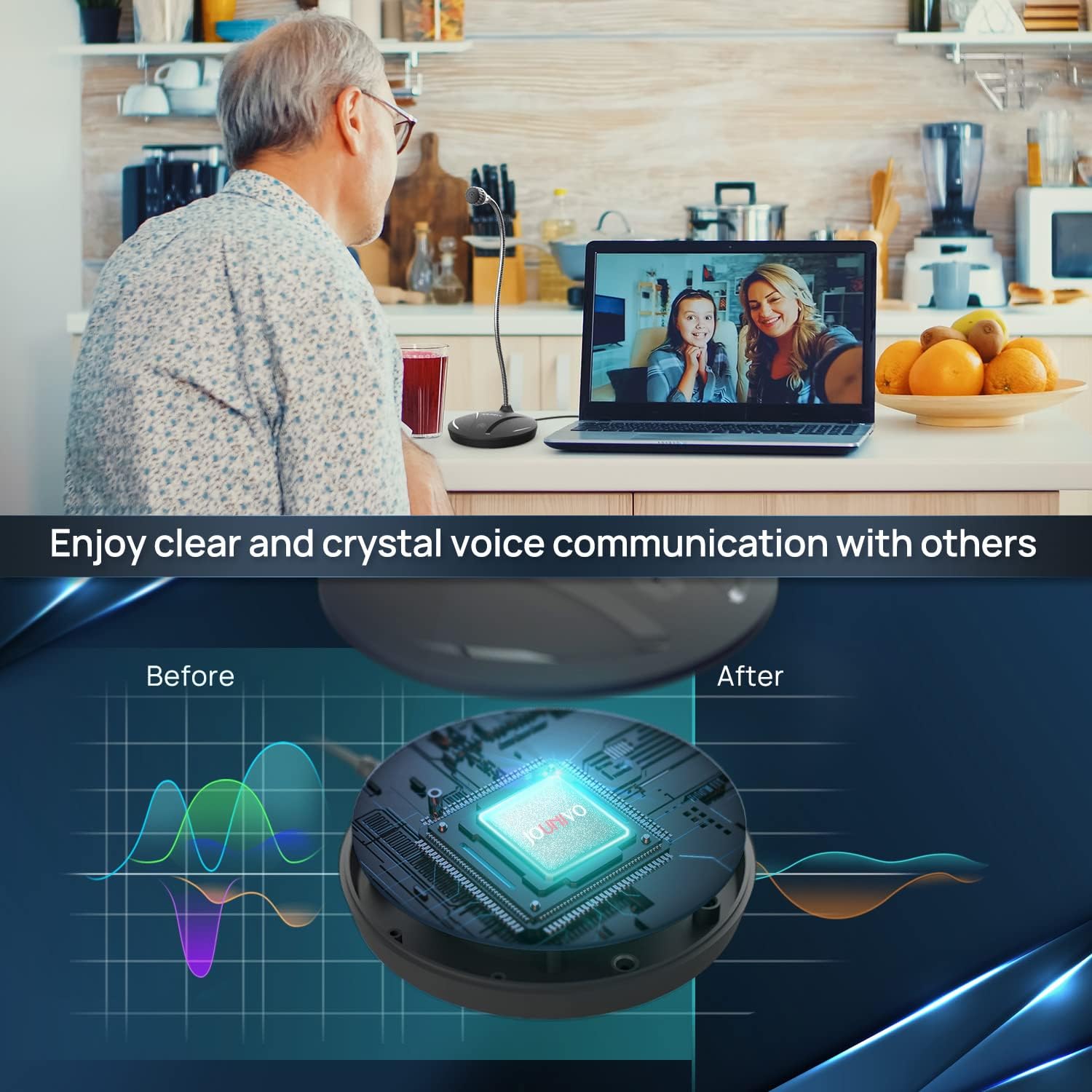
Image: A man using the JOUNIVO JV610 microphone with his laptop. Below, a graphic illustrates the microphone's ability to enhance voice clarity and reduce background noise, depicted by 'Before' and 'After' sound wave patterns.
Specifications
| Model Name | JV610 |
| Connectivity Technology | USB |
| Connector Type | USB Type-A |
| Polar Pattern | Unidirectional (Cardioid) |
| Microphone Form Factor | Gooseneck |
| Frequency Response | 20 Hz - 20 KHz |
| Signal-to-Noise Ratio | 58 dB |
| Item Weight | 8 Ounces (approx. 227g) |
| Material | Plastic (Base), Metal (Gooseneck) |
| Compatible Devices | Laptop, PC, PS5 |
| Operating Systems | Windows (7, 8, 10, 11), macOS |
Troubleshooting
If you encounter issues with your JOUNIVO JV610 microphone, please refer to the following common solutions:
- Microphone Not Detected:
- Ensure the USB cable is securely plugged into both the microphone and your computer.
- Try plugging the microphone into a different USB port on your computer.
- Restart your computer.
- Check your computer's sound settings to ensure the "JOUNIVO JV610" is selected as the default input device.
- No Sound Input / Low Volume:
- Verify the microphone is not muted (LED indicator should be green). Tap the mute button if it's red.
- Adjust the microphone input level in your computer's sound settings.
- Ensure the microphone is positioned correctly, close enough to your mouth (6-12 inches).
- Test the microphone with different applications (e.g., voice recorder, communication software).
- Background Noise / Echo:
- Ensure you are speaking directly into the front of the microphone. The cardioid pattern is designed to reduce off-axis sounds.
- Reduce ambient noise in your environment.
- Adjust microphone sensitivity in your computer's sound settings to prevent picking up too much room noise.
Maintenance
To ensure the longevity and optimal performance of your JOUNIVO JV610 microphone, follow these simple maintenance guidelines:
- Cleaning: Use a soft, dry cloth to wipe the microphone and its base. Avoid using liquid cleaners or abrasive materials.
- Storage: When not in use, store the microphone in a clean, dry place away from extreme temperatures and direct sunlight.
- Handling: Avoid dropping the microphone or subjecting it to strong impacts. Do not forcefully bend the gooseneck beyond its natural range of motion.
Warranty and Support
JOUNIVO provides a standard warranty for its products. For specific warranty details, registration, or technical support, please visit the official JOUNIVO website or contact their customer service. Keep your purchase receipt for warranty claims.
For further assistance, you may visit the JOUNIVO Store on Amazon.
Ask a question about this manual
Ask about setup, troubleshooting, compatibility, parts, safety, or missing instructions. Manuals+ will review the question and use this page’s manual context to help answer it.