
Introduction
The Logitech G502 X LIGHTSPEED Wireless Gaming Mouse is an advanced peripheral designed for high-performance gaming. It integrates cutting-edge technologies such as LIGHTFORCE hybrid optical-mechanical switches and the HERO 25K gaming sensor, offering precision, speed, and reliability. This manual provides essential information for setting up, operating, maintaining, and troubleshooting your G502 X LIGHTSPEED mouse.
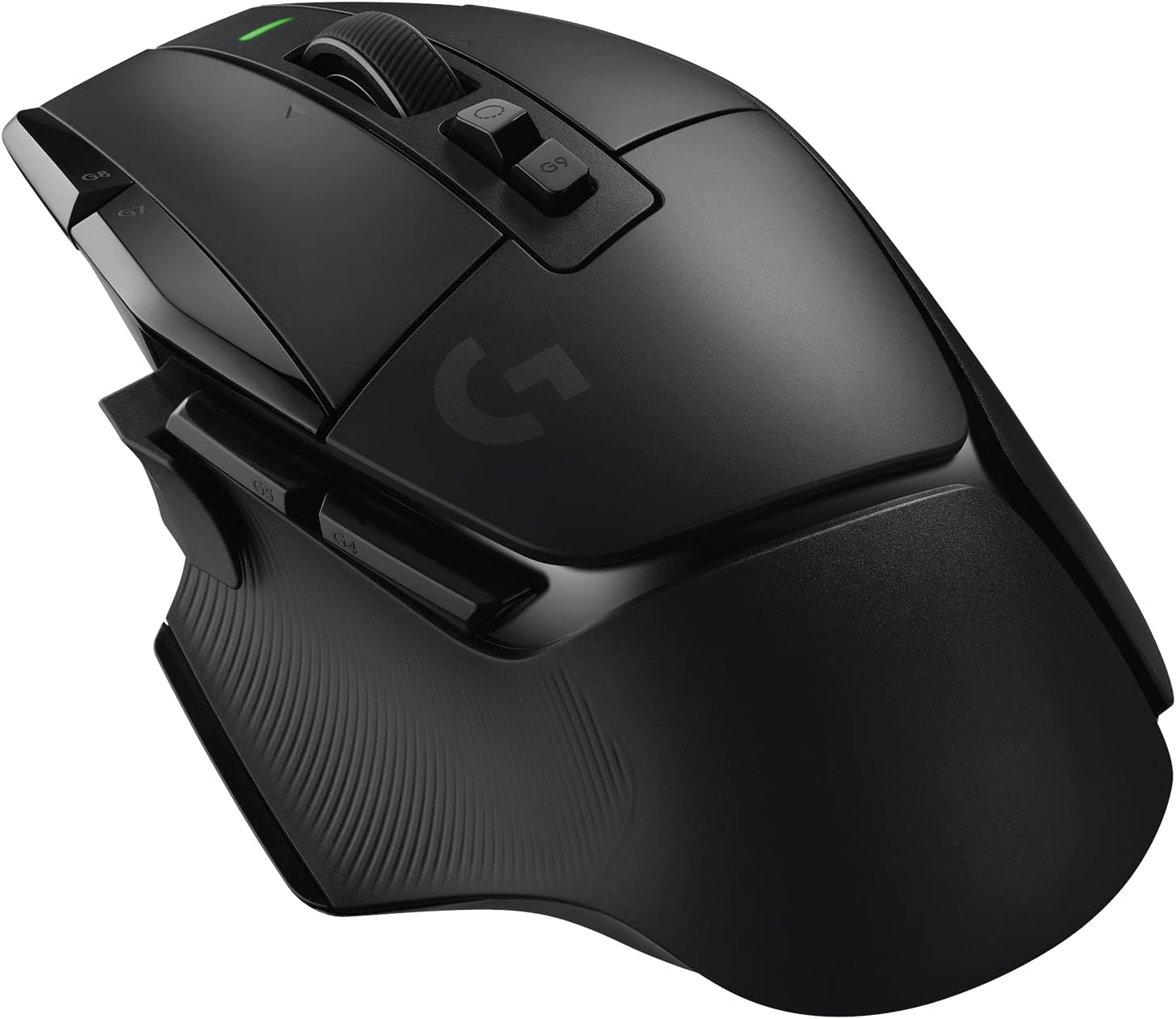
Figure 1: Logitech G502 X Lightspeed Wireless Gaming Mouse (Black)
Setup
1. Initial Connection
To connect your G502 X LIGHTSPEED mouse, locate the USB receiver. It is typically stored inside the mouse or provided alongside it. Insert the USB receiver into an available USB port on your computer. The mouse should automatically connect.
2. Software Installation
For full customization and advanced features, install the Logitech G HUB software. This software allows you to:
- Customize button assignments (13 programmable controls).
- Adjust DPI settings (100 – 25,600 DPI).
- Manage onboard memory profiles (5 profiles).
- Configure LIGHTSPEED wireless settings.
Download Logitech G HUB from the official Logitech G website: Logitech G HUB.
Operating the Mouse
LIGHTFORCE Hybrid Optical-Mechanical Switches
The G502 X LIGHTSPEED features LIGHTFORCE hybrid optical-mechanical switches for the primary left and right buttons. These switches combine the speed and reliability of optical actuation with the crisp, tactile feedback of mechanical switches.

Figure 2: Illustration of LIGHTFORCE Hybrid Optical-Mechanical Switches
LIGHTSPEED Wireless Technology
Experience pro-grade wireless connectivity with LIGHTSPEED technology, offering a 68% faster response rate compared to previous generations and enhanced reliability for uninterrupted gaming.

Figure 3: LIGHTSPEED Wireless connectivity with up to 140 hours of battery life.
HERO 25K Gaming Sensor
The mouse is equipped with the HERO 25K sensor, providing sub-micron precision from 100 to 25,600 DPI, ensuring accurate tracking without smoothing, filtering, or acceleration.

Figure 4: Underside view showing the HERO 25K sensor and PTFE feet.
DPI-Shift Button and Scroll Wheel
The DPI-shift button is reversible and removable, allowing for personalized placement based on your grip style. The redesigned dual-mode scroll wheel offers both hyper-fast free spin and precise ratcheting modes, along with tilt-left and tilt-right functions for additional programmable controls.

Figure 5: Key features including the adjustable DPI-shift button, redesigned dual-mode scroll wheel, USB-C charging port, and PTFE feet.
Programmable Controls
The G502 X LIGHTSPEED features 13 programmable controls. These can be customized via the Logitech G HUB software to execute macros, keyboard shortcuts, or specific in-game actions, enhancing your control and efficiency.
Video 1: An overview of the Logitech G502X mouse, demonstrating its features and design.
Maintenance
Battery Life and Charging
The G502 X LIGHTSPEED offers an optimized battery life of up to 140 hours of constant motion. It features a USB-C charging port for convenient recharging.
For continuous wireless charging, the mouse is compatible with Logitech's POWERPLAY wireless charging solution (sold separately).
Troubleshooting
| Issue | Possible Solution |
|---|---|
| Mouse not responding |
|
| Intermittent connection or lag |
|
| DPI or button settings not applying |
|
Specifications
- Model: 910-006178
- Weight: 3.59 oz (102 g)
- Dimensions: 5.17 x 1.62 x 3.12 inches (131.4 x 41.1 x 79.2 mm)
- Sensor: HERO 25K
- Resolution: 100 – 25,600 DPI
- Buttons: 13 programmable controls
- Switches: LIGHTFORCE hybrid optical-mechanical
- Connectivity: LIGHTSPEED Wireless, USB-C (for charging/wired use)
- Battery Life: Up to 140 hours (constant motion)
- Onboard Memory: 5 profiles
- Feet: PTFE
- System Requirements: Windows 10 or later, macOS 10.14 or later

Figure 6: The lightweight design of the G502 X, achieved through thin-wall molding, weighing 102 grams.
Warranty and Support
For detailed warranty information and customer support, please visit the official Logitech G support page or refer to the full user manual PDF.