
ONOAYO ONO1 Pro
ONOAYO ONO1 Pro 5G WiFi Projector User Manual
Model: ONO1 Pro | Brand: ONOAYO
1. Introduction
Thank you for choosing the ONOAYO ONO1 Pro 5G WiFi Projector. This manual provides essential information for setting up, operating, maintaining, and troubleshooting your projector. Please read this manual thoroughly before using the product to ensure optimal performance and longevity.
2. Package Contents
Please check the package contents upon unboxing. If any items are missing or damaged, contact customer support.
- ONOAYO ONO1 Pro Projector
- Power Cable
- HDMI Cable
- Remote Control (batteries not included)
- User Manual
- Lens Cap
- Cleaning Cloth

Image: The ONOAYO ONO1 Pro projector, its carrying bag, and a projected image on a screen.
3. Product Features
The ONOAYO ONO1 Pro projector is designed for a superior viewing experience with advanced features:
3.1. Native 1080P Full HD Resolution & 4K Support
Experience crystal-clear images with a native resolution of 1920x1080P, providing sharp details and vibrant colors. The projector also supports 4K video input for enhanced compatibility.
3.2. Dual-Band 5G/2.4G WiFi Connectivity
Enjoy seamless streaming and screen mirroring with built-in dual-band WiFi, offering both 2.4G for wider coverage and 5G for faster, more stable connections, reducing lag for online content and gaming.

Image: The projector set up in a living room, demonstrating its 2.4G and 5G ultra-fast wireless connection capabilities with a smartphone.
3.3. Bidirectional Bluetooth Technology
The projector features bidirectional Bluetooth, allowing it to connect to external Bluetooth speakers for enhanced audio output, or to act as a standalone Bluetooth speaker for your mobile devices.

Image: A visual representation of the projector's bidirectional Bluetooth technology, showing it can send audio to external speakers or receive audio from a phone.
3.4. ±50° 4P/4D Keystone Correction & Zoom Function
Adjust the image shape and size with advanced 4-point (4P) and 4-directional (4D) keystone correction, ensuring a perfectly rectangular image from various projection angles. The digital zoom function allows you to reduce the screen size without moving the projector.
3.5. Innovative Electric Focus Function
Achieve a clear image with ease using the electric focus function, controlled directly from the remote. No more manual adjustments on the projector body.
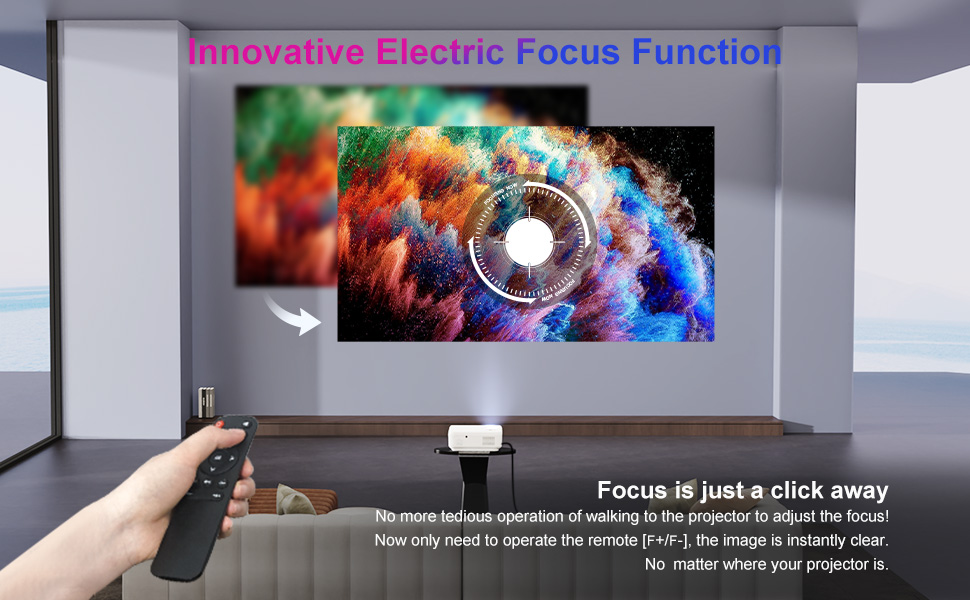
Image: A hand holding the projector's remote control, illustrating the innovative electric focus function for easy image clarity adjustment.
3.6. Full Sealed Optical Engine
The fully sealed optical engine design protects internal components from dust, significantly extending the projector's lifespan and maintaining image quality.

Image: A visual summary of key features: Zoom Function, Multimedia Connection, 4P Keystone Correction, and Dust-Proof Optical Engine.
4. Setup
4.1. Initial Placement
Place the projector on a stable, flat surface or mount it to the ceiling. Ensure there is adequate ventilation around the projector to prevent overheating.
4.2. Power Connection
- Connect the power cable to the projector's power input port.
- Plug the other end of the power cable into a power outlet.
- Press the power button on the projector or remote control to turn it on.
4.3. Focus and Keystone Adjustment
- Once powered on, project an image onto your screen or wall.
- Use the remote control to adjust the electric focus until the image is clear and sharp.
- If the image appears trapezoidal, use the 4P/4D keystone correction function via the remote control to adjust the image corners until it forms a perfect rectangle.
5. Operating Instructions
5.1. Connecting Devices
The ONO1 Pro supports multiple input sources:
- HDMI: Connect laptops, gaming consoles, Blu-ray players, etc., using an HDMI cable. Select the corresponding HDMI input from the projector's source menu.
- USB: Insert a USB drive to play media files (photos, videos, music). Select 'USB' from the source menu.
- Wireless Screen Mirroring (WiFi):
- Ensure your projector and mobile device are connected to the same WiFi network.
- Select 'Screen Mirroring' or 'Wireless Display' from the projector's main menu.
- On your mobile device (iOS/Android), enable screen mirroring/casting and select the projector from the list of available devices.
- Bluetooth: Connect external Bluetooth speakers for audio output or use the projector as a Bluetooth speaker for your phone. Navigate to the Bluetooth settings in the projector's menu.
5.2. Menu Navigation
Use the remote control's arrow keys and 'OK' button to navigate through the projector's on-screen menu. Access settings for picture, sound, network, and system preferences.
5.3. Adjusting Projection Size
The projector can produce a large screen size, up to 300 inches, depending on the projection distance. Use the digital zoom function to adjust the image size without moving the projector.

Image: The projector creating a large 300-inch display in a home theater setting, emphasizing an immersive viewing experience.
6. Maintenance
- Lens Cleaning: Use the provided cleaning cloth or a soft, lint-free cloth to gently wipe the projector lens. Do not use abrasive cleaners.
- Dust Removal: Periodically clean the projector's vents to ensure proper airflow and prevent dust buildup. The sealed optical engine minimizes internal dust accumulation.
- Storage: When not in use for extended periods, store the projector in a cool, dry place, ideally in its original packaging or a protective bag.
- Power Off Properly: Always turn off the projector using the power button and allow it to cool down before unplugging or moving.
7. Troubleshooting
Refer to the table below for common issues and their solutions:
| Problem | Possible Cause | Solution |
|---|---|---|
| No image displayed | Power cable loose; Incorrect input source; Device not connected properly. | Check power connection; Select correct input source (HDMI, USB, WiFi); Reconnect device. |
| Image is blurry | Focus not adjusted; Lens dirty. | Use remote to adjust electric focus; Clean the projector lens. |
| Image is trapezoidal | Keystone not adjusted. | Adjust 4P/4D keystone correction via remote control. |
| No sound | Volume too low; Muted; External audio device not connected/selected. | Increase volume; Unmute; Check Bluetooth connection or external speaker connection. |
| WiFi connection unstable | Distance from router; Interference; Router issues. | Move projector closer to router; Reduce interference; Restart router. |
8. Specifications
| Feature | Detail |
|---|---|
| Model Number | ONO1 Pro |
| Native Resolution | 1920 x 1080P Full HD |
| Supported Resolution | Up to 4K |
| Connectivity | 5G/2.4G WiFi, Bluetooth, HDMI, USB |
| Keystone Correction | ±50° 4P/4D Digital Keystone |
| Focus Adjustment | Electric Focus (via remote) |
| Zoom Function | Digital Zoom |
| Optical Engine | Full Sealed Dust-Proof |
| Item Weight | 2.86 pounds |
| Product Dimensions | 5 x 14 x 10 inches |
| Recommended Use | Home Entertainment, Outdoor Use |
9. Warranty and Support
The ONOAYO ONO1 Pro Projector comes with a standard manufacturer's warranty. Please refer to the warranty card included in your package for specific terms and conditions. For technical support, troubleshooting assistance, or warranty claims, please contact ONOAYO customer service through the contact information provided on the product packaging or the official ONOAYO website.
Related documentsONO1 Pro


Ask a question about this manual
Ask about setup, troubleshooting, compatibility, parts, safety, or missing instructions. Manuals+ will review the question and use this page’s manual context to help answer it.