
Introduction
This manual provides instructions for the installation, operation, and maintenance of the Firstech Drone FT-KL1 Vehicle Key Locker. The FT-KL1 is designed to integrate with your existing Drone system, offering secure key storage and vehicle access management. Please read this manual thoroughly before using the product.
Product Overview
The Drone FT-KL1 Vehicle Key Locker allows for secure storage of vehicle keys within your car, enabling keyless access and car-sharing functionalities through the DroneMobile app and an optional KP1 Keyless Entry Touchpad. It operates using LTE connectivity for extended range, providing control, tracking, and sharing capabilities from virtually anywhere.
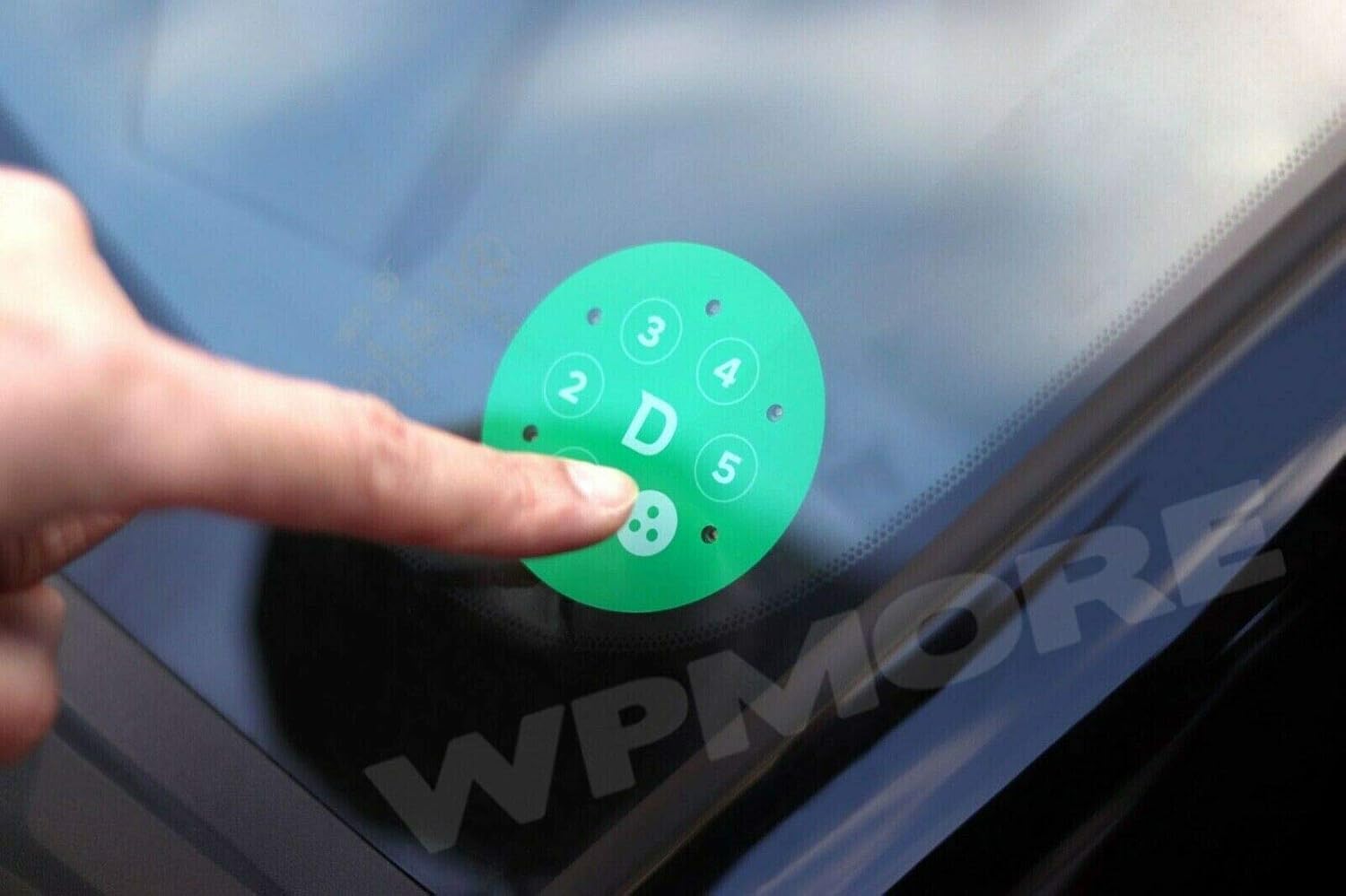
Image: The Firstech Drone FT-KL1 Vehicle Key Locker unit, showcasing its compact design.
Setup and Installation
The FT-KL1 requires integration with a compatible Drone system (X1-LTE, X1MAX-LTE). Professional installation is recommended to ensure proper functionality and vehicle integration.
Components
- FT-KL1 Vehicle Key Locker Unit
- KP1 Keyless Entry Touchpad (optional, for alternative access)
Initial Setup Steps
- Ensure your Drone system (X1-LTE or X1MAX-LTE) is already installed and operational.
- Connect the FT-KL1 unit to your vehicle's power source and the Drone system according to the detailed wiring diagram provided by Firstech. Refer to the full installation guide from Firstech for specific vehicle models.
- Securely mount the FT-KL1 unit in a discreet yet accessible location within the vehicle, such as a center console or glove compartment.
- If using the KP1 Keyless Entry Touchpad, install it on the vehicle's exterior, typically on the windshield, and pair it with the FT-KL1 unit as per the pairing instructions.
- Activate the FT-KL1 through the DroneMobile app by following the in-app prompts for new device registration.

Image: A hand placing a vehicle key into the FT-KL1 Key Locker, demonstrating its in-car placement.
Operating Instructions
Using the DroneMobile App
The DroneMobile app is the primary interface for controlling the FT-KL1 and your vehicle's access.
- Download and install the DroneMobile app on your smartphone from your device's app store.
- Log in with your DroneMobile account credentials.
- Select your vehicle from the app's main screen.
- To lock or unlock the key locker, tap the corresponding lock/unlock icons within the app interface.
- To start or stop the vehicle (if integrated with remote start), use the designated start/stop button in the app.
- For car-sharing, generate time-based 6-digit PIN codes within the app and share them with authorized users for temporary access.

Image: The DroneMobile app interface on a smartphone, displaying options to start/stop, lock, and unlock the vehicle.
Using the KP1 Keyless Entry Touchpad (Optional)
The KP1 touchpad provides an alternative method for vehicle access without needing your smartphone.
- Enter your Master PIN on the KP1 touchpad to unlock the vehicle and the key locker.
- To lock the vehicle and key locker, press the designated lock button on the touchpad.
- For shared access, use a time-based PIN generated from the DroneMobile app, which can be entered on the KP1 touchpad.

Image: The FT-KL1 Key Locker with a car key placed securely inside, demonstrating its storage capability.
Maintenance
The FT-KL1 is designed for minimal maintenance to ensure long-term reliability.
- Keep the unit clean and free from dust and debris. Use a soft, dry cloth for cleaning. Avoid abrasive cleaners or solvents.
- Avoid exposing the unit to extreme temperatures, direct sunlight for prolonged periods, or excessive moisture.
- The internal battery is rechargeable. Ensure the vehicle's electrical system is functioning correctly to maintain the unit's charge.
- Regularly update the DroneMobile app to ensure compatibility and access to the latest features and security enhancements.
Troubleshooting
Common Issues and Solutions
- Unit Not Responding:
- Check the vehicle's battery and power connections to the FT-KL1.
- Ensure LTE connectivity is active for the Drone system.
- Verify the DroneMobile app is updated to the latest version.
- Key Locker Not Opening/Closing:
- Confirm the command was sent successfully via the app or touchpad.
- Check for any physical obstructions preventing the locker mechanism from operating.
- KP1 Touchpad Not Working:
- Ensure the touchpad is correctly paired with the FT-KL1.
- Verify the Master PIN is entered correctly.
- Check for physical damage to the touchpad.
- Compatibility Issues:
- The FT-KL1 is designed for use with Drone X1-LTE and X1MAX-LTE systems. Compatibility with other Firstech systems, such as the DC3, may require specific firmware updates or may not be supported. Always verify compatibility with Firstech support before purchase or installation.
If issues persist after attempting these solutions, contact Firstech customer support for further assistance.
Specifications
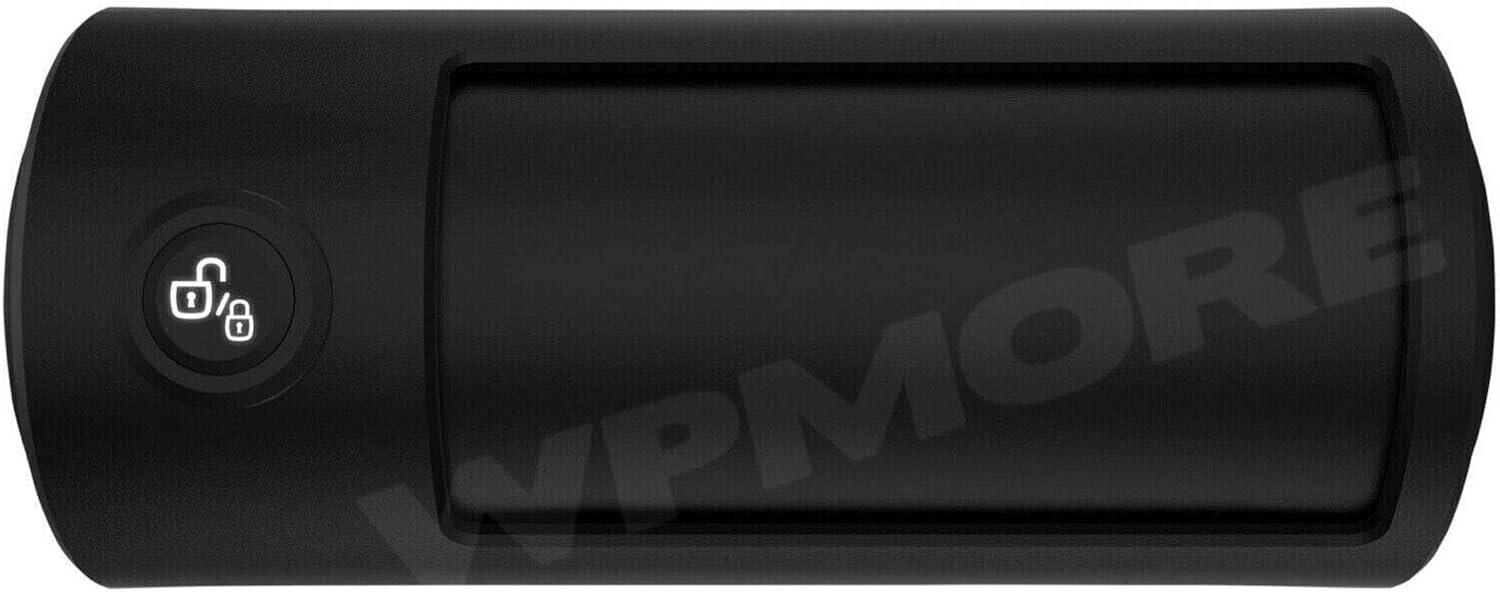
Image: Top view of the FT-KL1 Key Locker, highlighting its sleek design and control button.
| Feature | Detail |
|---|---|
| Model Name | FT-KL1 |
| Brand | Drone (Firstech) |
| Compatible Devices | Drone X1-LTE, X1MAX-LTE |
| Connectivity Technology | LTE |
| Controller Type | Button Control, Voice Control (via app) |
| Battery Type | Rechargeable |
| UPC | 829543003176 |
| Manufacturer | Firstech |
Warranty and Support
For detailed warranty information regarding your Firstech Drone FT-KL1 Vehicle Key Locker, please refer to the official Firstech website or the documentation included with your original purchase. Warranty terms and conditions may vary.
For technical support, product inquiries, or service, please contact Firstech customer service directly. Their team can provide assistance with installation, operation, and troubleshooting.
Firstech Contact Information:
- Website: www.firstechllc.com
- Phone: Refer to the official Firstech website for current contact numbers and support hours.


