
Introduction
This manual provides detailed instructions for the installation, operation, and maintenance of your Kingslim D4 4K Dual Dashcam. Please read this manual thoroughly before using the device to ensure proper functionality and safety.
Package Contents
Verify that all items are present in your package:
- Kingslim D4 4K Dual Dashcam (Main Unit)
- Rear Camera (1080p)
- Power Cable
- Rear Camera Cable
- Suction Cup Mount
- 3M Adhesive Pads (for mounting)
- User Manual
Setup
1. Installing the Front Dashcam
- Clean the Windshield: Ensure the area on your windshield where the dashcam will be mounted is clean and dry.
- Attach the Mount: Secure the suction cup mount or 3M adhesive pad to the windshield. For 3M adhesive, ensure firm pressure for optimal adhesion.
- Mount the Dashcam: Slide the Kingslim D4 main unit onto the mount until it clicks into place. Adjust the camera angle to ensure a clear view of the road ahead.
- Connect Power: Plug the power cable into the dashcam and route it along the windshield edge and dashboard to the car's power outlet (cigarette lighter socket).
2. Installing the Rear Camera
- Choose Location: The rear camera can be installed inside the rear window or externally (if waterproof). Ensure the lens has a clear view.
- Secure the Camera: Use the provided adhesive to secure the rear camera.
- Route Cable: Connect the rear camera cable to the rear camera and route it neatly to the front dashcam. Connect the other end to the designated port on the main unit.

Image: Kingslim D4 Dashcam showing the main unit (front camera) and the separate rear camera. The main unit is labeled 'Vorderseite' (Front) and the rear camera 'Rückseite' (Rear).
Operating Instructions
1. Power On/Off
The dashcam will automatically power on and begin recording when your vehicle starts. It will power off automatically when the vehicle is turned off.
2. Touchscreen Operation
The Kingslim D4 features a 3-inch IPS touchscreen for easy navigation and settings adjustment. Tap the screen to access menus and switch between camera views.

Image: A hand touching the 3-inch IPS touchscreen of the Kingslim D4 Dashcam, demonstrating its ease of use for menu navigation.
3. Recording Modes
- Loop Recording: The dashcam continuously records, overwriting the oldest files when the memory card is full.
- Emergency Recording (G-Sensor): In the event of a sudden impact or collision, the built-in G-sensor will automatically lock the current video footage, preventing it from being overwritten.
- Parking Monitor: When the vehicle is parked and the dashcam detects a collision, it will automatically record a 20-second video. This feature requires a continuous power supply (hardwire kit, sold separately, may be needed for 24/7 monitoring).

Image: Visual representation of the G-sensor detecting a collision between two cars and the parking monitor feature showing a car in a parking lot with detection zones.
4. Wi-Fi and GPS Functionality
- Wi-Fi Connectivity: Connect your smartphone to the dashcam via Wi-Fi using the dedicated app (available for iOS and Android). This allows you to view live footage, download recorded videos, and adjust settings directly from your phone.
- GPS Tracking: The built-in GPS module records your driving route and speed. This data can be viewed via the mobile app or a dedicated GPS player on your computer.
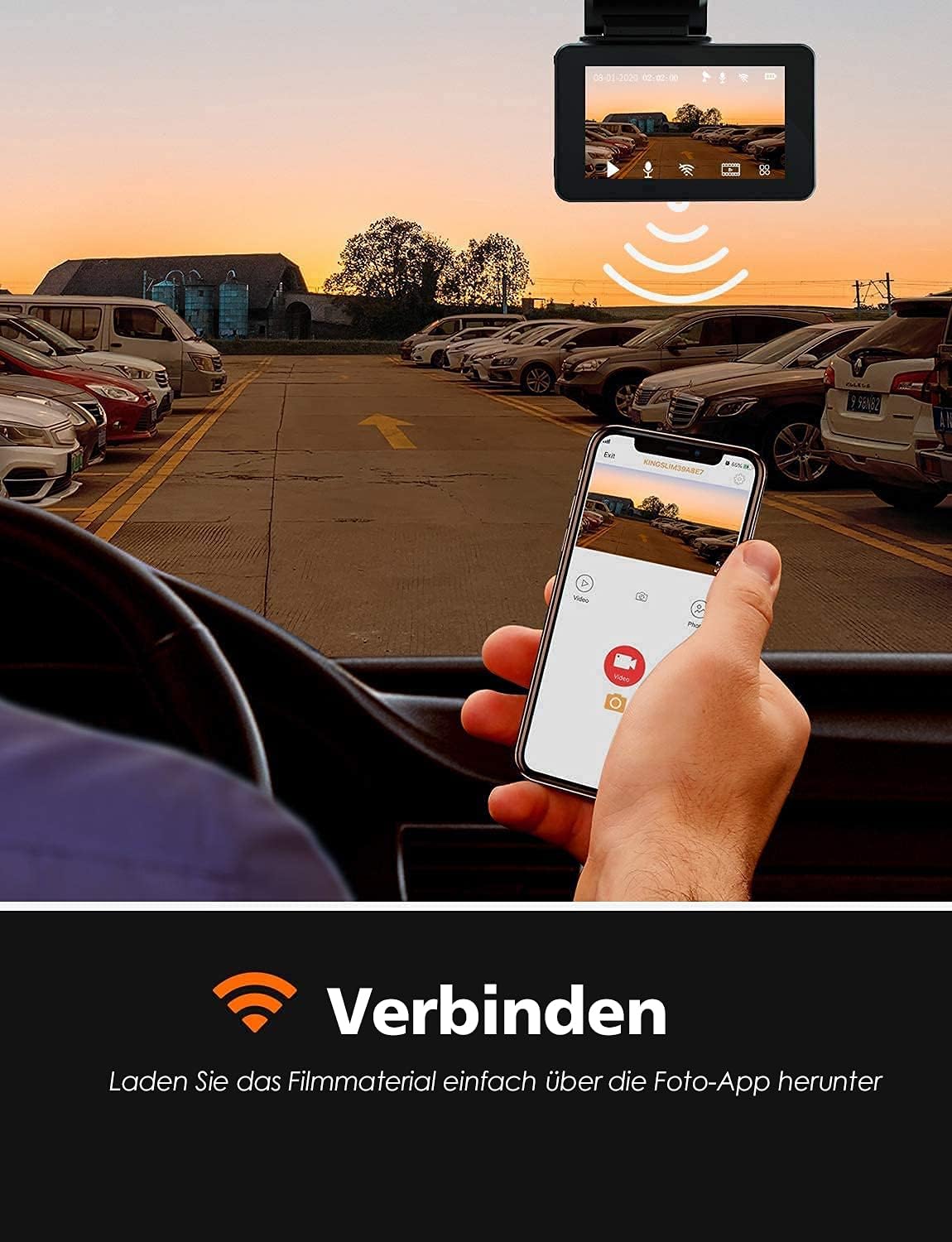
Image: A smartphone displaying the Kingslim app interface, showing video playback and connection status, indicating Wi-Fi functionality.

Image: A laptop screen displaying dashcam video footage alongside a map showing the recorded GPS route, illustrating the GPS tracking feature.
Maintenance
- Memory Card: Regularly format the microSD card (at least once a month) to prevent data corruption and ensure optimal performance. Use a high-speed (Class 10 or U3) microSD card from a reputable brand, up to 256GB.
- Lens Cleaning: Keep the camera lenses clean to ensure clear video quality. Use a soft, lint-free cloth.
- Firmware Updates: Check the Kingslim official website for any available firmware updates to improve performance and add new features.
- Operating Temperature: The dashcam is designed to operate within a temperature range of -4°F to 140°F (-20°C to 60°C). Avoid exposing the device to extreme temperatures outside this range.

Image: A 256GB microSD card shown next to the dashcam, indicating the maximum supported storage capacity.

Image: The dashcam depicted in both snowy winter and autumnal settings, highlighting its operational temperature range of -4°F to 140°F.
Troubleshooting
| Problem | Possible Cause | Solution |
|---|---|---|
| Dashcam does not power on. | No power supply; faulty cable; car power outlet issue. | Check power cable connection; test power outlet with another device; try a different power cable. |
| Poor video quality. | Dirty lens; incorrect resolution settings; low light conditions. | Clean lenses; ensure 4K/2.5K resolution is selected; verify WDR/Night Vision settings. |
| Memory card error. | Incompatible card; card full; card corrupted. | Use a Class 10/U3, 256GB max card; format the card regularly; replace the card if corrupted. |
| Wi-Fi connection issues. | Incorrect app settings; interference; dashcam Wi-Fi off. | Ensure Wi-Fi is enabled on dashcam; restart dashcam and phone; check app permissions. |
| GPS not working. | Poor satellite signal; dashcam not receiving signal. | Ensure dashcam has a clear view of the sky; wait for GPS signal acquisition (may take a few minutes). |
Specifications
- Brand: Kingslim
- Model Name: Kingslim D4
- Video Resolution: Front: 4K (2160p @ 25fps) / 2.5K; Rear: 1080p
- Field of View: 170 Degrees (Front)
- Screen Size: 3-inch IPS Touchscreen LCD
- Connectivity: Wi-Fi, GPS
- Sensor: Sony IMX335 STARVIS Sensor, Hisilicon Hi3559 Processor
- Aperture: F1.8
- Storage: Supports up to 256GB microSD card (Class 10/U3 recommended)
- Special Features: G-Sensor, Loop Recording, Parking Monitor, WDR (Wide Dynamic Range), Night Vision
- Supported Formats: H.264, exFAT
- Mounting Type: Suction cup mount / 3M Adhesive pads
- Color: Black
- Item Dimensions (D x W x H): 21 cm x 6 cm x 13 cm
- Batteries Included: No
- UPC: 810035157903

Image: An exploded view of the Kingslim D4 dashcam lens components, highlighting the 6-layer glass lens, F1.8 aperture, Hi3559V200 chip, and Sony IMX335 sensor.
Warranty Information
The Kingslim D4 Dashcam typically comes with a 1-year manufacturer's warranty. Please refer to the warranty card included in your package or visit the official Kingslim website for detailed warranty terms and conditions.
Customer Support
For technical assistance, troubleshooting, or warranty claims, please contact Kingslim customer support through their official website or the contact information provided in your product packaging. Ensure you have your product model (D4) and purchase details ready when contacting support.


