
1. Introduction
This manual provides detailed instructions for the installation, operation, and maintenance of your FoMaKo NDI PTZ Camera KN20A Pro. This camera features AI auto-tracking, 20x optical zoom, and multiple output interfaces including HDMI, 3G-SDI, IP, NDI, and USB3.0. It is designed for professional video production and live streaming in various environments such as churches, educational institutions, and event venues.
2. What's in the Box
Verify that all items are present in the package:
- FoMaKo AI Tracking NDI PTZ Camera (20x optical zoom)
- IR Remote Controller
- Wall Mount Bracket
- Ceiling Bracket
- USB Cable
- Power Adapter (12V 2A)
- User Manual (this document)

Image 2.1: FoMaKo NDI PTZ Camera KN20A Pro and its standard accessories.
3. Product Features Overview
- Official NDI 6 & NDI HX3 Certification: Ensures stable and high-quality video transmission, even with limited bandwidth.
- 20x Optical Zoom: Provides clear, detailed images from a distance.
- Advanced AI Auto-Tracking (Gen 3): Offers customizable tracking modes, sensitivity, and target switching.
- Multiple Video Output Interfaces: Simultaneous 3G-SDI, HDMI, LAN/Ethernet, and USB3.0 for versatile connectivity.
- Power over Ethernet (PoE) Support: Simplifies installation by providing power and data through a single Ethernet cable.
- Efficient Video Encoding: Supports H.264/H.265 for fluent motion video under various bandwidth conditions.
- Low Light Performance: High SNR CMOS combined with 2D & 3D noise reduction for clear images in challenging lighting.
- Precise Gear Transmission Structure: Ensures accurate preset positioning and enhanced durability compared to belt-driven systems.
- Multiple Control Methods: Includes IR remote, dedicated PTZ controller, web interface, OBS/vMix PTZ plugins, and StreamDeck compatibility.

Image 3.1: Visual representation of the camera's core features.
4. Setup
4.1 Physical Installation
The FoMaKo NDI PTZ Camera supports three primary installation methods:
- Wall Mount: Securely attach the camera to a vertical surface using the provided wall mount bracket.
- Tripod Mount: Mount the camera on a standard tripod for portable or temporary setups.
- Ceiling Mount: Install the camera inverted on a ceiling using the provided ceiling bracket. The camera automatically adjusts its image and control orientation when mounted upside down.

Image 4.1: Examples of camera installation methods.
4.2 Connections
Connect the camera to your system using the appropriate ports on the rear panel:
- 3G-SDI Output: For professional video transmission over coaxial cable.
- HDMI Output: For direct connection to displays or video switchers.
- USB3.0 Output: For direct connection to a computer for live streaming or recording.
- LAN/Ethernet Port: For IP streaming (NDI, RTSP, RTMP, SRT), control (VISCA over IP), and PoE power.
- RS232/RS485: For serial control using a PTZ controller.
- Line In: 3.5mm audio input.
- DC12V: Power input if not using PoE.
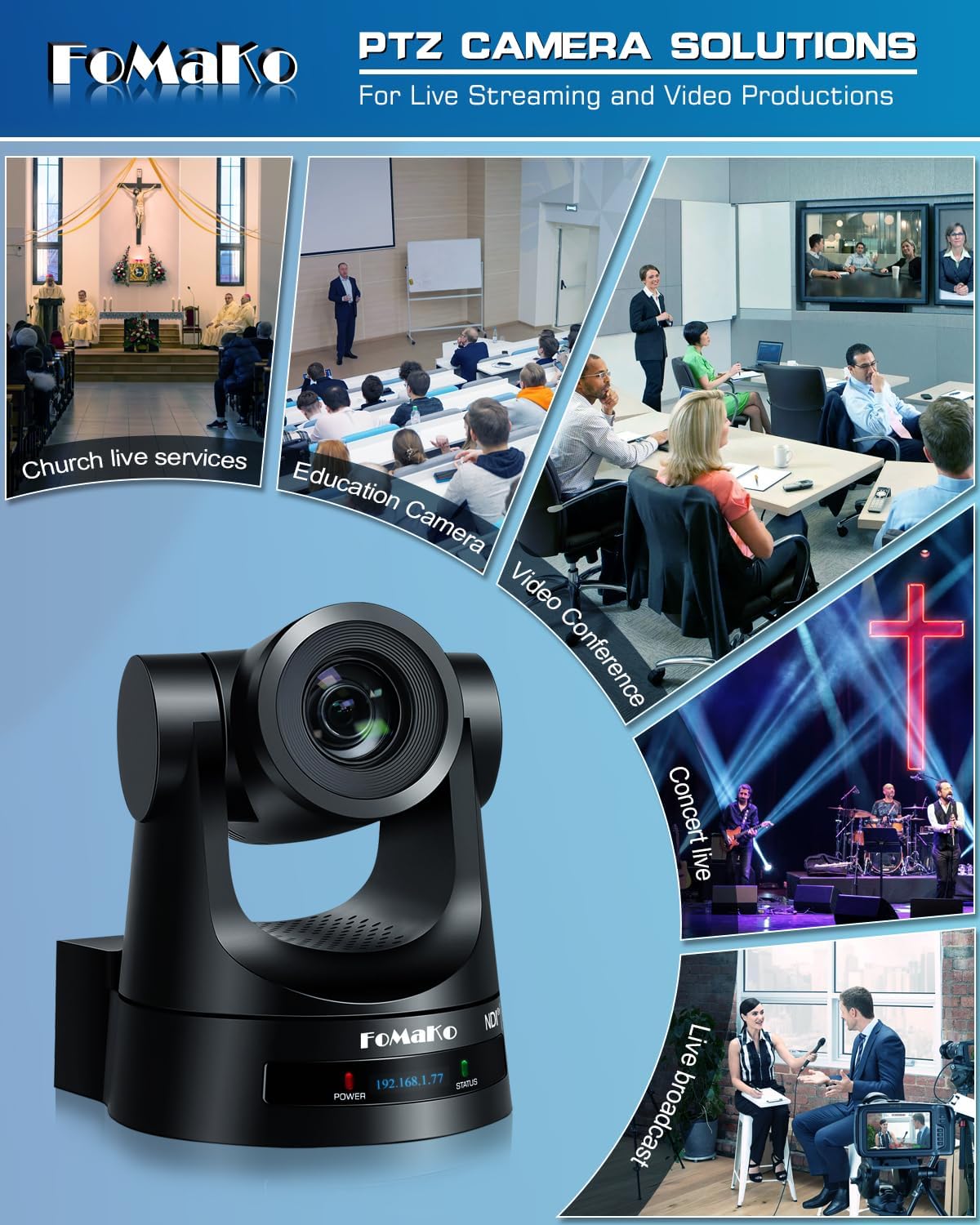
Image 4.2: Rear panel connections.
4.3 Network Configuration
For IP-based control and streaming, configure the camera's network settings. This can typically be done via the camera's web interface or on-screen display (OSD) menu.
- DHCP: Enable DHCP for automatic IP address assignment or disable it to set a static IP.
- IP Address, Subnet Mask, Gateway: Manually configure these settings if DHCP is disabled.
Access the camera's web interface by entering its IP address into a web browser. The default IP address is often printed on the camera or can be found using an NDI discovery tool.

Image 4.3: Network settings interface.
5. Operating Instructions
5.1 Basic Controls
The camera can be controlled using the IR remote, a dedicated PTZ controller, or the web interface.
- Pan/Tilt/Zoom: Use the joystick on a PTZ controller or directional buttons on the IR remote/web interface to adjust the camera's view.
- Speed Adjustment: Pan, tilt, and zoom speeds can be adjusted to achieve smooth camera movements. Preset speed is also adjustable.
- Focus: The camera features fast auto-focus. Manual focus adjustment is also available.
5.2 AI Auto-Tracking
The third-generation AI auto-tracking system allows the camera to automatically follow a designated subject.
- Activation: Press the F2 button on the IR remote control to activate automatic tracking.
- Target Switching: Press the F4 button on the IR remote to switch between detected tracking targets.
- Customization: Adjust tracking modes, sensitivity, figure size, AI-track speed, horizontal tracking only, character position, and lost target action via the camera's settings menu or web interface.

Image 5.1: AI Tracking Gen 3 settings and capabilities.
5.3 Presets
The camera supports up to 255 preset positions, allowing quick recall of specific camera angles and zoom levels. Ten presets can be accessed directly via the IR remote control.
- Setting Presets: Position the camera to the desired view, then use the remote or controller to save the preset. Refer to the detailed manual for specific steps.
- Recalling Presets: Use the preset buttons on the remote or controller to move the camera to a saved position.
6. Maintenance
To ensure optimal performance and longevity of your FoMaKo NDI PTZ Camera, follow these maintenance guidelines:
- Cleaning: Use a soft, dry cloth to clean the camera body. For the lens, use a specialized lens cleaning cloth and solution. Avoid abrasive materials or harsh chemicals.
- Environment: Operate and store the camera in a clean, dry environment, away from extreme temperatures, humidity, and direct sunlight.
- Firmware Updates: Periodically check the FoMaKo website for firmware updates to ensure your camera has the latest features and performance enhancements.
- Cable Management: Ensure all cables are securely connected and not under strain to prevent damage to ports or cables.
7. Troubleshooting
If you encounter issues with your camera, refer to the following common troubleshooting steps:
- No Power: Ensure the power adapter is correctly connected or that your PoE switch is providing power if using PoE. Check power indicators on the camera.
- No Video Output: Verify all video cables (HDMI, SDI, USB, Ethernet) are securely connected. Check input selections on your display or switcher. Ensure the camera is powered on.
- No Network Connection: Confirm Ethernet cable connection. Check network settings (IP address, subnet mask, gateway) in the camera's web interface. Ensure the camera and controlling device are on the same network segment.
- PTZ Control Not Responding: Check remote control batteries. Ensure the camera is receiving IR signals or that the network/serial control connection is active. Verify the correct camera ID is selected on the controller.
- Auto-Tracking Issues: Ensure AI auto-tracking is enabled (F2 on remote). Check tracking sensitivity and other settings in the menu. Ensure the subject is clearly visible and within the camera's tracking range.
- Image Quality Issues: Check lighting conditions. Ensure lens is clean. Adjust exposure and white balance settings if necessary.
For more detailed troubleshooting or issues not covered here, please refer to the full user manual PDF available online or contact FoMaKo customer support.
8. Specifications
| Feature | Specification |
|---|---|
| Brand Name | FoMaKo |
| Model Number | KN20A |
| Item Weight | 2.64 pounds |
| Product Dimensions | 5.63 x 6.93 x 6.65 inches |
| Color | Black |
| Special Features | AI tracking NDI PTZ Camera |
| Optical Zoom | 20x |
| Video Capture Resolution | 1080p |
| Shooting Modes | Automatic |
| Exposure Control Type | Automatic |
| Connectivity | 3G-SDI, HDMI, IP (NDI 6 & NDI HX3), USB3.0, RS232, RS485, PoE |
9. Warranty and Support
FoMaKo is committed to providing excellent customer service and product reliability.
- Warranty: The product includes a 3-Year Limited Warranty.
- Money-Back Guarantee: A 30-Day No-Questions-Asked Money-Back Guarantee is provided for risk-free purchase.
- Online Training: Free online training is available to help users get started easily.
- Expert Assistance: 24/7 expert assistance is available, with responses typically within 24 hours. Please include your Order ID when contacting support.
- Remote Assistance: Remote assistance for setup can be provided if necessary.
- Lifetime Technical Support: Enjoy lifetime customer technical support for your product.

Image 9.1: FoMaKo customer support and warranty information.


