
Moxee MT-T800
Moxee MT-T800 Tablet User Manual
Model: MT-T800 | Brand: Moxee
1. Introduction
Thank you for choosing the Moxee MT-T800 Tablet. This manual provides essential information to help you get started, understand the features, and maintain your device. Please read this manual carefully before using your tablet to ensure proper operation and to maximize its lifespan.
2. Safety Information
To prevent damage to your device or injury to yourself or others, please observe the following safety precautions:
- Do not expose the tablet to extreme temperatures, direct sunlight, or high humidity.
- Avoid dropping or subjecting the tablet to severe impact.
- Use only approved chargers and accessories.
- Do not attempt to disassemble or repair the tablet yourself. Refer to qualified service personnel.
- Keep the tablet away from medical devices, as it may interfere with their operation.
3. Package Contents
Please check the box for the following items:
- Moxee MT-T800 Tablet
- USB Charging Cable
- Power Adapter
- Case or Cover (if included with your specific package)
- Quick Start Guide
If any items are missing or damaged, please contact your retailer.
4. Product Overview
Familiarize yourself with the physical features of your Moxee MT-T800 Tablet.

Figure 4.1: Overall view of the Moxee MT-T800 Tablet, showing both the front display and the textured back panel with the camera module.
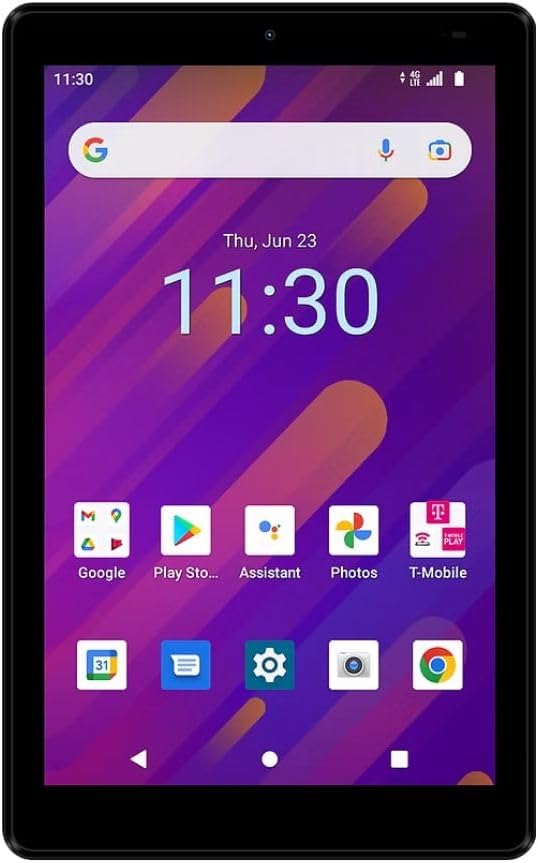
Figure 4.2: Front view of the Moxee MT-T800 Tablet, displaying the 8-inch screen with the Android interface, including app icons and the date/time.

Figure 4.3: Rear view of the Moxee MT-T800 Tablet, highlighting the textured back panel, the 'moxee' logo, and the rear camera module with 'AI CAMERA' text.
4.1. Physical Components
- Front Camera: Located above the display, used for video calls and selfies.
- Display: 8-inch HD+ touchscreen for interaction and content viewing.
- Power Button: Typically on the side, used to turn the tablet on/off or wake/sleep the screen.
- Volume Buttons: Usually adjacent to the power button, for adjusting audio levels.
- USB-C Port: For charging and data transfer.
- Speaker: For audio output.
- Rear Camera: Located on the back, used for taking photos and videos.
- SIM/SD Card Slot: (Location may vary) For inserting a SIM card for mobile data and an SD card for expandable storage.
5. Setup
5.1. Initial Charging
Before first use, fully charge your tablet. Connect the USB charging cable to the tablet's USB-C port and the power adapter. Plug the adapter into a wall outlet. The charging indicator will show the charging status.
5.2. Powering On/Off
- To Power On: Press and hold the Power button until the Moxee logo appears on the screen.
- To Power Off: Press and hold the Power button until the power options menu appears. Tap 'Power off' and confirm.
5.3. SIM Card and SD Card Installation
The Moxee MT-T800 supports 4G LTE connectivity and expandable storage.
- Locate the SIM/SD card tray on the side of the tablet.
- Insert the SIM ejector tool (or a small paperclip) into the small hole next to the tray to open it.
- Place your Nano-SIM card and/or microSD card into the designated slots on the tray, ensuring correct orientation.
- Gently push the tray back into the tablet until it clicks into place.
5.4. Initial Setup Wizard
Upon first power-on, the tablet will guide you through the initial setup process. This includes selecting your language, connecting to a Wi-Fi network, setting up your Google account, and configuring basic settings.
6. Operating the Tablet
6.1. Touchscreen Navigation
The tablet's primary interaction is through its capacitive touchscreen:
- Tap: To select an item or open an application.
- Touch and Hold: To access contextual menus or move items.
- Swipe: To scroll through screens or lists.
- Pinch-to-Zoom: To zoom in or out on images or web pages.
6.2. Wi-Fi Connectivity
To connect to a Wi-Fi network:
- Go to Settings > Network & internet > Wi-Fi.
- Turn on Wi-Fi.
- Select your desired network from the list.
- Enter the password if prompted, then tap Connect.
6.3. Mobile Data (4G LTE)
If you have an active SIM card with a data plan (for T-Mobile/Sprint Only):
- Go to Settings > Network & internet > Mobile network.
- Ensure Mobile data is toggled on.
- Configure APN settings if necessary, as provided by your carrier.
6.4. Mobile Hotspot
The tablet can act as a mobile hotspot, sharing its 4G LTE connection with up to 10 devices.
- Go to Settings > Network & internet > Hotspot & tethering.
- Tap Wi-Fi hotspot.
- Toggle Wi-Fi hotspot on.
- You can configure the hotspot name (SSID) and password in this menu.
6.5. Camera Usage
To use the tablet's cameras:
- Open the Camera application.
- Tap the shutter button to take a photo.
- Switch between front and rear cameras using the camera switch icon.
- Select video mode to record videos.
6.6. Bluetooth Connectivity
To connect to Bluetooth devices (e.g., headphones, speakers):
- Go to Settings > Connected devices > Bluetooth.
- Turn on Bluetooth.
- The tablet will scan for available devices. Select your device from the list to pair.
7. Maintenance
7.1. Cleaning Your Tablet
Use a soft, lint-free cloth to clean the screen and body of the tablet. Do not use abrasive cleaners or solvents.
7.2. Battery Care
- Avoid fully discharging the battery frequently.
- Do not leave the tablet connected to the charger for extended periods after it is fully charged.
- Store the tablet in a cool, dry place if not used for a long time.
7.3. Software Updates
Regularly check for system updates to ensure optimal performance and security. Go to Settings > System > System update.
7.4. Storage Management
To free up storage space, consider:
- Uninstalling unused applications.
- Deleting old photos and videos or moving them to cloud storage/SD card.
- Clearing cached data from apps (Settings > Apps & notifications > select app > Storage & cache > Clear cache).
8. Troubleshooting
If you encounter issues with your tablet, try the following solutions:
8.1. Tablet Will Not Turn On
- Ensure the battery is charged. Connect the charger and wait a few minutes before attempting to power on.
- Press and hold the Power button for at least 10-15 seconds to perform a forced restart.
8.2. No Wi-Fi Connection
- Ensure Wi-Fi is enabled in Settings.
- Restart your Wi-Fi router.
- Forget the network and reconnect (Settings > Network & internet > Wi-Fi > tap network > Forget).
8.3. Slow Performance
- Close unused applications running in the background.
- Clear app caches and manage storage as described in Section 7.4.
- Restart the tablet.
8.4. Charging Issues
- Ensure the charging cable and adapter are securely connected and undamaged.
- Try a different power outlet.
- Use only the original or certified compatible charging accessories.
If problems persist, contact customer support.
9. Specifications
| Feature | Detail |
|---|---|
| Model Name | MT-T800 |
| Display | 8-inch HD+ (1280 x 800) |
| Operating System | Android 10 |
| Processor | Octa-Core Processor (Qualcomm Chipset) |
| GPU | Adreno 505 |
| RAM | 3 GB |
| Internal Storage | 32 GB |
| Expandable Storage | Yes (microSD) |
| Rear Camera | 5 MP |
| Front Camera | 5 MP |
| Wireless Connectivity | Wi-Fi (802.11g), Bluetooth, 4G LTE (T-Mobile/Sprint Only) |
| Mobile Hotspot | Supports up to 10 devices |
| Dimensions (LxWxH) | 8.57" x 4.89" x 0.35" (Product) / 6 x 4 x 8 inches (Shipping) |
| Weight | 14.3 ounces |
| Color | Black |
| Battery | 1 Lithium Ion battery required |
10. Warranty and Support
This Moxee MT-T800 Tablet is covered by a limited warranty. For specific warranty terms and conditions, please refer to the documentation provided at the time of purchase or contact your retailer. For technical support, troubleshooting assistance, or service inquiries, please visit the official Moxee support website or contact their customer service.
Ask a question about this manual
Ask about setup, troubleshooting, compatibility, parts, safety, or missing instructions. Manuals+ will review the question and use this page’s manual context to help answer it.