
Introduction
This manual provides comprehensive instructions for setting up, operating, maintaining, and troubleshooting your Lenovo ThinkCentre M700 Small Form Factor (SFF) Desktop PC. This renewed system comes equipped with an Intel Core i5-6500 processor, 16GB RAM, a 1TB Solid State Drive, and includes a wireless keyboard, mouse, 1080p webcam, and WiFi/Bluetooth connectivity, running Windows 10 Pro.

Figure 1: Lenovo ThinkCentre M700 SFF Desktop PC with included 1080p webcam.
The image displays the compact Lenovo ThinkCentre M700 SFF desktop tower alongside its packaged 1080p webcam. This provides a visual representation of the main components included with your purchase.
Setup Guide
Follow these steps to set up your Lenovo ThinkCentre M700 SFF PC.
1. Unpacking and Component Identification
- Carefully remove all components from the packaging.
- Verify that you have the following items:
- Lenovo ThinkCentre M700 SFF Desktop PC
- Power Cable
- Wireless Keyboard
- Wireless Mouse
- USB Wireless Keyboard/Mouse Receiver
- 1080p Webcam
- USB Wi-Fi and Bluetooth Adapter

Figure 2: Included Wireless Keyboard and Mouse Set.
This image shows the wireless keyboard and mouse, along with their shared USB receiver. These peripherals connect wirelessly to your desktop for a clutter-free workspace.

Figure 3: 1080p Webcam.
The 1080p webcam is designed for high-definition video calls and streaming. It connects via a USB port on your computer.
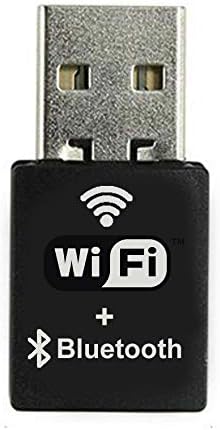
Figure 4: USB Wi-Fi and Bluetooth Adapter.
This compact USB adapter provides wireless internet (Wi-Fi) and Bluetooth connectivity for your desktop, allowing connection to networks and other Bluetooth devices.
2. Connecting Peripherals
- Connect Monitor: Use a DisplayPort or VGA cable to connect your monitor to the corresponding port on the rear of the PC.
- Connect Keyboard and Mouse: Insert the USB receiver for the wireless keyboard and mouse into any available USB port on the PC.
- Connect Webcam: Plug the webcam's USB cable into an available USB port.
- Connect Wi-Fi/Bluetooth Adapter: Insert the USB Wi-Fi and Bluetooth adapter into an available USB port.
- Connect Power: Plug the power cable into the PC's power input and then into a wall outlet or surge protector.

Figure 5: Front Panel Ports.
The front panel features the power button, two USB 3.0 ports, and audio input/output jacks for convenient access to peripherals and headphones/microphones.
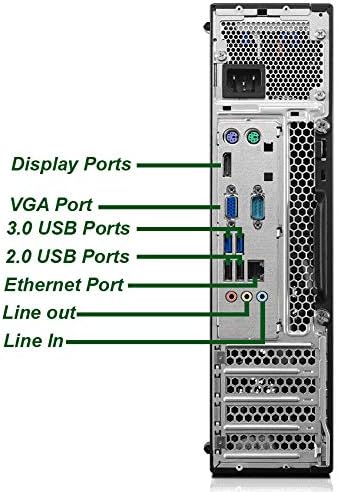
Figure 6: Rear Panel Ports.
The rear panel provides various connectivity options including Display Ports, a VGA port, multiple USB 3.0 and 2.0 ports, an Ethernet port, and audio line-in/line-out jacks for comprehensive system integration.
3. Initial Power On and Windows Setup
- Press the power button on the front of the PC.
- The system will boot into Windows 10 Pro. Follow the on-screen prompts to complete the initial setup, including region, language, network connection, and user account creation.
- Ensure all drivers are installed. Windows Update typically handles this automatically.
Operating Instructions
Basic Operation
- Power On/Off: Press the power button to turn on. To turn off, click the Start button, then Power, and select "Shut down" or "Restart".
- Sleep Mode: To put the PC to sleep, click the Start button, then Power, and select "Sleep".
- USB Ports: Use the front USB 3.0 ports for quick access devices like flash drives. Rear USB ports are ideal for permanently connected peripherals.
- Audio: Connect headphones or speakers to the green audio out port, and a microphone to the pink audio in port on the front panel.
Network and Bluetooth Connectivity
- Wi-Fi: After connecting the USB Wi-Fi adapter, click the network icon in the system tray (bottom right of screen), select your Wi-Fi network, enter the password, and connect.
- Bluetooth: To pair Bluetooth devices, go to Settings > Devices > Bluetooth & other devices. Ensure Bluetooth is turned on, then click "Add Bluetooth or other device" and follow the prompts.
Maintenance
- Cleaning: Regularly clean the exterior of the PC with a soft, dry cloth. Use compressed air to clear dust from vents and ports. Ensure the PC is powered off and unplugged before cleaning.
- Software Updates: Keep your Windows 10 Pro operating system updated by regularly checking for updates via Settings > Update & Security > Windows Update. This ensures optimal performance and security.
- Data Backup: Periodically back up important files to an external drive or cloud storage to prevent data loss.
- System Health: Consider running built-in Windows tools like Disk Cleanup and Disk Defragmenter (for HDDs, not typically needed for SSDs) to maintain system performance.
Troubleshooting
This section addresses common issues you might encounter.
- No Power:
- Check if the power cable is securely connected to both the PC and the power outlet.
- Ensure the power outlet is functional.
- No Display on Monitor:
- Verify that the monitor is powered on and connected correctly to the PC's DisplayPort or VGA port.
- Try a different port or cable if available.
- No Internet Connection (Wi-Fi):
- Ensure the USB Wi-Fi adapter is properly inserted.
- Check if Wi-Fi is enabled in Windows settings.
- Restart your router/modem.
- Keyboard/Mouse Not Responding:
- Ensure the USB receiver is plugged into a working USB port.
- Check the batteries in the keyboard and mouse.
- Try pairing them again if they are Bluetooth devices (though these are USB receiver based).
- Webcam Not Detected:
- Ensure the webcam's USB cable is securely connected.
- Check privacy settings in Windows (Settings > Privacy > Camera) to ensure apps can access the camera.
If these steps do not resolve your issue, please refer to the Support section for further assistance.
Specifications
| Feature | Detail |
|---|---|
| Model | Lenovo ThinkCentre M700 SFF |
| Processor | Intel Core i5-6500 (3.2 GHz) |
| RAM | 16 GB DDR4 |
| Storage | 1 TB Solid State Drive (SSD) |
| Graphics | Intel HD Graphics (Integrated) |
| Operating System | Windows 10 Pro (64-Bit) |
| Connectivity | WiFi (802.11n), Bluetooth, Gigabit Ethernet (RJ-45) |
| USB Ports | 4 x USB 3.0, 2 x USB 2.0 |
| Video Ports | 1 x DisplayPort, 1 x VGA |
| Audio Ports | Microphone, Headphone, Audio Line In/Out |
| Optical Drive | No DVD Drive |
| Dimensions (LxWxH) | 13.5 x 4.8 x 13.4 inches |
| Weight | 32 pounds |
| Included Peripherals | Wireless Keyboard, Wireless Mouse, 1080p Webcam, USB Wi-Fi Adapter |
Warranty and Support
Your renewed Lenovo ThinkCentre M700 SFF PC is backed by a comprehensive warranty and dedicated technical support.
- Warranty: All renewed computers are covered by a 90-day warranty from the date of purchase. This warranty covers hardware defects and malfunctions under normal use.
- Technical Support: You receive 90 days of technical support to assist with any setup, operation, or troubleshooting questions.
- Contact Support: For warranty claims or technical assistance, please contact the seller, Circuit-Tech, through the Amazon platform where the purchase was made. Provide your order number and a detailed description of the issue for prompt service.