1. Introduction
The Ducky Feather Lightweight Gaming Mouse is engineered for precision and speed, featuring the PixArt PMW3389DM optical sensor. Designed for both left and right-handed users, this mouse weighs approximately 65g and utilizes durable Omron switches for reliable performance. This manual provides essential information for setting up, operating, maintaining, and troubleshooting your Ducky Feather gaming mouse.
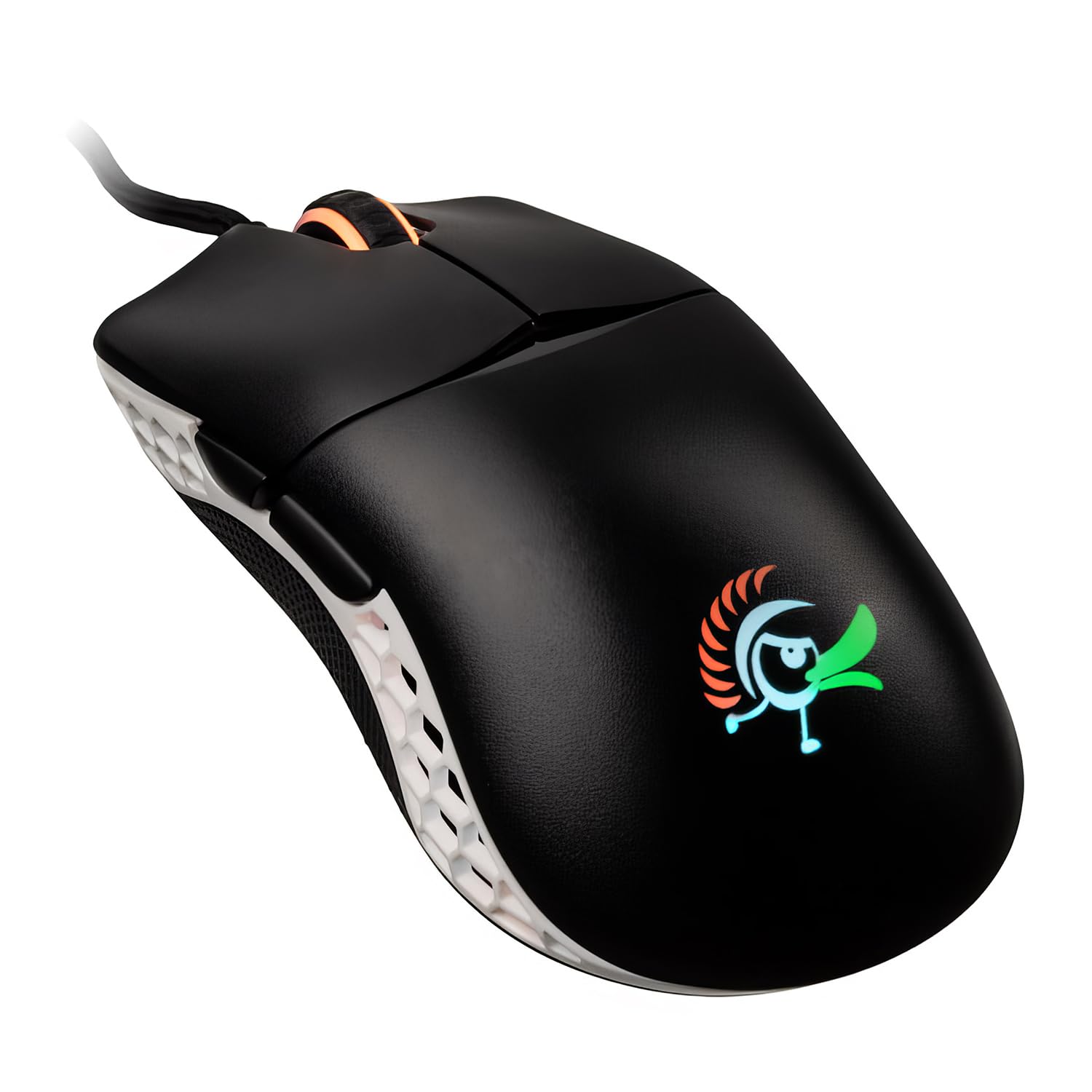
Image: The Ducky Feather Lightweight Gaming Mouse, showcasing its ergonomic design and lightweight build.
2. Package Contents
Please verify that all items are present in your package:
- Ducky Feather Lightweight Gaming Mouse
- USB Connection Cable
- User Manual (this document)
3. Setup
Follow these steps to set up your Ducky Feather gaming mouse:
- Connect the Mouse: Plug the USB connection cable from the Ducky Feather mouse into an available USB port on your computer.
- Driver Installation: The mouse is typically plug-and-play and does not require additional drivers for basic functionality. Your operating system should automatically detect and install the necessary drivers.
- Software (Optional): For advanced customization, such as DPI settings, button remapping, and macro creation, please visit the official Ducky website to download any available software for the Feather mouse.
Video: A detailed guide on setting up and configuring the Ducky Feather Gaming Mouse (1:39 duration).
4. Operating Instructions
The Ducky Feather mouse offers intuitive controls for an optimized gaming experience:
- DPI Adjustment: Use the dedicated DPI button (usually located behind the scroll wheel) to cycle through different sensitivity levels. The mouse may have an indicator light to show the current DPI setting.
- Programmable Buttons: The mouse features multiple buttons, including side buttons. These can often be customized using the Ducky software to perform specific functions or macros.
- Ambidextrous Design: The symmetrical design allows comfortable use for both left and right-handed users. Ensure any software settings are adjusted to match your preferred hand orientation if applicable.
Video: An overview of the Ducky Feather Gaming Mouse features and basic operation (0:33 duration).
5. Maintenance
Proper maintenance ensures the longevity and performance of your Ducky Feather mouse:
- Cleaning the Sensor: Periodically clean the optical sensor on the underside of the mouse with a soft, dry cloth or a cotton swab. Avoid using harsh chemicals.
- Cleaning the Surface: Wipe the mouse surface with a slightly damp, soft cloth. Do not immerse the mouse in water or use abrasive cleaners.
- Cable Care: Avoid sharp bends or excessive pulling on the USB cable to prevent damage.
- Storage: Store the mouse in a clean, dry environment when not in use.
6. Troubleshooting
If you encounter issues with your Ducky Feather mouse, refer to the following common solutions:
| Problem | Possible Solution |
|---|---|
| Mouse not detected |
|
| Erratic cursor movement |
|
| Buttons not responding |
|
7. Specifications
Key technical specifications for the Ducky Feather Lightweight Gaming Mouse:
- Model Number: DMFE20O-OAZPA7V
- Sensor: PixArt PMW3389DM Optical Sensor
- Switches: Omron (60M click lifespan)
- Weight: Approximately 2.29 ounces (65g)
- Dimensions: 4.88 x 2.32 x 1.42 inches
- Connectivity: USB
- Special Feature: Lightweight, Ambidextrous Design
- Color: Black, White
- Manufacturer: Duckychannel International Co., Ltd.
- ASIN: B0928GLWYS
8. Warranty and Support
Ducky products are manufactured to high-quality standards. For warranty information, technical support, or to access additional resources, please visit the official Ducky website or contact your local retailer.
You can also visit the Ducky Store on Amazon for product information and customer service.


