
Loftie LOFTIE-CLOCK
Loftie Alarm Clock with Sound Machine Instruction Manual
Model: LOFTIE-CLOCK
1. Introduction
The Loftie Alarm Clock is designed to enhance your sleep and wake-up experience by integrating a smart alarm, sound machine, and night light into one device. This manual provides detailed instructions for setting up, operating, and maintaining your Loftie device.

Figure 1: Loftie Alarm Clock Displaying 7:35 AM
The Loftie Alarm Clock features a two-phase alarm system, over 100 built-in sleep sounds, Bluetooth speaker functionality, and a gentle nightlight. It is designed to reduce reliance on smartphones for sleep-related functions.
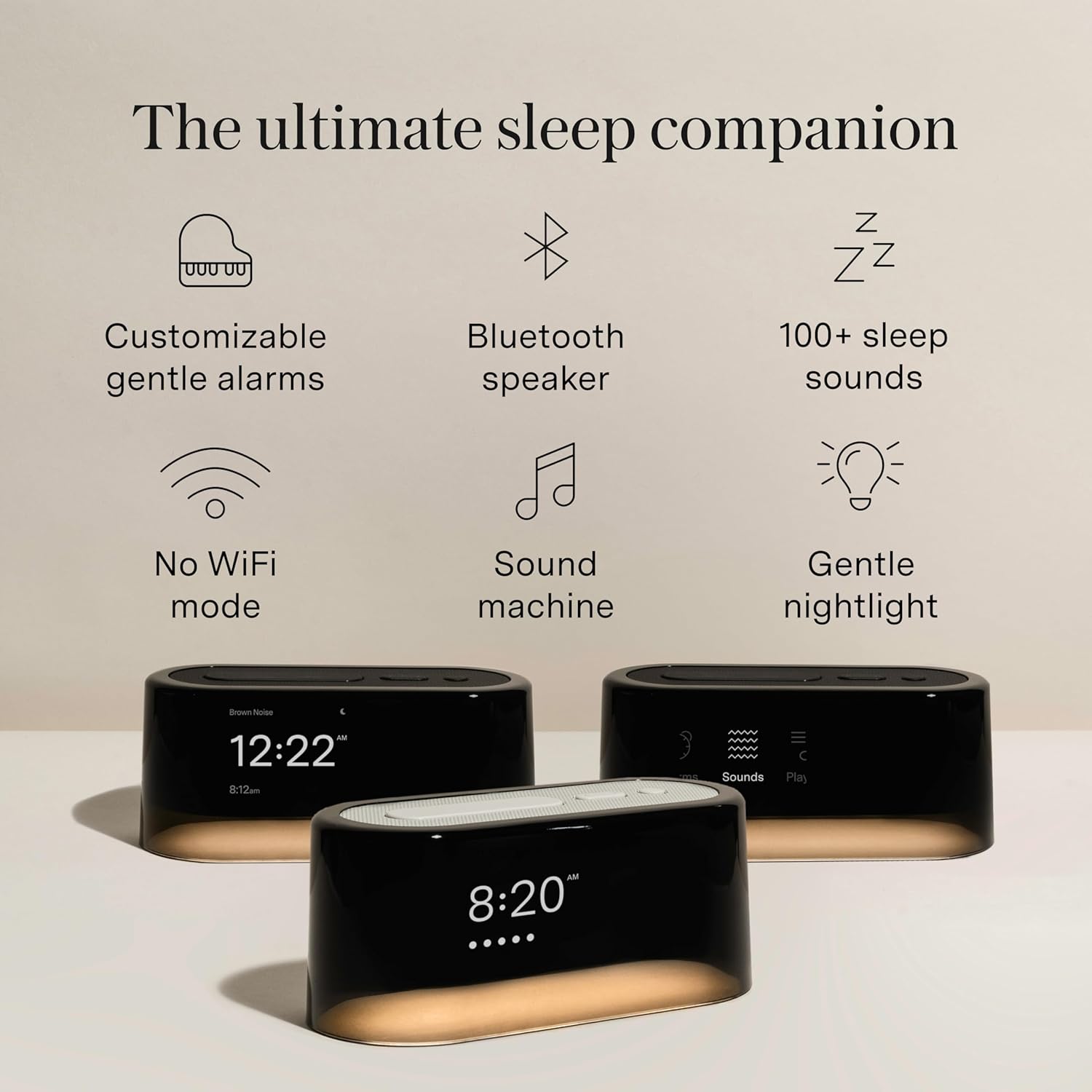
Figure 2: Loftie Features Overview
2. Setup
Initial setup of your Loftie Alarm Clock requires the Loftie app, a 2.4 GHz Wi-Fi connection, and Bluetooth. Follow these steps to get started:
- Download the Loftie App: Download the official Loftie app from the iOS App Store or Google Play Store on your smartphone.
- Power On: Connect your Loftie Alarm Clock to a power source using the provided adapter.
- Pair with App: Open the Loftie app and follow the on-screen instructions to pair your device. Ensure your smartphone's Bluetooth is enabled.
- Connect to Wi-Fi: The app will guide you through connecting your Loftie to your home's 2.4 GHz Wi-Fi network. A stable Wi-Fi connection is essential for initial setup and software updates.
- Time Synchronization: Once connected, the Loftie will automatically synchronize its time.
- Optional Offline Mode: After successful setup and time synchronization, you can enable Offline Mode through the app if you prefer to use the clock without a continuous Wi-Fi connection. The clock will retain its settings and alarms.
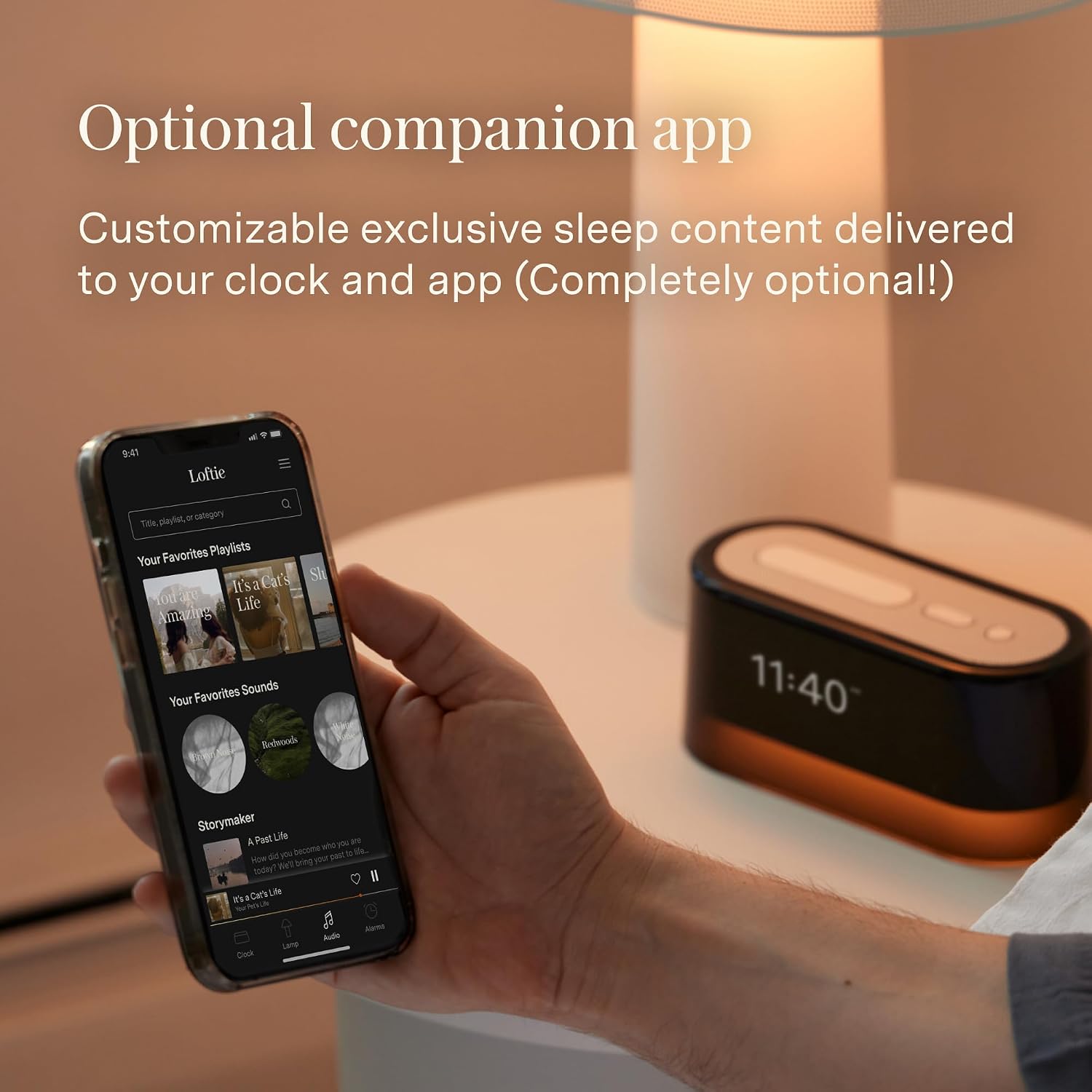
Figure 3: Optional Companion App for Setup and Control
3. Operating Instructions
3.1. Device Controls
The Loftie Alarm Clock features intuitive physical buttons on its top surface for direct control.

Figure 4: Navigating the Loftie Clock Controls
- Snooze Button: Press once to turn the nightlight on or off. Hold down to activate the blackout display mode, which turns off the screen and light while keeping alarms active.
- Arrow Buttons: Use these buttons to navigate through menus on the display. Hold either arrow button to adjust the volume of sounds and alarms.
- Select Button: Press this button to turn off an active alarm. It also functions to pause and play audio content from the sound machine or Bluetooth speaker.

Figure 5: Snooze Button Functionality

Figure 6: Arrow Buttons for Navigation and Volume

Figure 7: Select Button for Alarm and Audio Control
3.2. Alarms
The Loftie Alarm Clock utilizes a two-phase alarm system for a gentle wake-up experience:
- Phase 1 (Gentle Chime): A soft, soothing sound begins to gently rouse you from sleep.
- Phase 2 (Louder Tone): After a set interval, a louder, more persistent tone activates to ensure you are fully awake.
You can adjust the alarm volume, display brightness, and select from various alarm sounds directly on the clock or through the Loftie app. The Blackout Mode feature allows the screen and light to remain off while the alarm functions normally, ideal for those who prefer a completely dark room.

Figure 8: Gentle Wake-up Experience

Figure 9: Loftie Sleep Routine Overview
3.3. Sound Machine
The Loftie Alarm Clock includes a built-in sound machine with over 100 sleep sounds. These include white noise, nature sounds, and guided meditations, all available without a subscription. You can select and play these sounds to aid in relaxation and sleep.

Figure 10: Extensive Sound Library
3.4. Bluetooth Speaker
The device functions as a Bluetooth speaker, allowing you to stream audio from your smartphone or other Bluetooth-enabled devices. Please note that the Loftie Alarm Clock does not support headphone jacks.

Figure 11: Optimized Speaker for Sleep
3.5. Nightlight
A warm and gentle nightlight is integrated into the Loftie Alarm Clock. This light can be turned on or off with a press of the Snooze button and can also be synchronized with your alarms for a gradual wake-up illumination.

Figure 12: Integrated Nightlight
3.6. Display
The digital display is dimmable, allowing you to adjust its brightness to your preference. It shows the current time, upcoming alarms, and provides access to all Loftie features without needing the app.

Figure 13: Dimmable Display Features
3.7. App and On-Device Control
You can control and customize your Loftie Alarm Clock directly using the physical buttons on the device or through the Loftie app. Both methods allow you to set alarms, adjust settings, and manage content.

Figure 14: App and On-Device Control
4. Maintenance
To ensure the longevity and optimal performance of your Loftie Alarm Clock, follow these simple maintenance guidelines:
- Cleaning: Gently wipe the exterior of the device with a soft, dry, or slightly damp cloth. Avoid using abrasive cleaners, solvents, or harsh chemicals, as these can damage the finish.
- Placement: Place the Loftie on a stable, flat surface away from direct sunlight, excessive heat, or moisture. Ensure adequate ventilation around the device.
- Power: Use only the power adapter provided with your Loftie Alarm Clock.
5. Troubleshooting
If you encounter issues with your Loftie Alarm Clock, refer to the following troubleshooting tips:
- Device Not Powering On:
- Ensure the power adapter is securely plugged into both the device and a working electrical outlet.
- Try a different outlet to rule out power source issues.
- Wi-Fi Disconnection or Inability to Connect:
- Verify that your Wi-Fi network is 2.4 GHz. Loftie devices are not compatible with 5 GHz networks.
- Check your Wi-Fi router to ensure it is functioning correctly.
- Restart your Loftie device by unplugging it for 10 seconds and then plugging it back in.
- Re-attempt the Wi-Fi setup process through the Loftie app.
- Ensure your Loftie is within range of your Wi-Fi router.
- Alarms Not Sounding:
- Check the alarm settings in the Loftie app or directly on the device to ensure alarms are enabled and set for the correct time.
- Verify the alarm volume is not set to zero.
- If using Blackout Mode, ensure the alarm is still active.
- Bluetooth Pairing Issues:
- Ensure Bluetooth is enabled on your smartphone or audio source.
- Place the Loftie device and your audio source in close proximity during pairing.
- Forget the Loftie device from your phone's Bluetooth settings and attempt to pair again.
- Display Not Responding or Frozen:
- Perform a soft reset by unplugging the device for 10 seconds and then plugging it back in.
- If the issue persists, contact Loftie support.
6. Specifications
| Feature | Detail |
|---|---|
| Brand | Loftie |
| Model Number | LOFTIE-CLOCK |
| Color | Black |
| Display Type | Digital |
| Special Features | Special Alarm, Nightlight, Sound Machine, Bluetooth Speaker |
| Product Dimensions | 6.5"W x 2.7"H |
| Power Source | Battery Powered (with AC adapter) |
| Room Type | Bedroom |
| Material | Polycarbonate (PC), Alloy Steel Frame |
| Item Weight | 1.5 Pounds |
| Batteries | 1 x 9V battery (included) |
| Mounting Type | Tabletop |
| UPC | 860004898726 |

Figure 15: Loftie Clock Feature Comparison
7. Warranty and Support
The Loftie Alarm Clock comes with a Limited Warranty. For specific details regarding warranty coverage and duration, please refer to the documentation included with your product or visit the official Loftie website.
For technical assistance, troubleshooting beyond this manual, or warranty claims, please contact Loftie Customer Support. You can typically find contact information on the official Loftie website or within the Loftie app.
You can also visit the Loftie Store on Amazon for additional product information and resources.
Related documentsLOFTIE-CLOCK


Ask a question about this manual
Ask about setup, troubleshooting, compatibility, parts, safety, or missing instructions. Manuals+ will review the question and use this page’s manual context to help answer it.